Seleziona un'organizzazione
How to Log a Trailhead Support Case on Salesforce Help
This article helps Trailhead Academy and Trailhead customers submit and manage a support case through Salesforce Help. Learn how to submit case through Agentforce, select the correct Trailhead org, provide the right information, and track your case to help ensure a faster resolution.
Review the video below for step-by-step instructions on how to submit a Trailhead Support case.
Before You Begin
You'll need:
-
A Trailhead account (external learner account)
-
The email address associated with your Trailhead account — this is critical for routing your case correctly.
Not sure which email is your primary Trailhead email? Here’s how to check.
1. Log in to Trailhead and select your profile avatar at the top-right corner.
2. Click Settings.
3. Check the email listed under ‘Email Preferences’.
Access the Salesforce Help Portal
There are two ways to open the Salesforce Help Portal.
Option 1: From Trailhead (Recommended)
If you're already signed in to your Trailhead account:
-
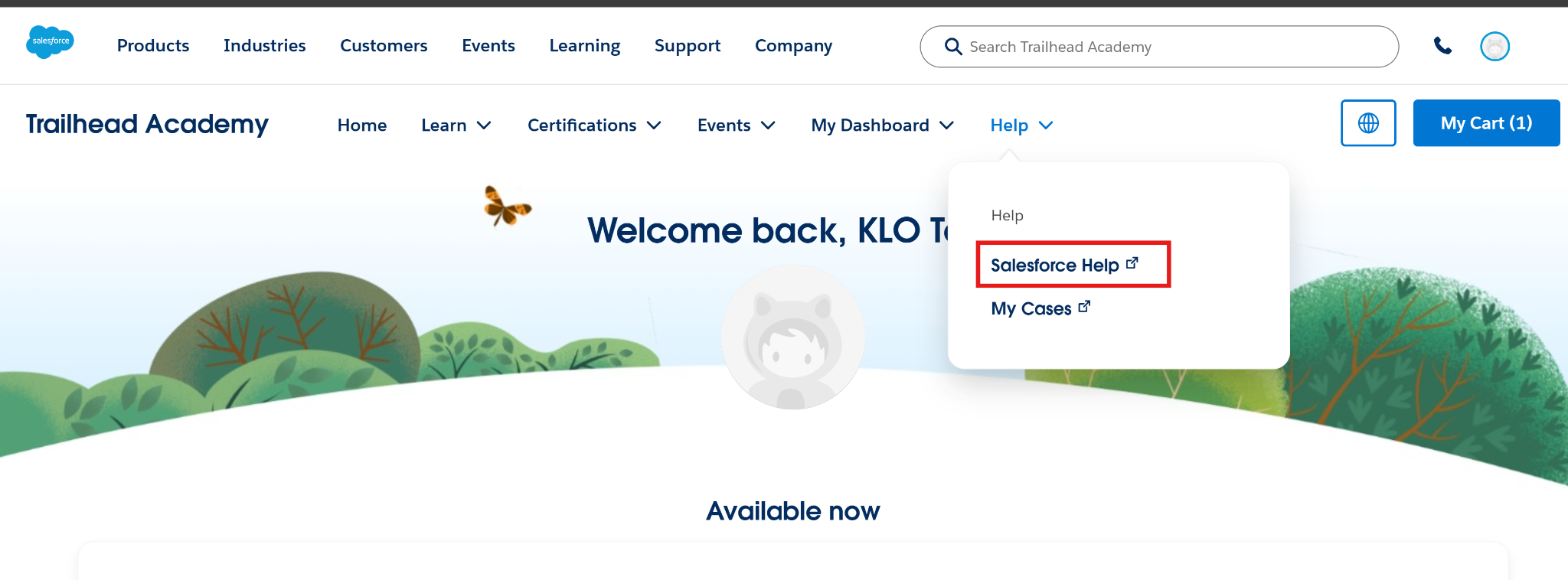
Click the Help menu at the top of the Trailhead page.
-
Select Salesforce Help from the dropdown menu. The Agentforce Help Portal will open automatically.
Option 2: From Salesforce Help
-
Go to help.salesforce.com.
-
Click Log In in the upper-right corner.
-
Sign in using the email address associated with your Trailhead account. Using the correct account ensures your case is routed to the appropriate support team.
-
Click My Cases in the top navigation.
-
Select Manage All Orgs.
-
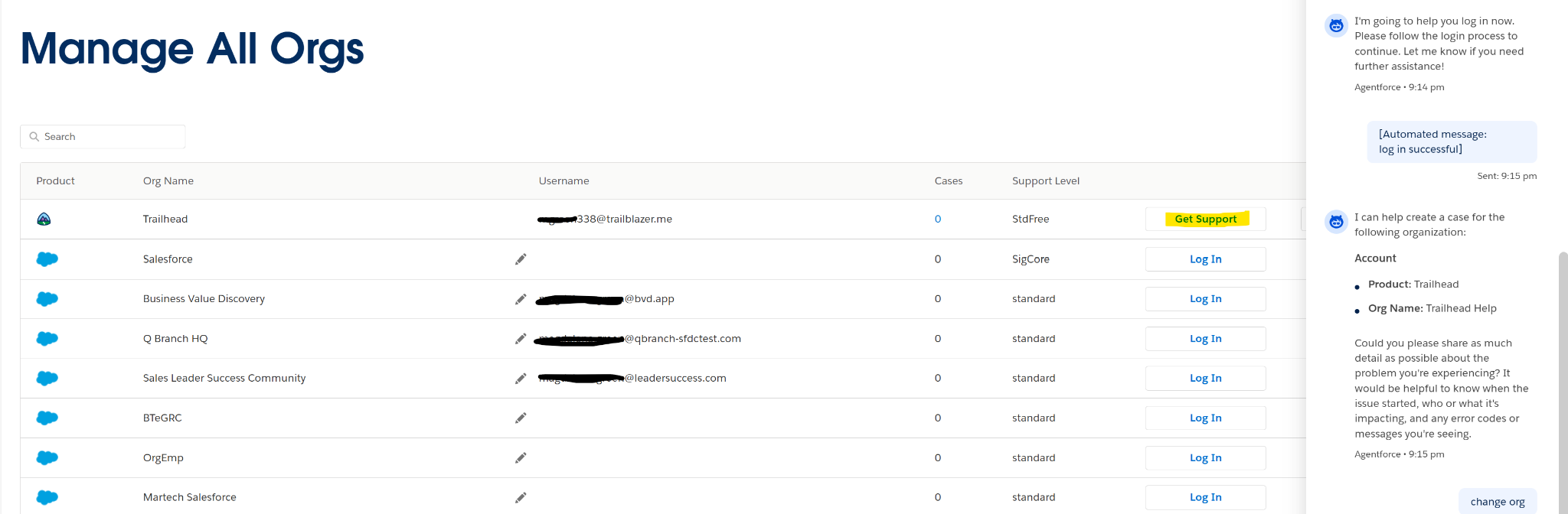
Locate Trailhead in your list of orgs and click Get Support. This opens the Agentforce Help Portal.
Important: Do not click Get Support for a Playground, Developer Edition, or any other Salesforce org. Your support case must be submitted from your Trailhead org or else it will be routed to the wrong support team. Selecting the wrong org is the most common reason support cases are delayed or misrouted.
Submit a Support Case Through Agentforce
Follow these steps to submit your support case through Help Agent.
-
Once you’re logged in with your Trailhead account, select Salesforce Help from the dropdown menu. This will launch the Agentforce chat.
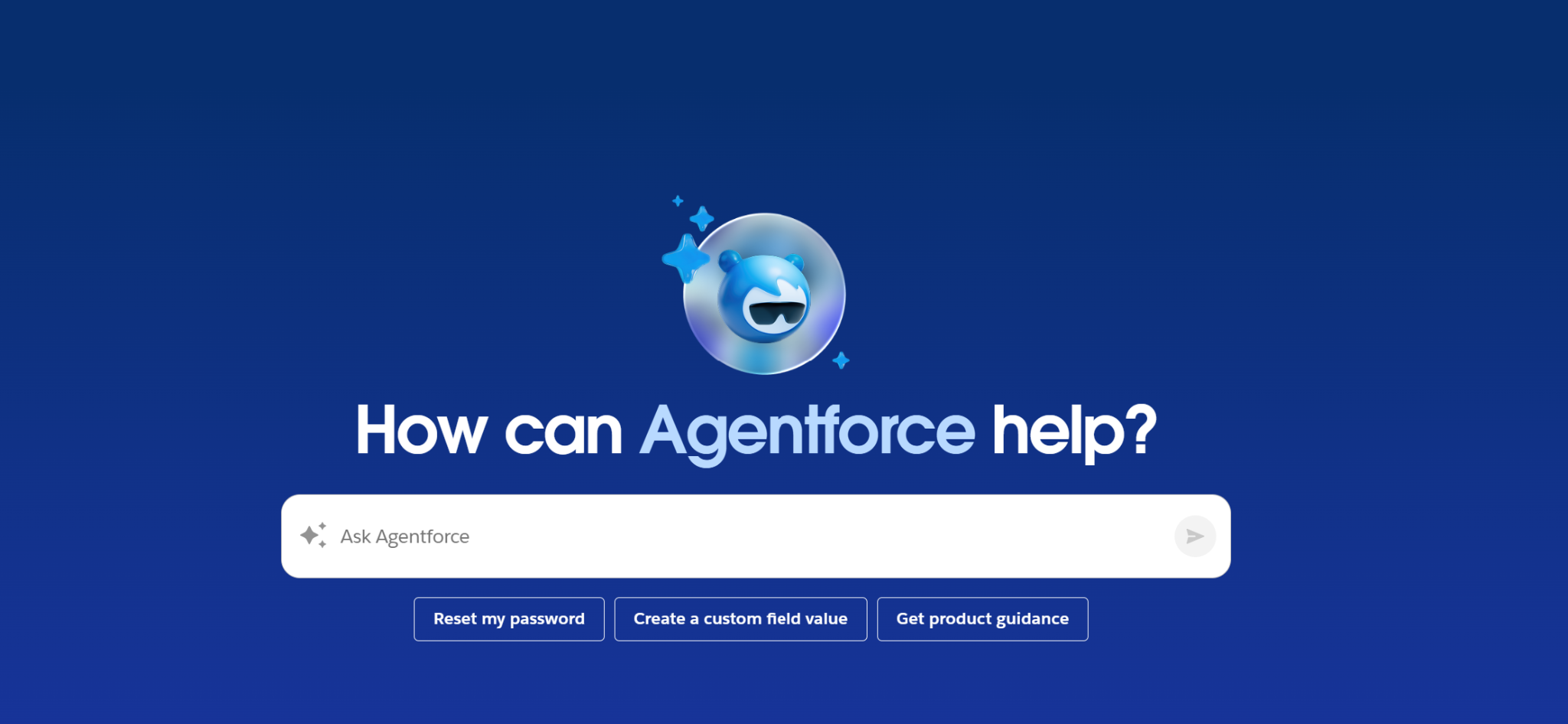
2. In the Help Agent conversation field, ask Agentforce to create a case. At this point, you have the option to start a chat with a live support engineer or continue with Agentforce to create a case. To proceed with Agentforce:
-
Verify the Org Name: Trailhead Help
-
Provide as much information as possible.
-
Confirm your details and submit.
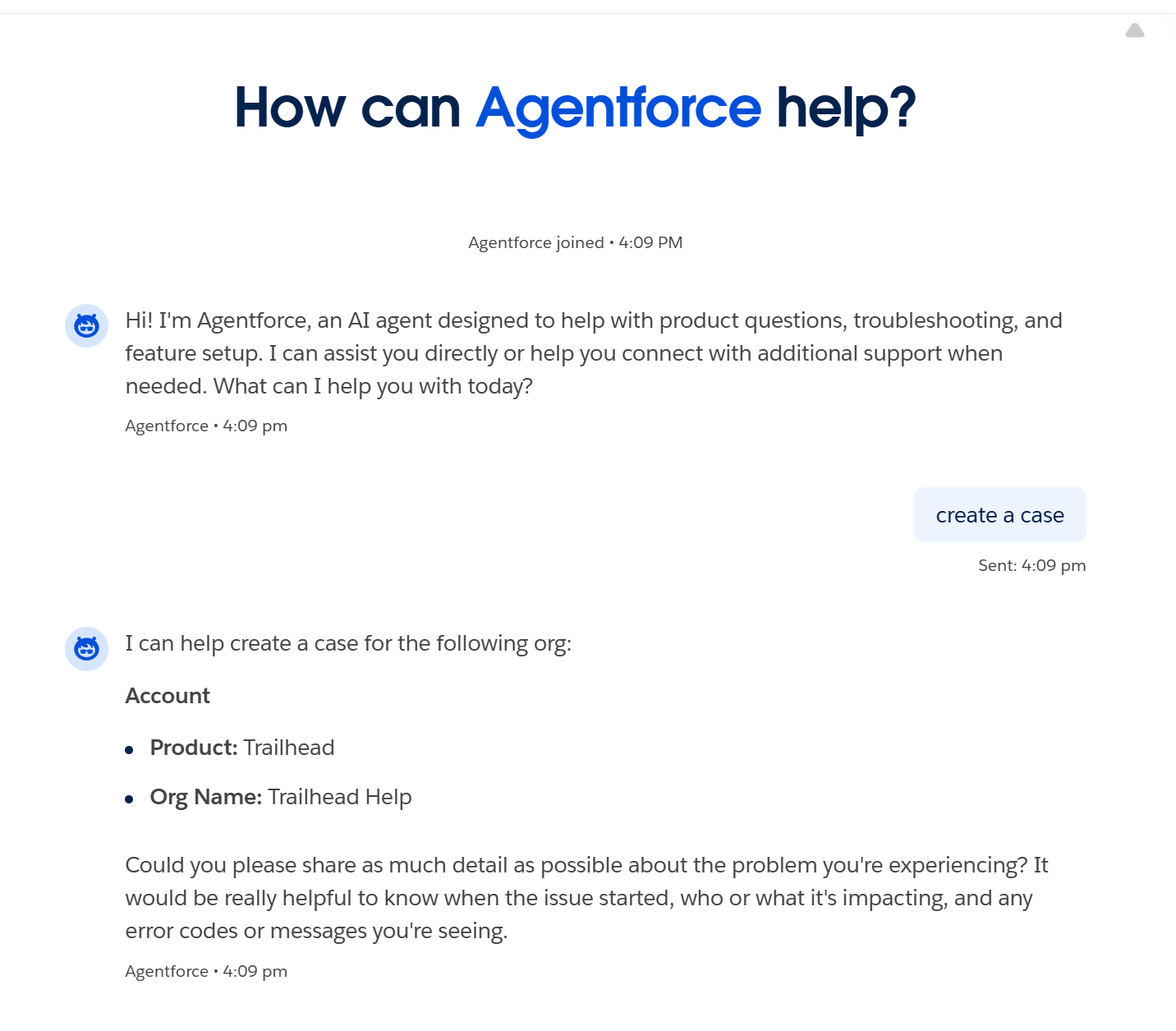
Note: If you're seeing a different org name than your Trailhead-associated org, follow these steps.
-
Ask Agentforce to change the org, or navigate to https://help.salesforce.com/s/manage-all-orgs
-
Locate your Trailhead account and click Get Support.
-
Important: Do not click Get Support for a Playground, Developer Edition, or any other org — your case must be submitted from your Trailhead org or else it will be routed to the wrong support team.
3. Enter your case details and submit your case through the Agentforce chat window.
If Agentforce Isn't Working
If you run into an error or Agentforce can't complete your case submission:
-
Click the three-dot menu in the upper-right corner of the Help Agent chat window.
-
Select End Conversation.
-
Return to Manage All Orgs, re-select your Trailhead org, and try again.
If the problem persists, ask Help Agent to connect with Trailhead Support directly by typing “Initiate a chat or I’d like to chat with an agent or engineer” into the chat window.
Tips for Faster Resolution
-
Always use the primary email linked to your Trailhead account when logging in.
-
Include detailed error messages and attach screenshots wherever possible.
-
Double-check that you've selected the Trailhead org — not a Playground or other org — before launching Agentforce.
-
If submitting about a Trailhead module or Superbadge issue, include the direct URL to the content you're working on.
View and Manage Your Cases
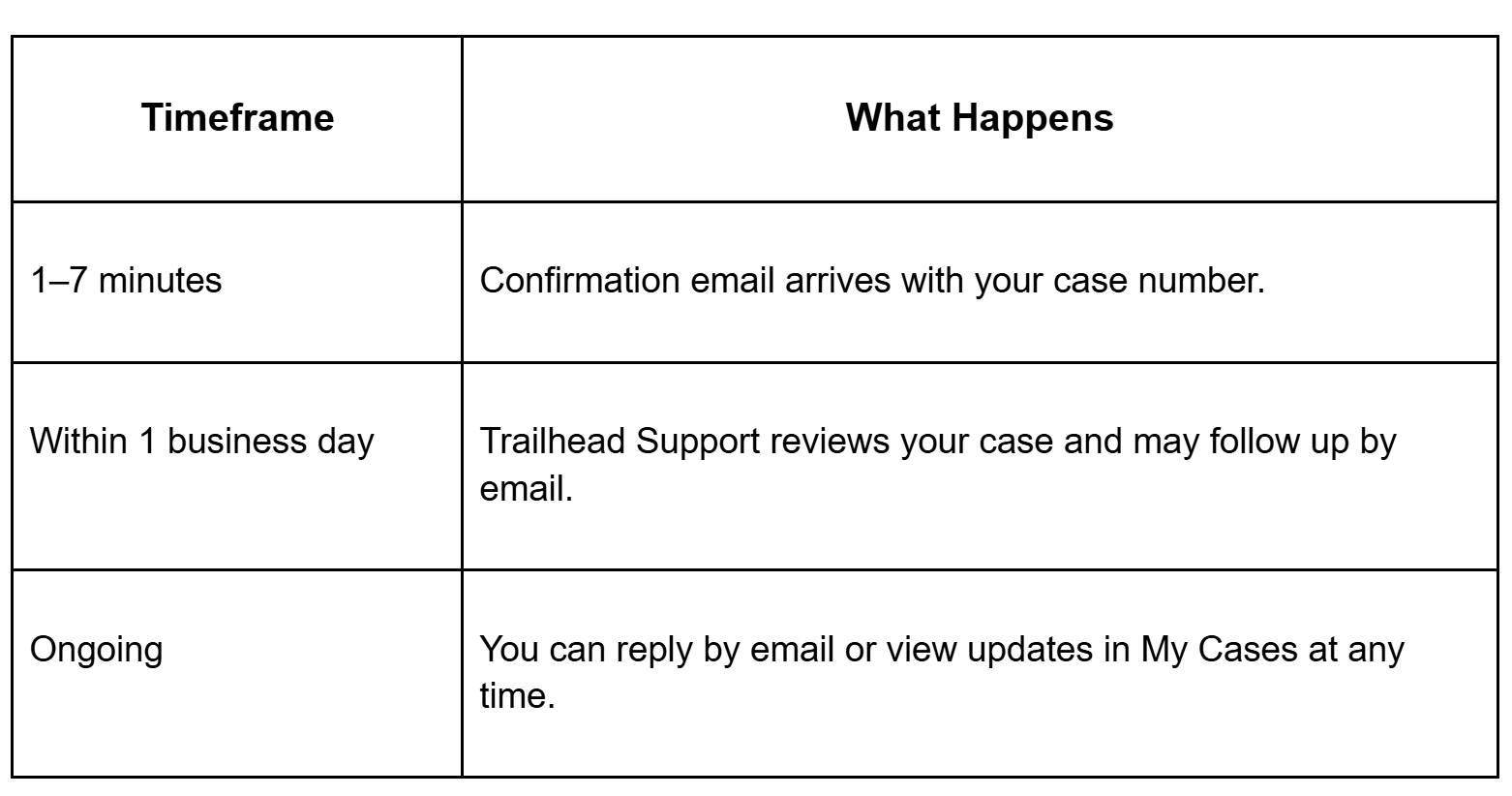
After submitting, you'll receive a confirmation email within 1–7 minutes from Salesforce Help & Training Automation with your case number. If it hasn’t arrived, be sure to check your spam or junk folder.
You can communicate with Trailhead Support by replying to the confirmation email or by managing your case online.
Option A: Reply by Email
Reply directly to the confirmation email from Salesforce H&T Automation. Your replies are automatically synced to your open case.
Option B: Manage Online via My Cases
-
Open the confirmation email and click View the Case.
-
Log in to your Trailhead account if prompted.
-
If your Trailhead org does not appear, click Select an Org and choose your Trailhead account. If Trailhead is not listed, click Manage All Orgs → select your Trailhead org → click Select Org.
-
Your open cases appear. You can:
-
View case updates and replies from support.
-
Add comments or additional information.
-
Track the progress of your case.
Recap — What to Expect After Submission
Additional Help Resources
Questo articolo ha risolto il problema?
Facci sapere, così possiamo migliorare!
