Sélectionner une organisation
Control View Data in Tableau View LWC Using UAF Claim Definition
Date de publication: Aug 20, 2026
Prérequis
Tâche
Filter Tableau dashboard view data dynamically based on the Salesforce user's attribute using UAF claim definitions in Tableau View LWC.
Étapes
Scenario:
Filter the [Region] data on a Tableau dashboard using the [Division] field on the Salesforce User record.
When Salesforce User A ([Division] = "East") views the dashboard in Tableau View Lightning Web Component (LWC), only data for [Region] = "East" is displayed.
When Salesforce User B ([Division] = "East", "West", "Central") views the dashboard in Tableau View LWC, data matching [Region] = "East", "West", "Central" is displayed.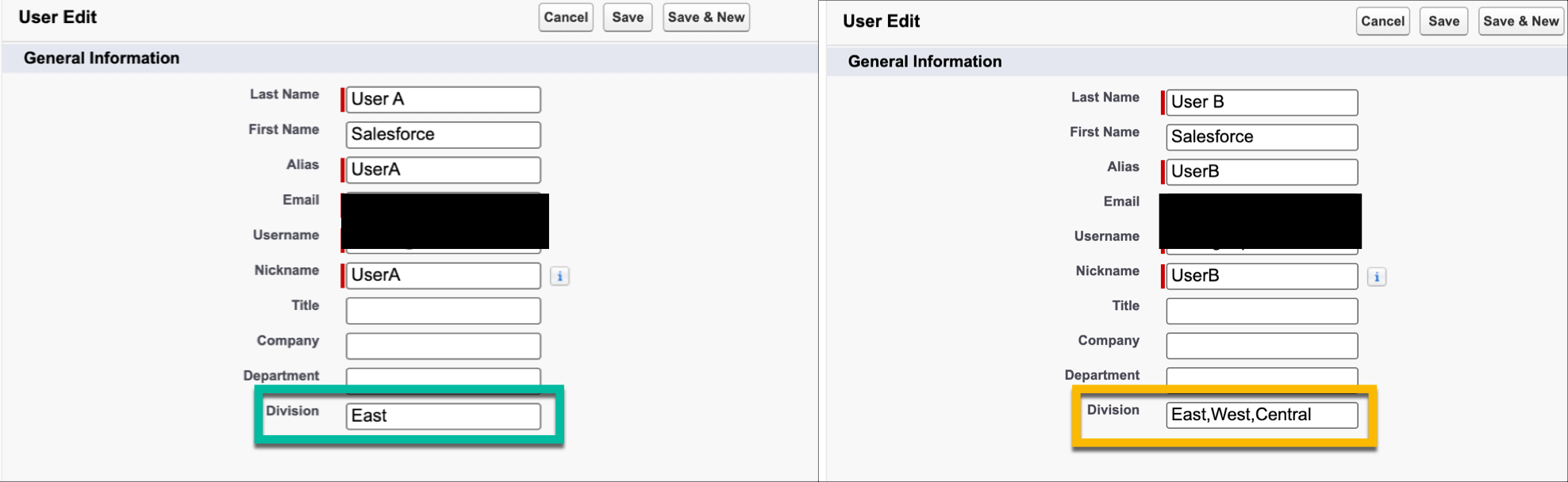
- Create a UAF Claim Definition in Salesforce:
- Navigate to Setup > Tableau UAF Claims Definition and click New.
- Configure the settings:
- Definition Name: Region
- Attribute Name: Region
- Target Object: User
- Target Object Field: Division
- Viewer Target Object Relationship: Current Viewer is the User
- Note: The Target Object Field depends on the admin's language setting. If your org uses multiple languages (e.g., Japanese), create an additional UAF claim definition per language using the localized field name (e.g., Definition Name: RegionJP, Target Object Field: "ディビジョン").
- Add the UAF Definition to the Tableau View LWC:
- Open the Lightning Page containing the Tableau View LWC and view its properties.
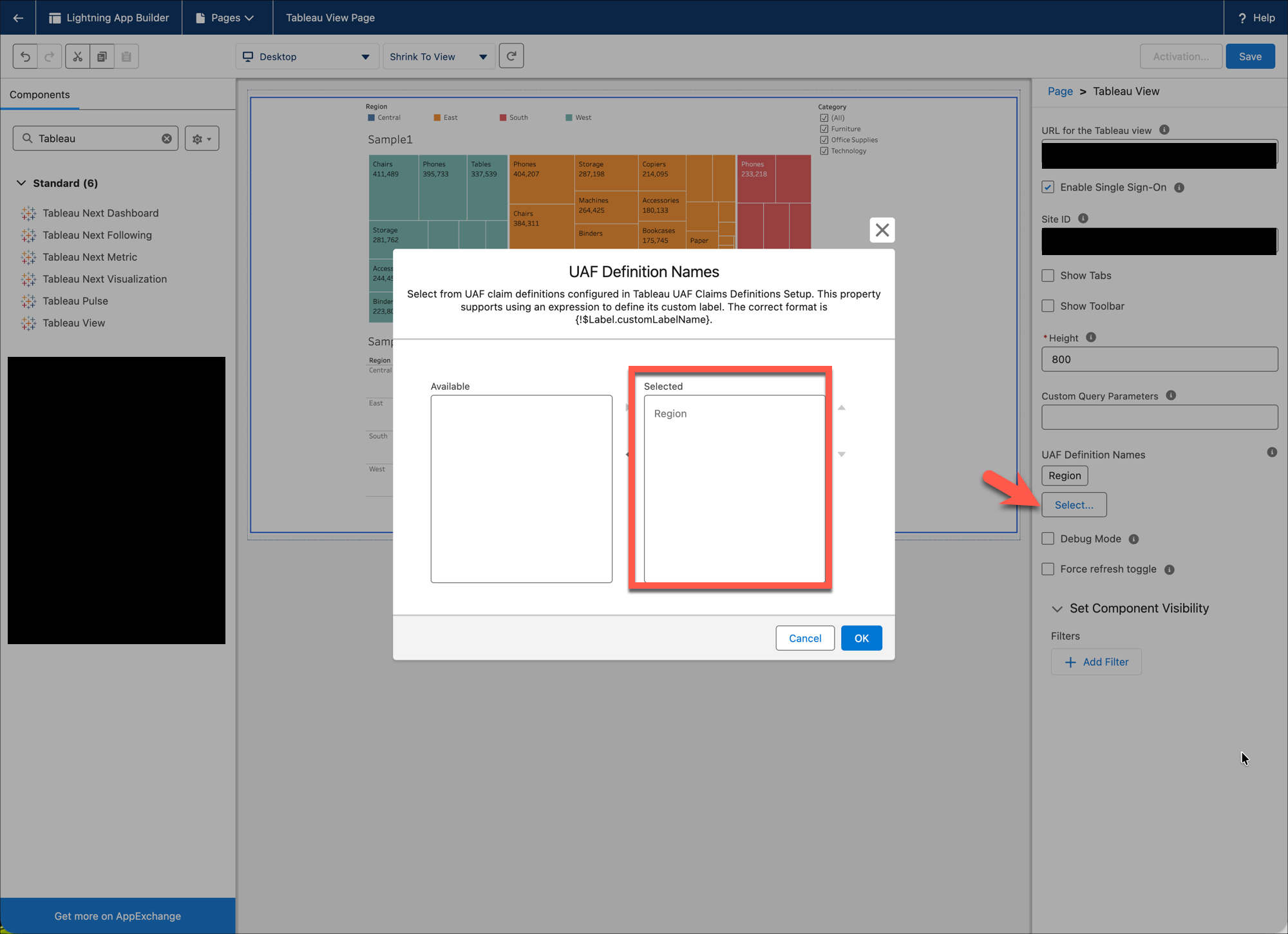
- Under UAF Definition Names, click Select.
- Add Region (and any localized definitions like RegionJP) to Selected.
- Click OK.
- Create a calculated field in Tableau:
- Open the target view in Tableau and create a calculated field:
- Name: Filter by UAF
- Formula:
CONTAINS(USERATTRIBUTE('Region'), [Region]) - Note: If multiple language UAF definitions were created in Step 1, update the formula to combine them:
CONTAINS(USERATTRIBUTE('Region'), [Region]) OR CONTAINS(USERATTRIBUTE('RegionJP'), [Region])
- Apply the filter in Tableau:
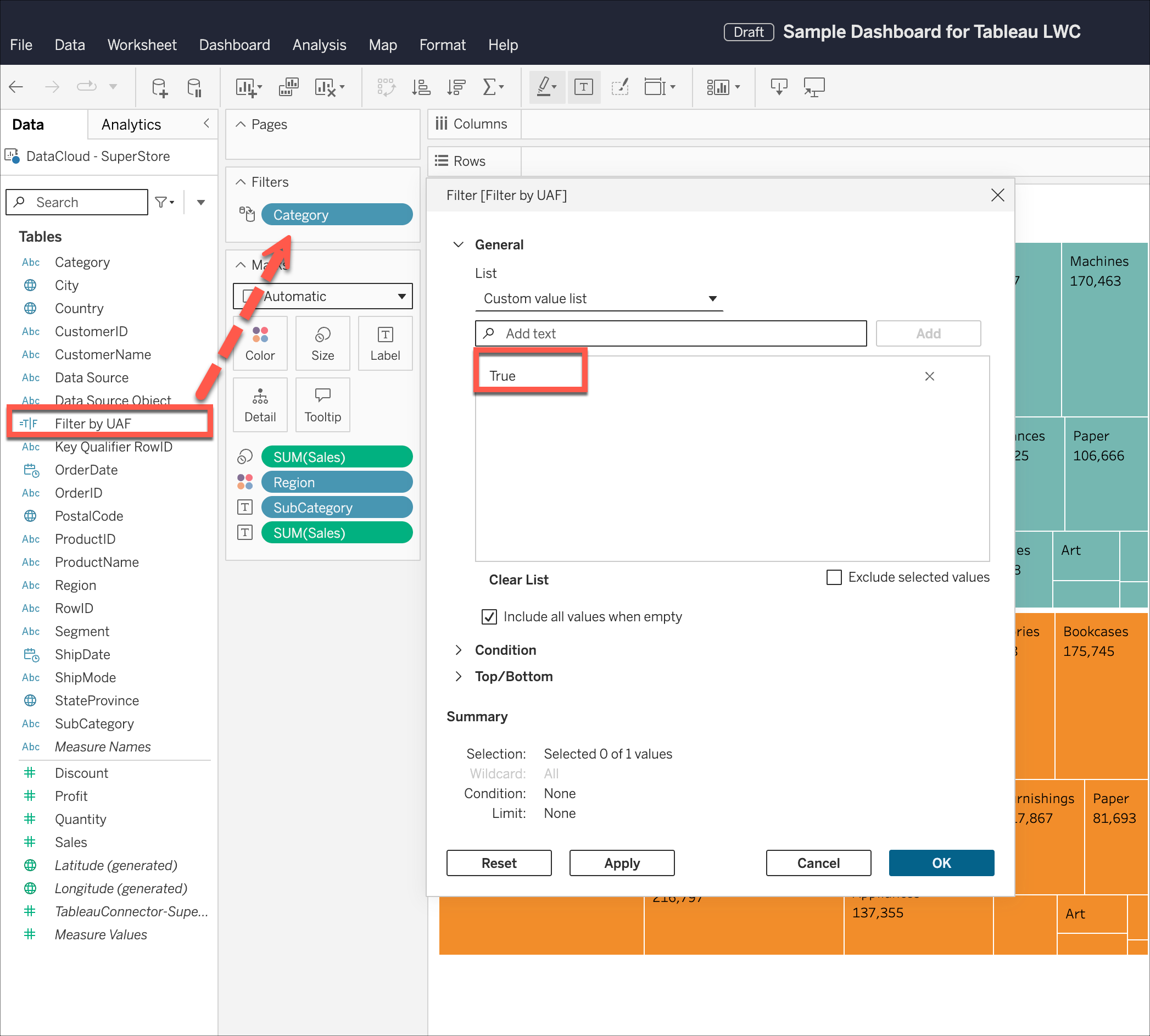
- Drag Filter by UAF to the Filters card.
- Select Custom value list and manually type and add True.
- Verify in Salesforce:
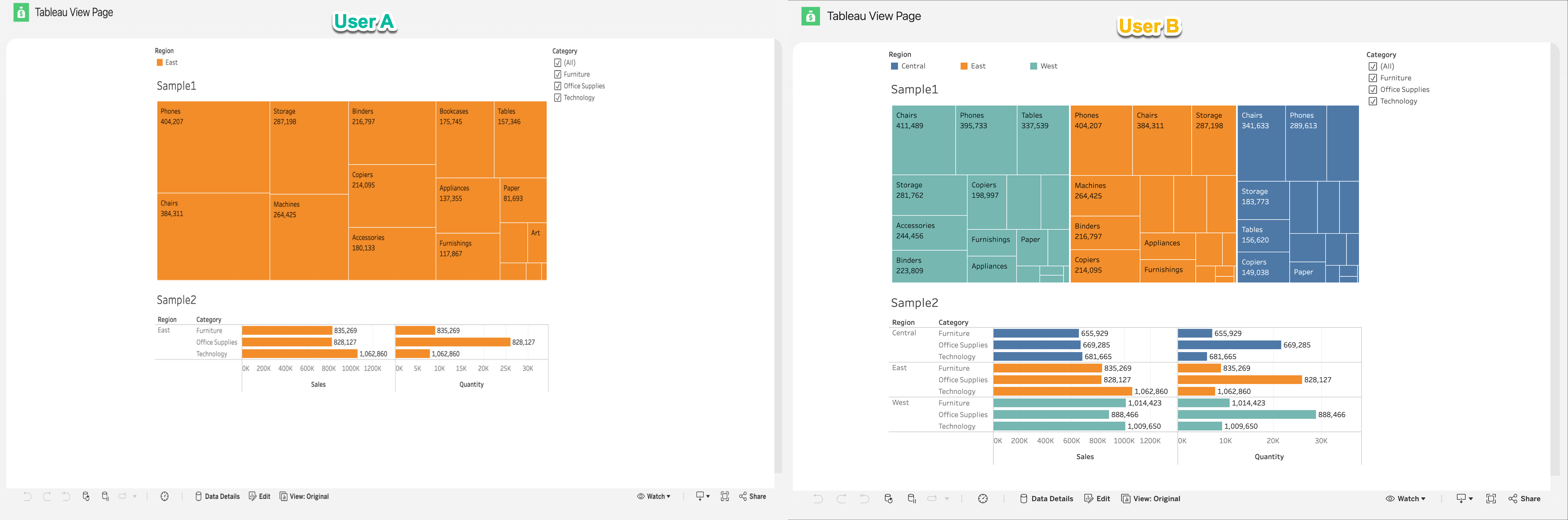
- Access the Tableau View LWC in Salesforce. User A will dynamically see data matching East, and User B will see data matching East, West, and Central.
- Access the Tableau View LWC in Salesforce. User A will dynamically see data matching East, and User B will see data matching East, West, and Central.
Ressources supplémentaires
HELP: Configure Tableau Lightning Web Components and Single Sign-On (SSO) with Token Authentication
HELP: Leverage User Attribute Functions (UAF) with Tableau Lightning Web Components
Numéro d’article de la base de connaissances
005391245
Cet article a-t-il résolu votre problème ?
Dites-nous ce que nous pouvons améliorer !
