Velg en organisasjon
Exam Scheduling and Rescheduling with Accommodations

This guide outlines the step-by-step process for individuals who have pre-approved accommodations on their profile to schedule or reschedule their Salesforce certification exams through the Trailhead Academy and the Pearson VUE Accommodation Request system.
Step 1: Initiating the Request via Trailhead Academy
- Visit Trailhead Academy and log in to your Trailblazer profile.
- Go to the Certifications tab at the top, click on Find a Certification. Browse the certification catalog and select the certification you want.
- Select the exam you would like to take and click on the Register Now button.
- Choose your testing preference. For individuals requesting accommodations, Online testing is typically preferred.
- A confirmation window titled "Confirm the following information before heading to our exam partner for scheduling" will appear.
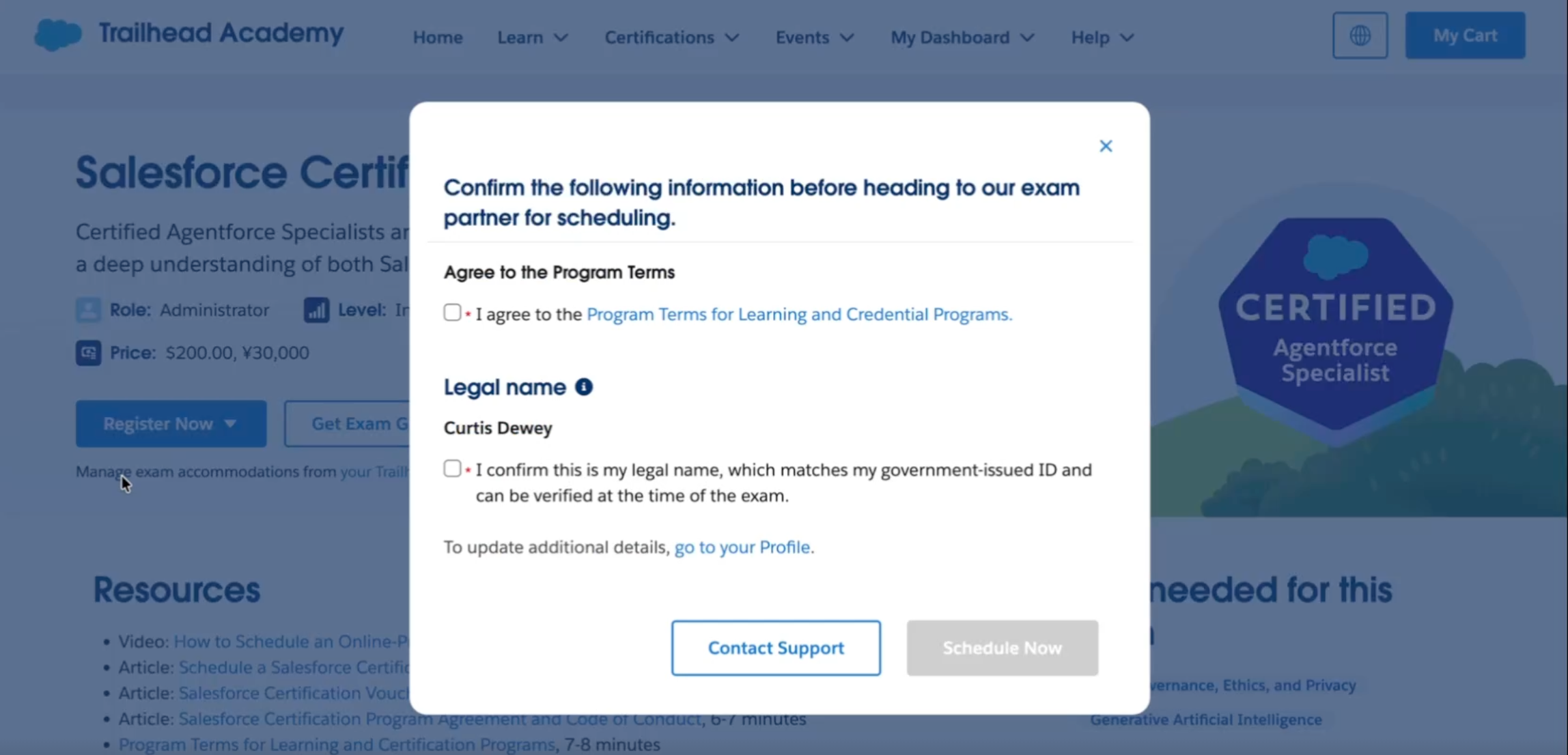
- Check the box to agree to the Program Terms.
- Check the box to confirm your Legal Name matches your government-issued ID.
- Select the Schedule Now button.
Step 2: Generating the Pearson VUE Authorization Code
- After selecting "Schedule Now", a pop-up window titled "Exam Registration and Scheduling With Accommodations" will appear.
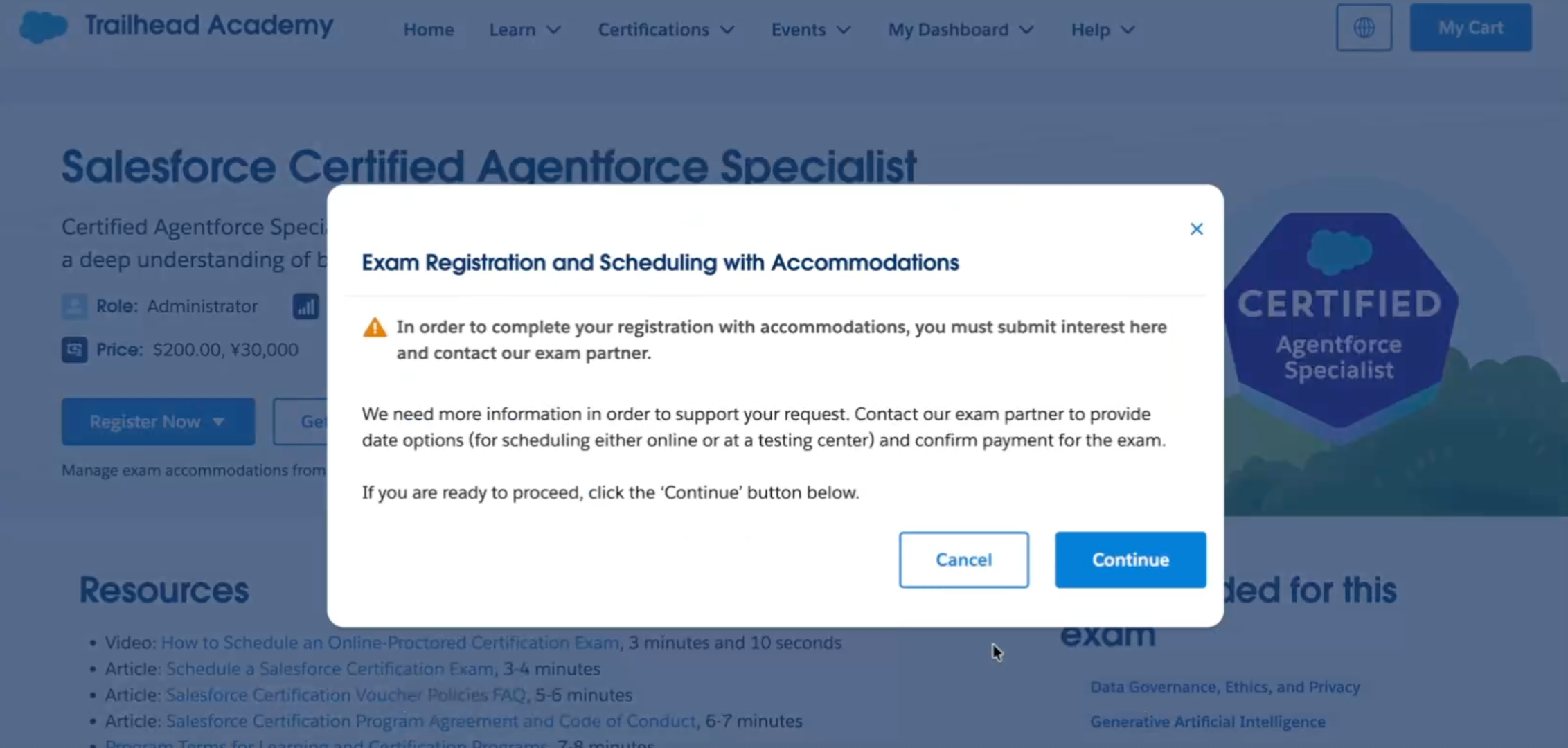
- This window displays a message indicating that your registration must be processed with our exam partner.
- Critical Step: You MUST select the Continue button at the bottom of this pop-up.
- Warning: If you press Cancel or close the window, the background authentication process will fail. Selecting "Continue" generates a vital backend authorization code that links your Salesforce account to your Pearson VUE accommodations profile.
- A second informational window will appear confirming that your request has been sent to the exam partner for processing. It provides a link text that reads: "continue your request via this form." Select this link to open the Pearson VUE scheduling form.
Step 3: Completing the Pearson VUE Accommodation Scheduling Request Form
The link opens the Pearson VUE Accommodation scheduling request form. Complete the fields as detailed below:
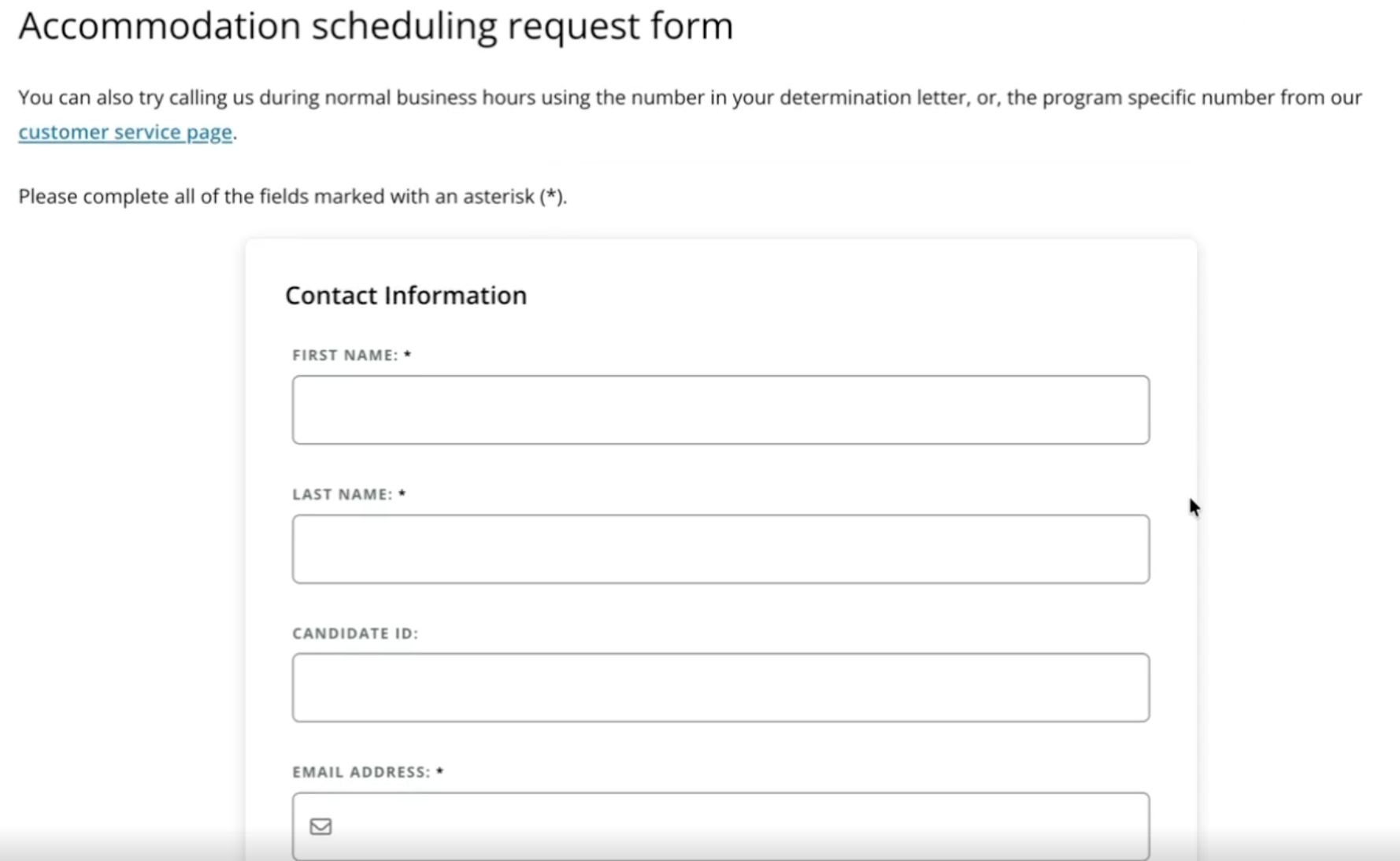
1. Contact Information
- First Name and Last Name (Required).
- Candidate ID: Input your Pearson VUE Candidate ID if known. If you do not know it, this field can be left blank.
- Email Address and Phone Number (Including Country Code).
2. Regional and Exam Details
- Region: Select your corresponding radio button:
- Asia-Pacific
- Europe, Middle East, and Africa
- North & South America (Select this option for the United States/Canada).
- Country and State/Province (As applicable).
- Exam Program/Exam Name: Type the full name of your Salesforce exam.
- Exam Language Preference: Specify your language.
- Voucher Code: Enter your pre-obtained exam voucher code here.
- Recommendation: It is highly recommended to have your voucher code ready before completing this form. Providing a voucher code allows Pearson VUE to bypass the payment collection phase and directly book your appointment, speeding up the process.
- How would you like to take the test?: Select either the OnVUE (Online) or Test Center radio button.
3. Preferences and Submission
- Testing Day Preference: Check the boxes for all days of the week you are available (e.g., Sunday, Monday, Tuesday, etc.). You may select multiple days.
- Test Appointment Time Preference: Choose Morning, Afternoon, or Evening.
- Date Preference 1, 2, and 3: Use the date picker or manually type your preferred dates into these text fields.
- Important Assistive Tech Note: These fields accept free-text. To ensure absolute clarity for the scheduling team, type your preferred time and time zone directly into the field next to the date (e.g.,
05/07/2026 11:00 AM EST).
- Important Assistive Tech Note: These fields accept free-text. To ensure absolute clarity for the scheduling team, type your preferred time and time zone directly into the field next to the date (e.g.,
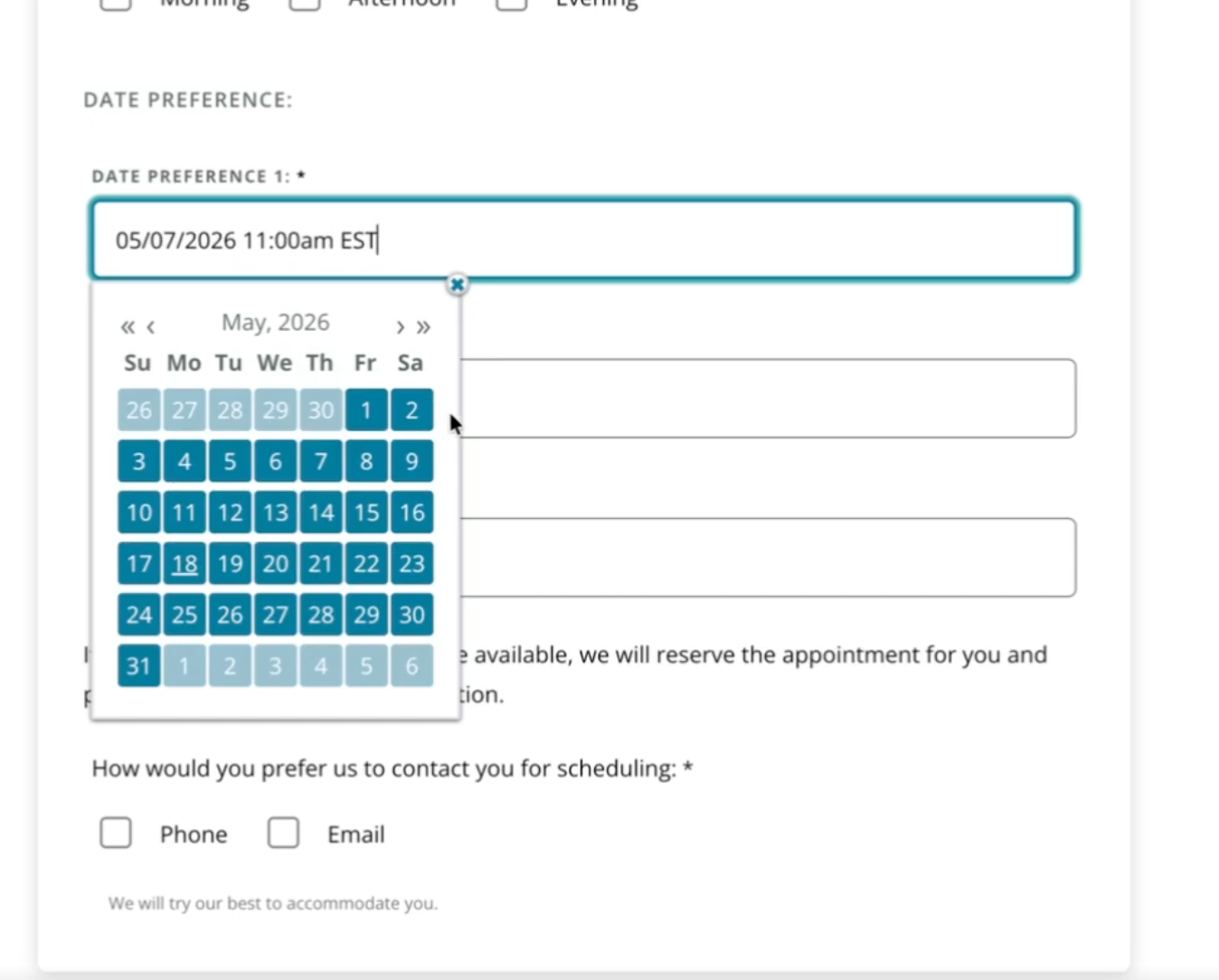
- How would you prefer us to contact you for scheduling?: Select either Phone or Email.
- Acknowledgements: Check the two required acknowledgment boxes at the bottom of the page confirming that this form is a request and that you agree to the privacy policies.
- Select the Submit button.
Next Steps
Once submitted, a Pearson VUE accommodation representative will review your request. They will contact you via your preferred method (Phone or Email) to officially confirm and finalize your rescheduled exam block.
Testing Day Preference: Check the boxes for all days of the week you are available (e.g., Sunday, Monday, Tuesday, etc.). You may select multiple days.
Hjalp denne artikkelen med å løse problemet ditt?
La oss få vite det slik at vi kan forbedre!
