Välj en organisation
Send Opportunity Notification for Specific Stage Movements with a Record-Triggered Flow in Salesforce Sales Cloud
Publiceringsdatum: Oct 9, 2026
Beskrivning
A customer wants to notify its Executive Team about specific Opportunity Stage movements in Salesforce Sales Cloud. A record-triggered flow on the Opportunity object with an email alert action meets this need.
Lösning
This article explains how to use a record-triggered flow in Salesforce Sales Cloud to notify an Executive Team when an Opportunity Stage changes from "Negotiation/Review" (90%) to "Closed Lost" (0%). These are critical alerts that instantly inform the Executive Team so they can consider appropriate measures. The solution is a Record-Triggered Flow on the Opportunity object that sends an email alert.
Step 1: Define the Record-Triggered Flow on the Opportunity Object
Navigate to Setup > Flows and click New Flow. Select Record-Triggered Flow from the available Flow templates. When selected, a screen appears where you can define the Object as "Opportunity".
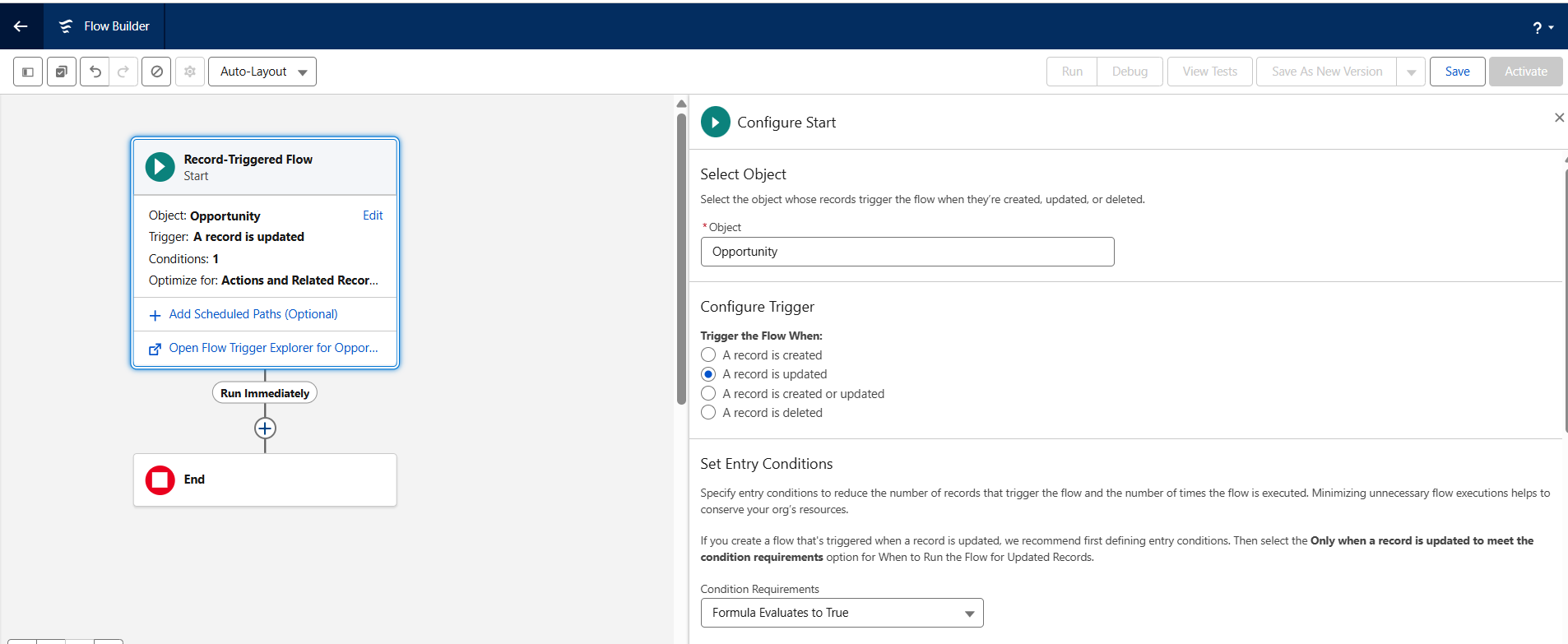
Step 2: Set the Flow Entry Criteria for the Stage Change
Because the flow should only run on specific Stage changes, define the criteria with the formula below. Also make sure the "Actions and Related Records" option is selected under "Optimize Flow", because the flow has to send an email.
AND(
ISCHANGED({!$Record.StageName}),
TEXT({!$Record__Prior.StageName}) = 'Negotitaion/Review',
TEXT({!$Record.StageName}) = 'Closed Lost'
)
This formula returns true only when the Opportunity Stage has changed, the prior Stage was "Negotiation/Review", and the new Stage is "Closed Lost".
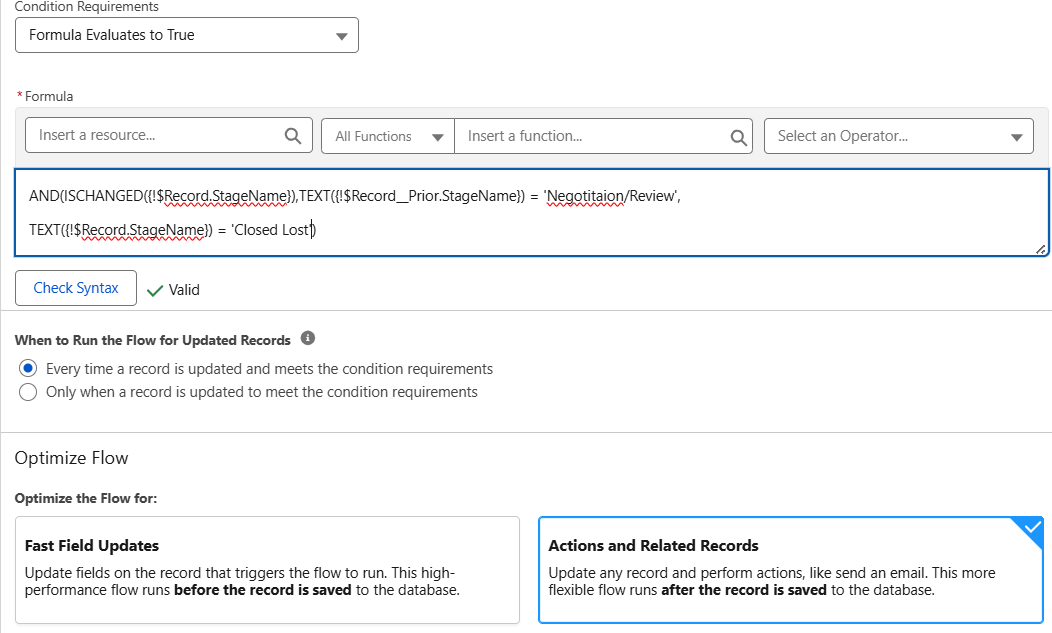
Step 3: Add the Email Alert Action to the Flow
Next, select Email Alert as the action to run. You can pick an existing email alert (as shown in the screenshot) or select an Email Action and define its attributes.
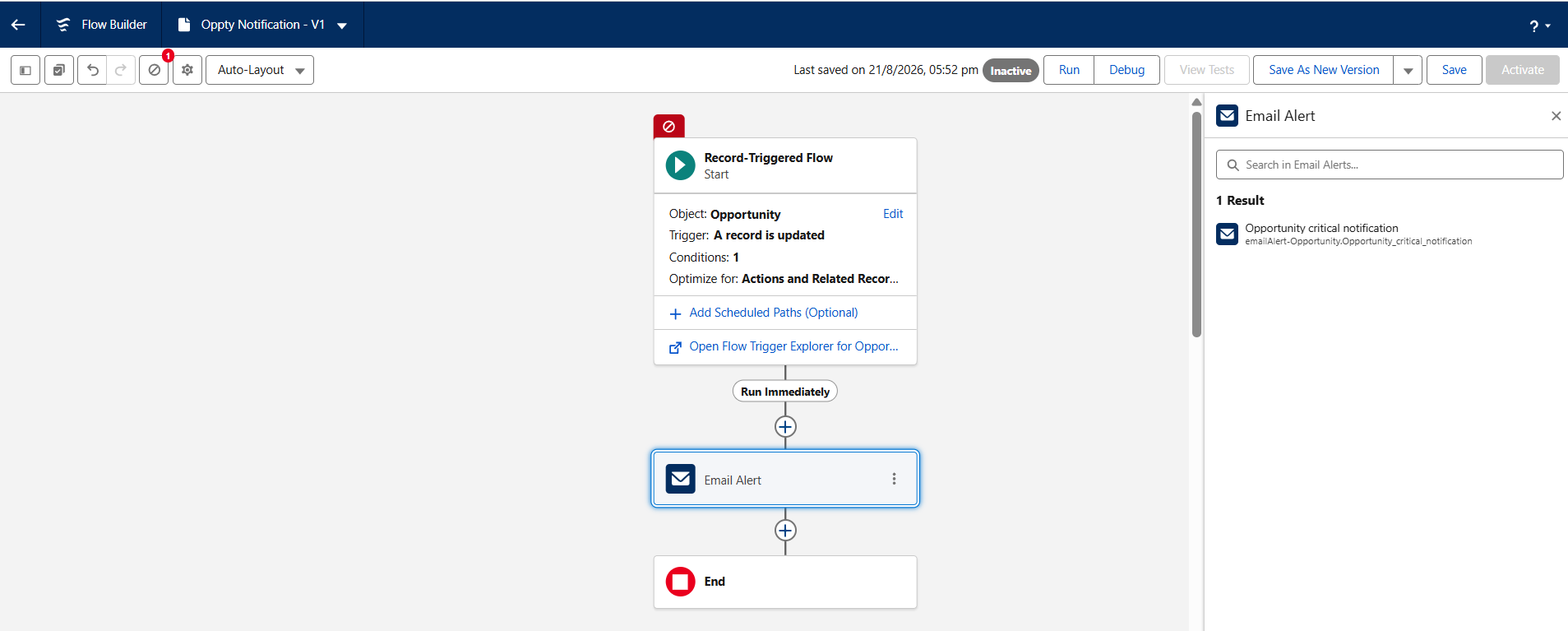
Once the existing email alert is selected, define the Input Values for the email alert. This makes sure the email alert is delivered for the triggering record.
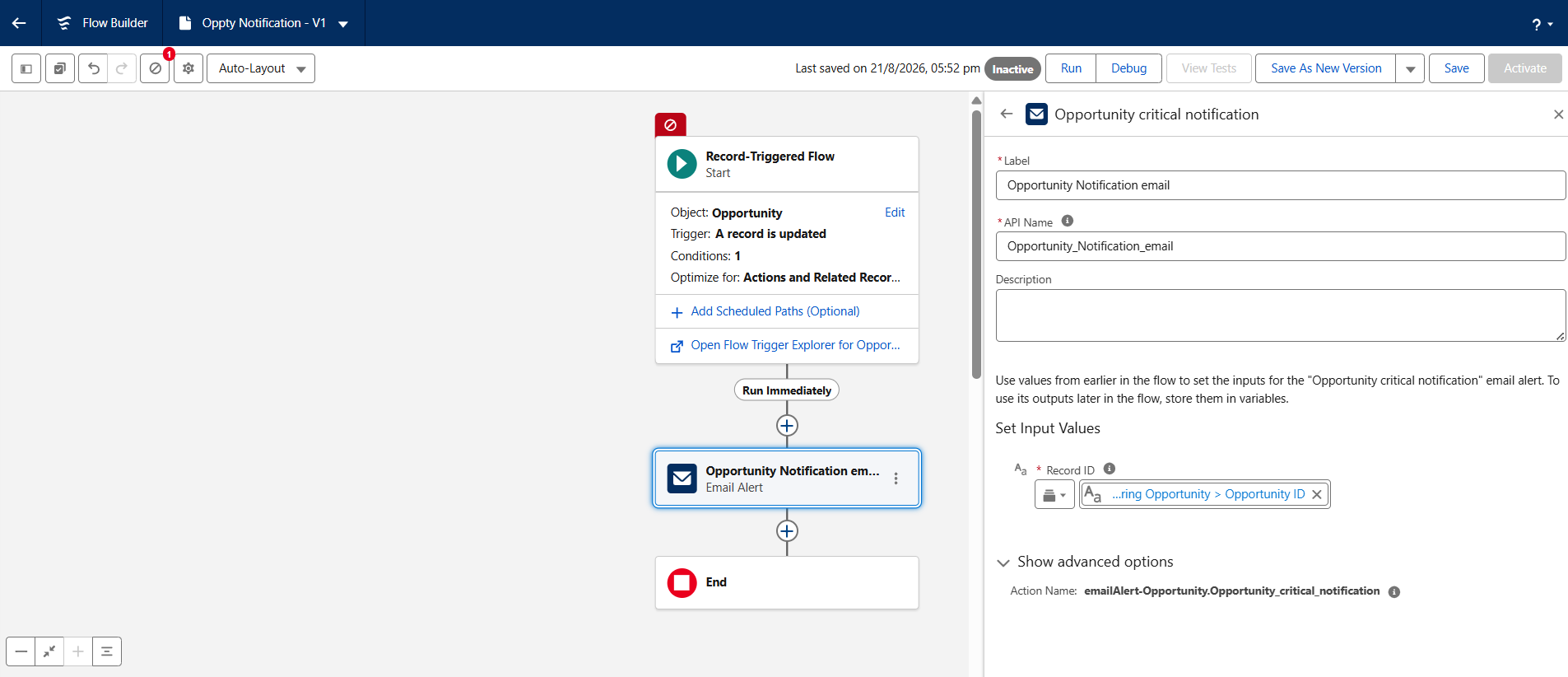
Save the flow and provide a name for it when prompted.
Result of the Record-Triggered Flow for Opportunity Stage Changes
With a criteria-based Record-Triggered Flow, you can successfully send an email to the Executives when the Opportunity Stage changes in the specific way you defined.
Written by: Manoj Nambirajan | Forum Ambassador
Manoj Nambirajan is a Salesforce Enterprise Architect at Dell Technologies with more than 17 years of experience in the Salesforce ecosystem. Manoj has exceptional leadership abilities and a flair for solving issues quickly. Accredited as Salesforce MVP, Manoj has 21 Salesforce certifications and is among the Top 10 Answers leader in the Trailblazer Community.
Submissions reflect only the opinions of the user who made available the Submission and not the opinions of Salesforce, regardless of whether the user is affiliated with Salesforce, and may contain or constitute products, services, information, data, content and other materials made available by or on behalf of third parties ("Third Party Materials"). Salesforce neither controls nor endorses, nor is Salesforce responsible for, any Third Party Materials, including their accuracy, validity, timeliness, completeness, reliability, integrity, quality, legality, usefulness or safety, or any applicable intellectual property rights. Any Submissions made available through any message board or forum in response to posted questions, or that otherwise purports to answer any questions, including any questions about Salesforce or Programs, are made available for your general knowledge only and should never be relied upon as answers to your specific questions (even if an answer is marked as a "best" answer or with any similar qualifications). You should always contact Salesforce support for answers to your specific questions. Salesforce has no control over Submissions, and is not responsible for any use or misuse (including any distribution) by any third party of Submissions.
If you have questions, tap into the wisdom of our entire Trailblazer Community here: https://trailhead.salesforce.com/trailblazer-community/feed
Ytterligare resurser
Knowledge-artikelnummer
005393369
Löste denna artikel ditt problem?
Berätta för oss vad vi kan förbättra!
