Organisation auswählen
"Suspended due to inactivity" Error Only on First Run After Extract Refreshes Automatically Suspend
Veröffentlichungsdatum: Aug 28, 2026
Beschreibung
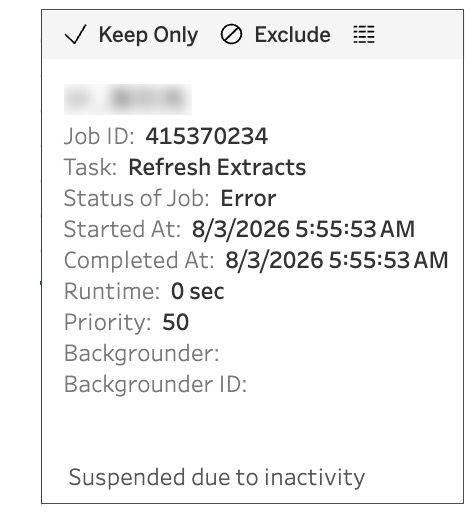
When content (a workbook or data source) has its extract refresh automatically suspended after 32 days of inactivity, the "Suspended due to inactivity" error is recorded in the task history only on the first scheduled job that runs after the suspension. All subsequent scheduled jobs are simply skipped with no error logged at all.
The "Automatically Suspend Unused Extract Refreshes" feature automatically suspends the extract refresh schedule for content that has had no access or updates for 32 days. This suspended state is logged as an error only on the first scheduled run after suspension.
After that, the job is silently skipped (it does not fire at all) until manually resumed.
When checking the job under Site Status > Background Tasks for Extracts, the error shown in the figure below is recorded.
Environment
- Tableau Cloud
- Tableau Server
Lösung
To resume the extract refresh, manually clear the suspension using one of the following options.
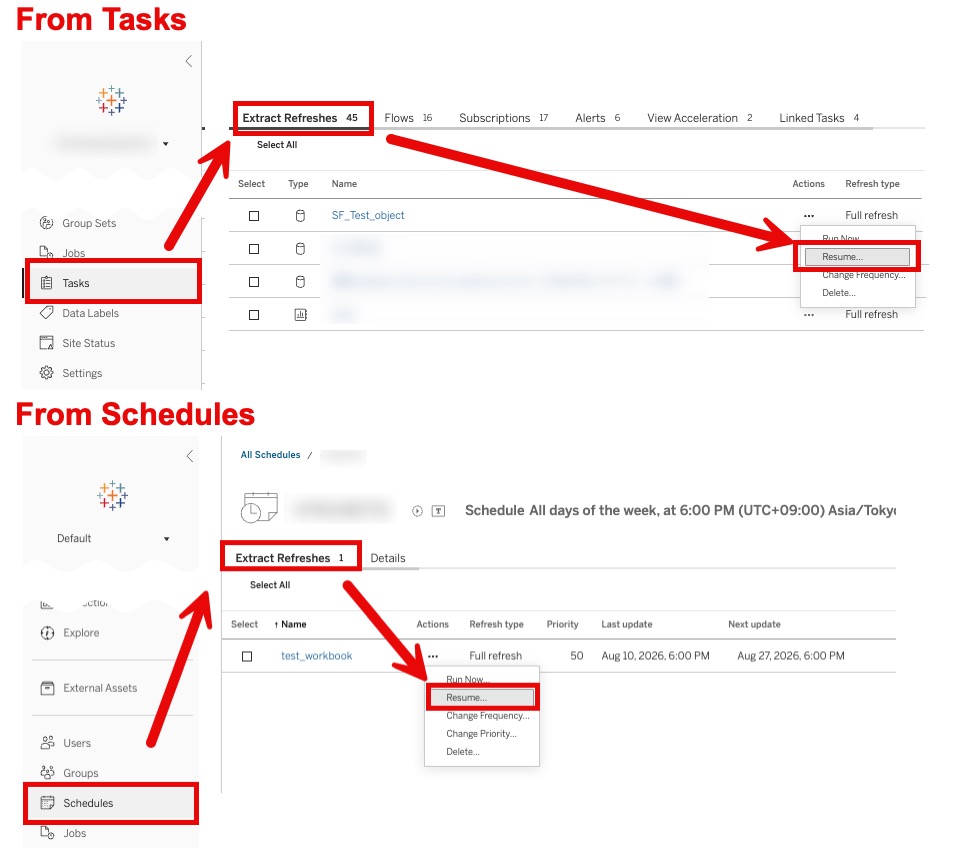
Option 1: Resume the suspension from the Tasks or Schedules
- Sign in to the Tableau Server or Tableau Cloud as an administrator.
- Click the Tasks > Extract Refreshes, or click Schedules > select the relevant schedule > Extract Refreshes.
- Select Actions for the relevant content, and click Resume to resume the extract refresh.
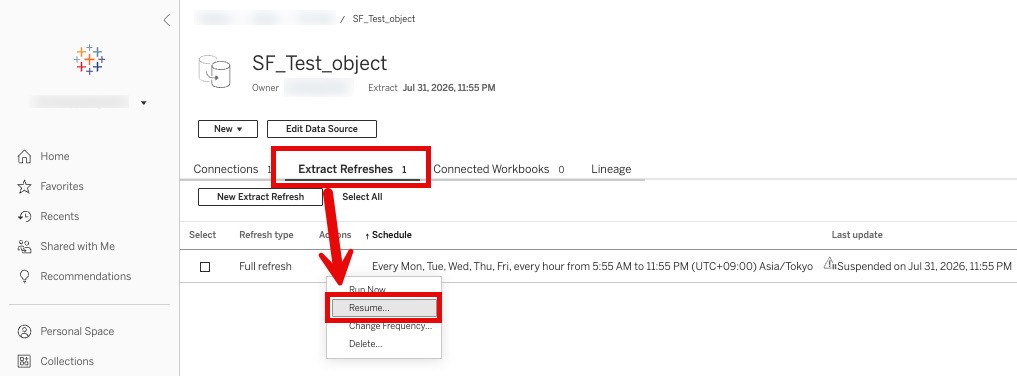
Option 2: Resume from the data source or workbook settings
- Sign in as an administrator or the content owner.
- Navigate to the affected data source or workbook.
- Click the Extract Refreshes tab, and then resume the schedule.
Note: After resuming, the extract refresh job will run again on its normal scheduled timing.
Zusätzliche Ressourcen
For more information, see Automatically Suspend Extract Refreshes in Tableau Help.
Nummer des Knowledge-Artikels
005393442
Konnten Sie Ihr Problem mithilfe dieses Artikels lösen?
Geben Sie uns Feedback, damit wir uns verbessern können.
