Välj en organisation
Insufficient Access on WorkCapacityLimit Record When Changing Service Appointment Status to Enroute in Salesforce Field Service
Publiceringsdatum: Aug 27, 2026
Beskrivning
Salesforce Field Service installer or technician users may encounter an "Insufficient access on the WorkCapacityLimit record" error when changing a Service Appointment status (for example, from Out for Delivery to Enroute).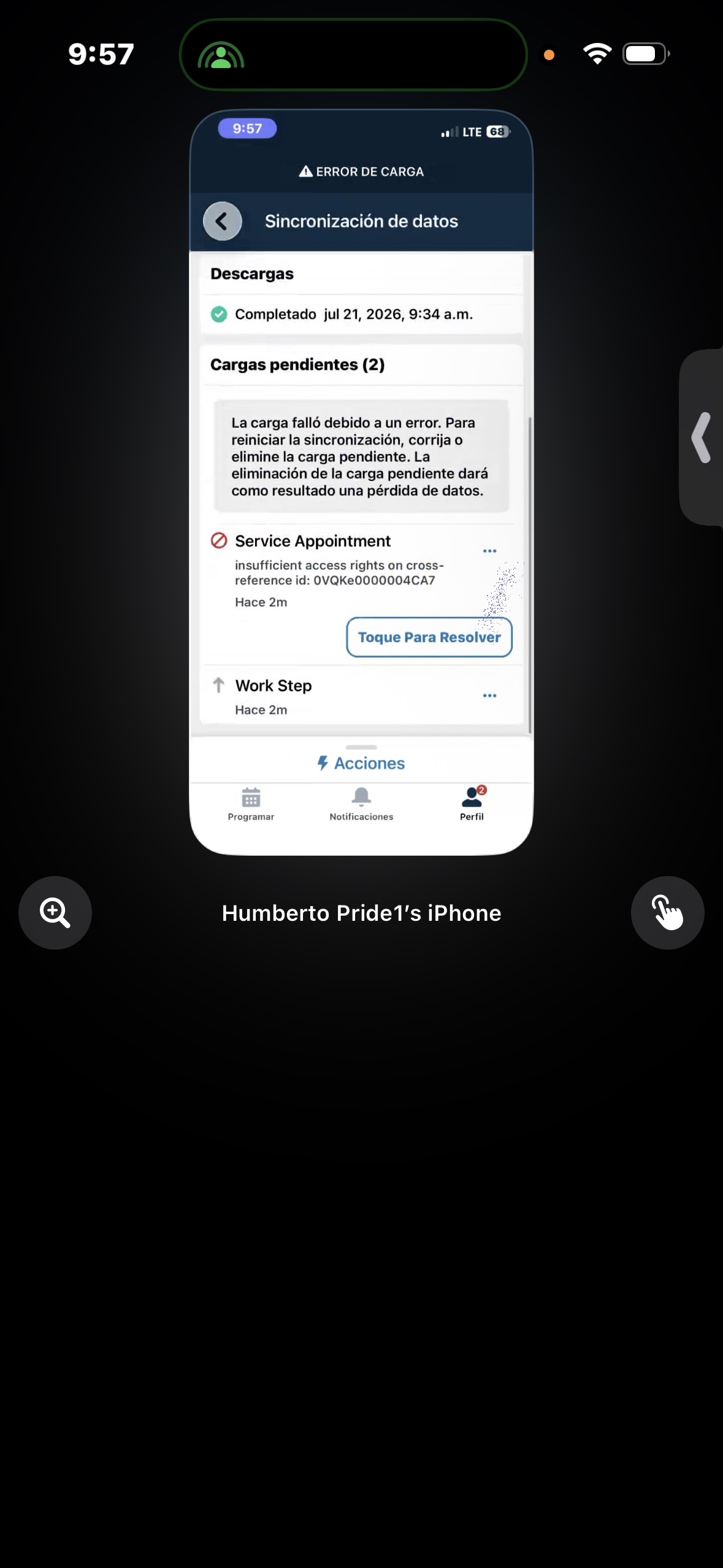
Note: When this error occurs, the Service Appointment status transition completes successfully, but WorkCapacityUsage is not updated. No error is surfaced to the end user, resulting in a silent bypass of capacity tracking.
For background on Work Capacity, see Salesforce Help: Work Capacity Considerations and Limitations (https://help.salesforce.com/s/articleView?id=service.fs_work_capacity_consid_limits.htm&type=5)
Lösning
Root Cause
When a Service Appointment transitions into or out of a status changed from Scheduled to En Route, Field Service managed code recalculates WorkCapacityUsage in the context of the logged-in user. This recalculation reads the WorkCapacityLimit record and uses Service Resource data to determine available capacity. If the user lacks Read access to the WorkCapacityLimit record or associated objects (such as Service Resource), the recalculation fails. The status transition is not rolled back — the change succeeds silently but WorkCapacityUsage is not updated. This behavior is expected by design (WAD).
Resolution Steps
Grant the affected users Read access to the relevant WorkCapacityLimit records using one of the following options:
Option 1 — Create Sharing Rules (Recommended for scale)
- Navigate to Setup → Sharing Settings.
- Scroll to the WorkCapacityLimit section.
- Click New under Sharing Rules.
- Create a criteria-based or owner-based rule that grants Read access to the relevant user profiles or public groups (e.g., the installer/technician group).
- Save the sharing rule.
Option 2 — Manual Record Sharing (Quick fix for specific records)
- Navigate to the WorkCapacityLimit record for the affected Service Territory.
- Click Sharing on the record.
- Click Add.
- Search for and add the affected users or groups.
- Set Access Level to Read Only.
- Click Save.
Note: If multiple Service Territories use separate WorkCapacityLimit records, ensure sharing access covers all relevant records for the affected users. Write access to Service Resource is not required — only Read access is needed for the recalculation to complete successfully.
Ytterligare resurser
Work Capacity Considerations and Limitations — https://help.salesforce.com/s/articleView?id=service.fs_work_capacity_consid_limits.htm&type=5
Set Up Field Service Work Capacity - https://help.salesforce.com/s/articleView?id=service.fs_work_capacity.htm&type=5
Create a Work Capacity Limit - https://help.salesforce.com/s/articleView?id=service.fs_work_capacity_create_limit.htm&type=5
Knowledge-artikelnummer
005393443
Löste denna artikel ditt problem?
Berätta för oss vad vi kan förbättra!
