조직 선택
Unable to Reuse a Previously Assigned Alias for Measure Names After Changing the Table Calculation Direction
게시 일자: Aug 28, 2026
상세 설명
In Tableau Desktop, when placing a field in Measure Values, applying a Table Calculation, and changing the Compute Using direction, attempting to edit the alias may result in an issue. The previously assigned alias is recognized as "in use," preventing you from assigning the same alias again.
The following error occurs:
Cannot assign two members the same value (alias). Running Sum of Sales along Table (Down) is already aliased as XXX.
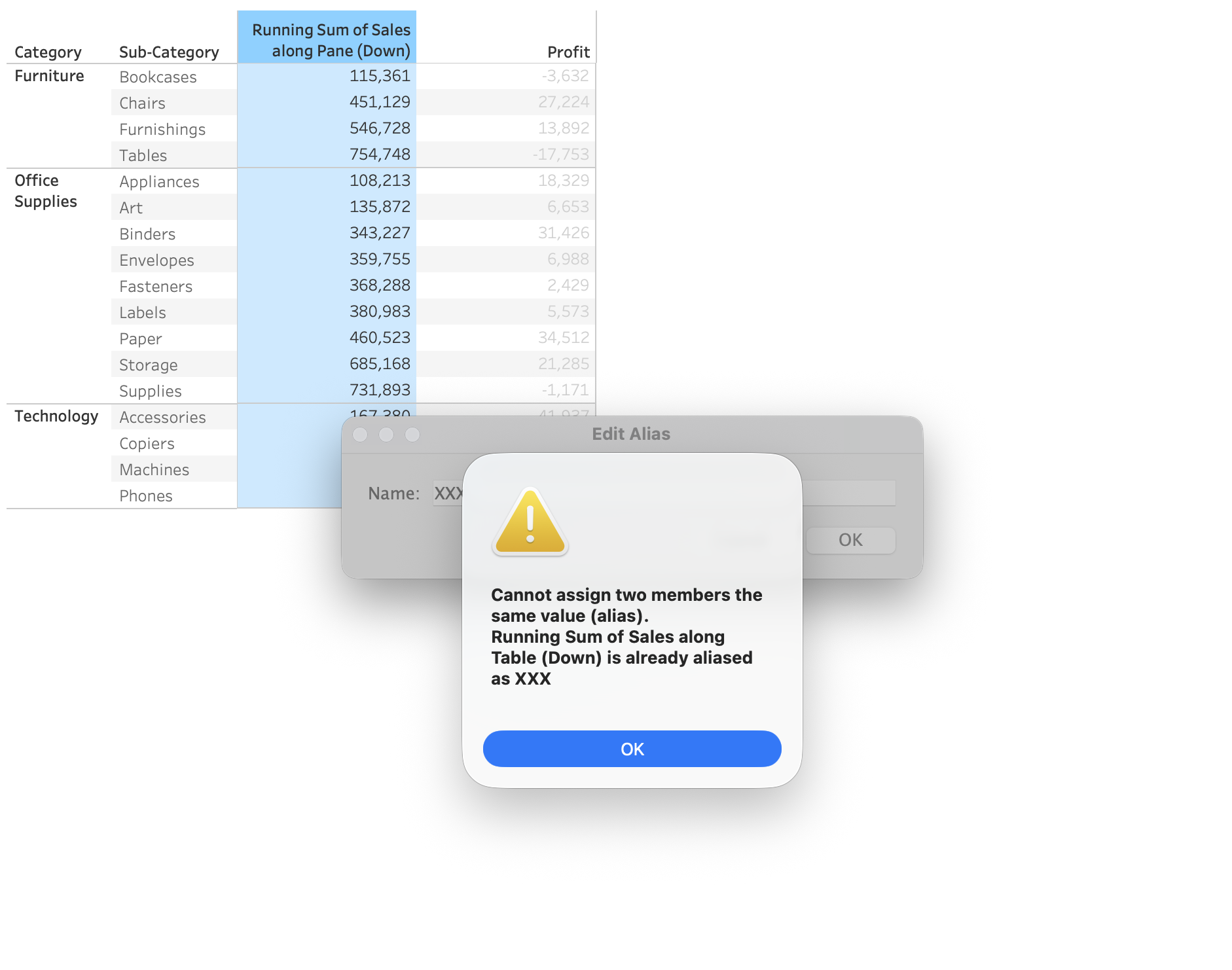
Cause:
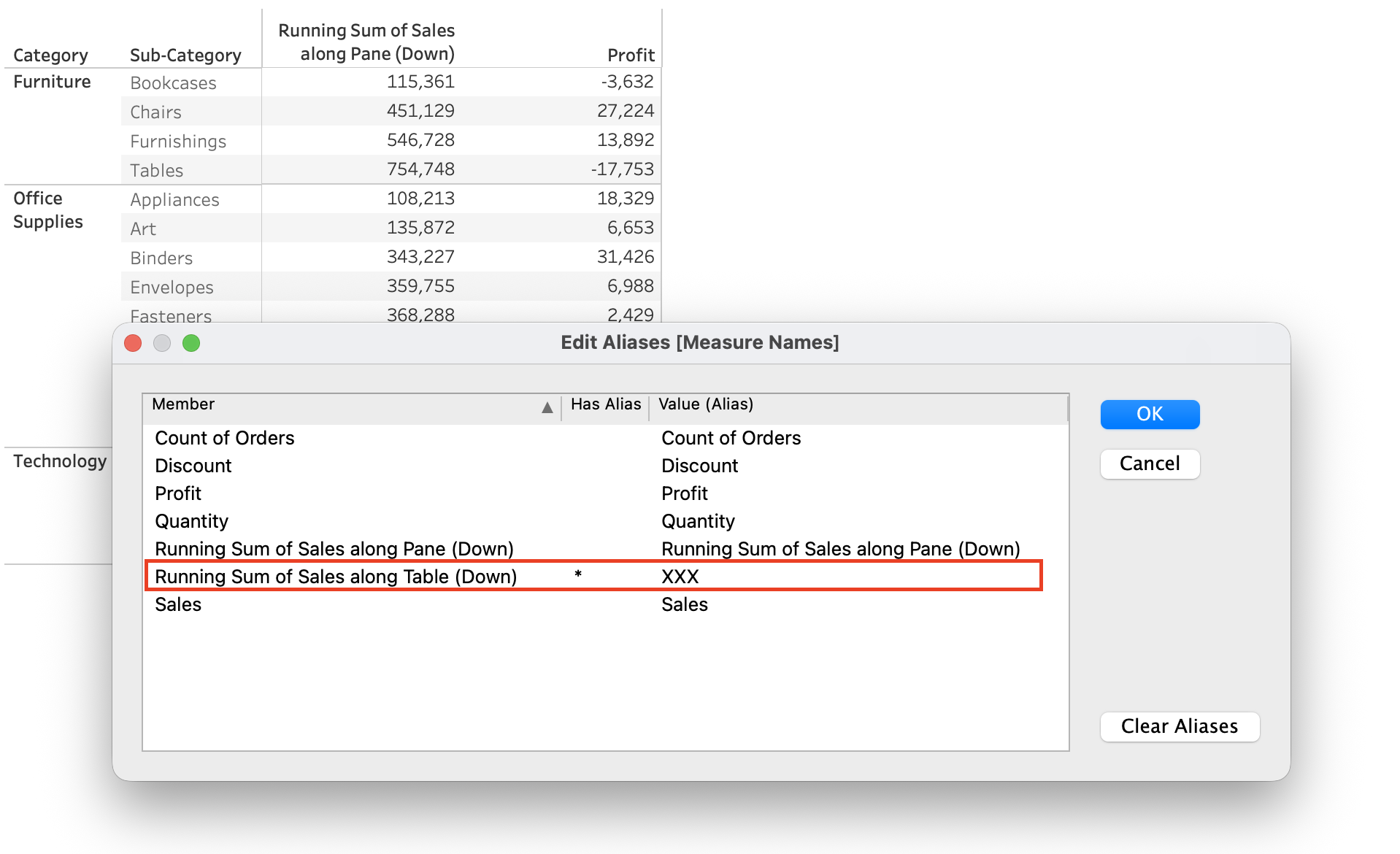
By design in Tableau, aliases for Measure Names are saved individually for each Table Calculation Compute Using direction. Therefore, different compute directions are treated as distinct alias settings, and you cannot assign the identical alias string to multiple compute directions simultaneously.
솔루션
To resolve this issue, clear or modify the alias associated with the previous compute direction.
- Right-click the Measure Names field and select Edit Aliases.
- In the Edit Aliases dialog, find the conflicting measure in the Member column (look for the previous compute direction in the name, e.g., "Table (Down)").
- Resolve the conflict by doing one of the following:
-
Edit specific alias: Click the text box in the Value (Alias) column for that row to clear the text or enter a new, unique name.
-
Clear all aliases: Click the Clear Aliases button. (Note: This resets all aliases for Measure Names).
-
- Click OK to save the changes.
This makes the desired alias available for use again with the current compute direction.
For more details, please refer to the attached sample workbook and video.
Knowledge 기사 번호
005393467
이 기사를 통해 문제를 해결했습니까?
개선을 위한 의견을 보내주세요.
