Seleziona un'organizzazione
Outlook/Gmail Integration side panel error: Notifications are disabled in the Feed.
Data pubblicazione: Oct 7, 2026
Descrizione
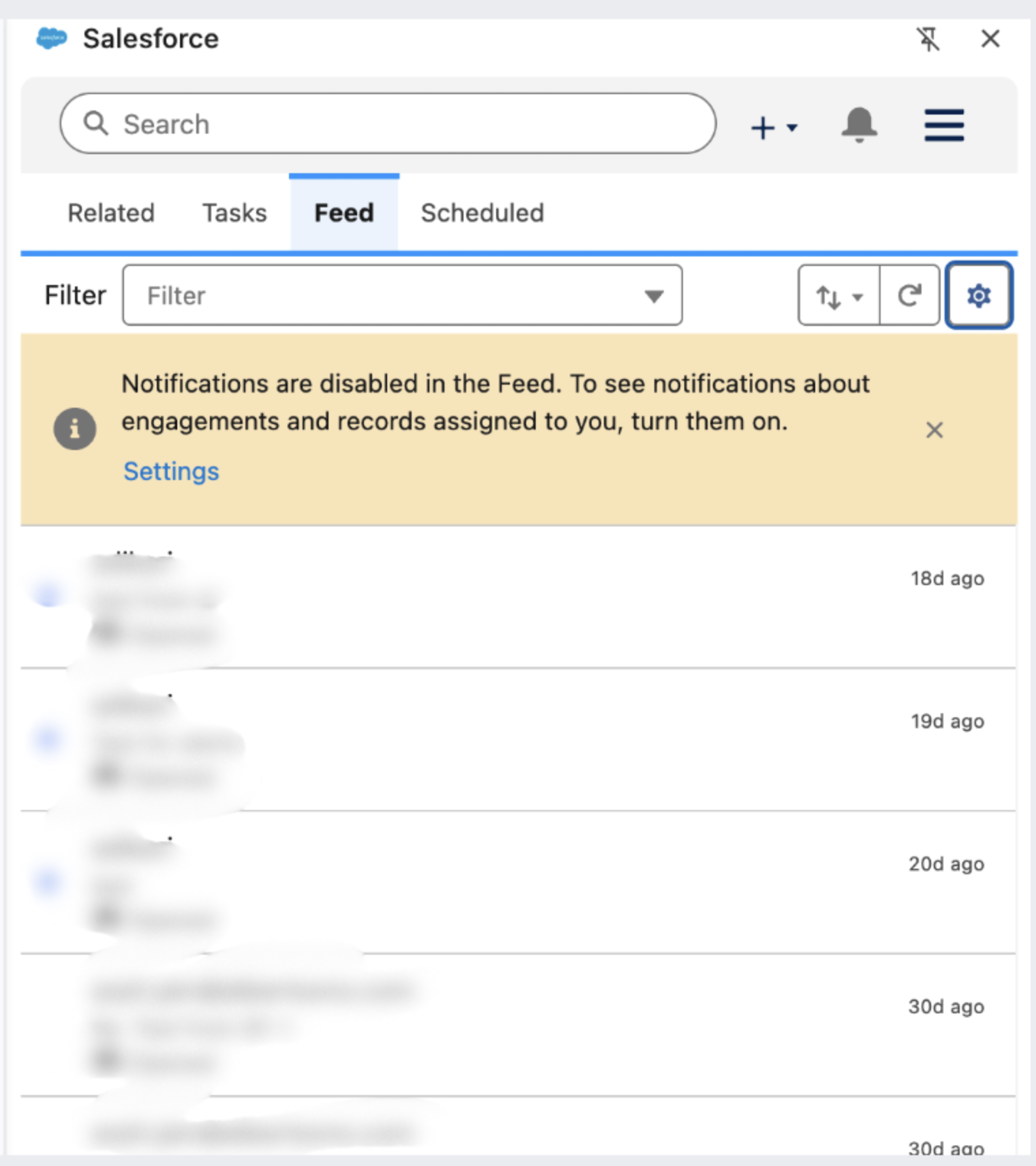
Users of the Salesforce Outlook/Gmail Integration with Inbox may see an alert in the side panel under the Feed tab that reads "Notifications are disabled in the Feed. To see notifications about engagements and records assigned to you, turn them on."
Risoluzione
This article explains how to clear the "Notifications are disabled in the Feed" alert in the Salesforce Outlook/Gmail Integration side panel by allowing notifications for the Salesforce Lightning page in your browser. The steps depend on whether the user has a Sales Engagement license.
Enable Feed Notifications for Users Without a Sales Engagement License
- Open the Feed tab in the Gmail or Outlook integration and click the Settings button below the Notifications disabled alert.
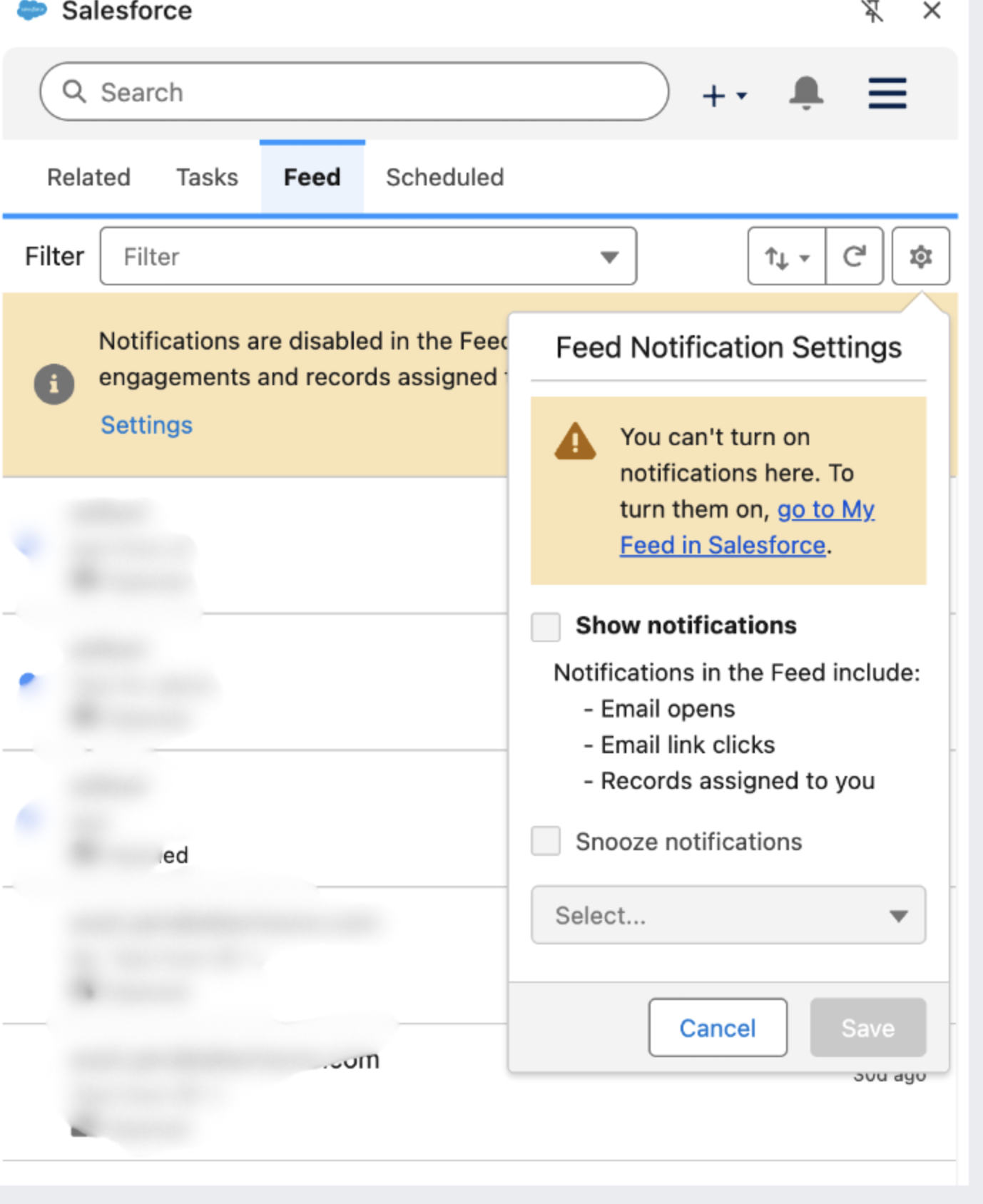
- In the Feed Notification settings, the Show Notifications checkbox is greyed out. Click the Go to My feed in Salesforce link.
- Salesforce redirects you to the Work Queue page.
- Open the Site Settings for that Lightning page in your browser and allow notifications for the Lightning page.
- Return to Gmail or Outlook, open the side panel, and check whether you can now enable the Show Notifications checkbox under Feed Notification settings.
## Enable Feed Notifications for Users With a Sales Engagement License
- Follow the same steps to go to the Work Queue in Salesforce.
- Open the site settings for that Lightning page in your browser and allow notifications for the Lightning page.
- Instead of going directly to Gmail or Outlook, go to the Feed tab under Work Queue in Salesforce and enable the Show Notifications checkbox under Feed Notification settings.
This also automatically allows notifications in the Outlook Integration/Gmail Integration side panel.
Important Notes About Feed Notifications
- Outlook desktop and app users must either go to the Feed tab under Work Queue or open Outlook on the web to allow feed notifications after notifications are allowed in the site settings. Even after notifications are allowed in Outlook on the web, the desktop or app still shows the "Feed notifications Disabled" alert. This is expected behavior, and the Salesforce team is working on a fix.
- This setting does not affect the functionality of the feed.
Risorse aggiuntive
Numero articolo Knowledge
005408533
Questo articolo ha risolto il problema?
Facci sapere, così possiamo migliorare!