Valitse organisaatio
Make a Field Available as a Dashboard Filter in Salesforce Reports and Dashboards
Julkaisupäivä: Oct 12, 2026
Kuvaus
When editing a Salesforce dashboard, you may find that a specific field is missing from the Select Field to Filter By dropdown.
To use a field as a dashboard filter, it must be supported and available in every report type referenced by every source report on the dashboard. This article outlines some common causes for this issue and provides step-by-step instructions to make missing fields available.
Causes:
If a field is not available as a dashboard filter, review the following conditions:
-
Missing from Report Types (Most Common): The field is not included in the report type used by every source report in the dashboard.
-
Unsupported Field Types: The field is an unsupported type, such as a Bucket Field or Custom Summary Formula.
-
Unsupported Dashboard Components: The dashboard contains components based on joined reports, Visualforce or s-control widgets.
-
Filter Limit Reached: Salesforce Lightning dashboards support a maximum of 5 dashboard filters.
-
User Permissions: You do not have the required permissions to edit the dashboard.
This article focuses on the most common scenario: the field isn't available because it isn't included in all report types used by the dashboard's source reports.
Example Scenario
In this example, we'll use a Support Dashboard and configure the Case Owner field as a dashboard-level filter.
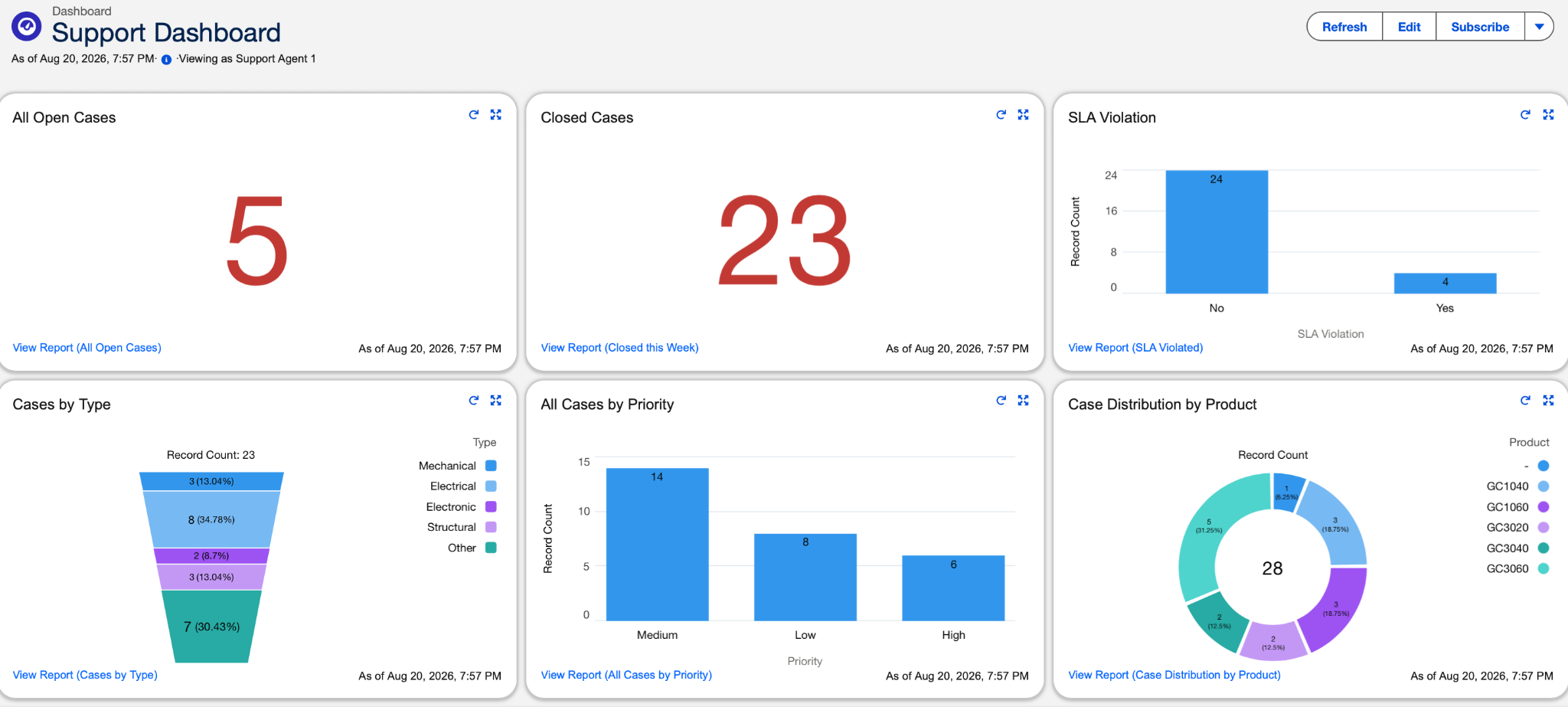
Issue: Field Is Not Available as a Dashboard Filter
-
Open the dashboard.
-
Click Edit.
-
Click + Filter.
-
Notice that Case Owner isn't available in the Select Field to Filter By list.
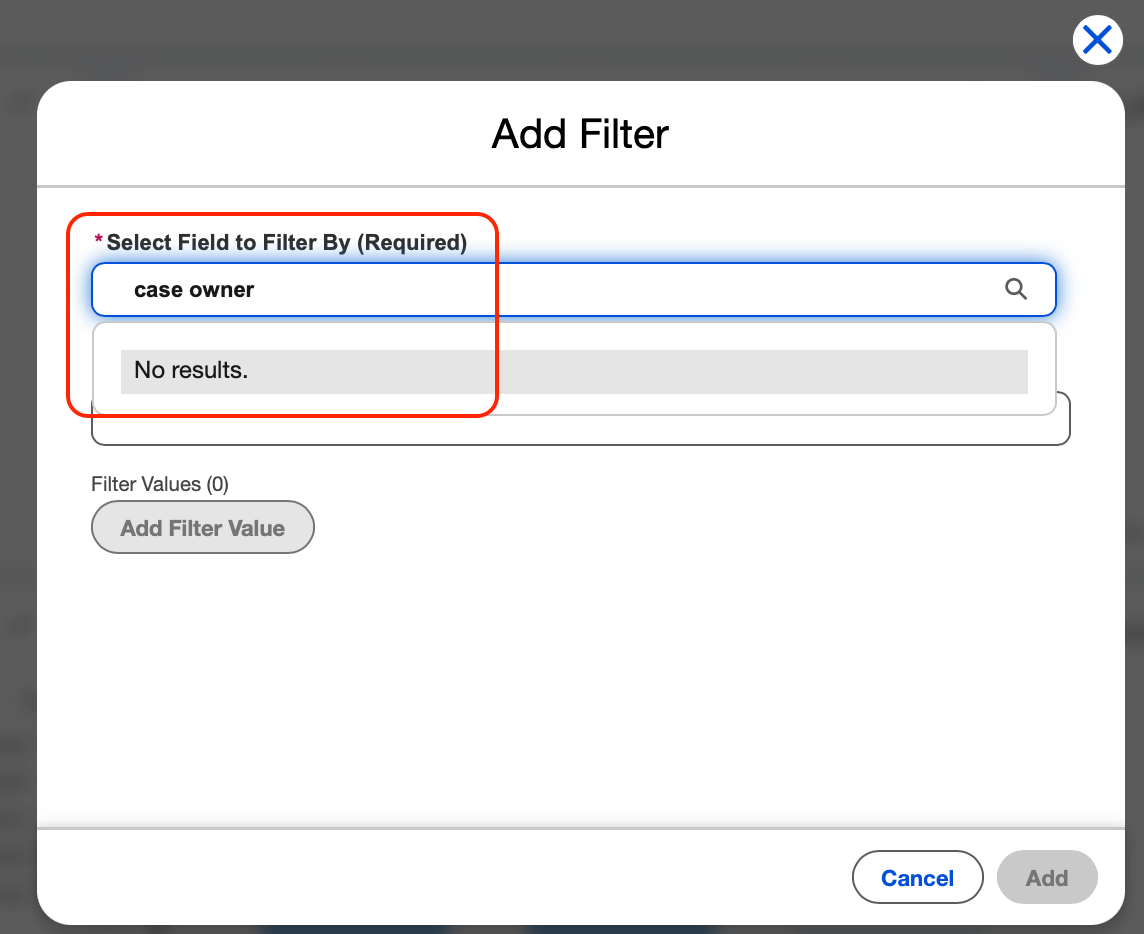
Resolution
The Case Owner field must be available in the report type used by every source report before it can be selected as a dashboard filter.
Step 1: Identify the Source Reports
- Open the dashboard
- Review each dashboard component and identify the report used as its data source.
Step 2: Verify the Field in Each Source Report
- Open each source report
- Click Edit
- In the Outline panel, search for and try to add the Case Owner field
- If the field isn't available, identify the report type used by the report. The report type name appears next to the report name in the report editor
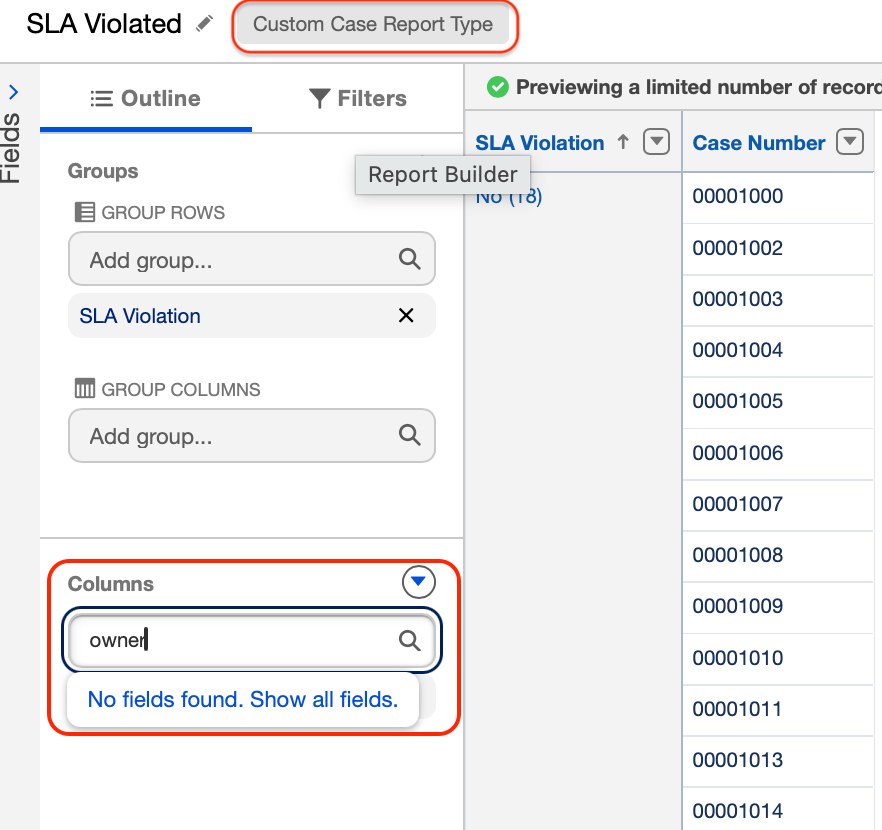
Step 3: Add the Field to the Report Type
- From Setup, enter Report Types in the Quick Find box, and select Report Types
- Open the report type identified in the previous step
- Click Edit Layout.

- Add the Case Owner field to the report type layout.
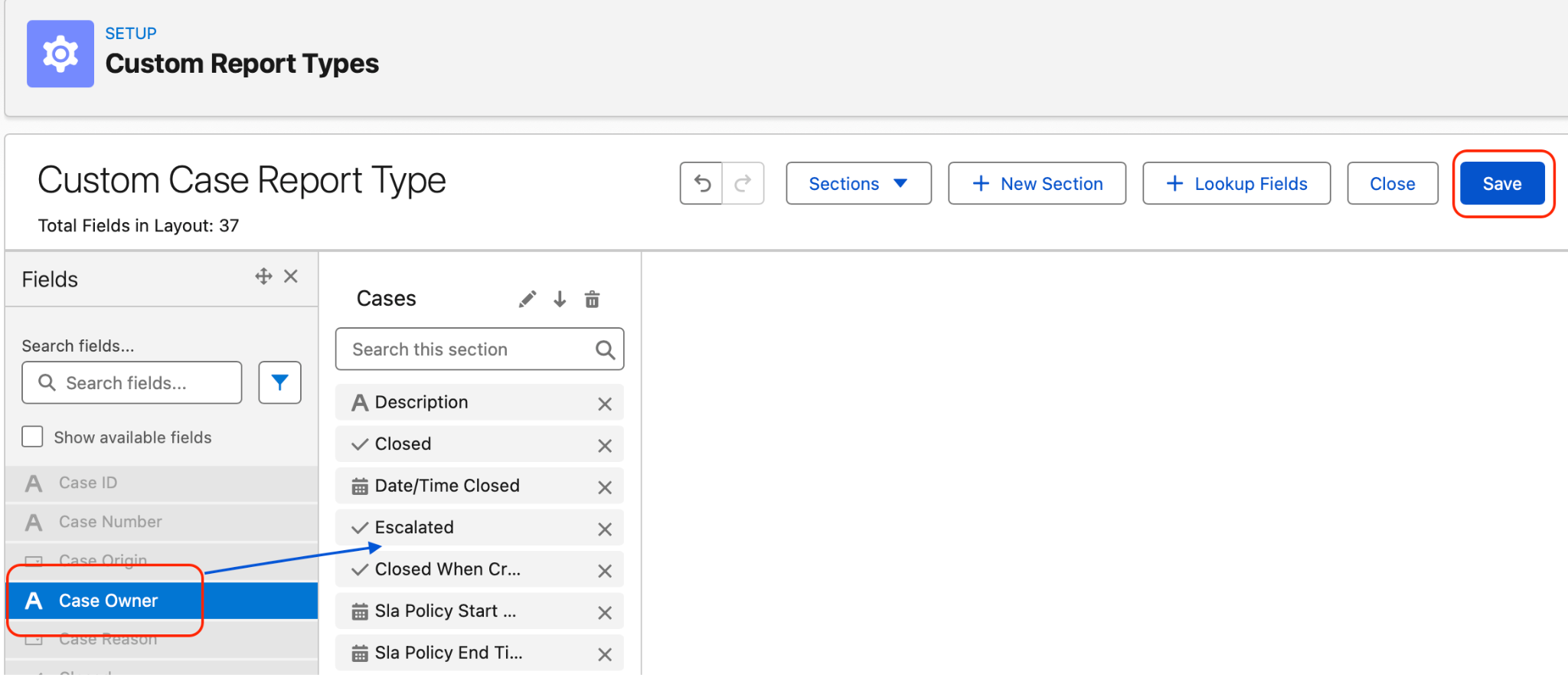
- Click Save
Note: Repeat these steps for every report type used by the dashboard's source reports. The field must be available in every report type before it can be used as a dashboard filter.
Step 4: Add the Dashboard Filter
- Return to the dashboard and click Edit
- Click + Filter
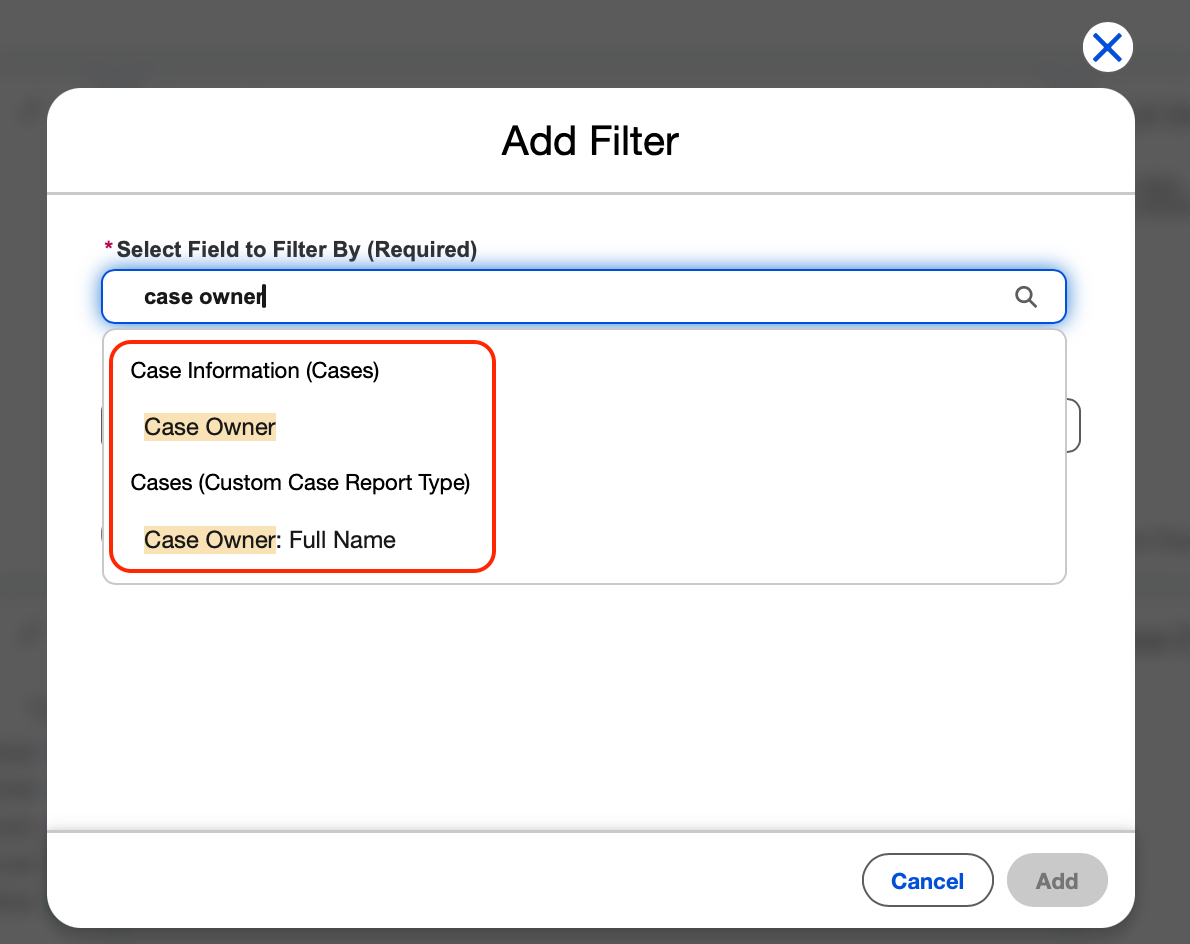
- In Select Field to Filter By, search for and select Case Owner.
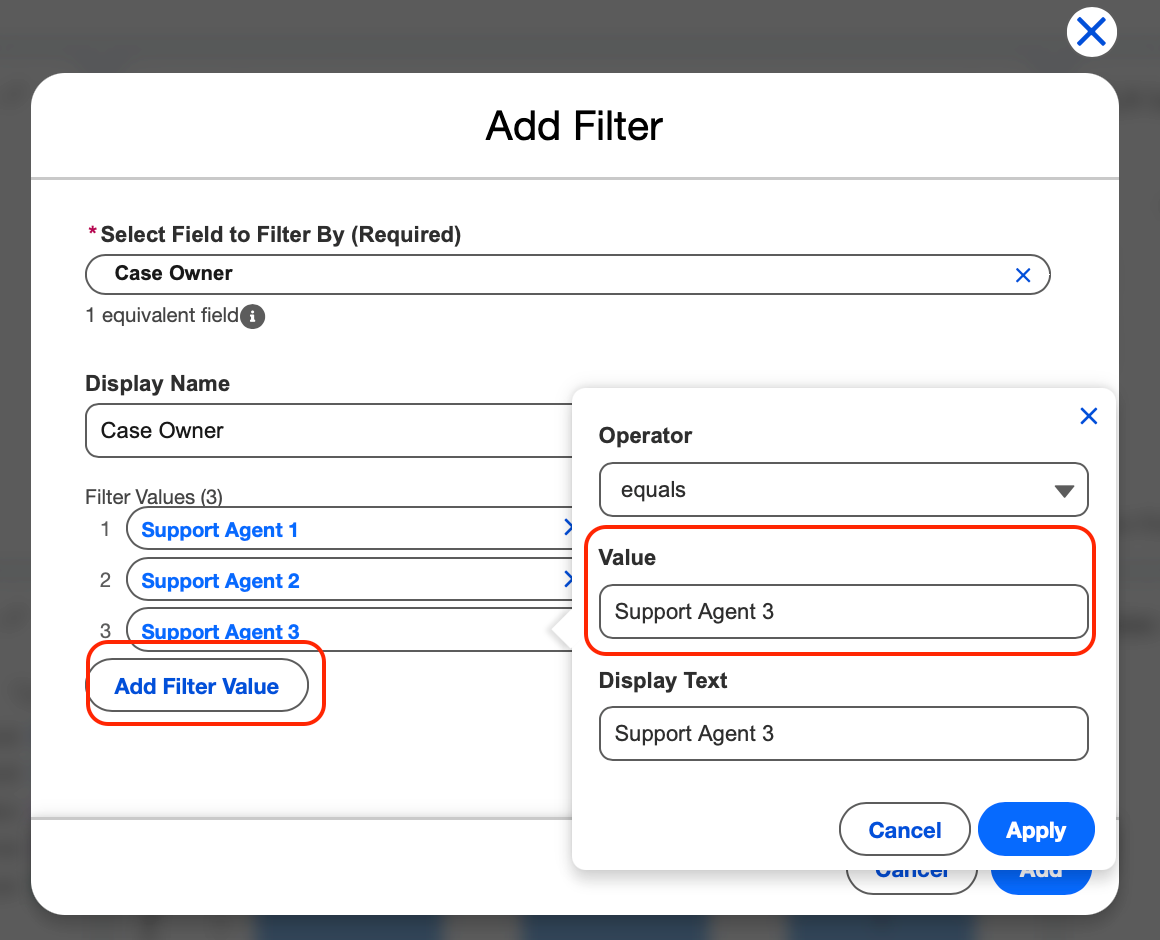
- Configure the filter by specifying the Operator, Value, and Display Text
- Click Add
- Click Save, then click Done
Result
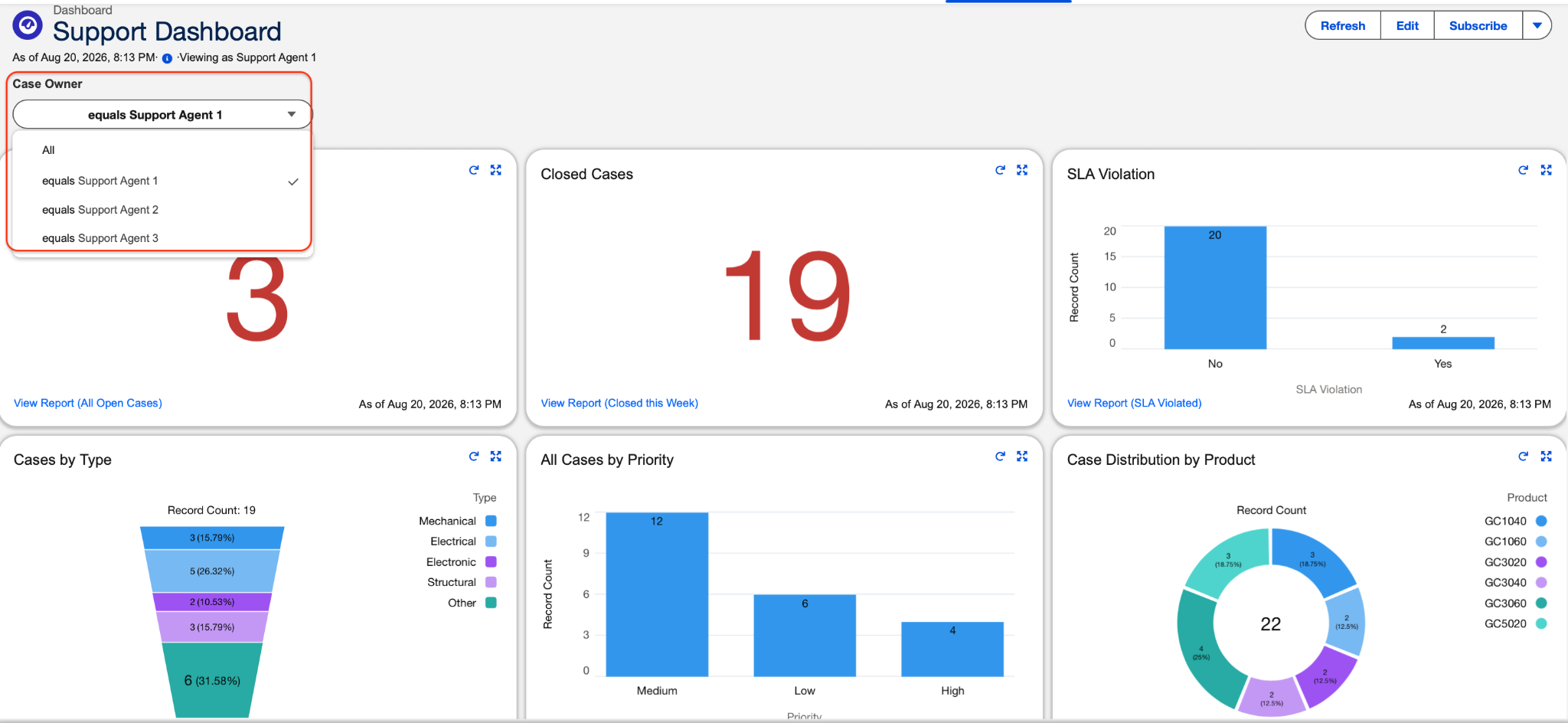
After the field has been added to every report type used by the dashboard's source reports, it becomes available in the Select Field to Filter By list. You can then add it as a dashboard filter and use it to filter dashboard components.
—----------------------------------------------------------------------------------------------------------
Written by: Smitha Thomas | Forum Ambassador
Smitha is a Salesforce Consultant and Trailhead Forum Ambassador who is passionate about supporting Trailblazers and contributing to the community. She is continually inspired by the rapid evolution of the Salesforce ecosystem and enjoys exploring its powerful automation features and Agentforce capabilities.
If you have questions, tap into the wisdom of our entire Trailblazer Community here: https://trailhead.salesforce.com/trailblazer-community/feed
Submissions reflect only the opinions of the user who made available the Submission and not the opinions of Salesforce, regardless of whether the user is affiliated with Salesforce, and may contain or constitute products, services, information, data, content and other materials made available by or on behalf of third parties ("Third Party Materials). Salesforce neither controls nor endorses, nor is Salesforce responsible for, any Third Party Materials, including their accuracy, validity, timeliness, completeness, reliability, integrity, quality, legality, usefulness or safety, or any applicable intellectual property rights. Any Submissions made available through any message board or forum in response to posted questions, or that otherwise purports to answer any questions, including any questions about Salesforce or Programs, are made available for your general knowledge only and should never be relied upon as answers to your specific questions (even if an answer is marked as a “best” answer or with any similar qualifications). You should always contact Salesforce support for answers to your specific questions. Salesforce has no control over Submissions, and is not responsible for any use or misuse (including any distribution) by any third party of Submissions.
Ratkaisu
This article answers the question: why is a field, such as Case Owner, missing from the Select Field to Filter By list when you add a filter to a Salesforce dashboard, and how do you make it available? A field is available as a dashboard filter only when it is included in the report type used by every source report on the dashboard.
How to Make a Field Available as a Dashboard Filter in Salesforce
To make a field available as a dashboard filter, complete the following steps. The Description section of this article shows each step in detail with screenshots.
- Identify the source report for each component on the dashboard.
- Open each source report in edit mode, and check whether the field, such as Case Owner, is available in the Outline panel. If it is not, note the report type that the report uses.
- In Setup, go to Report Types, open the report type, click Edit Layout, add the field to the report type layout, and click Save.
- Repeat the previous step for every report type used by the dashboard's source reports.
- Return to the dashboard, click Edit, click + Filter, select the field in Select Field to Filter By, specify the Operator, Value, and Display Text, and click Add.
- Click Save, and then click Done.
Other Reasons a Field Is Not Available as a Dashboard Filter
If the field is already in every report type, review these other causes:
- The field is an unsupported type, such as a Bucket Field or Custom Summary Formula.
- The dashboard contains components based on joined reports, Visualforce, or s-control widgets.
- The dashboard already has the maximum of 5 dashboard filters that Salesforce Lightning dashboards support.
- You do not have the required permissions to edit the dashboard.
Lisäresurssit
- Build a Salesforce Dashboard with Fixed Filters
- Records from the specified end date are excluded when using the 'between' filter operator in a Dashboard Filter
- How to View a List of Reports Created with a Specific Report Type
- Dashboard components error: “We can't show this table because the "Viewing as" person doesn't have access to all the fields”
Knowledge-artikkelin numero
005408536
Ratkaisiko tämä artikkeli ongelmasi?
Anna palautetta, jotta voimme kehittyä!
