Valitse organisaatio
MuleSoft Composer Sage Intacct Connector Sender ID Changes
Julkaisupäivä: Sep 2, 2026
Kuvaus
The Sage Intacct connector in MuleSoft Composer now requires customers to use their own Sage Intacct API credentials instead of Salesforce-managed credentials. This enforcement from Sage is due to happen at the end of September 2026.
Before: Composer used hardcoded Sender ID and Sender Password values managed by Salesforce on your behalf.
Now: You must provide your own Sender ID and Sender Password obtained directly from your Sage Intacct contract.
Why this change? This improves security, gives you direct control over your Sage credentials, and aligns with Sage Intacct's authentication best practices.
Ratkaisu
Impact on Existing Flows with Sage Intacct
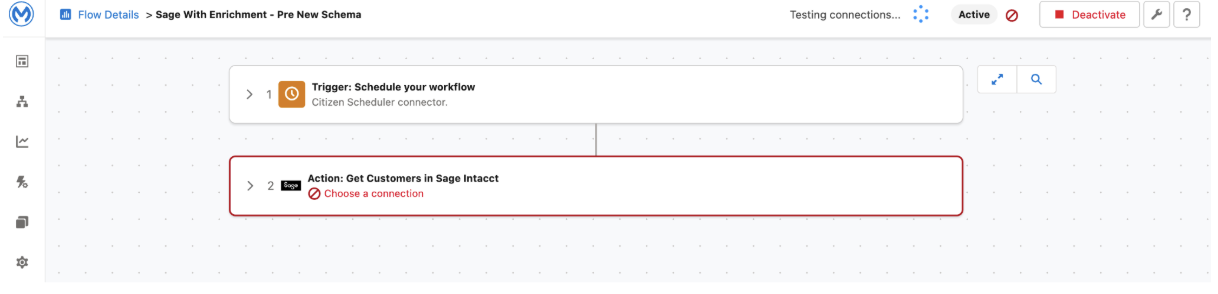
Existing flows: Flows currently running with old connections of Sage Intacct (using Salesforce-managed credentials) will stop working once Sage enforces the change (i.e, invalidates the existing Salesforce-managed credentials) on their end.
After stopping a flow: You must create a new connection using your own Sage Intacct API credentials before restarting the flow.
Note: If you open the flow in view/edit mode, the old connection will be missing and you will be required to create a new connection.
Creating a New Connection with Sage Intacct
Prerequisites
Before creating a new connection, obtain the following from Sage Intacct:
- Company ID
- User ID
- User Password
- Sender ID (New requirement - your own Sage Sender ID)
- Sender Password (New requirement - your own Sage Sender password)
How to get Sender ID and Sender Password: Contact Sage Intacct support or your account representative. These credentials are provided as part of your Sage Intacct contract and API access setup.
Creating the New Connection
Step 1: Edit an existing Flow or Start Creating Your Flow
- In Composer, edit or create a flow
- Add a trigger or action
- Select Sage Intacct as the connector
Step 2: Create a New Connection
1. In the connection dropdown, select + New Connection
2. Fill in the following fields:
- Connection Display Name: A friendly name for this connection
- Authorization Type: Select the appropriate type
- Company ID: Your Sage Intacct company identifier
- User ID: Your Sage Intacct user ID
- User Password: Your Sage Intacct user password
- Sender ID: (New field) Your Sage-provided Sender ID
- Sender Password: (New field) Your Sage-provided Sender Password
3. Click Connect
Step 3: Test the Connection
After clicking Connect:
- Composer will automatically test the connection
- If successful, you'll see available Sage Intacct objects
- Select an object to view available fields
- Continue building your flow as usual
Managing Connections for Sage Intacct
View existing connections: When selecting Sage Intacct as a connector within the Flow, you'll see all available connections in the dropdown.
Delete unused connections: Select a connection from the dropdown and choose the delete option if no longer needed.
Mock connections: Test connections (mock connections) may still appear in the environment and will not be removed automatically.
Important Notes
• Old connections created before this update will not be visible in the connection picker. You must create a new connection using the steps above.
• Each new connection requires your own Sender ID and Sender Password from Sage Intacct.
• Flows using old connections will continue to work until stopped.
• If Sage rotates credentials, you may need to update your Sender ID values. Check with Sage support for credential rotation procedures.
Troubleshooting Sage Intacct Connections
- Cannot find my old connection: Old connections are no longer accessible in the UI. Create a new connection using the steps above.
- Connection test fails: Verify all credentials are correct, especially the new Sender ID and Sender Password fields. Contact Sage Intacct support if credentials are not working.
- Don't have Sender ID/Password: Contact Sage Intacct support or your account representative to obtain these credentials as part of your contract.
Lisäresurssit
Sage Intacct Connector Reference
Sage Intacct Support: Contact your Sage representative.
Knowledge-artikkelin numero
005408538
Ratkaisiko tämä artikkeli ongelmasi?
Anna palautetta, jotta voimme kehittyä!
