Select An Org
Flow-Based Quick Action on Service Appointment Fails with "Action Data Value Not Recognized" Error
Publish Date: Sep 21, 2026
Description
A record-triggered flow (or manual creation) that creates a GeolocationBasedAction record for a Service Appointment fails, and the Action Data value is not recognized. Users see "That Action Data value doesn't exist. Update the value and try again." on the Action Data field, and the flow's fault details may show an INVALID_INPUT message. (Refer Below Screenshot).
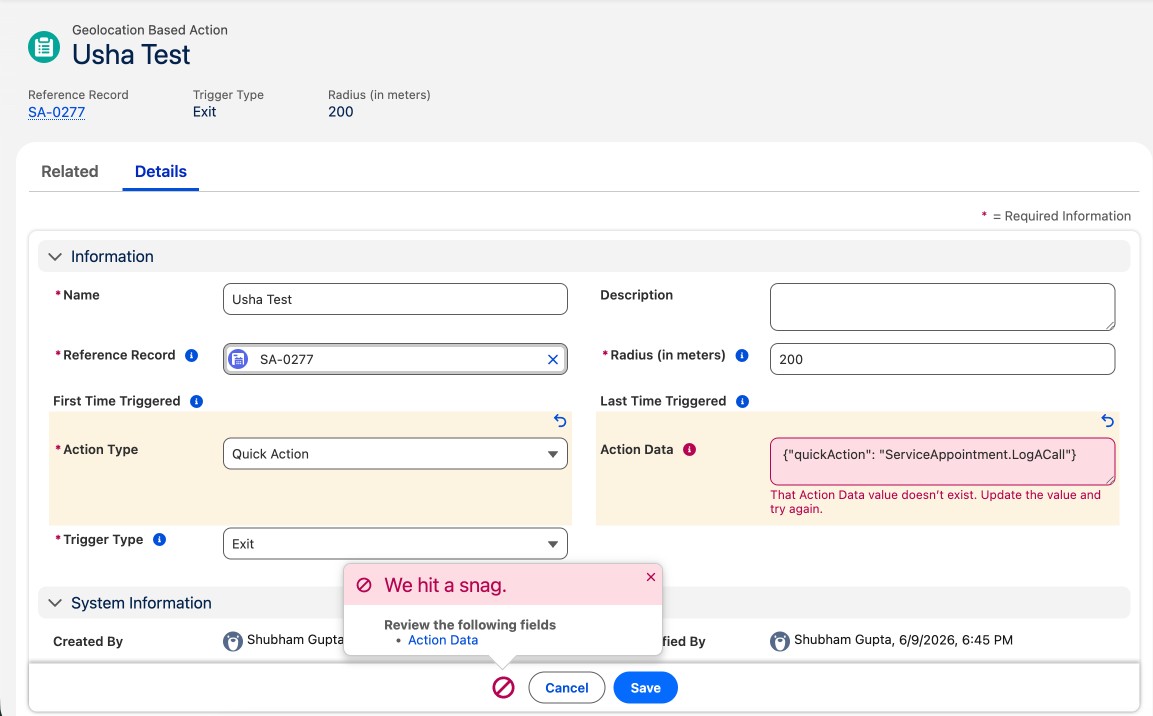
Because the record is not created, technicians do not receive the expected quick action in the Field Service mobile app when entering/exiting the Service Appointment geofence.
Resolution
Root Cause — The Action Data value references a quick action by API name (e.g. {"quickAction": "ServiceAppointment.<Quick_Action_API_Name>"}, or Global.<API_Name> for a global action). Salesforce validates that the referenced quick action exists on the page layout of the referenced object. If it is not on the Service Appointment page layout, the value is invalid and the record fails to save. The same error also appears when the Action Data JSON contains a "smart"/curly quotation mark instead of a straight
Resolution
- Open the flow/automation failure details and confirm the error occurs while creating the GeolocationBasedAction record, referencing the Action Data value.
- Identify the quick action named in the Action Data JSON: {"quickAction": "ServiceAppointment.<Quick_Action_API_Name>"} (object-specific) or {"quickAction": "Global.<Quick_Action_API_Name>"} (global).
- In Setup, go to Object Manager → Service Appointment → Page Layouts, and edit the layout assigned to the affected users.
- In the Salesforce Mobile and Lightning Experience Actions section, add the referenced quick action (override the default actions first if needed). Save.
- Confirm the Action Data JSON uses straight quotation marks (") for every key and value.
- Re-run the flow or recreate the record to retest; if needed, save the record manually to validate.
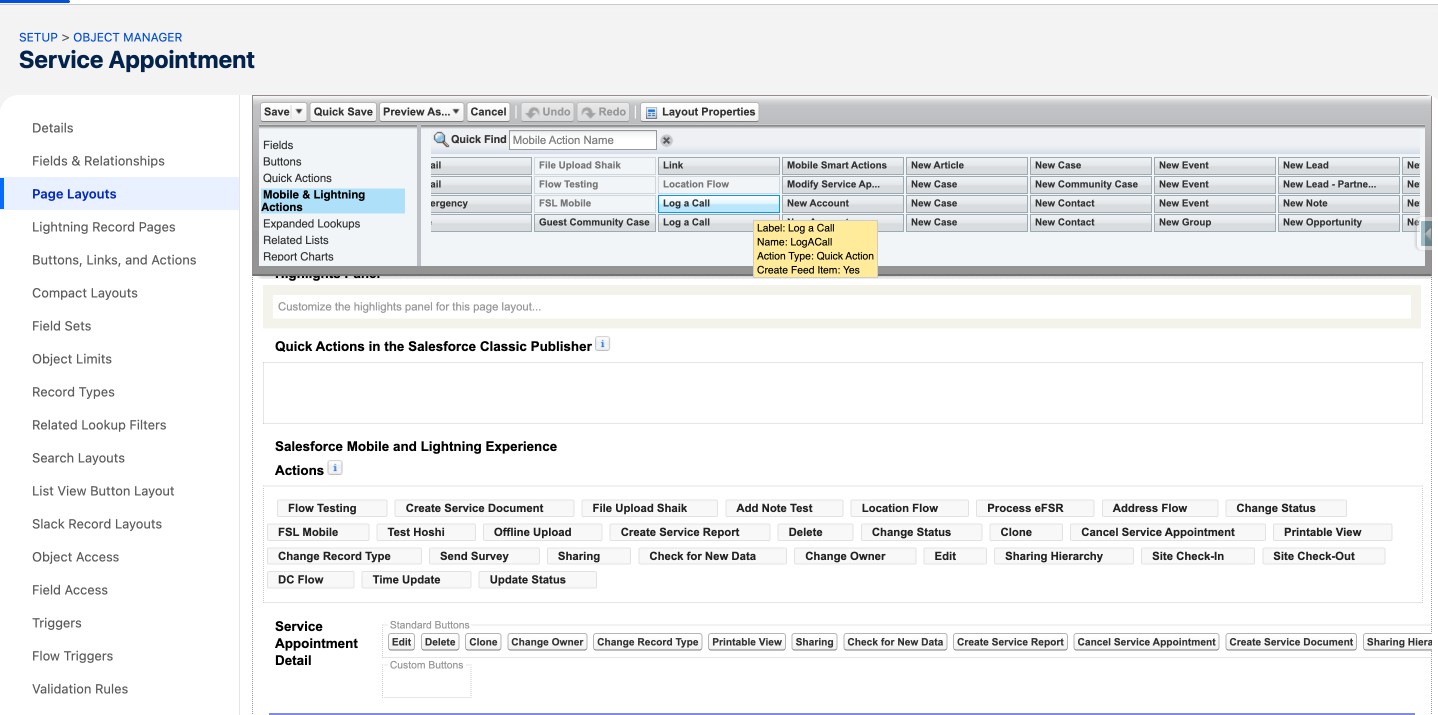
Verification — (1) Re-run the automation/recreate the record; confirm it saves without the error. (2) In the Field Service mobile app, confirm the quick action launches on geofence enter/exit.
Note — The quick action must exist on every Service Appointment page layout assigned to the users who trigger it.
Additional Resources
https://help.salesforce.com/s/articleView?id=service.mfs_lba_parent.htm&type=5
Knowledge Article Number
005421209
Did this article solve your issue?
Let us know so we can improve!
