Seleziona un'organizzazione
How to Specify a UNC Path for File-Based Data Sources in Tableau
Data pubblicazione: Sep 15, 2026
Prerequisito/i
Operazione
Fasi
For a Published Data Source to refer directly to a file on a Windows server without uploading the file, a UNC path must be used to refer to the file, as described in Publish a Data Source.
In order to specify the UNC path correctly:
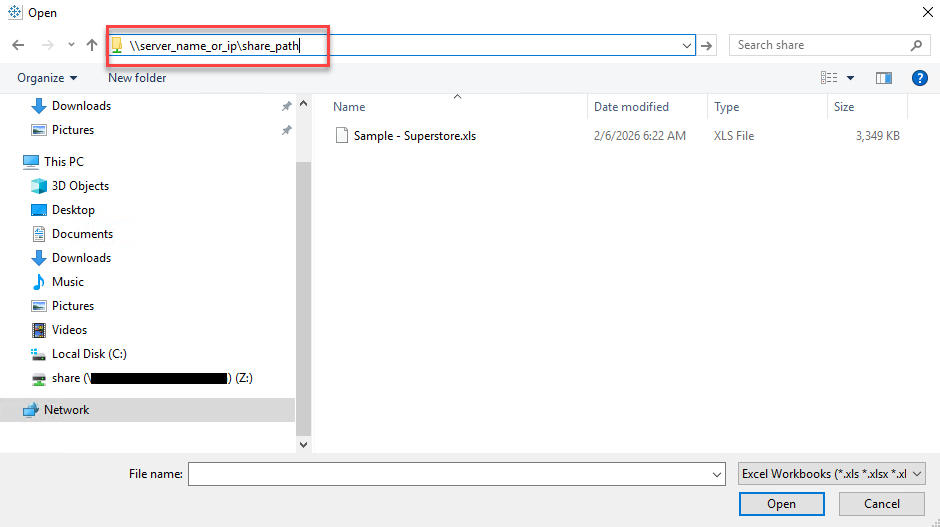
- Open Tableau Desktop or Tableau Prep Builder (Windows) and select a file-based data source type (such as Microsoft Excel or Text File) to open the file selection window.
- In the file selection window, do not click directly on mapped drives such as Z:\ in the left pane.
Instead, click the address bar at the top to place a cursor and directly type the UNC path starting with "\\", i.e. "\\server-name_or_ip\shared-path", then select the file. Alternatively, just enter the server name, i.e. "\\server-name" and hit Enter, then browse to the file from there.
- Open "Edit Connection" on the Data Source screen and verify that the path is still the one that begins with "\\" as shown above.
Risorse aggiuntive
Numero articolo Knowledge
005459400
Questo articolo ha risolto il problema?
Facci sapere, così possiamo migliorare!
