Sélectionner une organisation
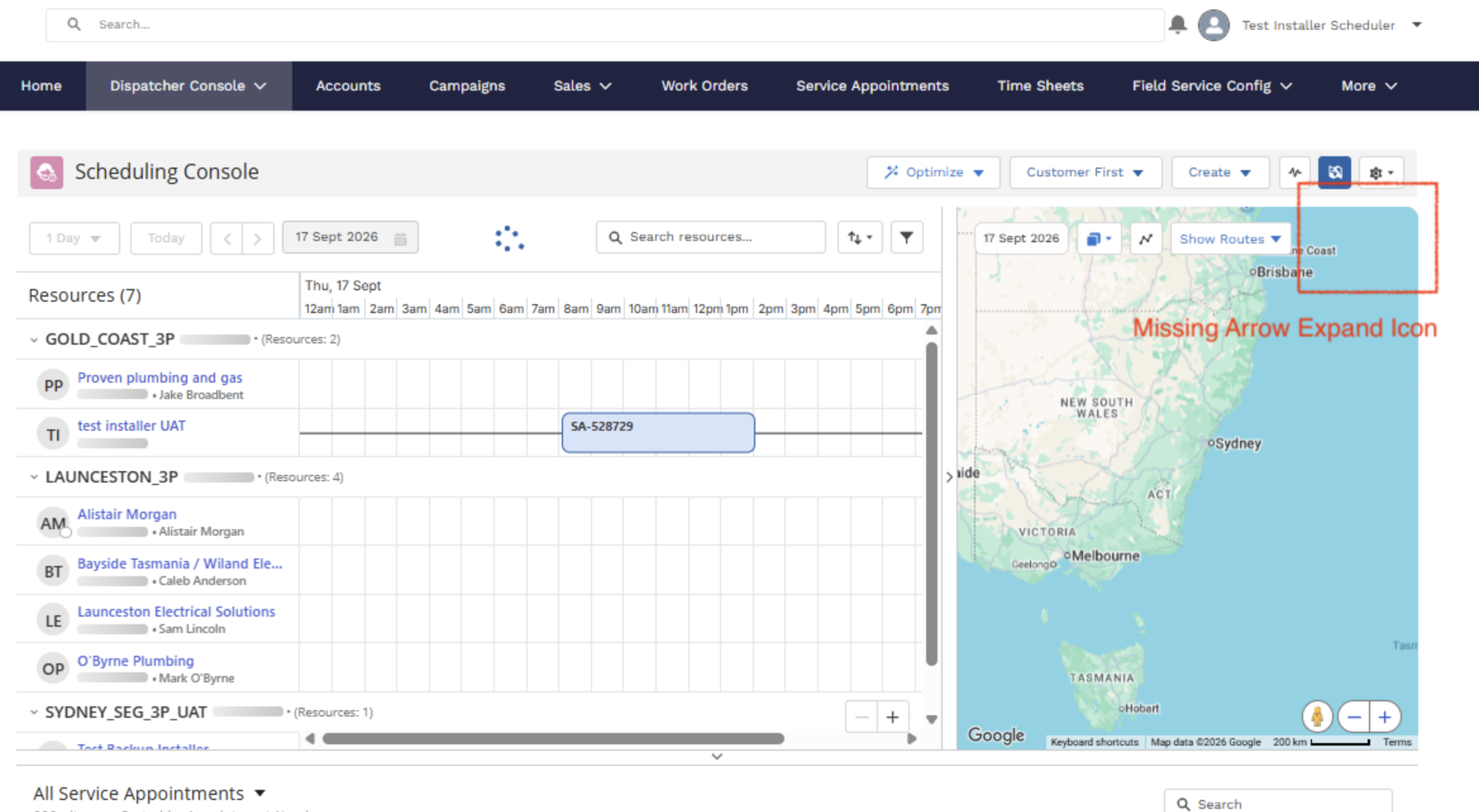
Open Map in New Window Icon Missing in the Field Service Scheduling Console on an Experience Cloud Site
Date de publication: Oct 5, 2026
Description
Dispatchers using the Field Service Scheduling Console on an Aura Experience Cloud site cannot see the expand-arrow icon that opens the map in a separate browser tab. The same option is present and works correctly for internal dispatchers in Lightning Experience. No error message is displayed; the icon is simply not visible.
This occurs after adding the Scheduling Console Map component to a dedicated Experience Builder page. The Scheduling Console links to that map page only when it finds a page whose name and API name exactly match what it expects: a page named Field Service Map with the API name Field_Service_Map__c. If the page's API name differs in any way, including a difference in capitalization such as field_service_map__c, the console cannot resolve the link and the expand icon stays hidden.
The full-screen map option is fully supported on Aura sites accessed through Lightning Experience.
Résolution
Context:
The Scheduling Console renders the expand icon only when it can locate a dedicated Experience Builder page matching an exact name and API name. Salesforce Help instructs you to create a page named "Field Service Map", but the underlying requirement is that the page API name resolves exactly to Field_Service_Map__c (case-sensitive). When the page is created with a different API name (for example, an all-lowercase field_service_map__c), the console cannot bind to the page and the icon is suppressed silently.
Root Cause:
The Experience Builder map page was created with an API name that does not exactly match the expected value Field_Service_Map__c. Because the console matches on an exact, case-sensitive API name, the mismatch prevents the link and the icon is not displayed. No error is surfaced.
Resolution Steps:
- Open Experience Builder for the affected Aura site (Setup → Digital Experiences → All Sites → Builder).
- Delete the existing map page that has the incorrect or lowercase API name.
- Create a new page named exactly
Field Service Map, ensuring the API name isField_Service_Map__c(match capitalization exactly). - From Components → Other Components, drag the Scheduling Console Map component into the Content section of the new page.
- Publish the site. Saving in the Builder alone is not enough; the console detects the page only after publish.
Verification:
- Open the live (published) Scheduling Console as an Experience site user, not the Builder preview.
- Reload and confirm the expand-arrow icon now appears, consistent with the internal experience.
- Click it and confirm the map opens in a separate tab and stays synchronized with the Gantt and appointment list.
Note: Requires permission to edit and publish the Experience Cloud site. The Scheduling Console does not support LWR sites — use an Aura site.
Ressources supplémentaires
Give Dispatchers a Full-Screen View of the Scheduling Console Map in Experience Cloud : https://help.salesforce.com/s/articleView?id=release-notes.rn_fieldservice_262_scheduling_console_experience_cloud_map_support.htm&release=262&type=5
Add the Field Service Scheduling Console to an Experience Builder Site : https://help.salesforce.com/s/articleView?id=service.pfs_scheduling_console_community.htm&type=5
Numéro d’article de la base de connaissances
005460476
Cet article a-t-il résolu votre problème ?
Dites-nous ce que nous pouvons améliorer !
