Выбрать организацию
Display a Record URL as a Hyperlink in a Chatter Post Using a Record-Triggered Flow in Salesforce
Дата публикации: Oct 7, 2026
Описание
An admin is looking to add the Contact Record's URL in a Chatter Post as hyperlink once the Contact owner is changed. Currently, the admin is facing issues creating a Record URL dynamically with a hyperlinked text in the chatter post so the new owner can get the notification of ownership change with the URL.
The Chatter Post text has a hyperlink with some bulleted list but it seems broken when creating a Chatter Post using flow.
Решение
Note: The standard Post to Chatter action currently does not support Rich Text. As a result, hyperlinks and bulleted lists cannot be displayed properly and may appear as HTML tags when posting Rich Text content to Chatter.
The standard Post to Chatter action is preferred over an approach that leverages the Feed Item object. If you have a hard requirement to use the Feed Item object, make sure that the HTML tags and attributes you use are supported for Chatter posts. Otherwise, you may receive an INVALID_MARKUP flow failure due to issues parsing the Rich Text content.
Some common HTML tags that are not supported in Chatter Rich Text include <span> and <br>.
In this article, we will cover the following approach:
Using "Feed Item" object
Login to your Salesforce account.
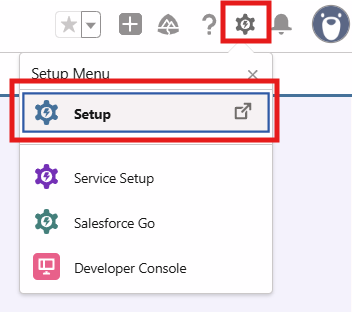
1) Click the Gear Icon on the top right corner of your screen and select Setup
2) From the quick find box, search for Flows and select the ‘New Flow' button

3) Select the Triggered option under 'Categories' and Record-Triggered Flow as 'Type' of flow
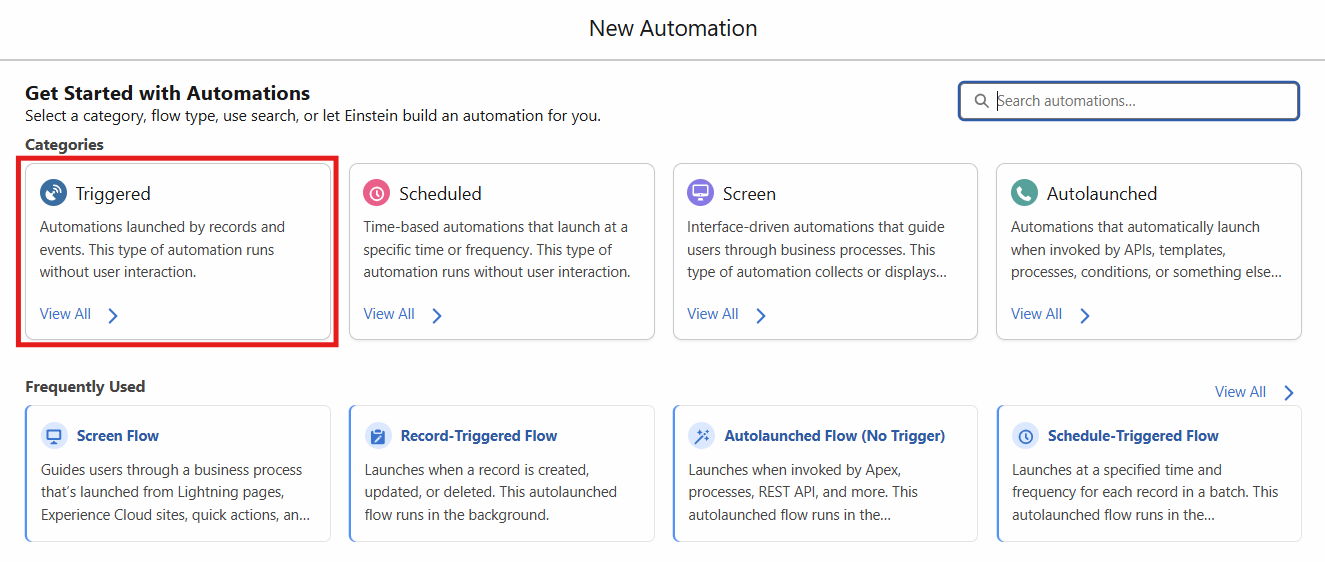
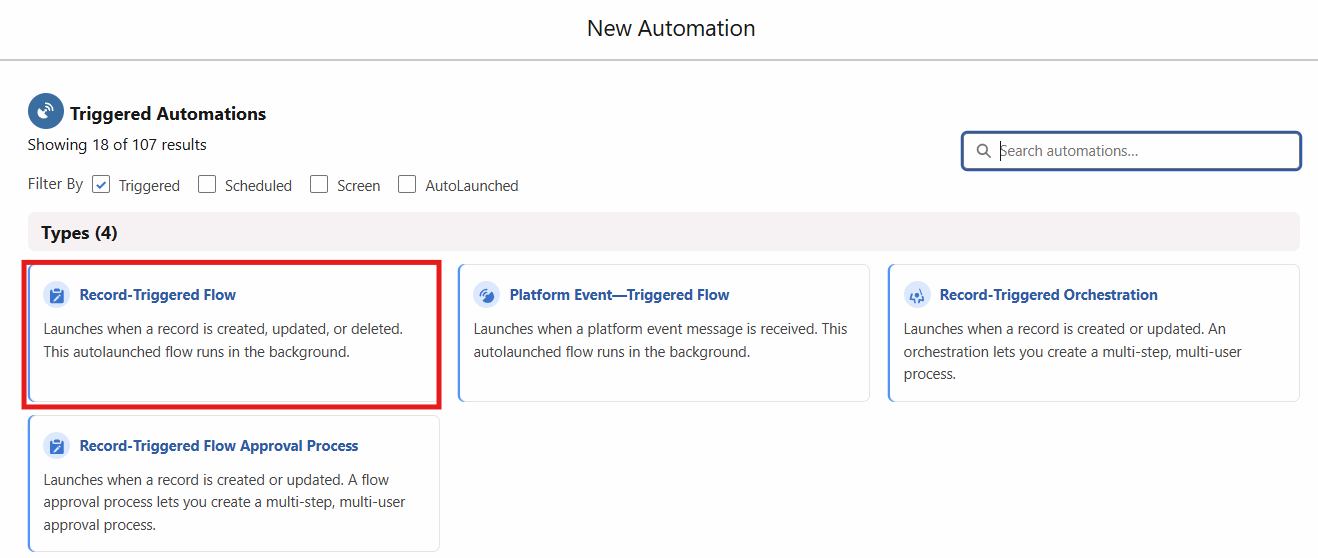
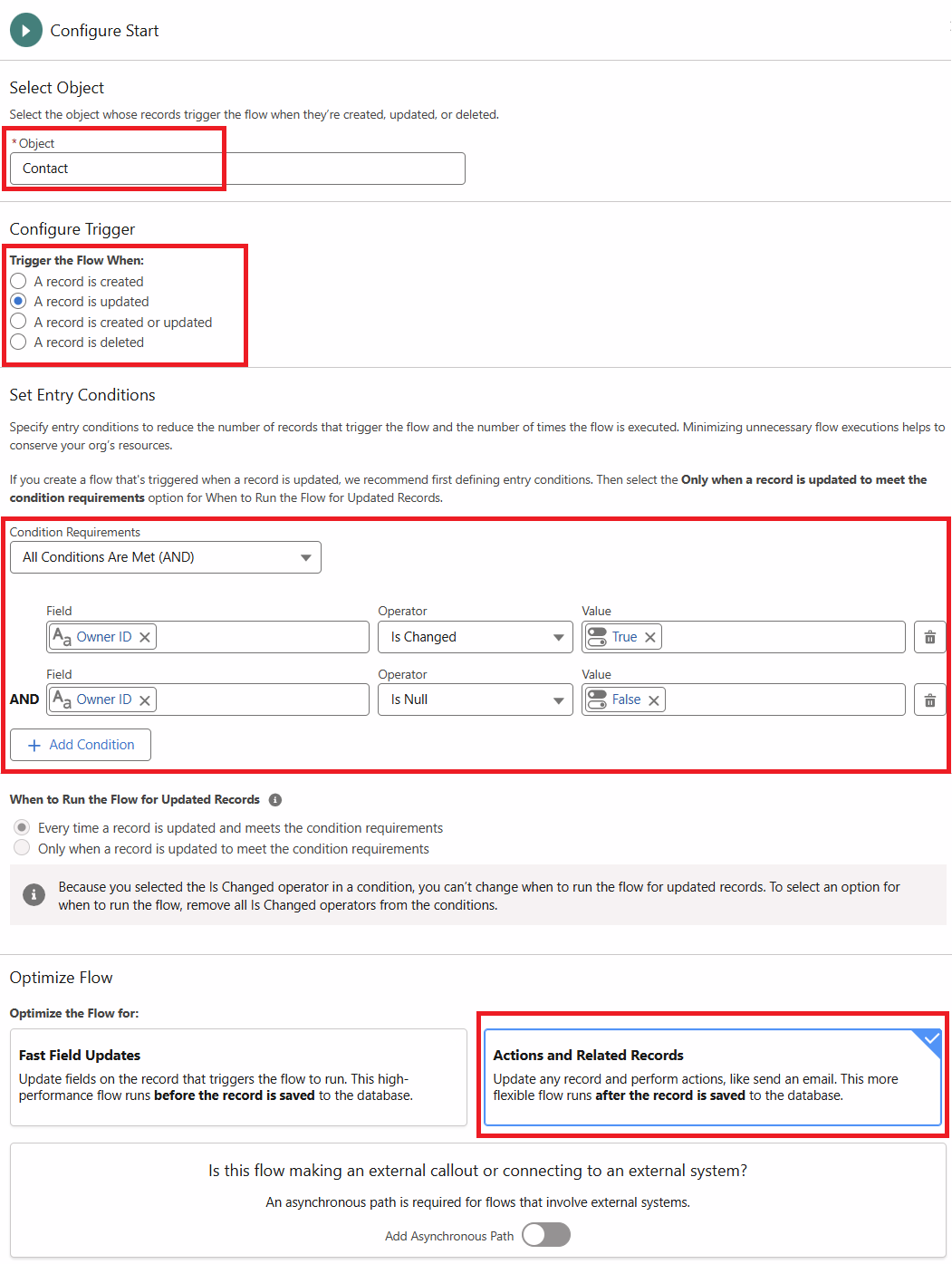
4) On the Configure Start trigger, provide the following values:
Object: Contact
Trigger the Flow When: A record is updated
Condition Requirement: All Conditions Are Met (AND)
Logic:
OwnerId Is Changed {!$GlobalConstant.True}
OwnerId Is Null {!$GlobalConstant.False}
When to Run the Flow for Updated Records: Every time a record is updated and meets the condition requirements
Optimize the Flow for: Actions and Related Records
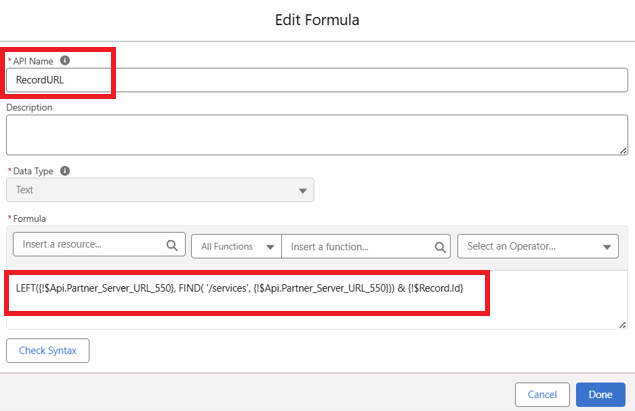
5) Now, create a new Formula Resource Type for generating the record url
Substitute the values as follows:
Resource Type: Formula
API Name: RecordURL (Note: Provide any suitable API name for the formula)
Description: Provide a suitable description (Note: It's optional but it's a best practice to provide description)
Date Type: Text
Formula: LEFT({!$Api.Partner_Server_URL_550}, FIND( '/services', {!$Api.Partner_Server_URL_550})) & {!$Record.Id}
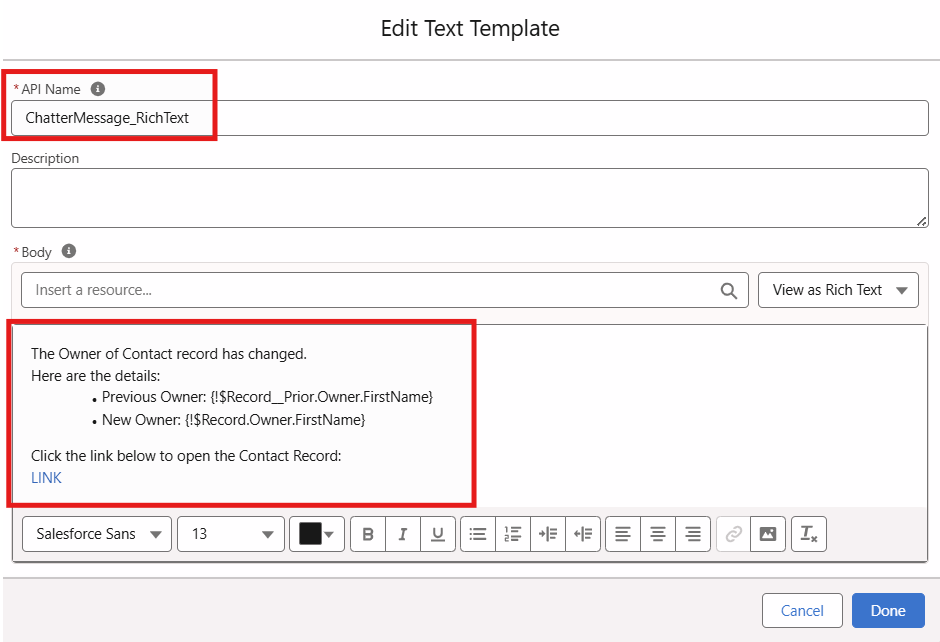
6) Now, create a new Text Template Resource Type for chatter message
Substitute the values as follows:
Resource Type: Text Template
API Name: ChatterMessage_RichText (Note: Provide any suitable API name for the formula)
Description: Provide a suitable description (Note: It's optional but it's a best practice to provide description)
Body: Switch it to Pain Text mode and add the text below:
<p>The Owner of Contact record has changed.</p><p>Here are the details:</p><ul><li>Previous Owner: {!$Record__Prior.Owner.FirstName}</li><li>New Owner: {!$Record.Owner.FirstName}</li></ul><p> </p><p>Click the link below to open the Contact Record:</p><p><a href="{!RecordURL}" rel="noopener noreferrer" target="_blank">LINK</a></p>
7) Now, add a Create Records element and substitute the following values:
Label: Create Feed Item (Note: Provide any suitable name)
Description: Provide any suitable description (Note: It's optional but it's a best practice to provide descriptions)
How to set record field values: Manually
Object: Feed Item
Set Field Values for the Feed Item:
Body Equals {!ChatterMessage_RichText}
IsRichText Equals {!$GlobalConstant.True}
ParentId Equals {!$Record.Id}
8) Now, on the upper right side of flow canvas, hit the Save button and provide a suitable flow name (It is a best practice to provide descriptions)
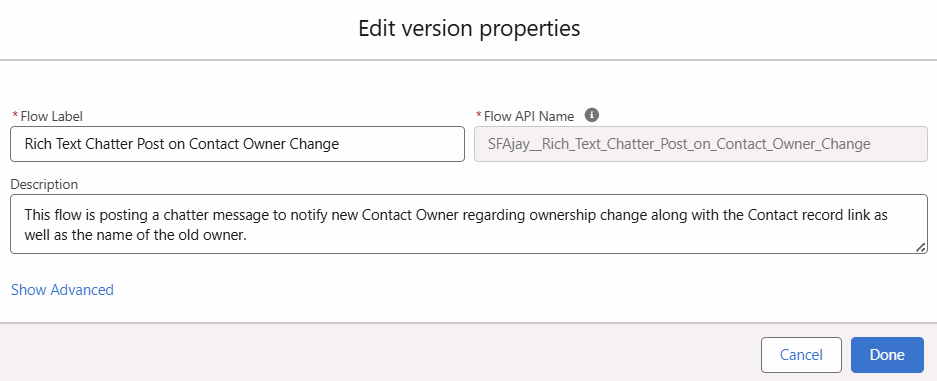
9) Finally, click on the Activate button available next to the Save button to activate the flow
Written By: Ajaypreet Singh Saini | Forum Ambassador
Ajaypreet Singh Saini is working as a Salesforce Implementation Consultant at Grantbook. Ajaypreet has more than 3 years of Salesforce experience working across multiple clouds. Ajaypreet is very active in the Answers community and has been a Salesforce Forum Ambassador since September 2021.
Submissions reflect only the opinions of the user who made available the Submission and not the opinions of Salesforce, regardless of whether the user is affiliated with Salesforce, and may contain or constitute products, services, information, data, content and other materials made available by or on behalf of third parties ("Third Party Materials). Salesforce neither controls nor endorses, nor is Salesforce responsible for, any Third Party Materials, including their accuracy, validity, timeliness, completeness, reliability, integrity, quality, legality, usefulness or safety, or any applicable intellectual property rights. Any Submissions made available through any message board or forum in response to posted questions, or that otherwise purports to answer any questions, including any questions about Salesforce or Programs, are made available for your general knowledge only and should never be relied upon as answers to your specific questions (even if an answer is marked as a "best" answer or with any similar qualifications). You should always contact Salesforce support for answers to your specific questions. Salesforce has no control over Submissions, and is not responsible for any use or misuse (including any distribution) by any third party of Submissions.
If you have questions, tap into the wisdom of our entire Trailblazer Community here: https://trailhead.salesforce.com/trailblazer-community/feed
Дополнительные ресурсы
Номер статьи базы знаний
005460491
Эта статья решила вашу проблему?
Оставьте свой отзыв, чтобы мы могли стать лучше!
