Organisation auswählen
Send Opportunity Product Tables in a Multi-Language Email Using Salesforce Flow and a Visualforce Email Template
Veröffentlichungsdatum: Oct 7, 2026
Beschreibung
When automating emails with Salesforce Flow, building HTML tables to display related records can become difficult to translate and maintain. This article demonstrates how to use a Classic Visualforce Email Template and Custom Labels to dynamically generate a multi-language list of Opportunity Products without requiring custom Apex code.
Lösung
Prerequisite: The Contact Language Field
To determine the recipient's preferred language, create a custom picklist field on the Contact object:
-
Data Type: Picklist
-
Field Label: Primary Language
-
Field Name: Primary_Language__c
Crucial Step: The picklist Labels can be user-friendly (e.g., Español, Deutsch), but the API Names must exactly match Salesforce's standard locale codes.
Note: If your org only supports a single language, you can skip this prerequisite and exclude the language attribute from the Visualforce template entirely.
|
Picklist Label (What the user sees) |
Picklist API Name (What the code needs) |
|---|---|
|
English |
en_US |
|
Español |
es |
|
Deutsch |
de |
|
Français |
fr |
|
etc… |
Step 1: Create the Translation Engine (Custom Labels)
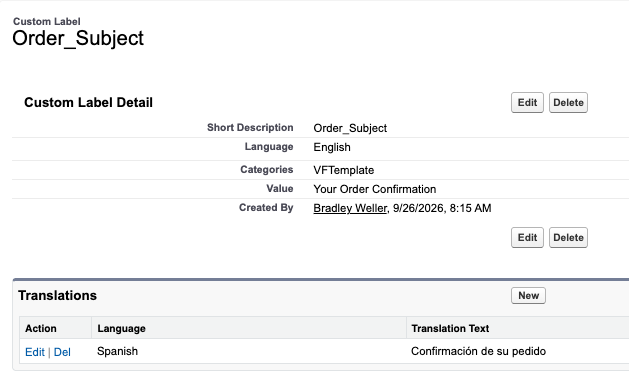
Go to Setup > Custom Labels and create the following:
Optional: Populate the Categories field with VFTemplate to group these labels in Setup, making them easier to manage when adding new languages later.
Use Custom Labels to automatically translate text based on the Contact's Primary_Language__c. For relevant languages enabled through the Translation Workbench, add the localized text for your supported languages.
|
Label Name (Short Description) |
Value (English Default) |
Example Translation (Spanish es) |
|---|---|---|
|
Order_Subject |
Your Order Confirmation |
Confirmación de su pedido |
|
Order_Greeting |
Hello |
Hola |
|
Order_Message |
Here are the products on your order: |
Aquí están los productos en su pedido: |
|
Product_Name_Header |
Product Name |
Nombre del producto |
|
Quantity_Header |
Quantity |
Cantidad |
|
Unit_Price_Header |
Unit Price |
Precio unitario |
|
Total_Price_Header |
Total Price |
Precio total |
Step 2: The Visualforce Email Template
Go to Setup > Classic Email Templates > New Template > Visualforce to create the template:
-
Email Template Name: Order Confirmation - Multi-Language (VF)
-
Description: Visualforce template that dynamically generates an order confirmation email and Opportunity Product table based on the Contact's Primary Language.
The language="{!recipient.Primary_Language__c}" attribute automatically swaps every {!$Label} tag to the correct translation. If the field is blank or contains an invalid locale code, Salesforce defaults to the running user's language. The standard {!relatedTo.OpportunityLineItems} controller loops through the products without requiring custom Apex.
<messaging:emailTemplate subject="{!$Label.Order_Subject}"
recipientType="Contact"
relatedToType="Opportunity"
language="{!recipient.Primary_Language__c}">
<messaging:htmlEmailBody >
<html>
<body style="font-family: Arial, sans-serif;">
<!-- Using Custom Labels for the greeting and intro -->
<p>{!$Label.Order_Greeting} {!recipient.FirstName},</p>
<p>{!$Label.Order_Message} (<b>{!relatedTo.Name}</b>)</p>
<!-- The native standard controller loops through the line items -->
<apex:dataTable value="{!relatedTo.OpportunityLineItems}" var="line"
border="1" cellpadding="5" style="border-collapse: collapse; width: 100%;">
<!-- Using Custom Labels for the table headers -->
<apex:column headerValue="{!$Label.Product_Name_Header}">
{!line.Product2.Name}
</apex:column>
<apex:column headerValue="{!$Label.Quantity_Header}">
{!line.Quantity}
</apex:column>
<apex:column headerValue="{!$Label.Unit_Price_Header}">
<apex:outputText value="{0, Number, Currency}">
<apex:param value="{!line.UnitPrice}" />
</apex:outputText>
</apex:column>
<apex:column headerValue="{!$Label.Total_Price_Header}">
<apex:outputText value="{0, Number, Currency}">
<apex:param value="{!line.TotalPrice}" />
</apex:outputText>
</apex:column>
</apex:dataTable>
</body>
</html>
</messaging:htmlEmailBody>
</messaging:emailTemplate>
Note: Make sure to check the "Available for Use" checkbox when saving!
Step 3: Automate the Send via Flow
Automate the process using the core Send Email action in Salesforce Flow.
-
Go to Setup > Flows > New Flow.
-
Select Record-Triggered Flow.
-
Object: Opportunity.
-
Trigger: Configure it to run when a record is updated (e.g., StageName is updated to Closed Won).
-
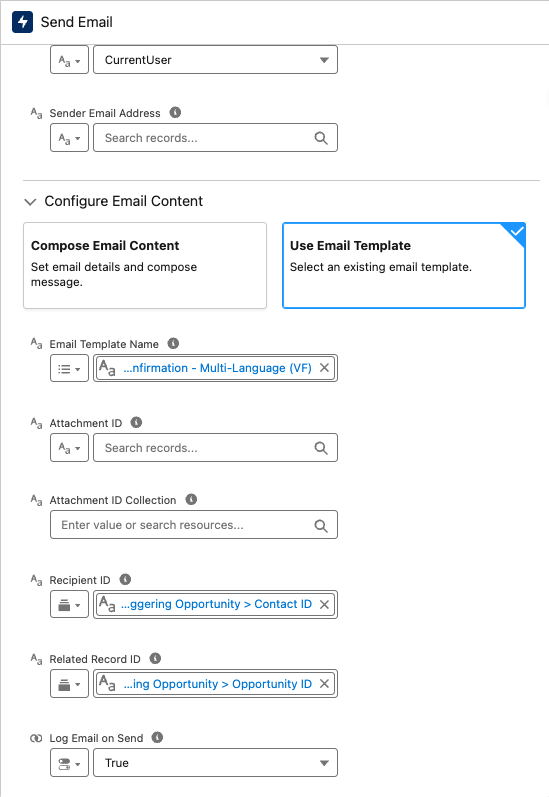
Add an Element: Click the plus icon and select the core Send Email action.
-
Configure the action with the following values:
-
Sender Type: CurrentUser
-
Configure Email Content: Select Use Email Template
-
Email Template Name: Select Order Confirmation - Multi-Language (VF)
-
Recipient ID: Traverse to the Contact ID from the triggering record (e.g., {!$Record.ContactId})
-
Related Record ID: Traverse to the Opportunity ID (e.g., {!$Record.Id})
-
Log Email on Send: True
-
Save and Activate.
Written by: Brad Weller | Forum Ambassador
I'm Bradley Weller, a Senior Solution Architect at Fast Slow Motion and a passionate Flow Fanatic, holding the title of a prior Salesforce FlowFest Champion. I focus on building impactful, scalable Salesforce solutions for businesses. Outside of work, I enjoy spending time with my family and staying active, particularly playing volleyball.
Submissions reflect only the opinions of the user who made available the Submission and not the opinions of Salesforce, regardless of whether the user is affiliated with Salesforce, and may contain or constitute products, services, information, data, content and other materials made available by or on behalf of third parties ("Third Party Materials"). Salesforce neither controls nor endorses, nor is Salesforce responsible for, any Third Party Materials, including their accuracy, validity, timeliness, completeness, reliability, integrity, quality, legality, usefulness or safety, or any applicable intellectual property rights. Any Submissions made available through any message board or forum in response to posted questions, or that otherwise purports to answer any questions, including any questions about Salesforce or Programs, are made available for your general knowledge only and should never be relied upon as answers to your specific questions (even if an answer is marked as a "best" answer or with any similar qualifications). You should always contact Salesforce support for answers to your specific questions. Salesforce has no control over Submissions, and is not responsible for any use or misuse (including any distribution) by any third party of Submissions.
If you have questions, tap into the wisdom of our entire Trailblazer Community here: https://trailhead.salesforce.com/trailblazer-community/feed
Zusätzliche Ressourcen
Nummer des Knowledge-Artikels
005460943
Konnten Sie Ihr Problem mithilfe dieses Artikels lösen?
Geben Sie uns Feedback, damit wir uns verbessern können.
