Vælg en organisation
Security Change: Refresh Token Idle TTL Is Limited to 30 Days
Udgivelsesdato: Oct 7, 2026
Beskrivelse
Salesforce is introducing an upcoming change to limit the lifetime, or time-to-live (TTL), of idle OAuth refresh tokens to 30 days. With this limit, a refresh token expires if it hasn't been used for 30 days. When a refresh token expires, an app can no longer use it to get new access tokens and must request a new access token.
When Salesforce enforces this change, refresh tokens that have been idle for 30 days immediately expire, which can log out users. Also, Salesforce revokes all existing access tokens. Review how these changes apply to your integrations.
Løsning
This article explains why refresh tokens now expire after 30 days of inactivity, when Salesforce enforces the Limit Idle Refresh Token Time-to-Live (TTL) to 30 Days setting, and how to prepare your connected apps and external client apps.
Who Should Prepare for the Idle Refresh Token TTL Limit
Review this change if you:
- Develop or distribute OAuth apps (connected apps or external client apps)
- Install OAuth apps in your org
Where the Idle Refresh Token TTL Limit Applies
This change applies to external client apps and connected apps, including apps that are installed in subscriber orgs. Salesforce enforces this change in all orgs, including production orgs, sandboxes, scratch orgs, and Developer Edition orgs.
Note: Salesforce already enforces this limit for these external client apps and connected apps:
- Partner Apps. See Salesforce Connected Apps & ECA Security Controls - Partner App FAQs.
- Apps created in July 2026 and later. See OAuth Security Controls Are Enforced for New External Client Apps and Connected Apps.
When Salesforce Enforces the Idle Refresh Token TTL Limit
- Sandboxes: rolling basis starting on October 21, 2026.
- Production orgs, scratch orgs, and Developer Edition orgs: rolling basis starting on November 4, 2026.
Why Salesforce Is Limiting Idle Refresh Token TTL
If a threat actor gets a refresh token, the actor can use it to get new access tokens and access Salesforce data. By expiring idle refresh tokens, Salesforce reduces the time in which a stolen or leaked token can be used.
What Happens at Enforcement
To enforce this control, Salesforce turns on the Limit Idle Refresh Token Time-to-Live (TTL) to 30 Days OAuth setting for connected apps and external client apps. After enforcement, you can no longer contact Salesforce Customer Support to change this setting.
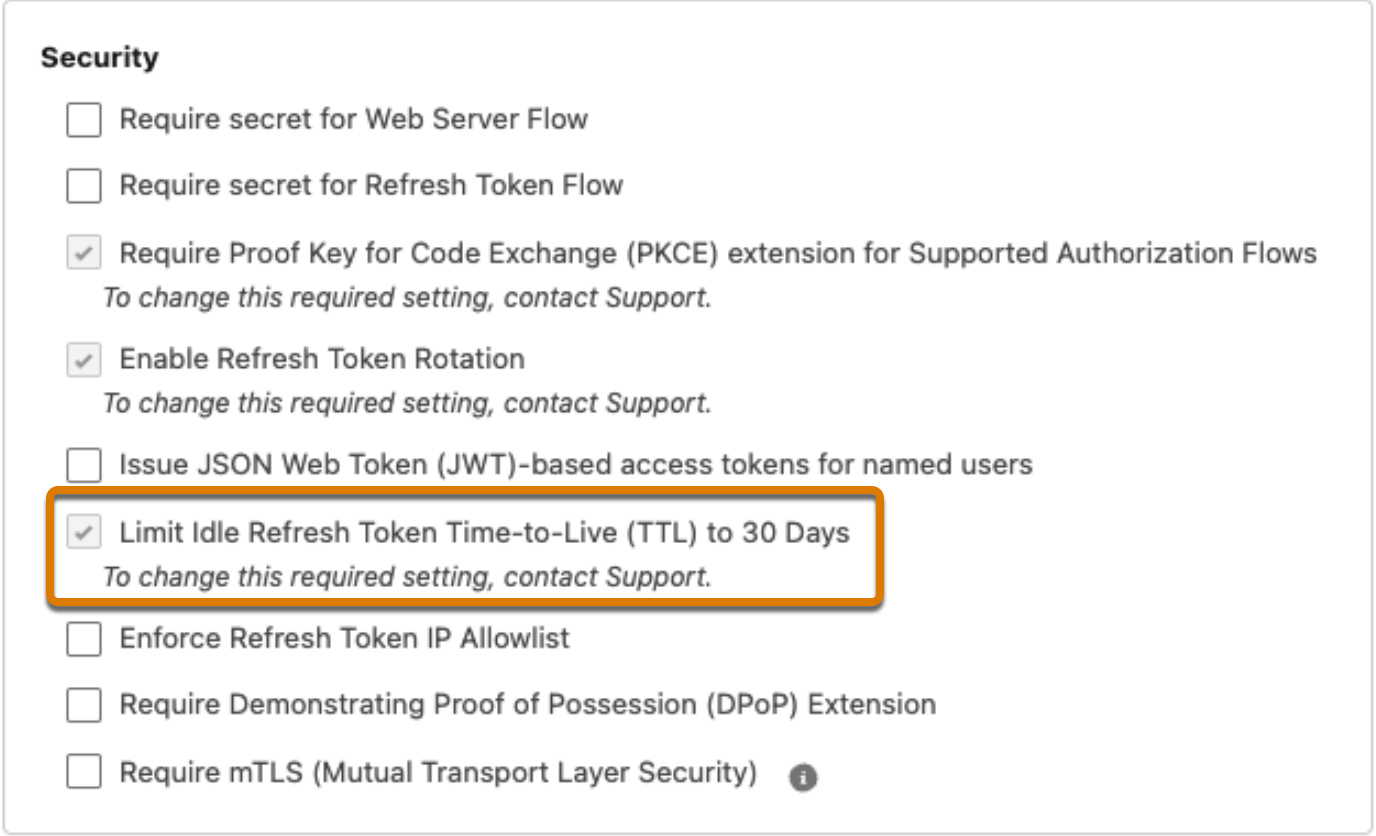
With the limit enabled, your app's refresh token policies change. For some policies, Salesforce doesn't automatically update the UI and metadata to reflect the new behavior. You can update your app to fix any inconsistencies.
When Salesforce enforces this control, there are three impacts:
- Immediate, one-time revocation of all existing access tokens. This impact applies even if the flow doesn't use refresh tokens.
- Immediate expiration of all existing refresh tokens that have remained unused for 30 days or longer.
- Ongoing enforcement of the new control. After enforcement, unused refresh tokens expire when they hit 30 days of inactivity. The idle timer works as a sliding window: each time a refresh token is used, the timer resets.
How Enforcement Affects Different Integrations
| Integration | What Happens? | Action Required |
|---|---|---|
| Background integrations that use refresh tokens | Salesforce revokes the current access token. If your app has a valid, stored refresh token, the integration can get a new access token automatically. If the refresh token has been idle for more than 30 days, Salesforce returns an invalid_grant error with the description "expired access/refresh token". The app must request a new access token and refresh token. | Make sure that the integration uses stored refresh tokens to request new access tokens upon revocation. If refresh tokens expire, the integration must reauthorize the app. |
| Interactive end-user apps that use refresh tokens | Salesforce revokes the current access token. If your app has a valid, stored refresh token, the integration can obtain a new access token automatically. If the refresh token has been idle for more than 30 days, the user must log in again. | The end user must log in again. |
| Flows that don't use refresh tokens | Salesforce revokes the current access token. | None. Your integration performs the initial flow again to get a new access token. |
Prepare for Enforcement
Audit and test your integrations to understand how they will behave after enforcement.
Test Access Token Revocation Behavior
Test how your apps handle access token revocation. Note: These steps only cover access token revocation. They don't necessarily show you what happens if a refresh token expires due to inactivity.
- To get an access token, run your OAuth flow.
- From Setup, find and select Users.
- Select the user associated with the app.
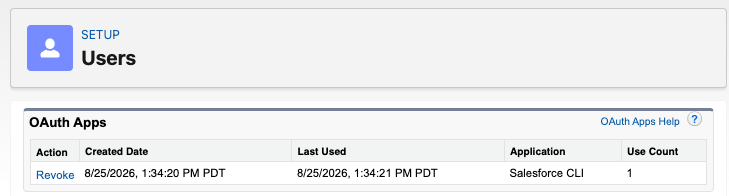
- In the OAuth Apps section, find the app and click Revoke, then confirm that you want to revoke the token.
- Try to use the app. Note whether you're logged out.
Audit Refresh Token Activity
Use the Login History to review refresh token usage and see when refresh tokens were last used.
- From Setup, enter Login History in the Quick Find box, then select Login History.
- Select Create New View, or edit an existing view.
- Under Specify Filter Criteria, set these values:
- Field: Login Subtype
- Operator: equals
- Value: OAuth Refresh Token and OAuth Refresh Token for Hybrid Apps.
- Under Select Fields to Display, add Login Subtype and Login Time.
- Save the view and review refresh-token activity before the enforcement date.
Audit Error Handling for Background Integrations
If a refresh token expires due to inactivity, Salesforce returns an invalid_grant error with the error description "expired access/refresh token". In this case, the integration must perform the OAuth flow again to get a new access token. For minimal disruption, make sure that your background integrations handle this error by automatically re-running the OAuth flow.
For unattended integrations that store a refresh token obtained through the web server flow:
- Monitor token acquisition and background jobs so failures don't go unnoticed.
- Don't create artificial refresh activity solely to prevent token expiration.
- If the integration is legitimately used less than once every 30 days, design a reauthorization process or evaluate a non-refresh-token flow that meets its security requirements.
After Enforcement: Update Your Refresh Token Policies
With the limit enabled, your app's refresh token policies change. For some policies, Salesforce doesn't automatically update the UI and metadata to reflect the new behavior. To fix any inconsistencies, update your app policies. See the instructions for external client apps and for connected apps.
Yderligere ressourcer
- Refresh Token Idle TTL Is Limited to 30 Days (Release Note)
- Limit the Idle Refresh Token TTL in External Client Apps
- Limit the Idle Refresh Token TTL in Connected Apps
- OAuth Security Controls Are Enforced for New External Client Apps and Connected Apps
- Salesforce Connected Apps & ECA Security Controls - Partner App FAQs
Vidensartikelnummer
005461275
Løste denne artikel dit problem?
Giv os besked, så vi kan forbedre os!
