Select An Org
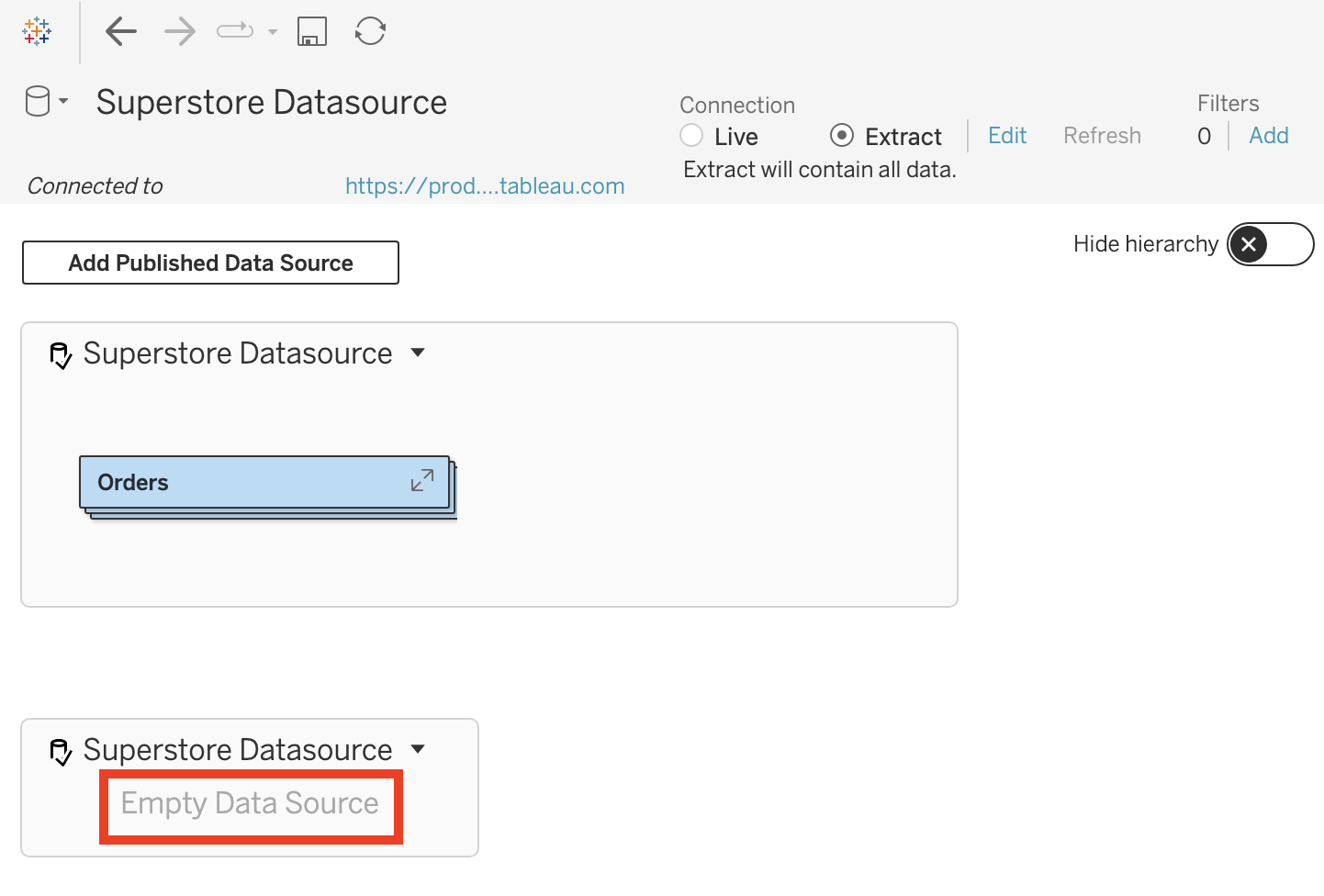
Empty Data Source Displays When Adding Composed Published Data Source
Publish Date: Nov 4, 2026
Description
In Tableau Desktop 2026.2, when combining multiple published data sources (Composable Data Sources) on the data source canvas to construct a data model, an added published data source may be rendered as "Empty Data Source". Consequently, fields fail to load, and relationships cannot be configured.
This issue occurs when attempting to click Add Published Data Source on the data source canvas after switching any previously connected published data source from Live to Extract.
Environment
- Product: Tableau Desktop 2026.2
- Data Source: Composable Data Sources on Tableau Cloud or Tableau Server
Cause
In Tableau 2026.2 (as of 2026 Oct), combining published data sources on the canvas is supported only for Live connections. Switching a connected published data source to an Extract created a local .hyper file, causing a context conflict with internal connectivity services (such as VizData Service). As a result, metadata for newly added published data sources cannot be generated correctly, resulting in an empty data source display.
Once a data source is changed to an Extract, the configuration is retained in the internal data model definition and cache with the workbook. Switching back to Live on the canvas does not fully reset this state, and the error recurs.
Resolution
Choose one of the following options based on the intended workbook design:
Option 1: Re-create the data model using Live connections
Re-create the data model using Live connections throughout to prevent context conflicts.
- Open a new workbook in Tableau Desktop.
- Connect to the first published data source and keep the connection type as Live (do not switch to Extract).
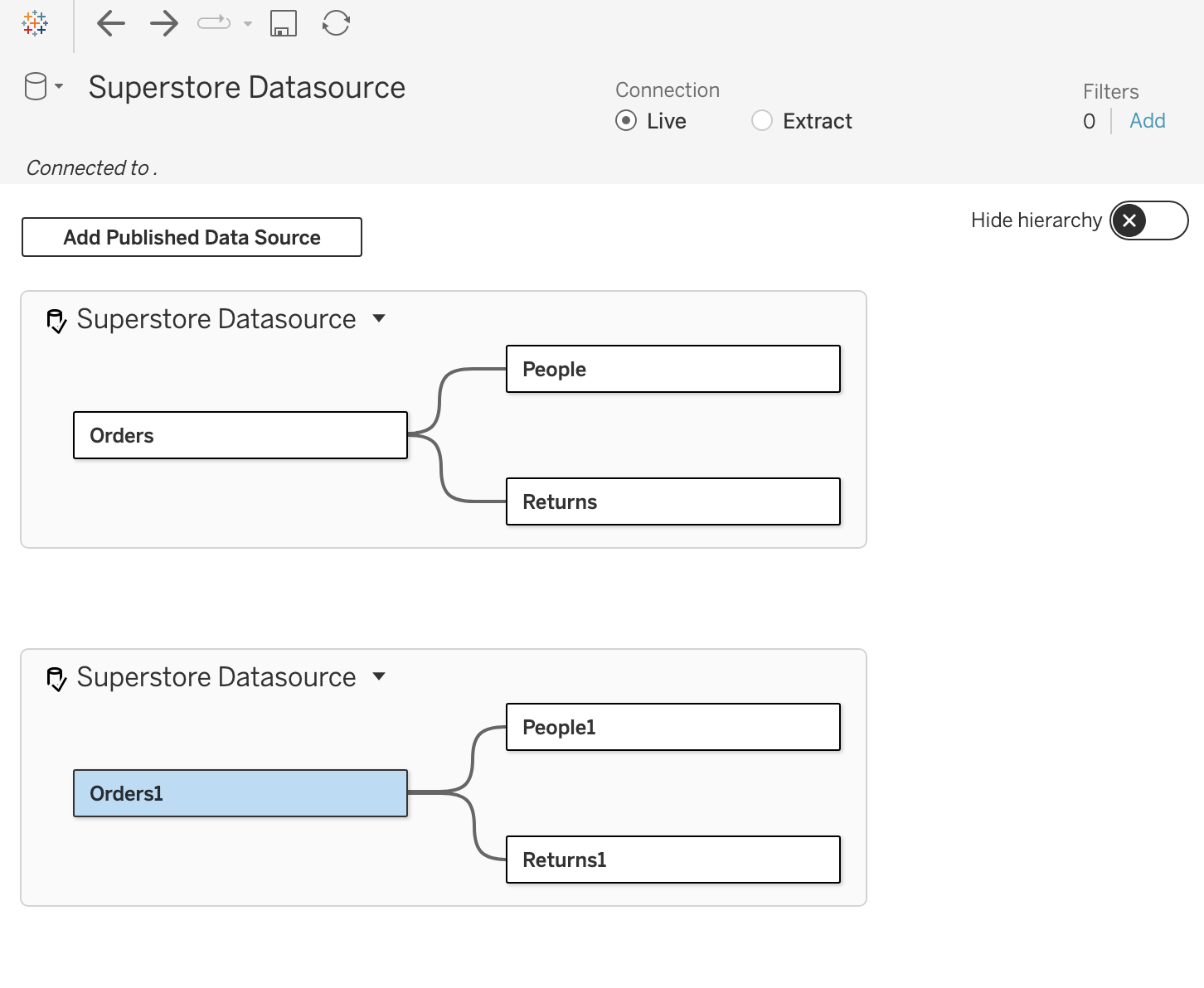
- On the Data Source tab, click Add Published Data Source and add subsequent published data sources to set up relations.
- Maintain the Live connection throughout the editing process.
Option 2: Add as independent data sources
Add published data sources individually without combining them on the canvas to analyze them separately or blend data.
- From the top menu bar, select Data > New Data Source.
- Connect to the published data source on Tableau Cloud / Tableau Server individually.
- Perform data blending or analyze them as separate data sources on the worksheet.
Option 3: Recover an existing workbook using Data Source replacement
Replace the affected data source with a newly connected Live data source to repair the workbook without losing existing views or calculations.
- From the top menu bar, select Data > New Data Source to connect to the required published data sources individually while keeping them Live.
- Re-establish the intended data model or relationships in the newly added data source.
- On any worksheet, right-click the original corrupted data source and select Replace Data Source.
- Set the original data source as the Current data source and the new data source as the Replacement, then click OK.
Additional Resources
For more information on limitations, see Composable Data Sources in Tableau Help.
Extracts
In Tableau 2026.2, only live composed data sources can be published as a standalone data source asset. However, you can publish a workbook containing an extracted, composed data source. The extract must be taken in Tableau Desktop as extracting composed data sources on the web is unavailable in this release. These extract limitations are on the roadmap to be lifted in future releases.
Knowledge Article Number
005465173
Did this article solve your issue?
Let us know so we can improve!
