Valitse organisaatio
[SFS]Partner user not able to load - Crew Management or Dispatcher Console
Julkaisupäivä: Oct 26, 2026
Kuvaus
A partner community user receives the following error when attempting to load Crew Management or Dispatcher Console:
"Something has gone wrong. Insufficient permission to Operating Hours record."
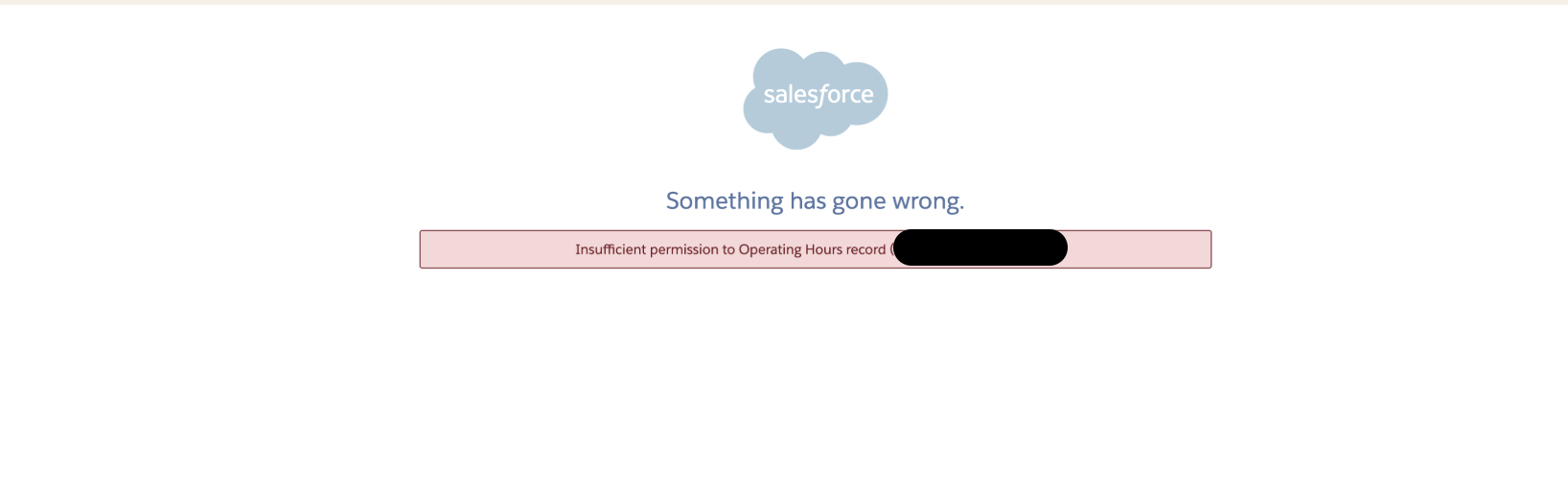
This error occurs because Crew Management and Dispatcher Console load Service Territory records, which reference their associated Operating Hours via the Operating Hours field on Service Territory. If the Organization-Wide Default (OWD) for Operating Hours is set to Private for external users, partner community users cannot access those records when the component loads — even if they can open the Operating Hours record directly from the object page.
Ratkaisu
Choose one of the following options depending on your org's access requirements.
Option 1 — Set Operating Hours OWD to Public Read Only
Important: Changing the Organization-Wide Default (OWD) affects all external users in your org. If you require more granular control, use Option 2 instead.
- Navigate to Setup.
- In Quick Find, search for Sharing Settings.
- In the Organization-Wide Defaults section, locate the Operating Hours object.
- Click Edit.
- Set Default External Access to Public Read Only.
- Click Save.
Partner community users can now load Crew Management and Dispatcher Console without an insufficient permissions error on Operating Hours records.
Option 2 — Create a Sharing Rule (targeted access)
Use this option if your org requires strict control over Operating Hours record access and you do not want to open read access to all external users.
- Navigate to Setup.
- In Quick Find, search for Sharing Settings.
- Scroll to the Operating Hours Sharing Rules section and click New.
- Configure the rule to share the relevant Operating Hours records with the role, public group, or portal role that includes your partner community users.
- Set access to Read Only.
- Click Save.
If the issue persists after applying either option, verify the following:
- The Service Territory OWD for external access is set to Public Read Only or a sharing rule grants access to the partner community user.
- The Service Territory Member records linking the partner user's service resource to the territory are accessible.
- The Operating Hours record referenced by the Service Territory is covered by the OWD change or sharing rule you applied.
Knowledge-artikkelin numero
005465211
Ratkaisiko tämä artikkeli ongelmasi?
Anna palautetta, jotta voimme kehittyä!
