Select An Org
Field Service Scheduling Console Shows No Resource Availability After Enabling Enhanced Scheduling and Optimization
Publish Date: Oct 30, 2026
Description
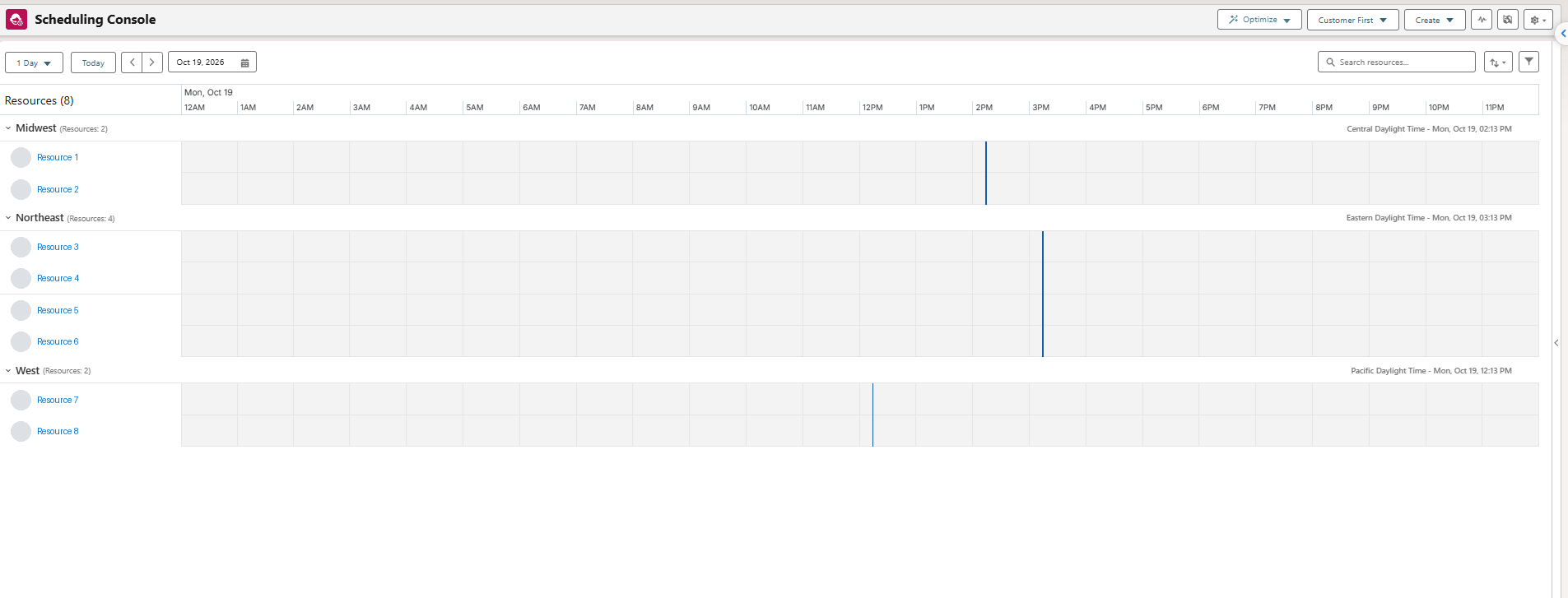
Field Service admins and dispatchers may see this after enabling Enhanced Scheduling and Optimization (ESO), usually right after go-live in a production org. In the Scheduling Console, every service resource row on the Gantt is shaded grey as unavailable, across all service territories, with no white availability windows.
Resolution
Why This Happens
The Scheduling Console gets resource availability from Enhanced Scheduling and Optimization services, which run as the Platform Integration User, not as the logged-in dispatcher. The Platform Integration User gets its object and field access from the Field Service Integration permission set. When that permission set has never been created or updated in an org, the service cannot read the records it needs, returns no availability, and the console shades every resource row grey. Because the permission set is used only by the Platform Integration User, it does not appear in any human user's permission set assignments, which makes the cause easy to miss.
Example: An org enables ESO in its sandbox and production. The sandbox's Field Service Integration permission set was updated during testing, but the production one was not. On go-live day, the production Scheduling Console shows all resources as unavailable while the sandbox works.
Update the Field Service Integration Permission Set
- From the App Launcher, open the Field Service Admin app.
- Click the Field Service Settings tab.
- Click Getting Started, then Permission Sets.
- On the Field Service Integration tile, click Update Permissions (or Create Permissions if the set does not exist yet).
- Confirm that the tile now shows Permission Set Is Up To Date.
Verify the Scheduling Console Shows Availability
- Reload the Scheduling Console.
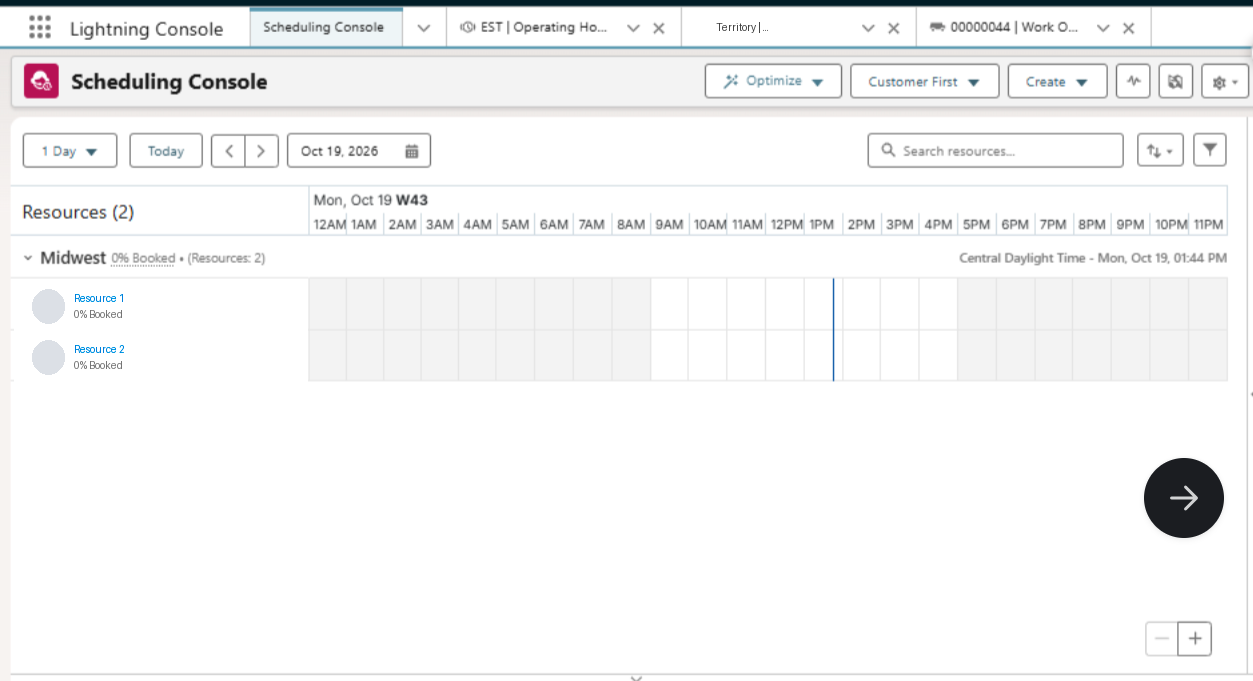
- Confirm that service resources show white availability windows during their operating hours.
Additional Resources
- Salesforce Help: Create the Field Service Integration Permission Set
- Salesforce Help: How Are Field Service Permission Sets Updated?
- Related Article: Salesforce Field Service: Work Capacity Availabilities Not Updating After Completing the Scheduled Apex Job (002061721)
- Related Article: Rules Validation Failed: Hmm, something's not right with the optimization service ... HTTP 500 (000396071)
- Related Article: Field Service Integration Permission Set Tile Update Issue in Field Service Settings (005036917)
Knowledge Article Number
005465805
Did this article solve your issue?
Let us know so we can improve!
