Valitse organisaatio
Salesforce Field Service Mobile App: Contractor Users Get a Sync Error Because of Missing Read Access to the Service Appointment Contact Field
Julkaisupäivä: Oct 30, 2026
Kuvaus
Contractor users of the Salesforce Field Service mobile app on iOS or Android. These are typically users assigned a Field Service contractor profile and the Field Service Contractor permission set group. Other mobile users with full access can sync normally.
Symptoms
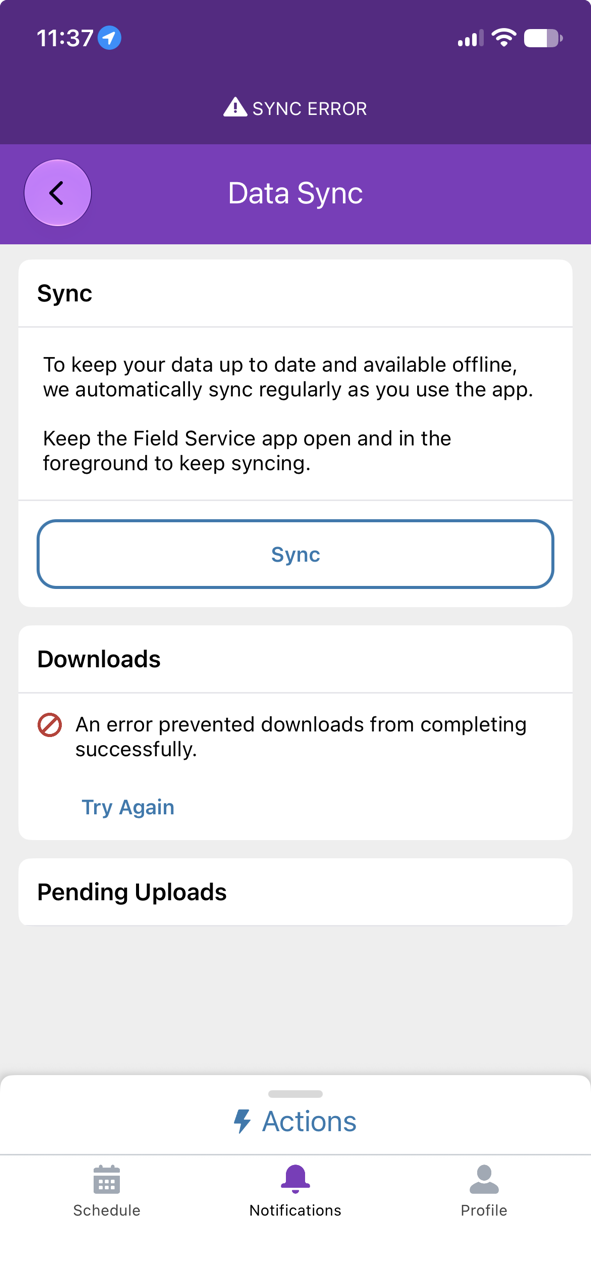
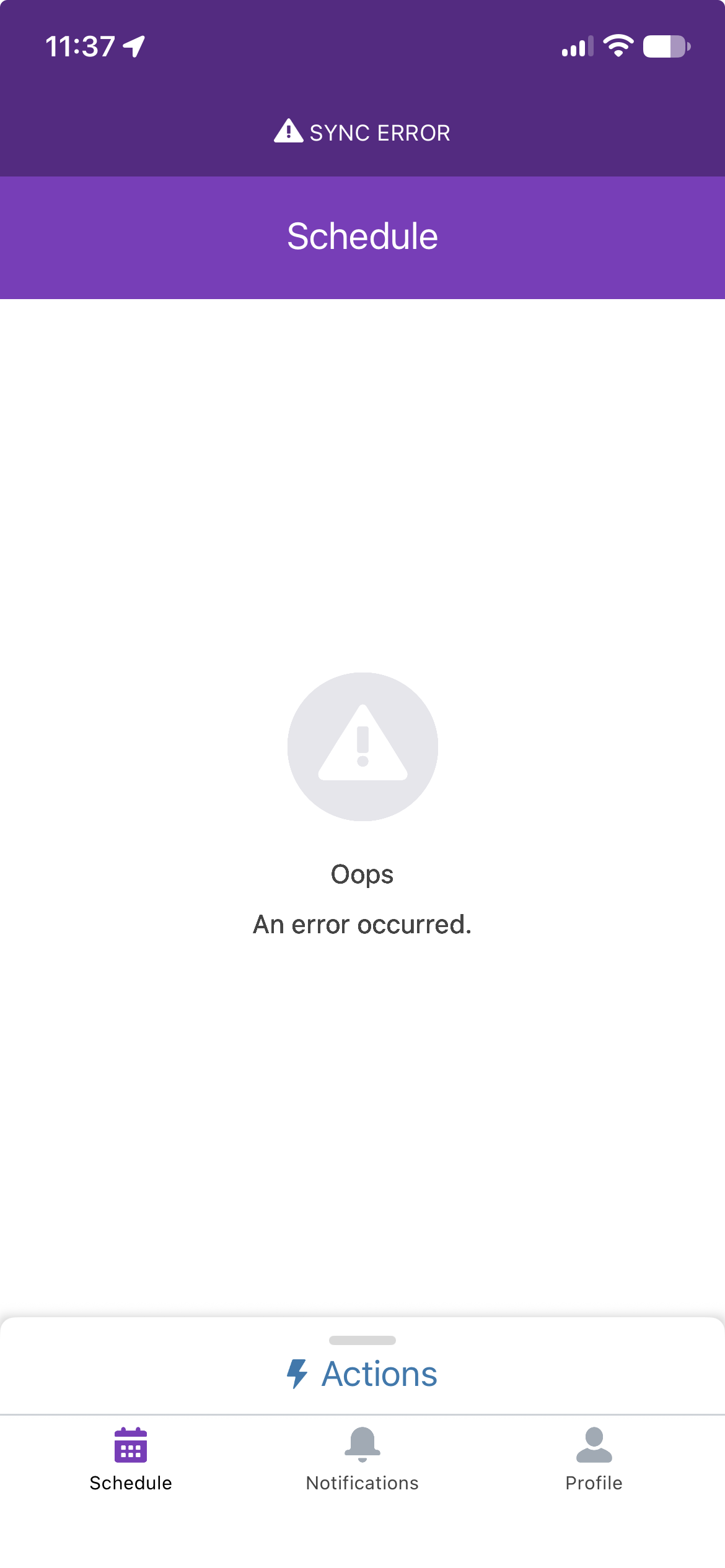
- The contractor user can't complete a sync in the Field Service mobile app.
- The app shows a generic sync error that doesn't name the field or object blocking the sync.
When this occurs
During a sync, the Field Service mobile app reads the Contact field on each Service Appointment record. If the contractor's profile or permission set doesn't grant Read field-level security (FLS) on that field, Salesforce rejects that part of the sync request. The app then reports a generic sync failure.
Ratkaisu
Grant the minimum object and field permissions mobile users need, including Read access to the Service Appointment Contact field:
- In Setup, open the profile or the permission set used by the contractor permission set group.
- Click Object Settings, then click an object's name to modify its permissions.
- Grant the permissions below for each object:
- Contact: Read access to the object. Field permissions: Email, Name, Phone, Title, Mobile.
- Service Appointment (read-only fields): Read access to the object. Field permissions: Appointment Number, Created By, Created Date, Parent Record, Parent Record Type, Parent Record Status Category.
- Service Appointment (editable fields): Read and Edit access to the object. Field permissions: Address, Contact, Owner, Scheduled Start, Scheduled End, Status, Work Type.
- Service Resource: Read and Edit access to the object. Field permissions: Active, User.
- Work Order: Read, Create, and Edit access to the object. No field permissions are needed.
- Under Field Permissions for Service Appointment, make sure Read Access is selected for the Contact field. Also select Read Access for the Account field (recommended).
- Confirm that contractor users also have Read access to the Location and Product Item objects if your mobile setup uses them.
- Save the changes.
- Ask each affected contractor user to log out of the Field Service mobile app and log back in. The app then downloads the updated permissions and runs a full sync.
Knowledge-artikkelin numero
005465811
Ratkaisiko tämä artikkeli ongelmasi?
Anna palautetta, jotta voimme kehittyä!
