Sélectionner une organisation
Upgrade when Account Engagement requires additional configuration
Date de publication: Nov 5, 2026
Description
The Salesforce connector links your Marketing Cloud Account Engagement account to Salesforce so that records sync between the two systems. Version 2 (v2) of the connector, first released in 2019, is the current version. It includes features and security improvements that aren’t available in version 1 (v1).
To protect the security of your data, Salesforce is retiring v1 on December 10, 2026. If you use v1, you must upgrade to v2 before this date. For additional details about this change, please visit Upgrade to the v2 Salesforce Connector for Marketing Cloud Account Engagement
Résolution
Upgrade when Account Engagement requires additional configuration
Use these instructions when Account Engagement detects that additional Salesforce configuration is needed before the V2 upgrade can complete. If your org has no Integration User, use your current connector user. If an Integration User already exists, you can keep your current connector user or use the Integration User after resolving any configuration issues.
Who these instructions are for
If Account Engagement presents a message saying “We have detected that your Salesforce Connector requires additional configuration in Salesforce before the upgrade can complete.”, then these instructions are for you.
These instructions cover the following scenarios:
-
Your org has no Integration User.
-
Use your existing connector user, and install the connected-app package only if it is missing.
-
-
Your org has an Integration User and the connected-app package is installed, but the Integration User is not working.
-
You can repair the Integration User using the linked troubleshooting instructions or keep your existing connector user.
-
-
Your org has an Integration User, but the connected-app package is missing.
-
Install the package, then use your existing connector user or the configured Integration User.
-
Before you begin: Check which user you can use
-
Sign in as an administrator to the Salesforce production org connected to Account Engagement.
-
Go to Setup > Users > Users.
-
Select All Users and look for a username that starts with b2bmaintegration@.
-
If no Integration User is listed: Use your existing connector user for the upgrade.
-
If an Integration User is listed: You can keep your existing connector user or use the Integration User. If you choose the Integration User, it must be configured and working before the upgrade.
1. Check for the connected app and install it if needed
Complete this step whether or not your org has an Integration User.
-
From Setup, open Manage Connected Apps.
-
Look for Pardot_to_SF_Integration_Secure_Connected_App. If it is listed, skip installation and continue to step 2. If it is missing, open the connected-app package installer and sign in to the same Salesforce org.
-
Confirm that the package name is b2bmaIntegration. Select Install for Admins Only.
-
Acknowledge the installer notice if prompted, and click Install. Wait for the installation to finish, then click Done.
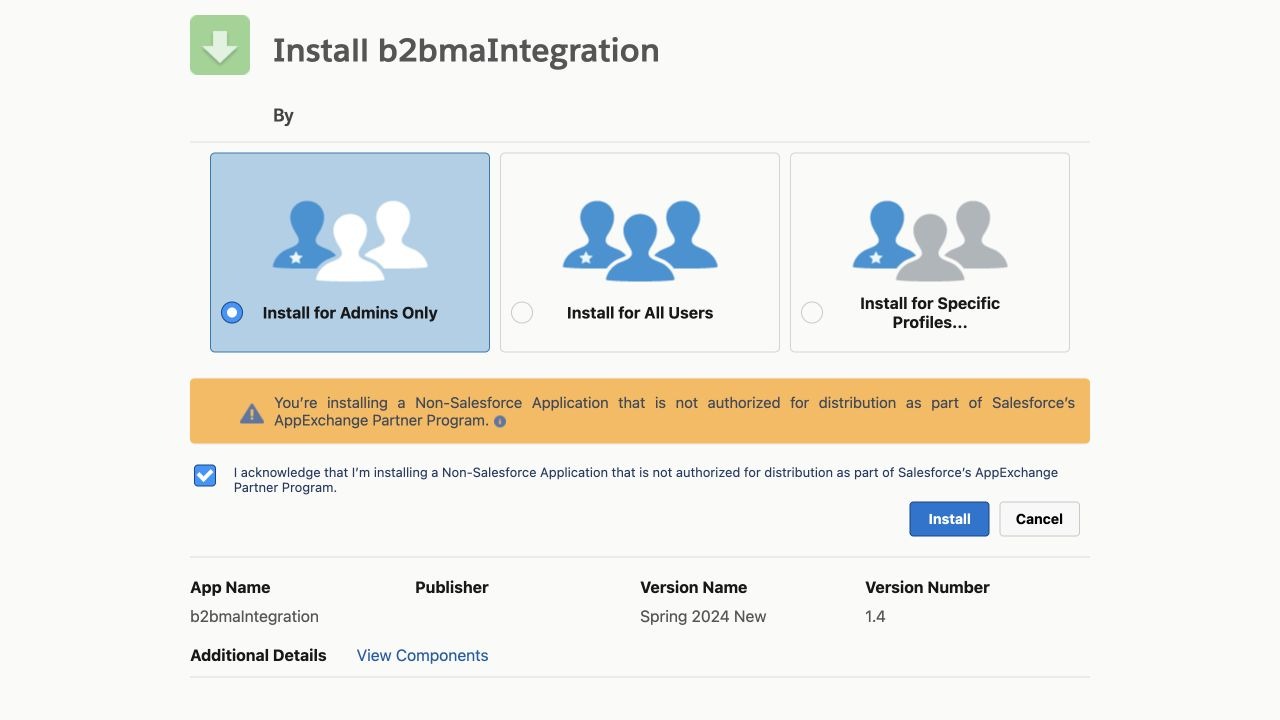
Select Install for Admins Only.
-
After manual installation, open Manage Connected Apps > b2bma_canvas > Edit Policies. Set Permitted Users to Admin approved users are pre-authorized and save.
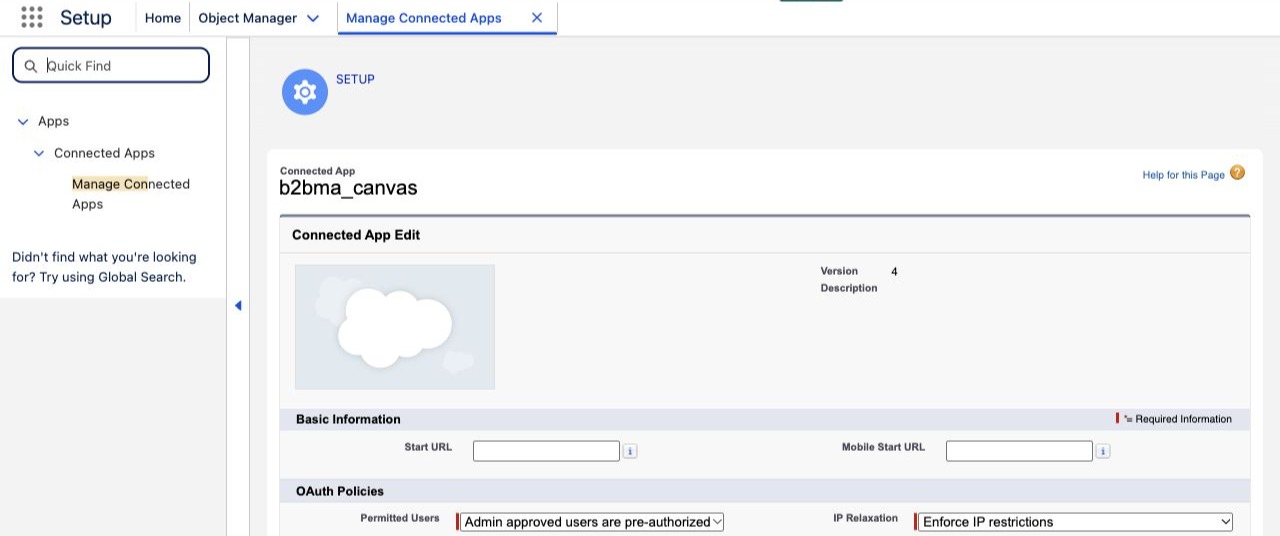
b2bma_canvas: Admin approved users are pre-authorized.
2. Configure access for your selected user
In Setup, open Manage Connected Apps. Select Pardot_to_SF_Integration_Secure_Connected_App and click Edit Policies.
Set Permitted Users to Admin approved users are pre-authorized. Confirm the notice and save.
Keep existing profile and permission-set assignments.
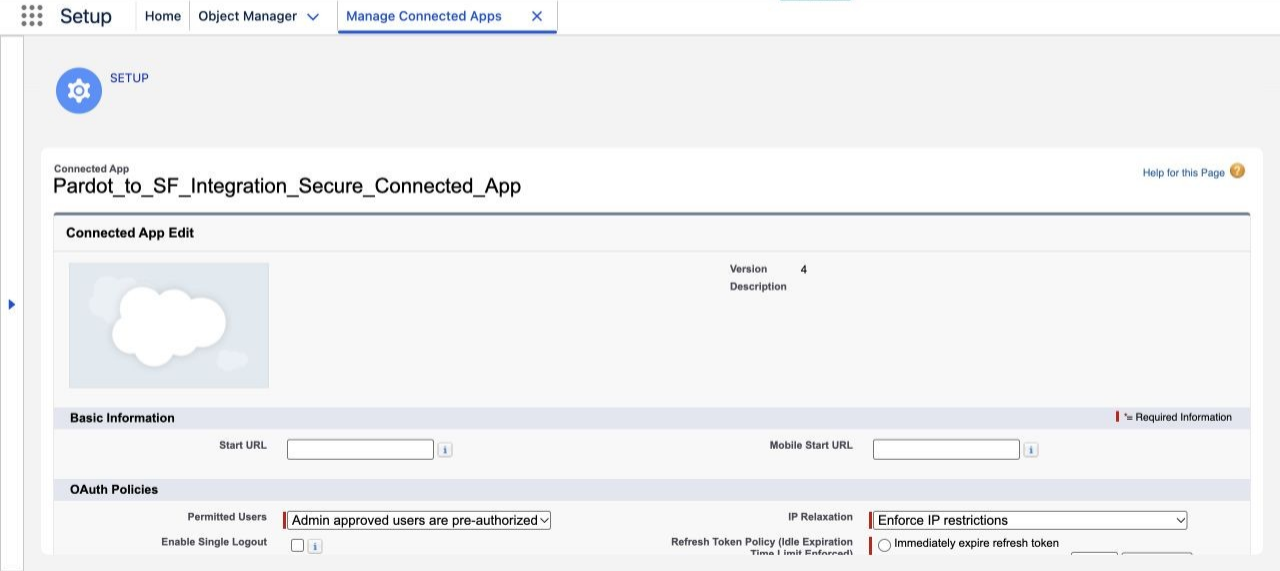
Pardot_to_SF_Integration_Secure_Connected_App: Admin approved users are pre-authorized
Use your existing connector user
Complete these steps if your org has no Integration User or you want to keep your current connector user.
-
From Setup, open Permission Sets. Open an existing dedicated permission set for this app, or click New to create one. For a new permission set, enter a label, such as Pardot Connector JWT Access, and accept the automatically generated API name. Set License to None, then save.
-
Add the permission set to the connected app. From Setup, open Manage Connected Apps and select Pardot_to_SF_Integration_Secure_Connected_App. Click Manage Permission Sets, select your permission set, and save. Keep any existing selections.
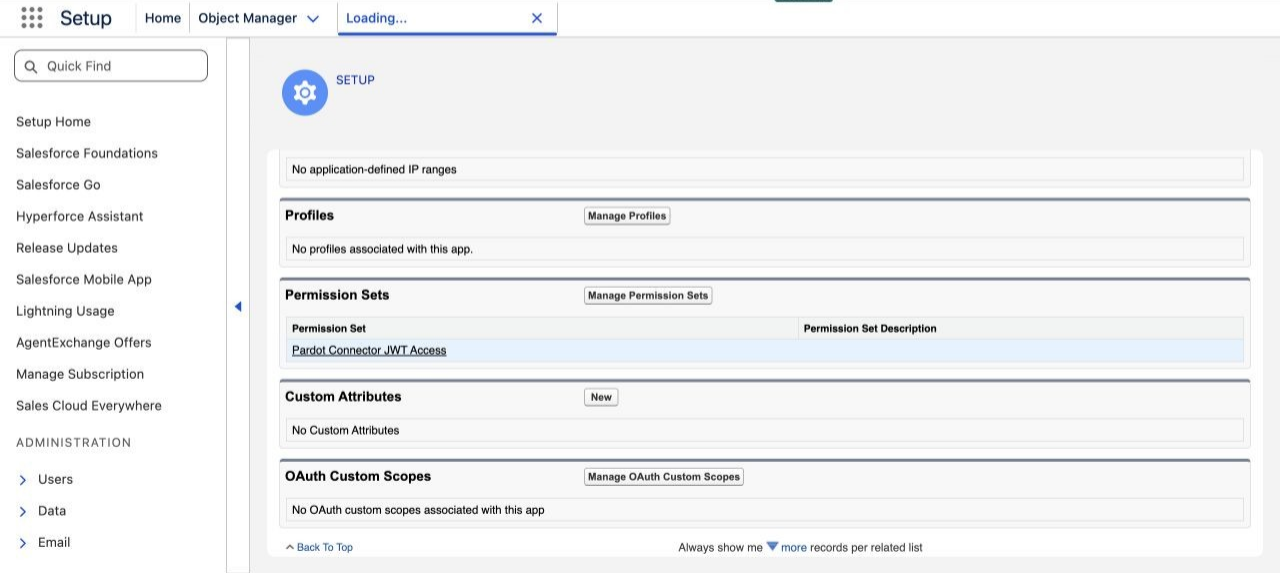
Select your dedicated permission set for connector app access.
-
Assign the permission set to your connector user. Open your permission set. Click Manage Assignments, then Add Assignments. Select your existing Salesforce connector user and complete the assignment. If an expiration option appears, select No expiration date.
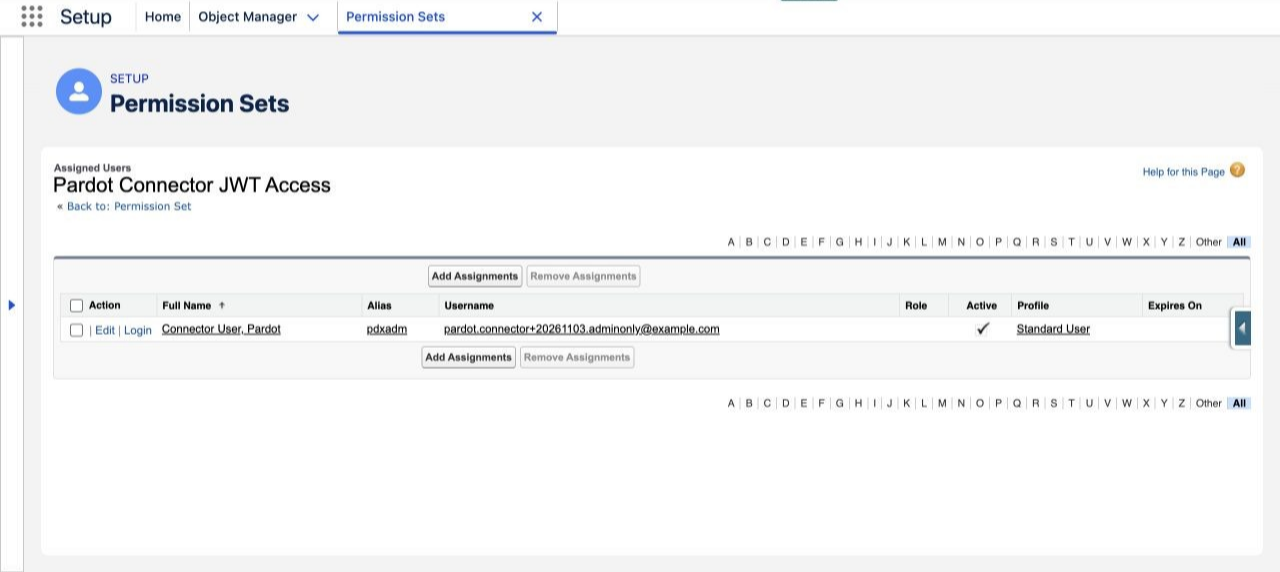
Select your existing Salesforce connector user.
Alternative: Use an existing B2BMA Integration User
Complete these steps only if your org already has an Integration User and you want to use it for the upgrade. Skip this section if you are keeping your current connector user.
-
On the connected app's detail page, click Manage Profiles.
-
Confirm that B2BMA Integration User is selected. Add it if needed, keep the existing selections, and save.
If the existing Integration User is not working, follow the connector troubleshooting instructions before selecting it for the upgrade. You do not need to repair the Integration User to upgrade using your current connector user.
3. Complete the upgrade using your selected user
Continue with the upgrade steps in this article. When prompted:
-
Select Current connector user to keep the user you authorized in step 2. Use this option if your org has no Integration User.
-
Select Integration User if you chose to use the existing, configured B2BMA Integration User.
Click Choose User.
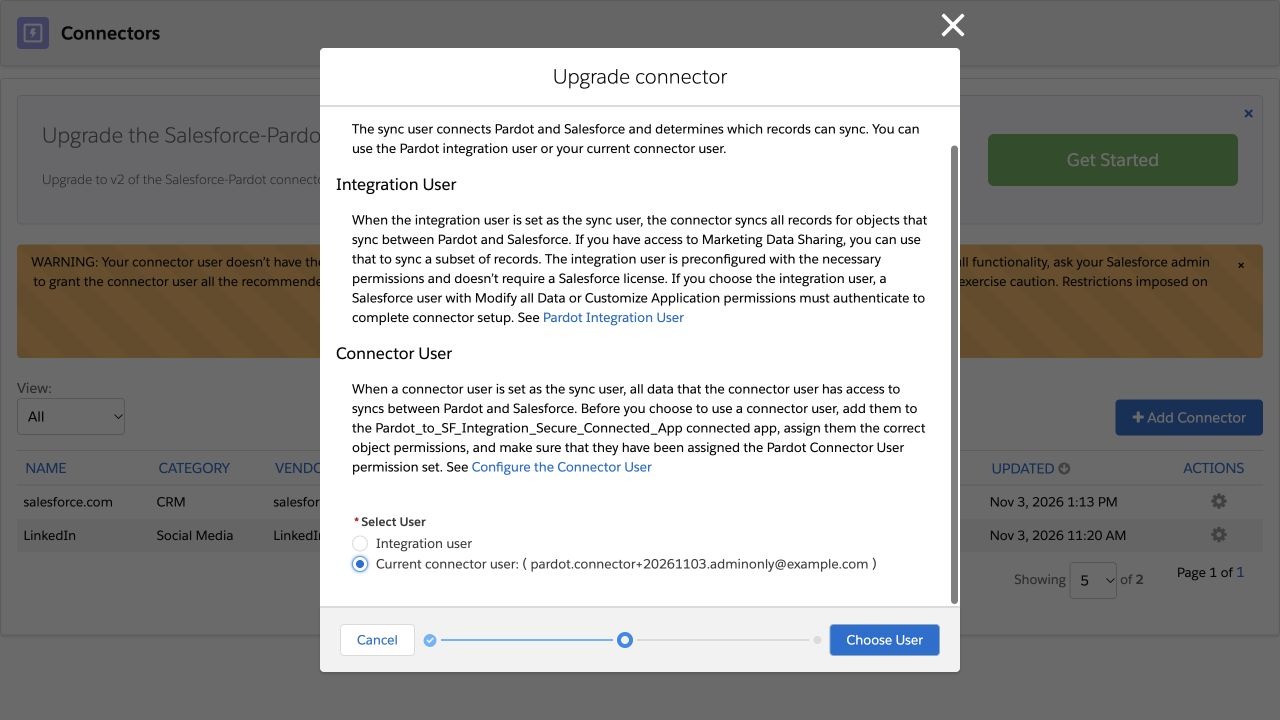
Select Current connector user to keep your existing user.
Finish the upgrade, confirm that connector verification succeeds, resume syncing, and confirm that prospects sync with Salesforce.
Numéro d’article de la base de connaissances
005466207
Cet article a-t-il résolu votre problème ?
Dites-nous ce que nous pouvons améliorer !
