Loading
The Trailblazer Community is now read-only Read More
Agentforce and Einstein Generative AI
Connect Related Voice Calls When Using Real-Time Streaming

Connect Related Voice Calls When Using Real-Time Streaming

If you’re a Salesforce Voice with Telephony Providers customer, Salesforce can create multiple voice call records for a single conversation. For instance, one record stores the interaction between the customer and the Agentforce agent, while another stores an escalated conversation between the customer and a human representative. Because these records don't share an identifier by default, Salesforce can't automatically associate them with the same call. To allow representatives to easily view the agent leg of a call, use custom fields to link the related voice call records.

Required Editions

Available in: Lightning Experience
Available in: Enterprise, Unlimited, and Developer Editions with Foundations or Agentforce 1 Editions, and Salesforce Voice add-ons.

Salesforce automatically creates a voice call record for the agent leg and passes the Amazon contact ID in the transactionId flow variable of an Omni-Channel inbound IVR flow. To manually link the agent voice call record to a record created in the inbound flow, look up the other voice call based on the Amazon contact ID. For example, look up the rep voice call record where the Vendor Call Key matches the contact ID.

Note
Note Linking related voice calls doesn't display the agent conversation transcript on the rep's voice call record. To view the transcript, a rep must open the agent voice call record directly.
  1. In your Omni-Channel inbound flow, create a transactionId input variable that stores the Amazon contact ID.
    When the WebSocket connection starts, AWS passes the Amazon contact ID to your Omni-Channel flow through the transactionId input variable.
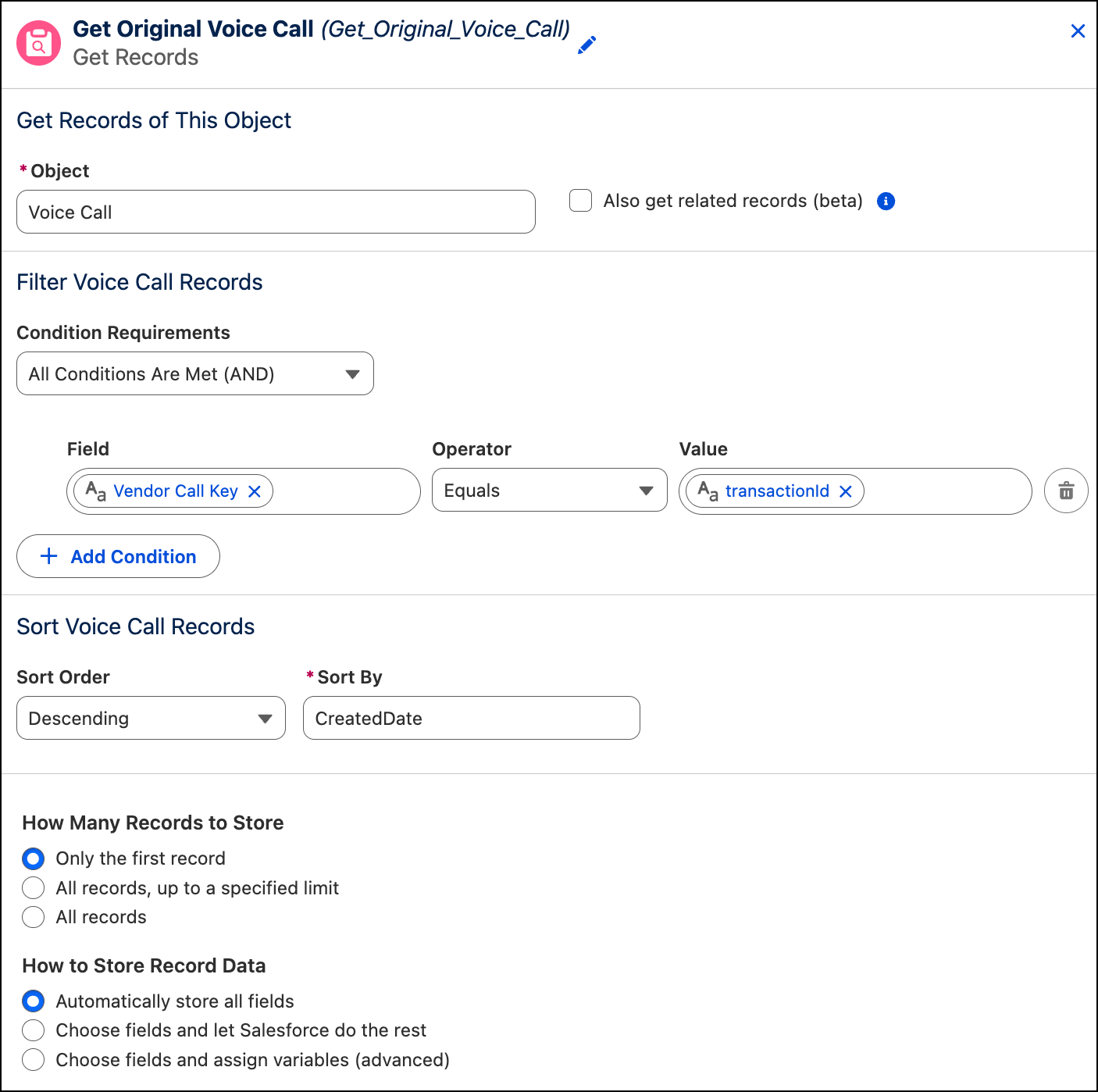
  2. To look up the rep voice call (VC1) by Vendor Call Key:
    1. Add a Get Records block to the flow.
    2. Add a filter where the Vendor Call Key field = the value of the transactionId variable (the Amazon contact ID).
      In the original voice call record, set the Original Voice Call custom field to VC1 ID.
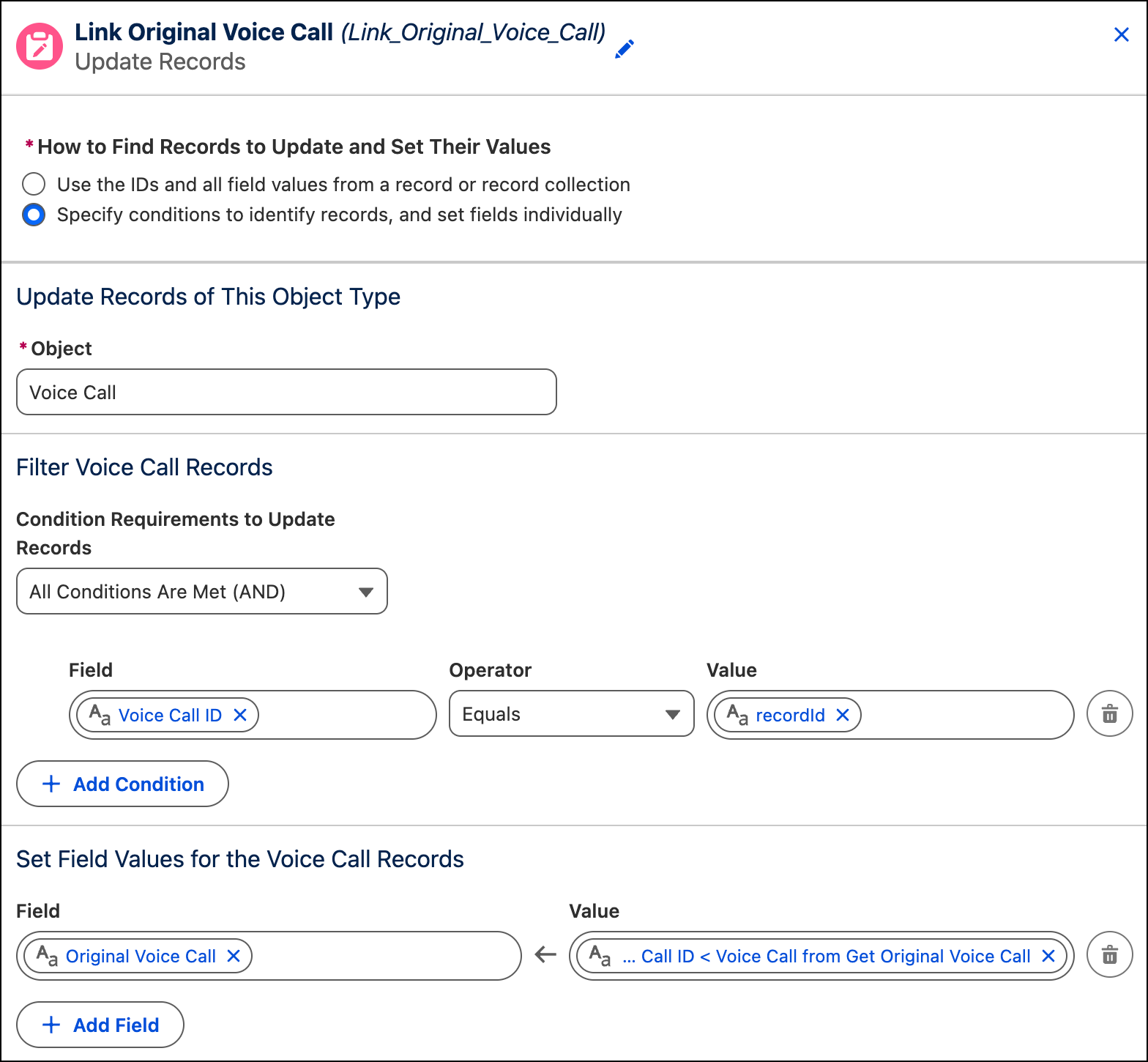
  3. To stamp the custom field in the agent voice call record (VC2):
    1. Add an Update Records block.
    2. To identify the agent voice call record, add a filter where the Voice Call ID field = the value of the recordId variable, which is the agent voice call ID.
    3. Set the custom field = the value of the Voice Call ID field of the original call record, which is the rep voice call ID.
      In this screen, the custom field is named Original Voice Call.
      In the original voice call record, set the Original Voice Call custom field to VC1 ID.
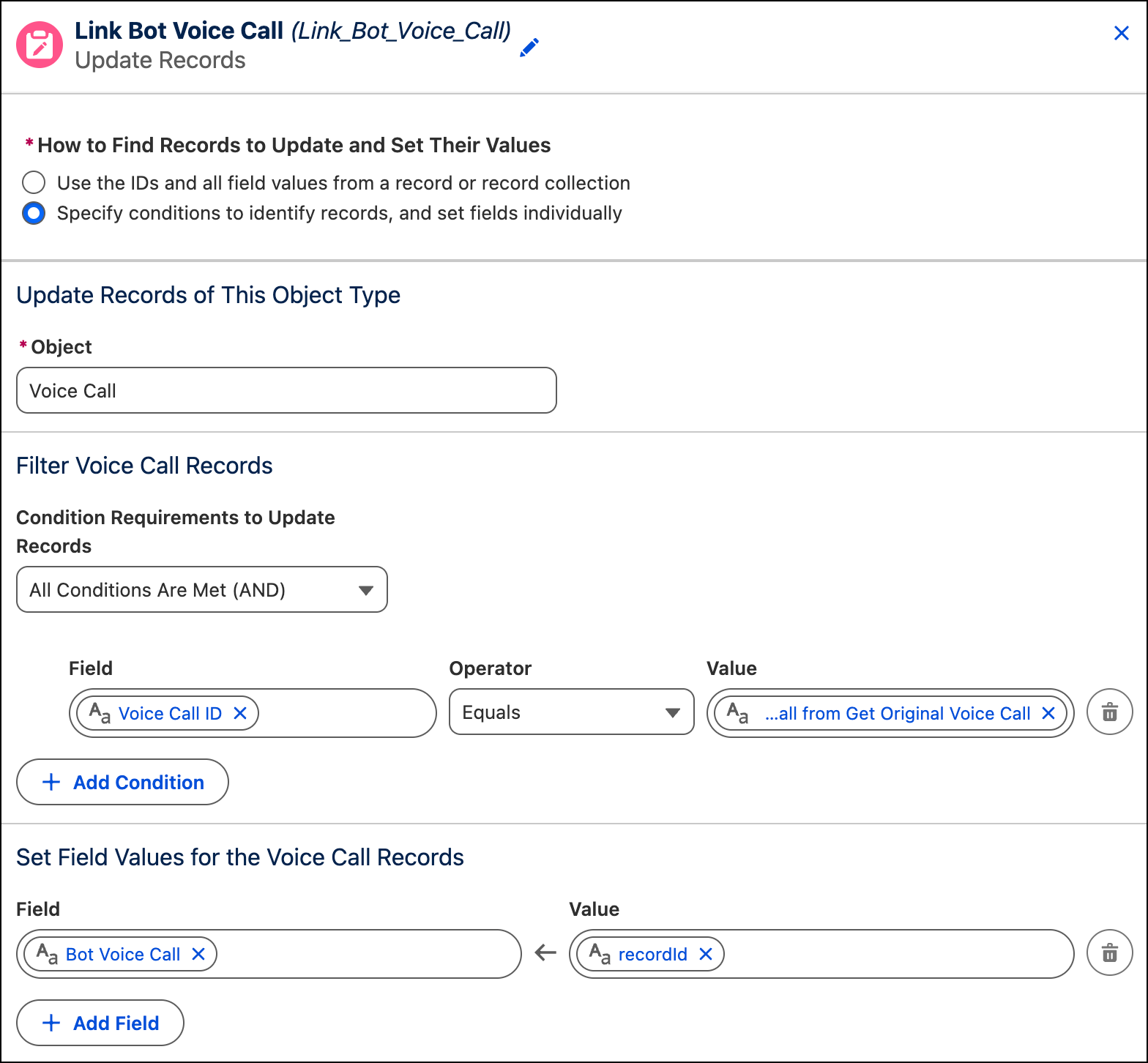
  4. To stamp the custom field in the rep voice call record (VC1):
    1. Add an Update Records block.
    2. To identify the rep voice call record, add a filter where the Voice Call ID field = the value of the Voice Call ID field of the original call record.
    3. Set the custom field = the value of the recordId variable, which is the agent voice call ID.
      In this screen, the custom field is named Bot Voice Call.
      In the agent voice call record, set the Bot Voice Call custom field to VC1 ID.

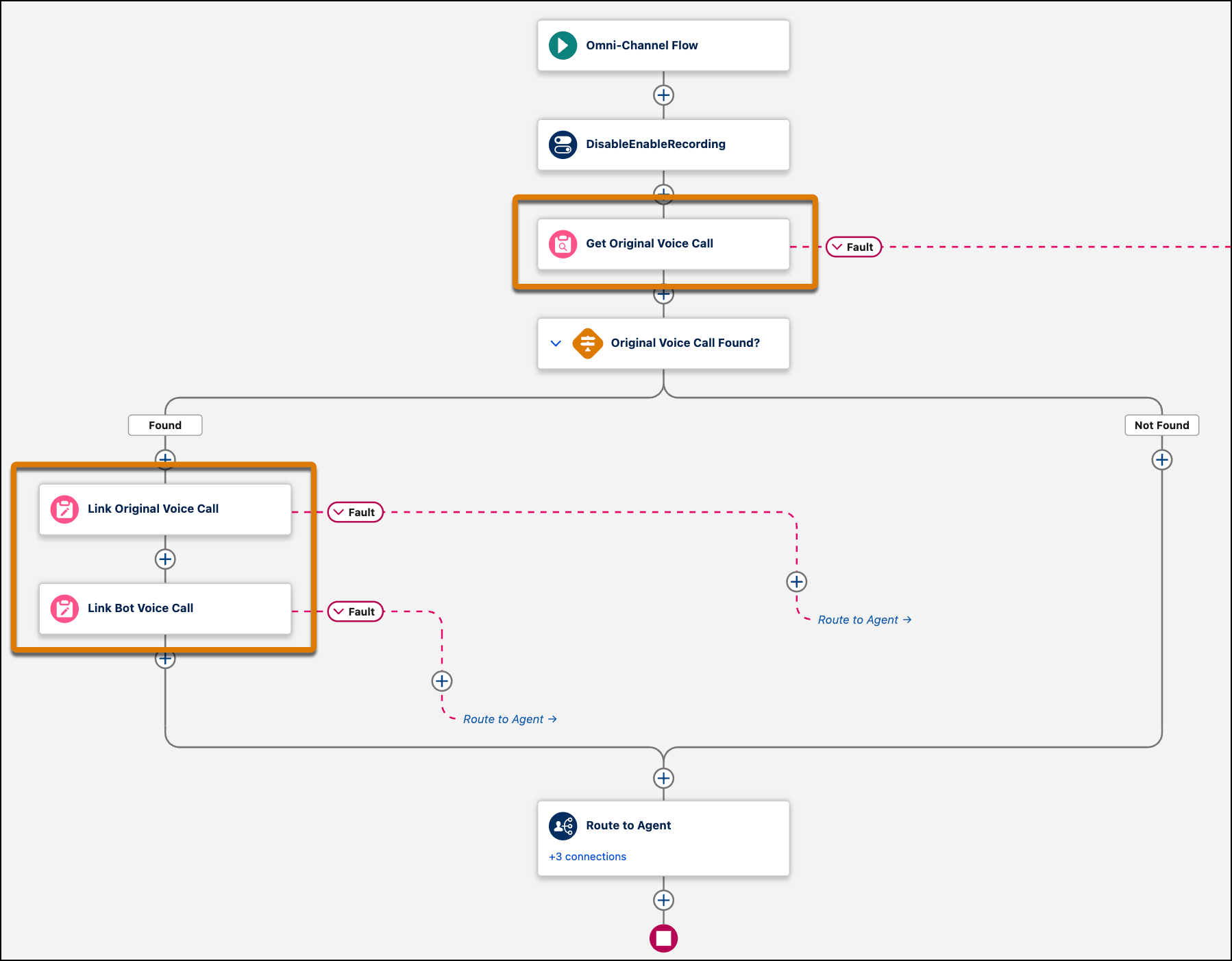
Your inbound Omni-Channel flow might look something like this one.

The Omni-Channel inbound flow with two Update Records blocks.
 
Loading
Salesforce Help | Article