You are here:
Set Up Agentforce Coworker to Query CRM Analytics Data (Beta)
Turn on CRM Analytics MCP server, and connect it to Agentforce Coworker through a dedicated agent so that your users can ask CRM Analytics questions.
Required Editions
| Available in Lightning Experience |
| Available with CRM Analytics, which is available for an extra cost in Enterprise, Performance, and Unlimited Editions |

| User Permissions Needed | |
|---|---|
| To set up the connection: | System Administrator |
| To ask CRM Analytics questions in Coworker: | Use CRM Analytics |
Before you start, make sure that:
- Agentforce is turned on in your org.
- Agentforce Coworker is turned on and provisioned. Coworker requires Data 360 to be activated and a Home CRM connector. For the permissions and licenses that Coworker needs, see Turn On Agentforce Coworker.
- Your org has CRM Analytics and access to the CRM Analytics MCP server beta release.
To set up, connect Agentforce Coworker to a dedicated CRM Analytics agent that uses CRM Analytics MCP server. For how the parts work together, see CRM Analytics with Agentforce Coworker (Beta).
-
Turn on CRM Analytics MCP server.
-
From Setup, in the Quick Find box, enter MCP Servers, and
then select MCP Servers under API Catalog.

- On the Salesforce Services tab, find crma-beta and set Server Status to Active.
Confirm that crma-beta shows an Active status and 10 tools. The page shows a banner that says Salesforce MCP server usage can be billed (Flex Credits). This banner is expected.

-
From Setup, in the Quick Find box, enter MCP Servers, and
then select MCP Servers under API Catalog.
-
To make the server's tools available to agents, register the server in the Agentforce
Registry.
- From Setup, in the Quick Find box, enter MCP, and then select Registered MCP Servers under Agentforce Registry.
- Click New, and add the crma-beta server.
Confirm that the registry lists
analytics.crma-betawith the type Standard and the connection status Active.
-
Create an Agentforce Employee Agent named
crma_mcp.For the subagents, actions, and rules that the agent definition sets up, see CRM Analytics with Agentforce Coworker (Beta).
-
From Agentforce Studio, open Agents and click
New Agent.
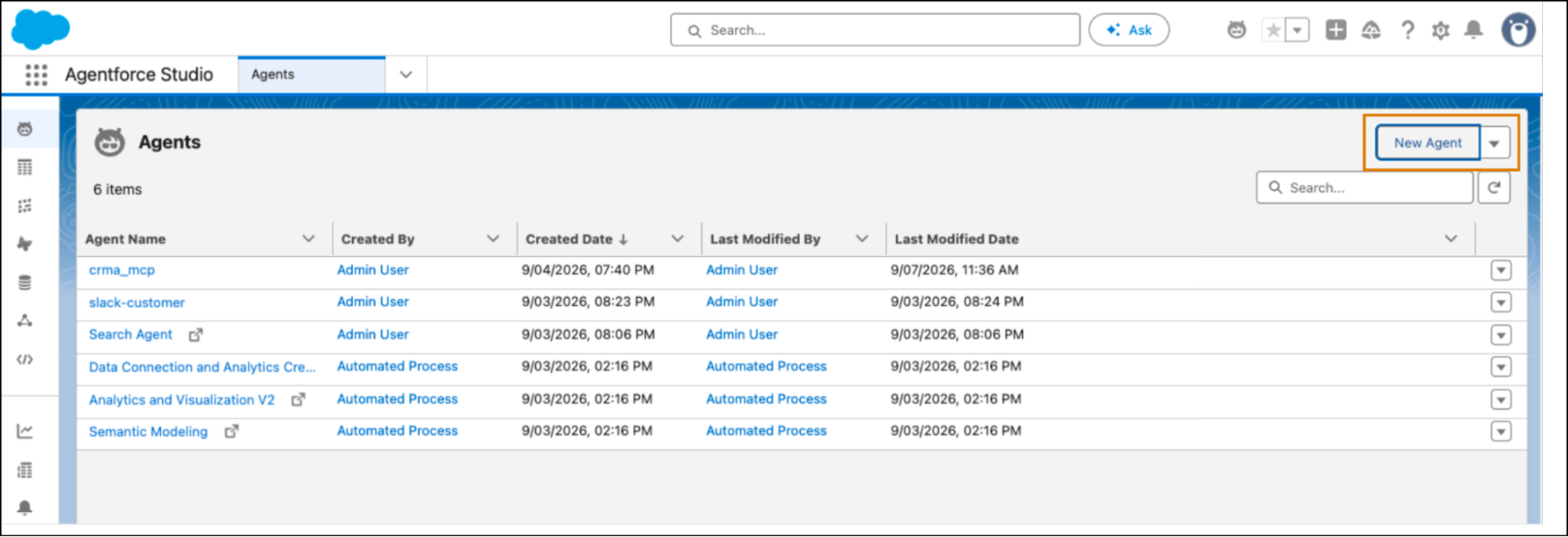
- Create the agent from the Employee Agent template.
-
To switch to script view in Agentforce Builder, click the code icon in the upper
right.
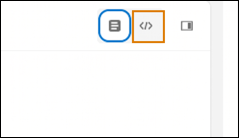
- Replace the contents of the script with the definition in CRM Analytics Agent Definition for Agentforce Coworker.
- Save your work.
-
From Agentforce Studio, open Agents and click
New Agent.
-
Turn on the agent for Coworker.
-
Open the
crma_mcpagent, and then open Agent Settings. - To make the agent available to Coworker's Search Agent, turn on the agent for all relevant channels and connections.
- Activate the agent, and then click Commit Version.
A draft version isn't live. Confirm that the agent is active and appears in the list of agents in Agentforce Studio.
-
Open the
-
Open Agentforce Coworker and ask a CRM Analytics question.
Coworker routes your question to the
crma_mcpagent, which calls thecrma-betaMCP tools and returns results based on your data. Replace the names in these examples with assets in your org.- "List my CRM Analytics dashboards and summarize the Sales Analytics Home dashboard."
- "What datasets are in the Demo Assets app?"
- "Run a SAQL query on the Opportunity dataset to get the total Amount by StageName."
If the setup works, Coworker returns the dashboards, datasets, and query results that you have access to in CRM Analytics.
For access, security, and billing considerations and fixes for common problems, see Considerations and Troubleshooting for CRM Analytics in Coworker.
