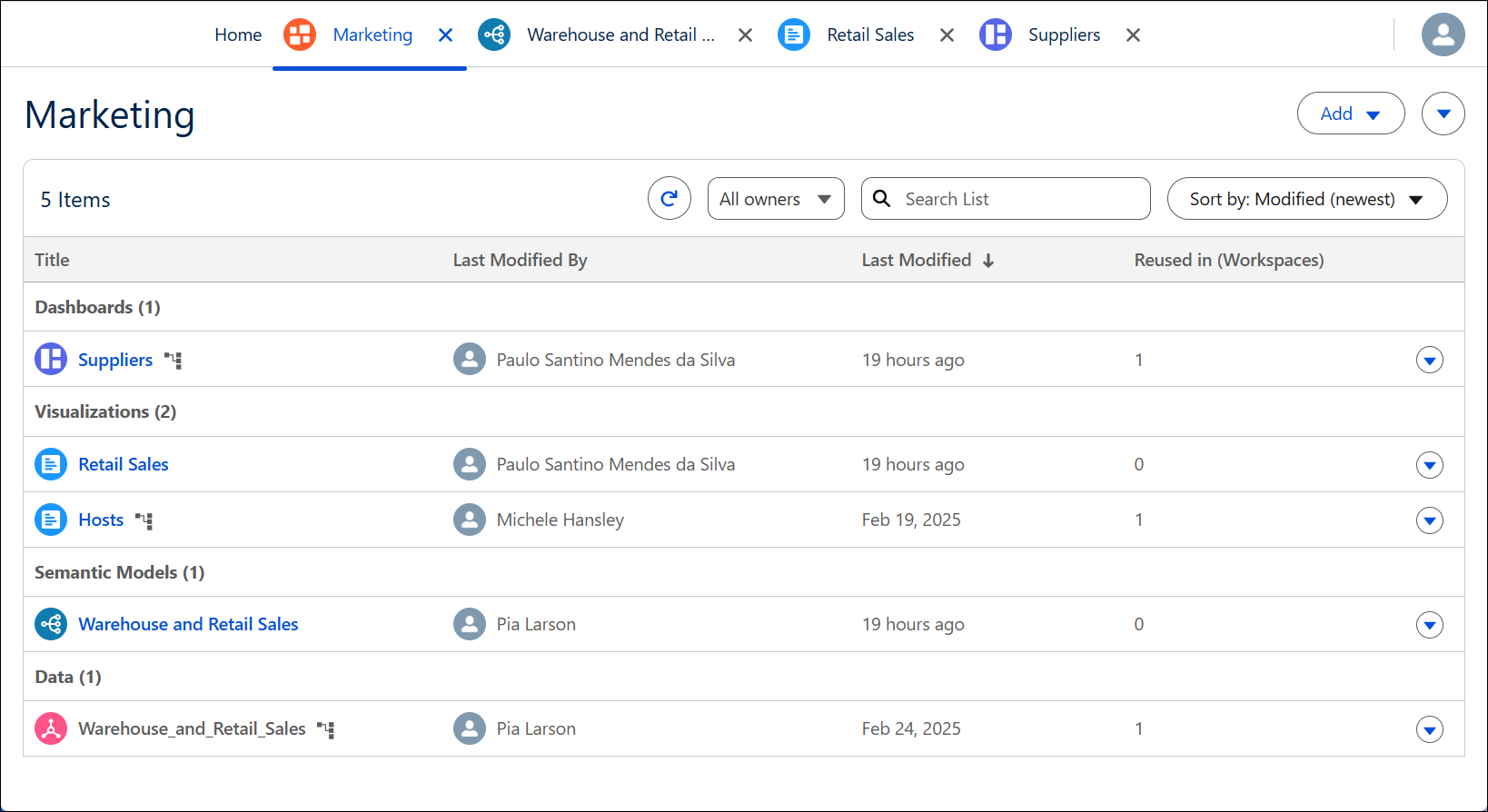
Inside a workspace, assets are organized by type. The list view shows your available
workspace assets in real time. The layers of the workspace add context about the building blocks
of workspace assets, so an analyst has the information needed to answer questions with
data.
When reading through assets from the bottom to the top, each type of asset is a
building block for the next type of asset above it in the list. For example, you use data to
create a semantic model, which you can use to create a visualization. You can combine
visualizations to create a dashboard for performing analytics.
A workspace includes these asset types.
Data: Connections between your workspace and a data model object (DMO), data
lake object (DLO) or calculated insight object (CIO) in Data 360.
A DMO is a grouping of data (made up of attributes) created from data streams (a data
source brought into Data 360), insights, and other sources. A CIO
is a type of DMO created after a calculated insight is processed. You can use data
connections to build semantic models.
Semantic models: Metadata in Data 360 that groups
semantic definitions tailored for a specific analytical use case. A semantic model
consists of one or more data objects. You can use a semantic model to build a
visualization.
Visualizations: A visual representation of your data exploration that starts with a
semantic model of data. You can use visualizations to create dashboards in the same
workspace.
Dashboards: A visual representation of multiple visualizations or other
analytic assets for the purpose of conveying different but related information.
To refine the list of assets appearing in your list view, use the Owner filter or search
field.
Workspace Assets and Dependencies
Changes to an asset also change the asset’s dependencies. For example, if you
update a semantic model, the visualizations that use that semantic model also change.
Likewise, you can create an asset while authoring another. For example, you could
create a visualization while authoring a dashboard, and both new assets (dashboard and
visualization) are added to the workspace.
You can only delete an asset in the workspace that it was created in. If the
asset is reused from another workspace, you can remove it from your workspace but not delete
it. The original asset remains in the source workspace as well as other workspaces that are
reusing the asset.
Workspace Tabs
Each workspace or asset you open appears as a tab. You can work in multiple workspaces
or on multiple assets at one time. If you open an asset, it appears as a tab to the right of
the workspace list tab. Creating, adding, or editing an existing asset opens the asset in an
additional new tab.
Did this article solve your issue?
Let us know so we can improve!
Loading
Salesforce Help | Article
Cookie Consent Manager
Cookie Consent Manager
General Information
Required Cookies
Functional Cookies
Advertising Cookies
General Information
We use three kinds of cookies on our websites: required, functional, and advertising. You can choose whether functional and advertising cookies apply. Click on the different cookie categories to find out more about each category and to change the default settings.
Privacy Statement
Required Cookies
Always Active
Required cookies are necessary for basic website functionality. Some examples include: session cookies needed to transmit the website, authentication cookies, and security cookies.
Functional Cookies
Functional cookies enhance functions, performance, and services on the website. Some examples include: cookies used to analyze site traffic, cookies used for market research, and cookies used to display advertising that is not directed to a particular individual.
Advertising Cookies
Advertising cookies track activity across websites in order to understand a viewer’s interests, and direct them specific marketing. Some examples include: cookies used for remarketing, or interest-based advertising.