
Log into Account Manager in B2C Commerce
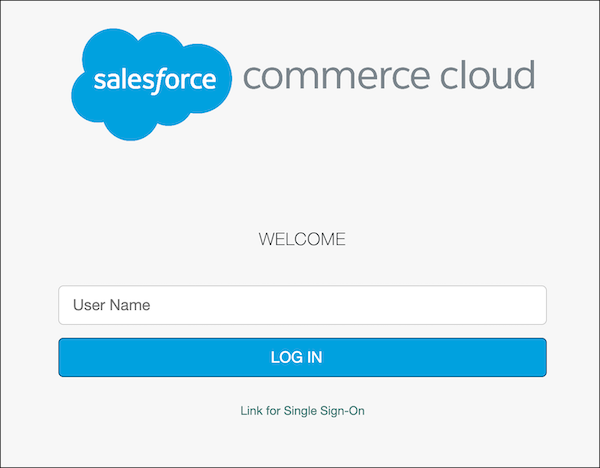
Account Manager offers two login options, link for single sign-on (SSO) or log in with your username.
Required Editions
| Available in: B2C Commerce |
-
(Optional) Log into Account Manager with Link for single sign-on (SSO).
- In a web browser, go to https://account.demandware.com/.
-
Click Link for Single Sign-on.
You're redirected to Salesforce to log in. After successfully logging into Salesforce, you're redirected to Account Manager and logged in without any further steps.
 Note If you're logged into multiple Salesforce accounts, you must select the correct username to which your Account Manager account is linked. If you do not see your username in the list, select Log in with Different Username and follow the steps.
 - Click Use Custom Domain and enter the Salesforce domain you want to use.
- Select the Identity Provider you want to use to authenticate. For example, Okta.
-
(Optional) Log into Account Manager with your user name.
- In a web browser, go to https://account.demandware.com/.
- Enter your username (email address) and click LOG IN.
- Enter your password and click LOG IN.
-
Verify your identity with MFA.
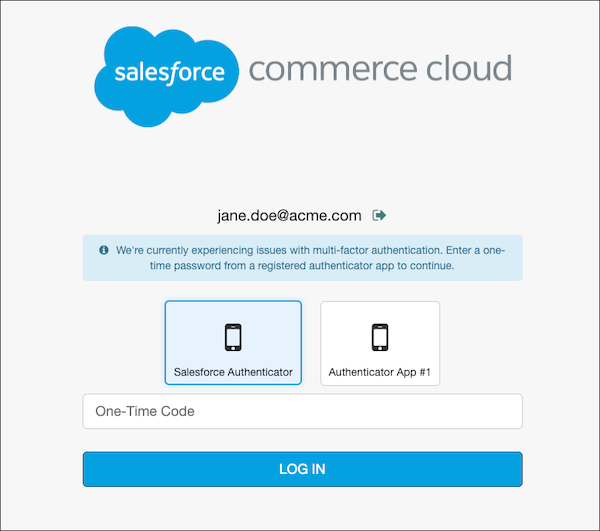
If you’ve already registered an MFA verification method, provide your method to finish logging in. If you haven’t registered a method, you’re prompted to do so before you’re able to log in. If service issues prevent the use of MFA, you can log in with a time-based one-time password (TOTP) from a registered authenticator app. After you enter your username (email address), the login screen shows your registered authenticator apps. Select an app and enter the TOTP. You can’t register a new authenticator during MFA outages. To use this fallback option, make sure that you register at least one authenticator app that supports TOTP.
-
(Optional) If you're setup to use SSO but want to log in with your username.
- In a web browser, go to https://account.demandware.com/.
- Enter your username (email address) and click LOG IN.
- Select the Identity Provider you want to use to authenticate. For example, Okta.
- Enter your credentials and log in.
Este artigo resolveu seu problema?
Diga-nos para podermos melhorar!
