
You are here:
Create a Shareable URL for Your Store
Customers can use a shareable URL to access your B2B store. The shareable URL contains a special URL parameter that's associated with a buyer group that has its own price book and discounts. Customers who get to the store using the shareable URL are automatically assigned to the associated buyer group, either in addition to the buyer group the customer is already part of or instead of that buyer group, depending on how your developer set up buyer group extensions.
Required Editions
A social media influencer can provide a shareable URL to their followers that gets the followers discounts on specific items. Similarly, if multiple distributors are selling products in your store, each distributor can have a shareable URL that assigns their customers to a specific buyer group that receives special discounts. To create a shareable URL, add a URL parameter to the markup in the store's heading.
When your developer configures buyer group extensions, the developer can specify what happens when a customer arrives at the store using a shareable URL. The shareable URL customer can be assigned to the buyer group associated with that shareable URL along with the buyer group that was dynamically assigned. Alternatively, the shareable URL customer can be assigned to the buyer group associated with the shareable URL instead of the buyer group that was dynamically assigned.
For example, consider a customer John Doe, who browses your store with the location set to US. You've set up special discounts on your store for Black Friday. Customers who have the store location set to US receive a special discount on all items in the store. John's son sends him an influencer's referrer link to the store. Anybody accessing the store through the link gets 10% off the price of certain items in the store. When John accesses your store using the link his son sent him, one of two things happen depending on how you set up the buyer group extension
- If the buyer group extension was set up such that the buyer group associated with the referrer URL overrides the dynamically assigned buyer groups (the buyer group based on location, for example), then John receives only the 10% discount on the price of certain items.
- If the buyer group extension was set up such that the buyer group associated with the referrer URL exists in addition to the dynamically assigned buyer groups, then John receives the 10%discount on certain items, as well as the Black Friday discounts you've set in place for your US store.

To implement a persistent URL, follow these steps.
- In the navigation sidebar, select a store from the Store dropdown.
- Click Website Design and then select Experience Builder.
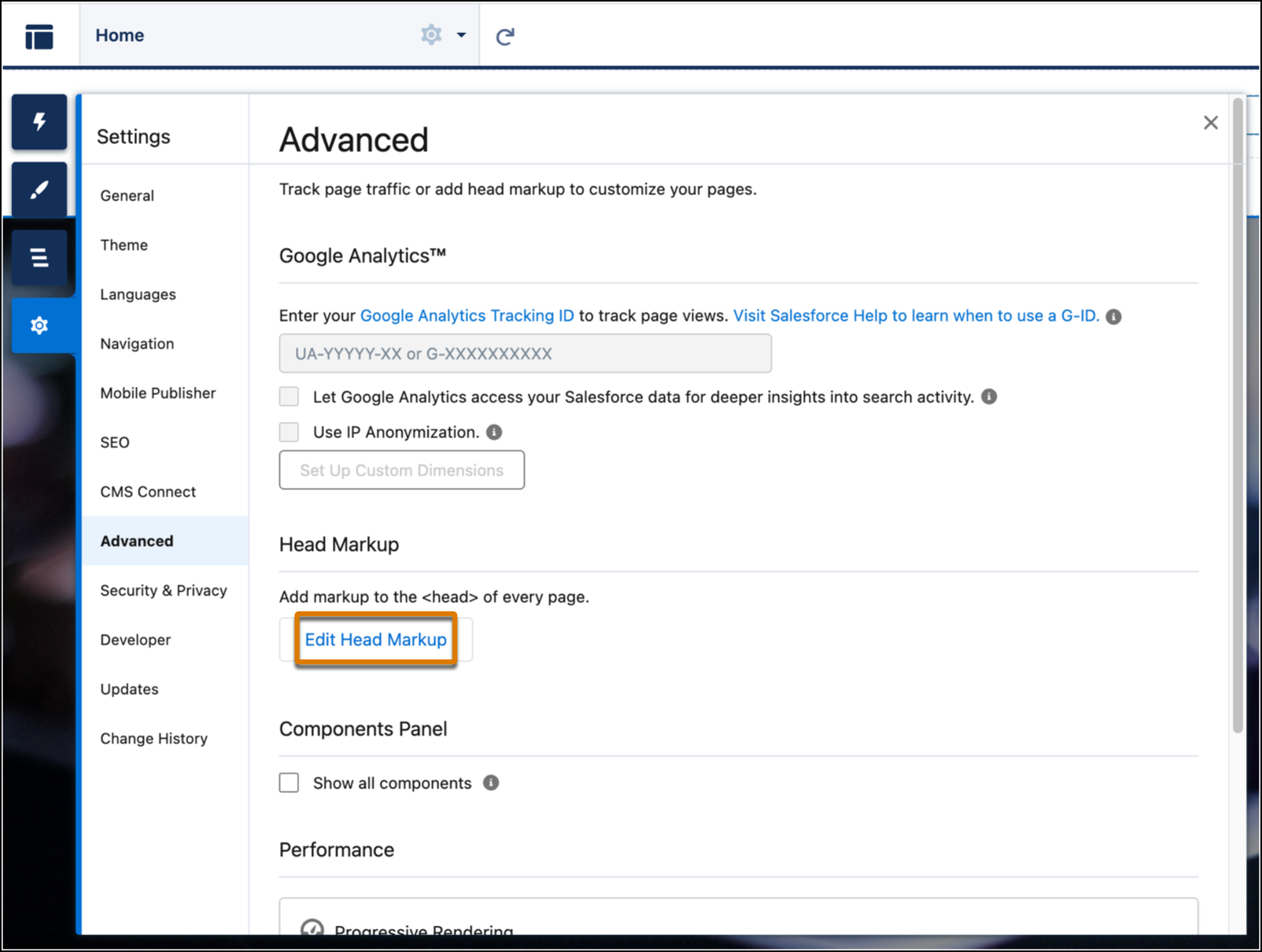
- In Experience Builder, click Settings | Advanced.
-
Click Edit Head Markup.
-
Add the URL parameter to the existing markup.
Faster Add-to-Cart supports only 20 parameters, with a maximum key length of 25 characters and a maximum value length of 251 characters. For more information about Faster Add-to-Cart, see Improve Product Page Performance in a B2B Store.
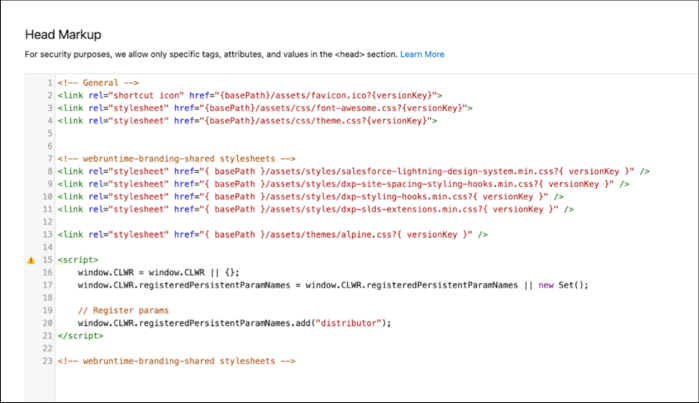
For example, this sample markup code shows how to add a custom parameter
referrer, in the URL.<script> window.CLWR = window.CLWR || {}; window.CLWR.registeredPersistentParamNames = window.CLWR.registeredPersistentParamNames || new Set(); // Register params window.CLWR.registeredPersistentParamNames.add("referrer"); </script>The final markup looks like this.
-
Set the security level to Relaxed CSP: Permit Access to Inline Scripts and
Allowed Hosts.
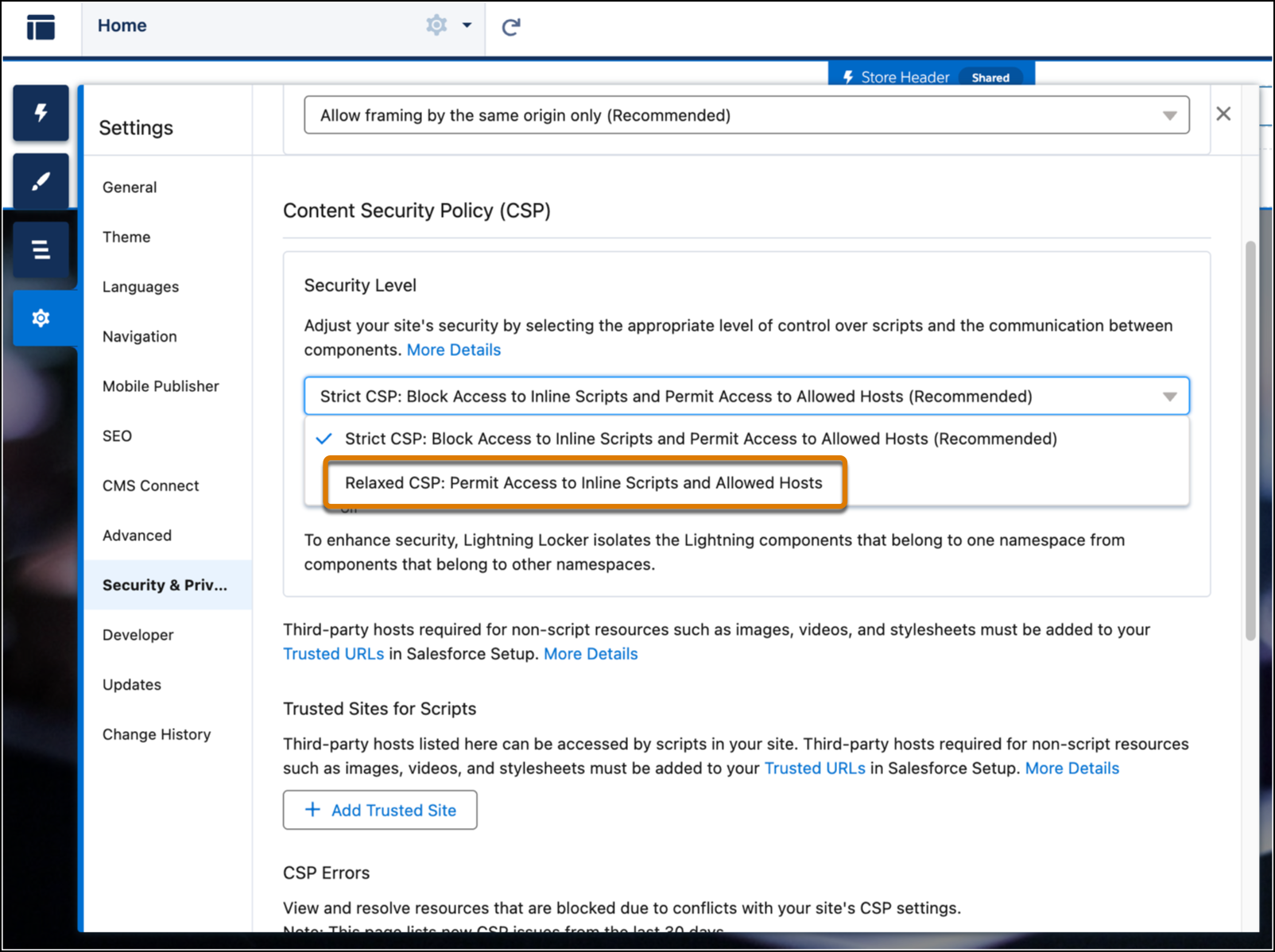
For more information, see Select a Security Level in Experience Builder Sites.
-
Add an Apex extension that returns the buyer group for a user based on the URL parameter.
When working with Apex, make sure that you follow the security tips for Apex development. For more information, see Security Tips for Apex and Visualforce Development.
For example, this custom code for the referral parameter
referreris linked to a referrer's username. The buyer group associated with the URL parameter is Discounted Buyer Group.if URL has parameter 'referrer': referrerUser = getUserByUsername(referrer) if referrerUser exists: assign shopper to Discounted Buyer Group else: assign shopper to Normal Buyer Group else: assign shopper to Normal Buyer GroupIf necessary, you can download a sample code, make the necessary changes, and then use the updated code for your store. See Shareable URL sample. - Publish your store.
