
Loading
Salesforce B2B Commerce
Innehållsförteckningar
Välj filter

          Inga resultat
          Inga resultat
          Här är några söktips

          Kontrollera stavningen av dina nyckelord.
          Använd mer allmänna söktermer.
          Välj färre filter för att utöka din sökning.

          Sök hela Salesforce-hjälpen
          Use Case: Drive Customer Engagement with Emails Triggered by Shopper Actions

          Use Case: Drive Customer Engagement with Emails Triggered by Shopper Actions

          Increase shopper engagement by targeting your B2B customers with timely, personalized emails. Personalized emails with relevant content are more likely to get a customer’s attention and have higher open rates. Use the provided templates to send welcome emails, order confirmations, and abandoned cart reminders with content tailored to your customers. Personalized messaging can increase your marketing return on investment.
          Required Editions

          To send personalized emals, customize the message template using the content editor, and modify the automation flow, which is triggered by a Commerce event, like an order placement, or shopper registration. For example, send a message thanking a customer for their purchase, or offer an exclusive discount on that customer’s next order. Include personalized product recommendations based on recent purchases. Schedule an additional service related to a product, such as an installation. This use case explains how to customize an order confirmation email, and modify the SendOrderConfirmation flow to create a service case.

          This video explains how to set up event-triggered emails.

          .

          If you can’t watch the video in full screen, open the video on a new tab: Drive Customer Engagement with Emails Triggered by Shopper Actions.

          The steps are also listed here.

          1. In your store’s navigation sidebar, select Settings | Messaging.
            The Message page opens with the available email templates. If you don’t see the email templates, you might have an older license. Contact your Account Executive to upgrade.
          2. In the Order Confirmation email tile, click Edit.
            The content editor opens.
          3. From the navigation sidebar, expand Media, and drag the image component to the email header.
          4. From your CMS workspace, select an image.
          5. (Optional) Edit any other parts on the template to tailor it to your business and your customers.
          6. Click Preview to review the email. If you’re satisfied with how it looks, click Publish.
          7. Return to the Order Confirmation Email tile, and select Edit Flow from the dropdown menu.
            You’re now going to use Flow Builder to add a service case followed by the order confirmation email, all triggered by an order event.
          8. Click Edit as New Version.
            The SendOrderConfirmation flow opens.
          9. Before the Send Email Message action, click the plus symbol and add a Create Records element. Click on the record to edit it.
            1. For Label, enter Create Case.
            2. For Description, enter Create case for shopper order.
            3. For How to set record field values, select Manually
          10. In the Create a Record of This Object section, search for and select the Case object.
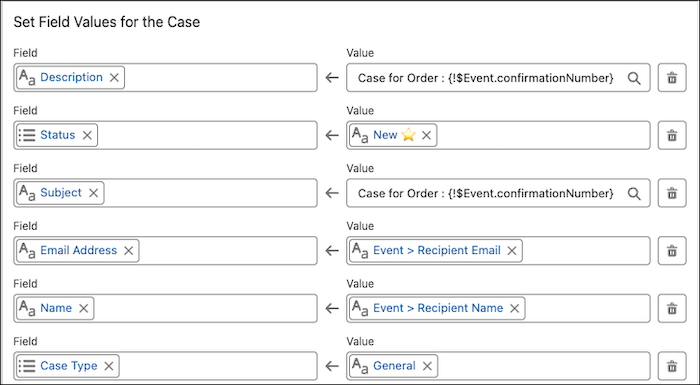
          11. Set these field values for the case.
            Field Value
            Description Case for Order
            Status New
            Subject Case for Order
            Email Address Event > Recipient Email
            Name Event > Recipient Email
            Case Type General
            Case object field values for the send order confirmation flow
          12. Save the record.
          13. Activate the flow.

          Before going live, test your messaging configuration, and your service case flow. Go to your store, and place a test order. Check your inbox for the order confirmation email, and review the message. To verify that a case was created, log into your org, and make sure that it’s listed under cases.

           
          Laddar
          Salesforce Help | Article