
You are here:
Text to Date Transformation: Convert the Column Type
A date column is sometimes tagged as text if it contains unexpected string values or dates in different formats. To use date functionality, such as grouping by month, use the Text To Date transformation to change the Text column type to Date.
- In the Transform node, select the text column that you want to convert to the Date column type. For example, you standardized the dates in a text column and now want to convert the column type to Date.
- In the Transform toolbar, select .
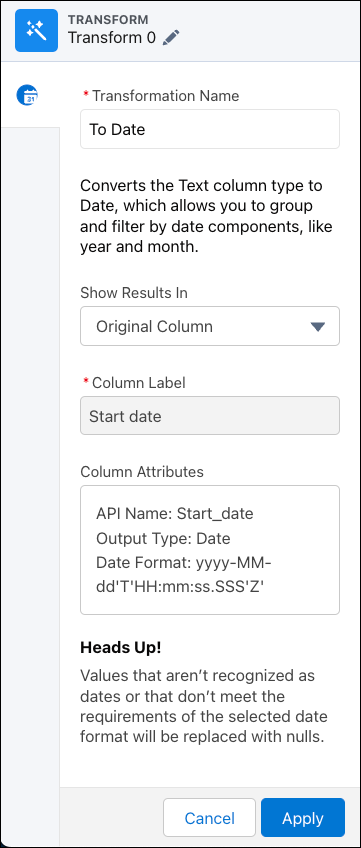
- In the Date Format field, select the date format to display the dates.
- Under Show Results In, select whether the new values appear in a new column and whether to keep the original column.
- If you elect to create a column, set the label under Column Label.
- To add the transformation to the Transform node, click Apply. The Preview tab shows the new date component column.
- To view the canvas area, click the Collapse button (
 ).
).
Run the data transform to convert the column type to Date and the date values to the specified format. If the transformation can’t parse a date value, it replaces the value with null.
Did this article solve your issue?
Let us know so we can improve!
