You are here:
Business Process Model and Notation (BPMN) Editor
The BPMN Editor is where you create and edit process models. Open it by double-clicking a process model in the Portal, or by saving a discovered model from Process Discoverer. A BPMN model is a structured, standardized representation of a business process that uses a defined set of shapes, symbols, and connectors. Apromore can discover a BPMN model from an event log or you can build and edit one manually in the BPMN Editor.
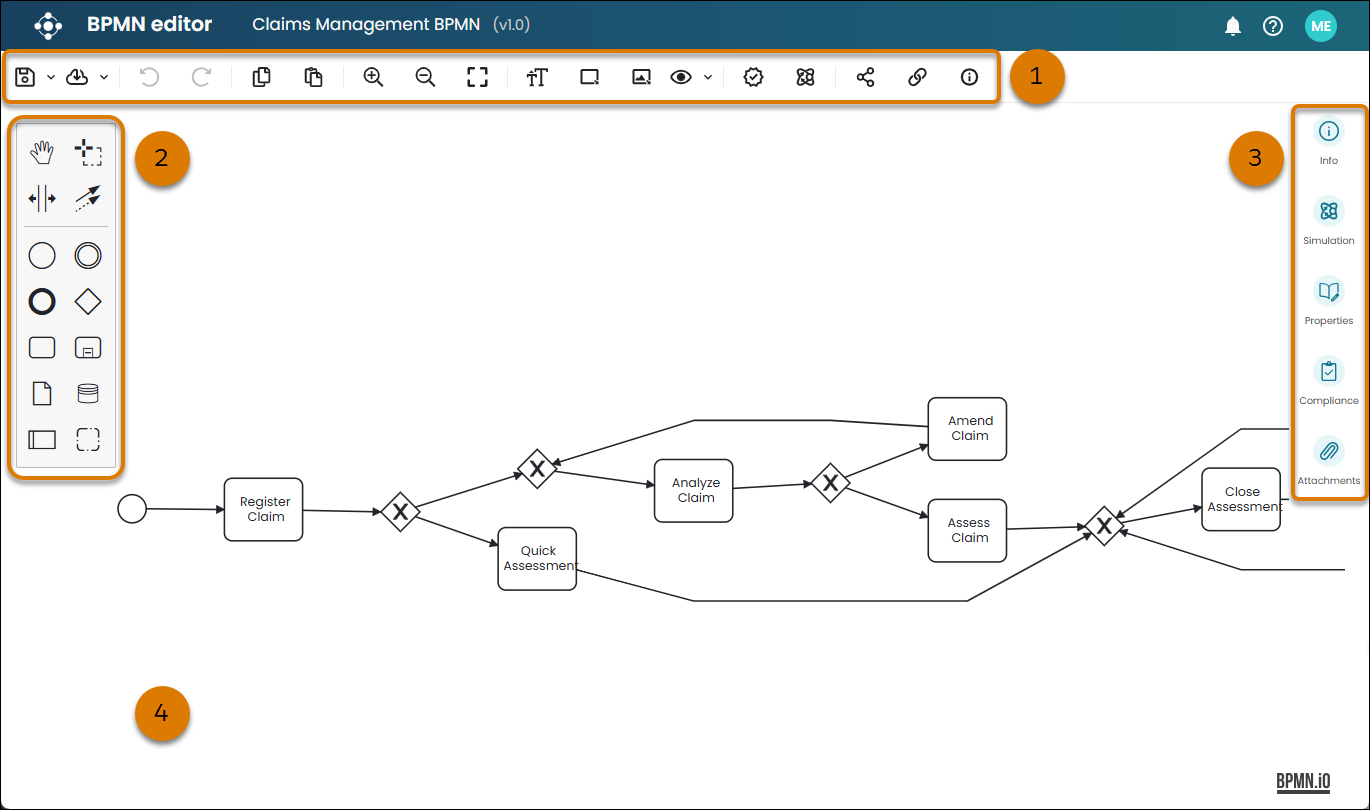
(1) Toolbar
The toolbar provides access to the main editing and saving actions.
- Save
 —saves the current state of the model as a new version.
Enter a version number, name, and description. From the Save dropdown list,
turn on auto backup or save the model as a new file.
- Download
 —exports the model as a PDF, BPMN, SVG, Salesforce Flow
metadata, or simulation scenario.
- Undo/Redo
 /
 —steps backward or forward through your recent edits.
- Copy/Paste
 /
 —copies selected elements and pastes them to the canvas.
- Zoom In/Zoom Out
 /
 —increases or decreases the zoom level of
the canvas. You can also zoom by using Ctrl + scroll wheel.
- Fit to Screen
 —resizes the model to fit the canvas area.
- Change Font Size
 —adjusts the font size of element labels on the canvas.
- Change Task Size
 —resizes selected tasks on the canvas.
- Change Attachment Size
 —resizes attachments associated with selected tasks.
- View Settings
 —controls the visibility of comments,
attachments, and attachment labels on the canvas.
- Show/Hide Syntax Errors
 /
 —controls the visibility of syntax errors
and best-practice warnings. Errors appear as a red X icon and warnings appear as a yellow
exclamation icon on the affected elements.
- Simulate Model
 —runs what-if scenarios by using the defined simulation scenario. Test the effect of
changes—such as adding resources, adjusting task durations, or replacing human tasks with
automated ones—before implementing them in the real process. See Run a Simulation and Compare Results.
- Share the Model
 —shares the model with other users in your
tenancy, assigning Viewer, Editor, or Owner permissions.
- Publish Model
 —submits the model for publication. After
approval, the model is accessible via a shareable link in view-only mode.
- Model Details
 —opens a window showing the model description
and published versions.
(2) Palette
The palette contains all the BPMN elements that you can add to your model. Drag any element from the palette to the canvas to add it.
- Hand tool
 —a pan tool for scrolling the canvas without accidentally selecting elements.
- Lasso tool
 —a selection rectangle for selecting multiple elements simultaneously.
- Create/remove space tool
 —a spacing tool for adding or removing space between canvas elements.
- Connect tool
 —an arrow connecting elements in the process, showing the order
in which they occur.
- Start event
 —a circle that marks where the process begins. Every process
requires at least one start event.
- Intermediate/boundary event
 —an event that occurs during the execution of a
process, either along the main flow or attached to the boundary of a task.
- End event
 —a thick-bordered circle that marks where the process ends. Every
process requires at least one end event.
- Gateway
 —a diamond shape that controls how process flow splits or merges.
The BPMN Editor supports three gateway types.
- Exclusive gateway (XOR)—the process takes only one outgoing path. The process follows the path whose condition the process meets first.
- Inclusive gateway (OR)—the process takes one or more outgoing paths simultaneously, depending on which conditions the process satisfies.
- Parallel gateway (AND)—the process takes all outgoing paths simultaneously, regardless of conditions.
- Task
 —a single unit of work performed in the process, represented by a
rounded rectangle.
- Subprocess
 —a task that contains its own set of tasks, gateways, and events.
Subprocesses appear as a collapsed task with a plus icon. Click the plus icon to
open the linked subprocess model.
- Data object reference
 —represents data that activities require or produce.
- Data store reference
 —represents a persistent data store that the process
reads from or writes to.
- Pool
 —a container that represents a participant in the process, such as an
organization or system.
- Group
 —a visual grouping of elements for documentation purposes. Groups
don't affect process flow.
(3) Settings Panel
The settings panel provides context-sensitive settings for the selected element or the overall model. Its content changes depending on what you select on the canvas.
- Info —view information about the process, including the
name, description, version, status, and access type.
- Simulation —configure the simulation scenario parameters for
the model, including inter-arrival times, task durations, roles, timetables, gateways, and
priorities.
- Properties
 —view and edit metadata and governance properties
for the selected element or the overall model.
- Compliance
 —link risks, obligations, and controls to the
model or to individual model elements.
- Attachments
 —add images or label icons to a task to provide
visual context.
(4) Canvas
The canvas is the main editing area. Use it to arrange elements, draw connections, and build the
structure of your process model. Click an element to select it and reveal its editing
options. Drag elements to reposition them. Use Ctrl + scroll wheel to zoom in and
out. Click the
Fit to Screen icon in the toolbar to resize the model to fit your
browser window.
Versioning
Every time you save a model, the editor saves it as a new version. You can open, compare, or publish any previous version at any time.
When you turn on Auto Backup (local draft), the BPMN Editor automatically saves a local draft of your work every two minutes. Each user has their own draft, so multiple editors working on the same model don't overwrite each other's work.
Model Publication
Publishing a model makes it accessible via a shareable link in view-only mode. Publication follows an approval workflow.
- A user in a Requester group submits the model for publication.
- The request goes to a user in the associated Approver group.
- After approval, the model publishes and you receive a shareable link.
- If the approver rejects it, the model unlocks and you can edit it again.
In the Portal, published models show a globe icon  . Models awaiting approval show an hourglass icon
 .
Process Map vs. BPMN Model
There are two ways to visualize your process: a process map and a BPMN model. Both use the same event log data but serve different purposes.
Process Discoverer generates a process map automatically from your event log. It shows what happens—activity sequences, path frequencies, and where cases slow down. Use it to investigate performance. It updates immediately when you filter or change overlays. It's not editable.
The BPMN Editor is a design tool. It represents the intended process by using a standardized set of shapes and connectors. You can discover a BPMN model from an event log or build one manually. Use it to communicate process design, run simulations, check conformance, and govern compliance.
A typical workflow uses both. Start in Process Discoverer to understand what's happening. Then build or refine a BPMN model to represent the intended design. Use conformance checking to compare the two, and simulations to test improvements.
Comparing Models
You can compare two BPMN models or two versions of the same model. The Model Comparator shows a list of changes and overlays the differences on the model by using color coding.
- Green—element added in the second model.
- Yellow—element changed between the two models.
- Red—element removed from the second model.
