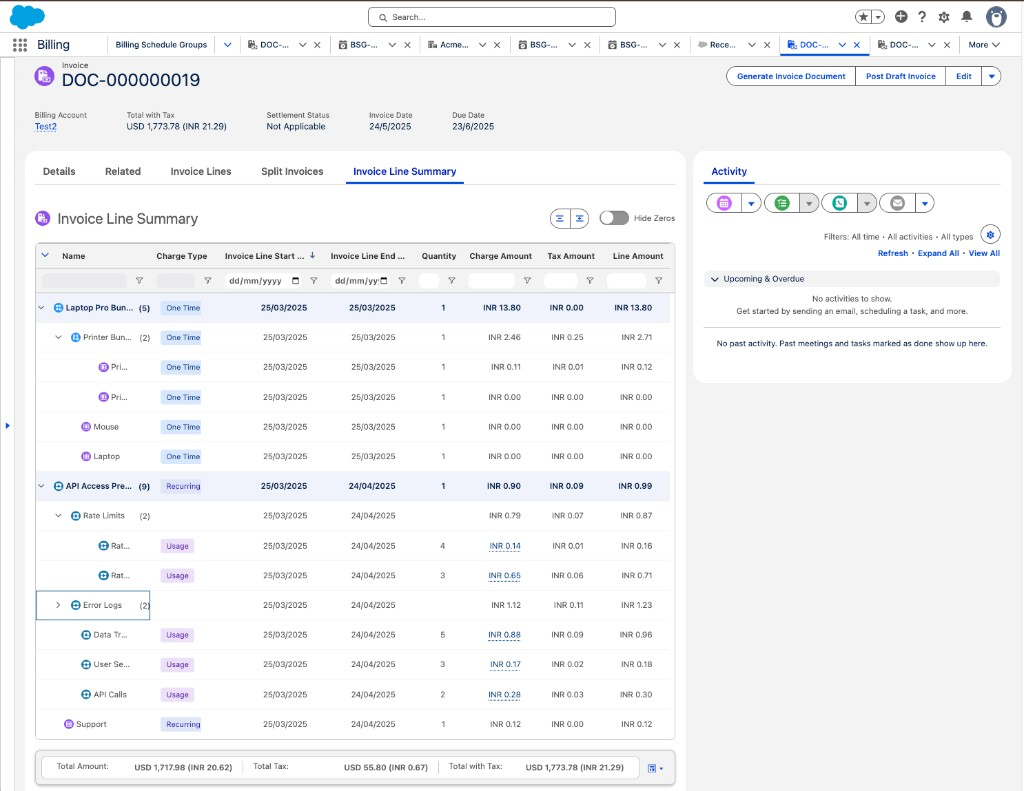
See invoice lines grouped by product, including usage resources that belong to the same
usage product. Invoice Line Summary rolls related lines into one hierarchy, so you can understand
and explain one-time, recurring, usage, overage, and milestone charges without scanning the
invoice line by line.
Required Editions
Available in: Lightning Experience
Available in: Enterprise, Unlimited, and Developer Editions with
the Revenue Cloud Billing license. Contact your Salesforce account
executive for more information.
On an invoice record, open the Invoice Line Summary tab to see each
product with its related charges. Open the Invoice Lines tab for the
ungrouped list.
Note If you don't see the Invoice Line Summary tab, ask your Salesforce
admin to add the Invoice Line Summary component to the invoice page.
The summary includes:
Name: Product, bundle, or usage resource, with related lines nested
under the parent.
Charge Type: Usage, One Time, Milestone Plan, Recurring - Termed,
Recurring - Evergreen, or Other.
Invoice Line Start Date and Invoice Line End
Date: Billing period for the line.
Quantity: Quantity billed on the line. Grouping rows leave quantity
blank.
Charge Amount, Tax Amount, and
Line Amount: Amounts for the line.
The summary bar shows Total Amount, Total Tax, and
Total with Tax from the invoice. The totals stay the same when you hide
or filter rows. Switch the summary bar between Horizontal and
Vertical, or select Auto to match the available
space.
Review Products, Bundles, and Usage Resources
Invoice Line Summary groups invoice lines so that you can review a product and its related
charges together.
Bundle children nest under the parent invoice line.
Two or more sibling lines for the same product appear under a product group.
Usage resources that share an anchor billing schedule group nest under that usage product.
When no anchor line exists, two or more floating usage lines for the same product appear under
a usage product group. A single floating usage line stays at the top-level.
Grouping rows show rolled-up amounts and the earliest start date and latest end date.
Charge type and quantity stay blank.
Milestone lines can show the milestone name, percentage, and completion date on the name.
Usage lines can show usage charge details when you hover over Charge
Amount.
Filter and Hide Zero-Amount Rows
Select Expand All or Collapse All to open or
close the product hierarchy. Use the column filters to find a product, charge type, date,
quantity, or amount.
Turn on Hide Zeros to hide rows whose line amount is zero.
Did this article solve your issue?
Let us know so we can improve!
Loading
Salesforce Help | Article
Cookie Consent Manager
Cookie Consent Manager
General Information
Required Cookies
Functional Cookies
Advertising Cookies
General Information
We use three kinds of cookies on our websites: required, functional, and advertising. You can choose whether functional and advertising cookies apply. Click on the different cookie categories to find out more about each category and to change the default settings.
Privacy Statement
Required Cookies
Always Active
Required cookies are necessary for basic website functionality. Some examples include: session cookies needed to transmit the website, authentication cookies, and security cookies.
Functional Cookies
Functional cookies enhance functions, performance, and services on the website. Some examples include: cookies used to analyze site traffic, cookies used for market research, and cookies used to display advertising that is not directed to a particular individual.
Advertising Cookies
Advertising cookies track activity across websites in order to understand a viewer’s interests, and direct them specific marketing. Some examples include: cookies used for remarketing, or interest-based advertising.