
You are here:
Creating a Platform Cache Partition
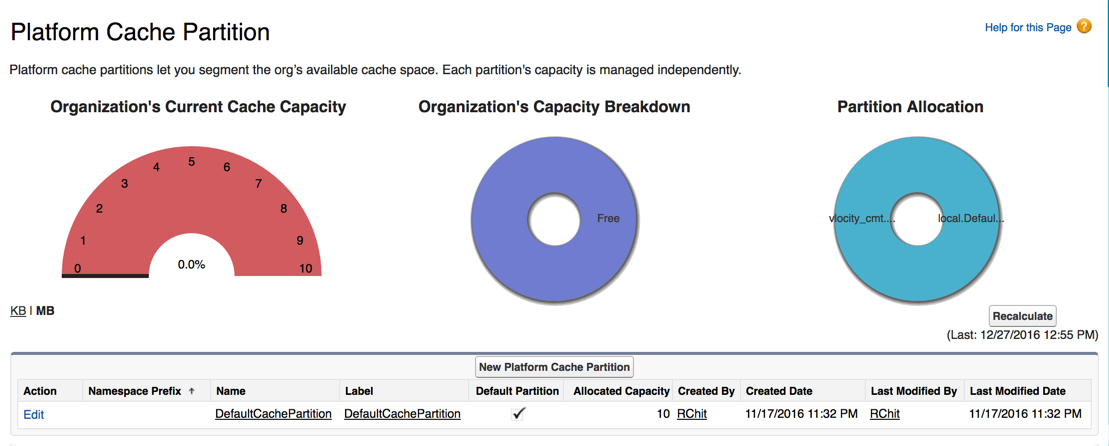
Your managed package comes with a platform cache partition and you can create a new one if needed.
To create a platform cache partition:
- From Setup, in the Quick Find box, enter Platform.
- Click Platform Cache.
- Click New Platform Cache Partition.
-
On the New Platform Cache Partition page, in the
Detail section, enter the following information:
-
Label is CPQPartition.
-
Name is CPQPartition.
-
-
In the Org Cache Allocation list, in the
Organization box, enter a number between one and the
maximum cache allowed on your org.
Org cache stores the query results for context mappings and dimensions, including changes made by CacheQueryStore. The Org Cache also contains rules information
-
In the Session Cache Allocation list, in the
Organization box enter one of the following
values:
-
Session Cache is no longer used for aggregate context mappings after CME Summer ’19.
-
For CME Fall ’19 and later, use a session cache value of 1.
-
- Click Save.
Эта статья решила вашу проблему?
Оставьте свой отзыв, чтобы мы могли стать лучше!
