
You are here:
Replace and Compare Plans in the Industries CPQ Cart
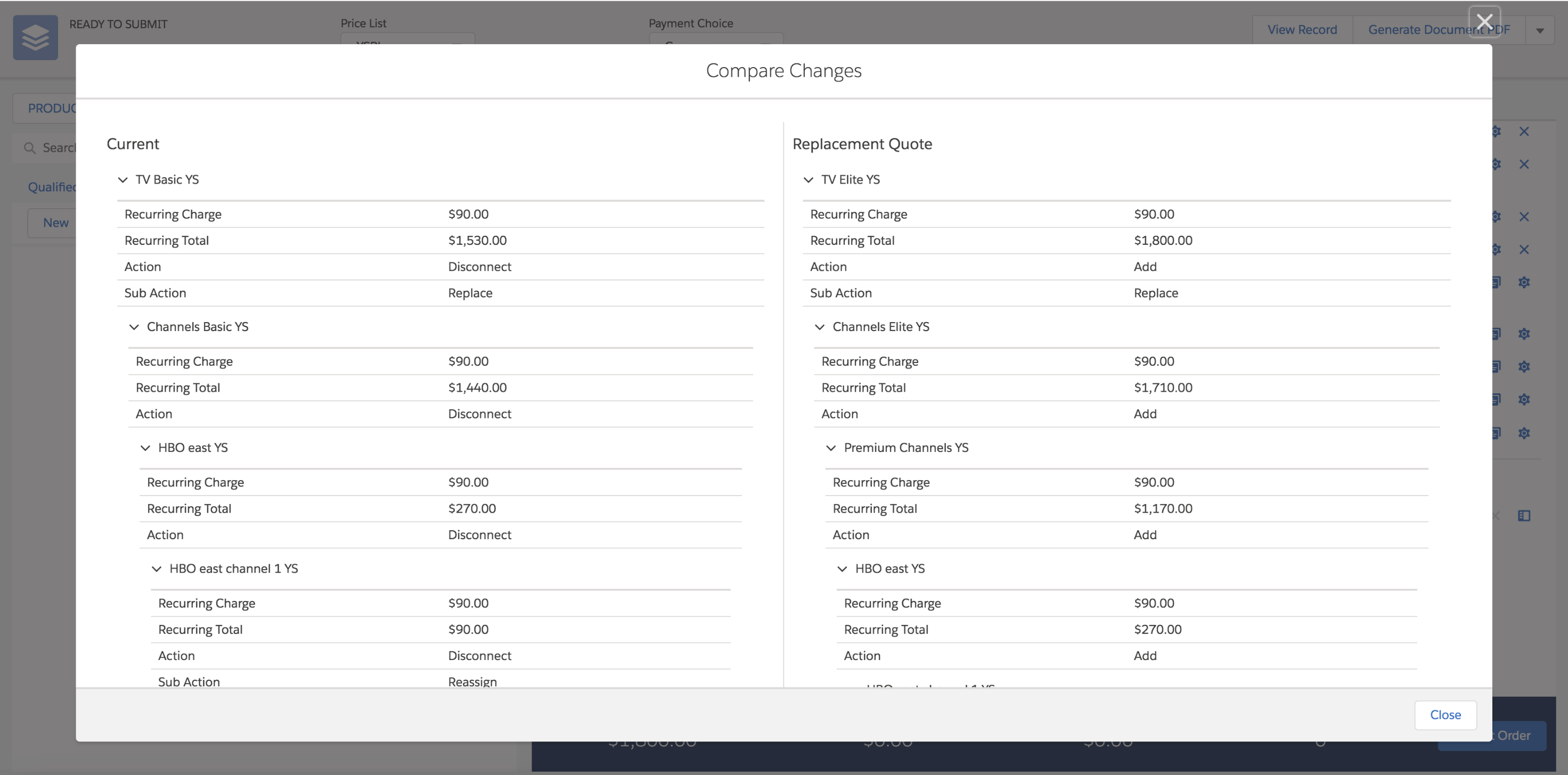
Replacing a product works with any eligibility rules that you have defined. You can only replace plans depending on your customer's eligibility to change plans. You can compare the Recurring Total of the old asset with the Recurring Total and One Time Total of the new asset. You can also compare the action and sub-actions of the old and new assets. You cannot view the attributes for each asset from this view.
For example, let's say you have a TV Elite product plan that you do not want to offer to east coast customers. You can define an eligibility rule that prevents all east coast customers from upgrading to the TV Elite product plan.
The rules API evaluates all the offer migration plans that have been defined for a product within Industries Cart. Next, it checks the valid product families and finds the matching offer migration plans to determine which products should be displayed. The eligibility rules determine if the plan is eligible or not. If the plan is not eligible, it is removed.
You can also set up rules to apply change fees during the replacement process. For more information about change fees, see Set Up Change Fees in the Product Catalog.
- Select the product to which you want to apply the new plan.
- Locate the root level asset that contains the plan you want to replace.
- Click Change to Order or Change to Quote to launch the MACD order process.
-
In the Future Dated Orders window, specify the date and time and click
Next.
You will see the line item with an Action type of Existing.
- In the Industries CPQ Cart, view the plans you want to replace.
- From the list of qualified products in the selectables list, click Replace.
-
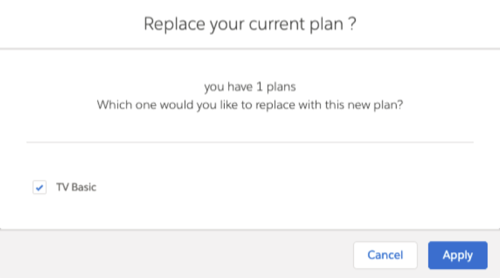
Select the plan you want to replace with the new one and click
Apply.
The existing asset status changes to "Disconnect" and the new product plan is added to the cart with a status of "Add".
- Click Create Order.
- To compare plans:.
Asset Status After Submitting the Order in Industries CPQ
After you submit the order, the old asset is disconnected and replaced with the new asset. Items that are reassigned have a one-time charge of $0.
The following table provides a summary of the fields that are impacted in the old and new records.
Asset Status |
Provisioning Status |
Action |
Sub-Action |
|---|---|---|---|
Old Record |
Deleted |
Disconnect |
Replace/Reassign |
New Record |
Active |
Add |
Replace/Reassign |
