
You are here:
Decomposition Visualization
The Decomposition View shows a color-coded tree diagram of the executed order rules, as well as the decomposition relationships between commercial and technical products.
As orders are submitted to Industries Order Management, the decomposition function starts and executes the decomposition rules. The outcome of the decomposition process includes a set of decomposed fulfillment requests that map the order line items (products) on the source order to a set of fulfillment requests (product specifications) that represent the technical items to fulfill on an order.
You can view the rules that executed as well as the inputs to the decomposition algorithm and the output. Color coding lets you quickly distinguish between items that were added to the tree as opposed to items that existed prior to decomposition. This is useful for decomposition debugging.
From an order, scroll down to Decomposition View. The decomposition view opens. From the top of the view, click the appropriate icon to print the entire decomposition tree, view the original order, view the orchestration plan, or (from the gear icon) see options about what information to view.
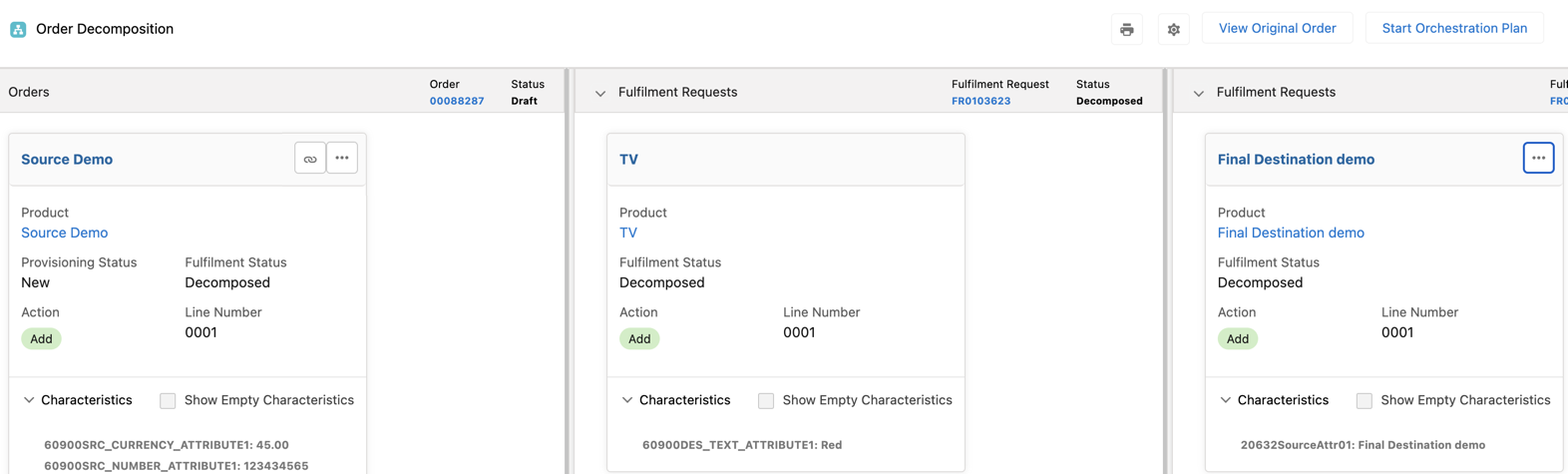
Tree views show the decomposition relationships between commercial and technical products. You can expand or collapse the attribute panels to show or hide attributes, either at the order item level or for the entire order.
The left side of the diagram shows the original commercial order (source order) that was submitted to Order Management from the order capture system.
Decomposition rules result in generation of the decomposed fulfillment requests containing technical products. These are presented as nodes on the right side of the diagram. There is only one top-level item per fulfillment request line. Click the chain icon from a source product on the left side of the diagram to highlight the corresponding decomposed fulfillment request on the right side of the diagram. Click the chain icon on the right side of the diagram to see how the product is further decomposed into additional products. For more information, see Multi-Level Decomposition Modeling.
The newly generated technical products have their own child relationships, per catalog definition, that are enriched onto the decomposed fulfillment requests. You can see the relationship by clicking the chain icon for a decomposed fulfillment request. You can also define additional rules that populate attributes onto the decomposed fulfillment requests. The resulting parameters are shown nested below each technical product.
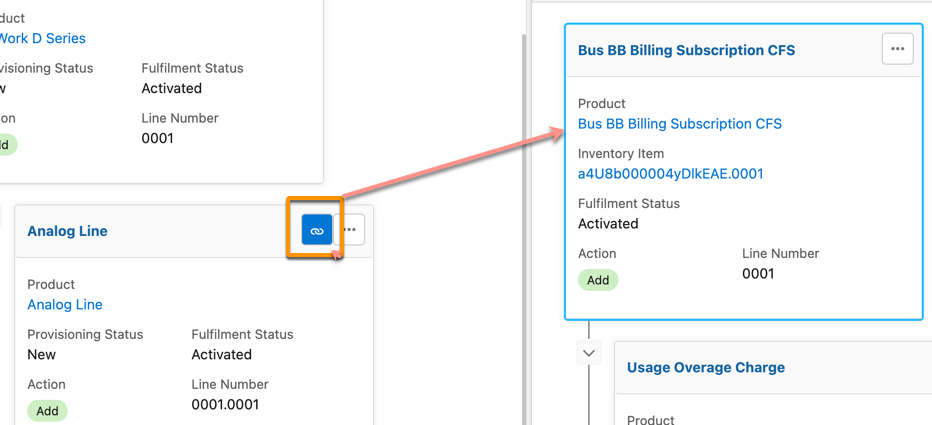

Clicking the chain button also highlights inactive, previously linked, fulfillment requests in red.
For example, if you submitted a supplemental order to amend an existing order, but that supplemental order failed due to conditions that were set, the fulfillment request item is no longer actively related to the supplemental order. But the fulfillment request item stills appears in the decomposition view, and if you click the source item, that fulfillment request item is highlighted in red.
Click the Decomposition Relationship Definitions button (it's three dots, just to the right of the link button) to see a list of the decomposition relationship definitions associated with that item. Click one of the items in the list to see the definition.
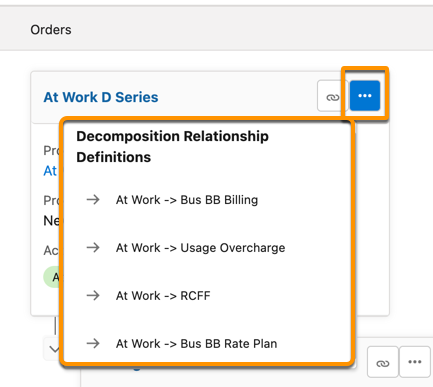
Decomposition Relationship MetadataClick the Gear button to open a menu which allows you to set which labels appear in the cards. For more information, see Choose the Card Labels in the Decomposition View. You can also click the Print button for the option to print the entire decomposition hierarchy, even if it's too large to view on the screen.
You can see information for each source order item detail, such as ID and Name, and upstream attribute name by hovering your mouse over the item until a tooltip containing the information appears. You can also see various details and information by clicking one of the following items:
Options to show or hide the attribute panel
Asset and Inventory Item Links
Order Product Detail Link
Fulfillment Request Link
Fulfillment Request Line Link
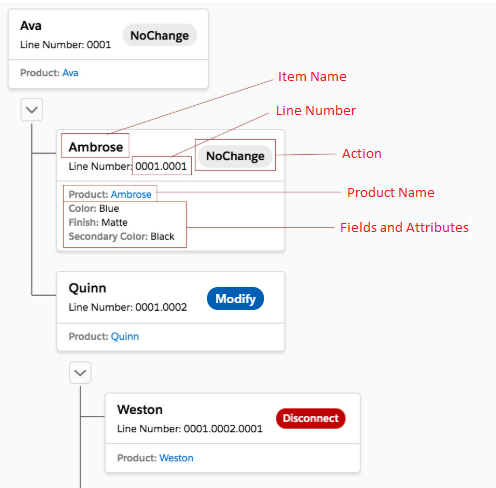
Color-coding of the action indicates the following information:
Green: Move-Add
Red: Move-Disconnect
Gray: Sub Actions
Blue: Modify, Suspend or Resume
If the order is not decomposed, a message indicates that decomposition is not available because the order is not yet decomposed.
