You are here:
Using the fndmultiDocxLwc Omniscript
You can use fndmultiDocxLwc Omniscript to generate documents from more than one document template at a time. The fndmultiDocxLwc Omniscript supports both Microsoft Word and Microsoft PowerPoint templates.
Here's an example workflow of a sales rep using this Omniscript from a custom button:
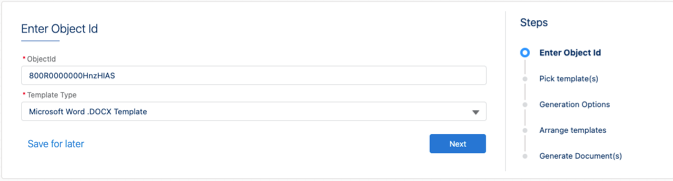
Enter Object ID.
Make a selection for these fields:
ObjectId: ID of the Salesforce Object from which the system retrieves data for the document.
Template Type: Microsoft Word (.docx) or Microsoft PowerPoint (.pptx) document template
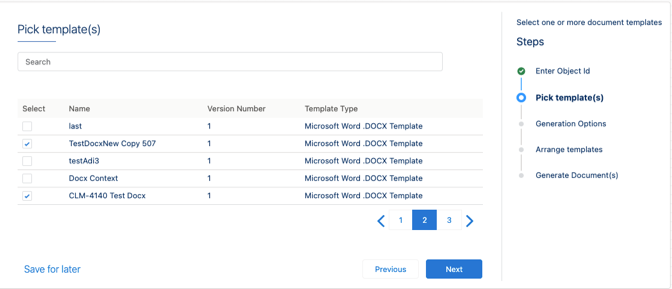
Pick template(s).
You can select more than one document template, but ensure that you select at least one template. Also, you can search for document templates in the Search field.
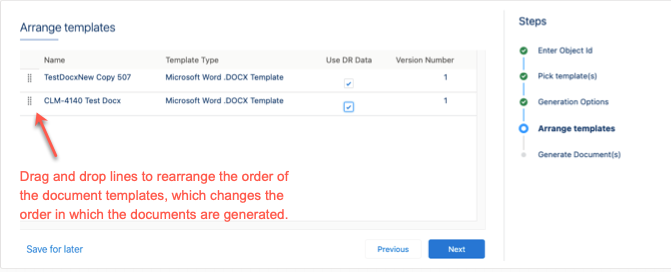
Arrange templates.
To change the order of the templates, drag them. Also, select the templates that use their Omnistudio Data Mapper data. If you select the UseDRData checkbox, data comes from the template's Data Mapper. If you deselect the UseDRData checkbox, you provide data extracted within the Omniscript to the template. The SetValues Omniscript property stores the data within the Element Name and Value fields.
You can define the element values based on the tokens of the document template. For example, if the token is contractterm, then click Add New Element Value, enter the value of the Element Name as contractterm, and then enter the contract term value (months) in the Value field. Save your changes.
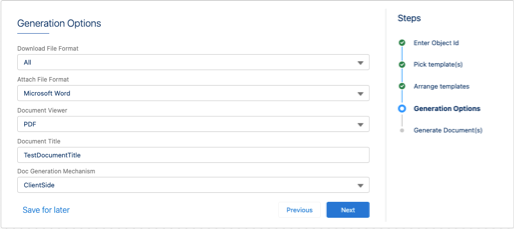
Generation Options
Optional: Select the required options to download, attach, generate documents, and generate the .pdf file. The system shows the respective default values in the fields. If you don't want to use those values, select the --clear-- option.
 Note
NoteCreate different document titles for the .docx or .pptx documents that you want to generate by using commas to separate the document titles. Document Title is a mandatory field in Document Generation 2.0.
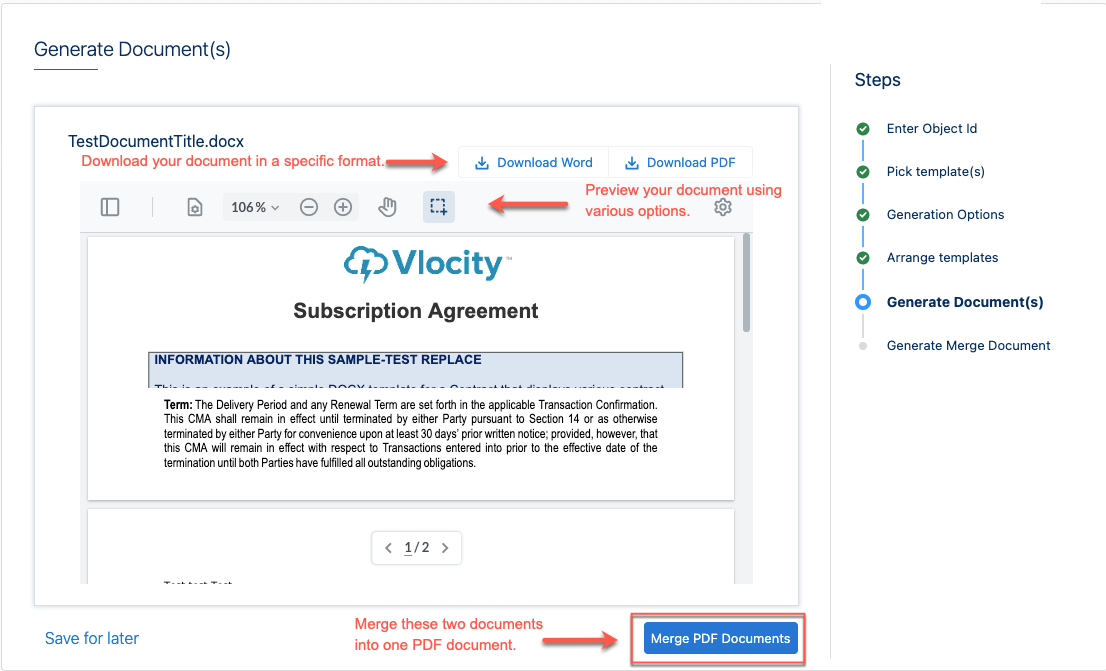
Generate Document
After you generate the document, you can merge your multiple documents into a single .pdf document. If you selected only one template, the system doesn't show this option.
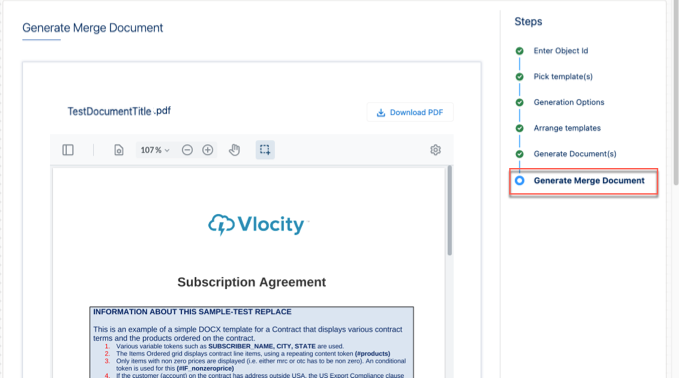
Generate Merge Document
Download the merged .pdf file after the Omniscript generates it.