
You are here:
Reschedule a Service Appointment for Energy & Utilities
Reschedule an already booked service appointment to a customer's preferred date and time. When you reschedule an appointment, the Energy & Utilities Contact Center Console fetches live service appointment data such as time slots and worker schedules. After you select a desired date and time, the console cancels an existing appointment and reschedules it to the selected date and time.
Before You Begin
-
You have a booked appointment that you want to reschedule.
The "Where's My Tech" process allows users or customers to view the details of Service Appointments, know the location of the Technician assigned for the Service, Status of the Service Appointment and other details. It also provides an overview of the Work Order related to the Service Appointment and allows the user to reschedule the service appointment for a different sate, time & technician.
Process Flow
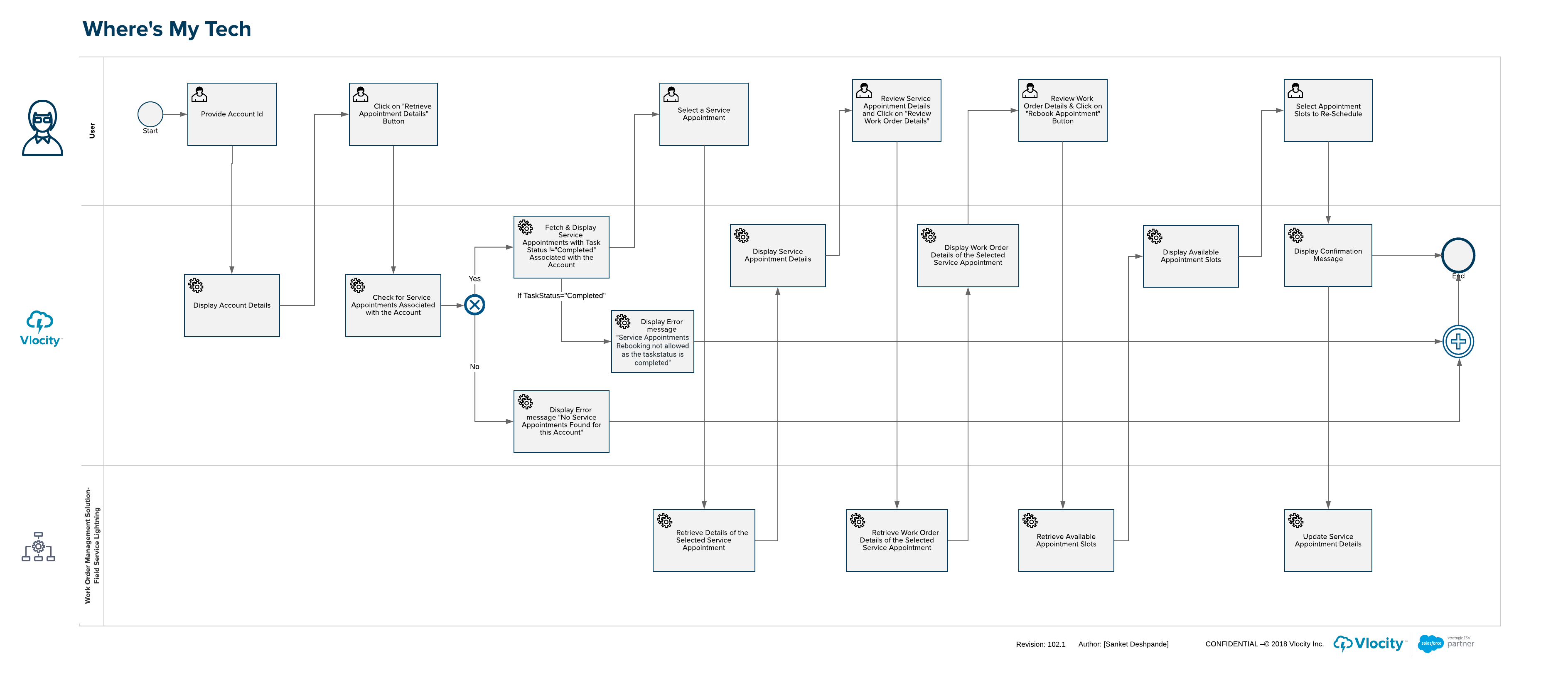
The front office user or customer starts the interaction flow and selects Where's My Tech action.The front office user or customer is guided through the process to review the current service appointment status and has the option to rebook the appointment for a different date and time.
- Use the Identity Verification feature to verify the identity of the caller and launch the customer's accounts page.
- On the customer accounts page, select the Field Service tab.
- Click Reschedule in the appointment tile that you want to reschedule.
- Click OK.
-
Choose the time slot for the field service agent visit based on customer preference.
The open time slots are shown for a week. Click < or > to view free time slots for a different week.
- Click Next.
- Review the details provided with the customer.
- Click Previous to make any changes.
- Click Book Appointment.
- Click Finish to schedule the appointment.

