申請者および助成金受領者サポートエージェントのドキュメントライブラリの作成
申請者および助成金受領者サポートエージェントが助成金ドキュメントから回答を取得できるように、PDF ファイルを Agentforce データライブラリにアップロードします。
必要なエディション
| 使用可能なインターフェース: Lightning Experience |
| 使用可能なソリューション: Nonprofit Cloud for Grantmaking and Public Sector Solutions (助成金提供および公共セクターソリューション向け Nonprofit Cloud)。エディションの使用可能状況を確認してください。 |
| 必要なユーザー権限 | |
|---|---|
| Agentforce データライブラリを作成する | 「データライブラリの管理」システム権限 |
| エージェントビルダーでエージェントを変更する | 「ボットの管理」システム権限 |
ドキュメントライブラリを作成する前に、「Set Up the Applicant and Grantee Support Agent (申請者および助成金受領者サポートエージェントの設定)」を完了します。
-
Agentforce データライブラリを作成します。
組織で複数の助成金プログラムをサポートしている場合は、助成金プログラムごとにこの作業を繰り返します。複数の取得者に対するエージェントの設定についての詳細は、例を参照してください。
- [設定] から、[クイック検索] ボックスに「Agentforce データライブラリ」と入力し、[Agentforce データライブラリ] を選択します。
- [データを追加] をクリックします。ローカルファイルをアップロードするか、カスタム取得機能を使用できます。
- データスペースを選択し、データライブラリに名前を付けます。
-
PDF ファイルをアップロードして、[保存] をクリックします。
 重要 最適な結果を得るには、明確で構造化されたコンテンツを含む PDF をアップロードします。資金調達商談通知 (NOFO) などの複雑で稠密な形式の政府ドキュメントは、長さや書式の問題からエージェントが正確に処理することが困難です。助成金を必要とする一般的な質問に直接回答する FAQ 形式のドキュメントが理想的です。
-
データライブラリの状況が [準備完了] になるまで待機します。
ファイルをアップロードすると、Salesforce によって自動的にインデックスが作成され、基盤となる Data Cloud 設定が作成されます。このプロセスには約 15 ~ 20 分かかります。進行状況を確認するには、アプリケーション ランチャー | [Data Cloud | Search Indexes]に移動し、検索インデックスが作成されてデータ ライブラリに[Ready]が表示されるまで待ちます。
重要 状況が「準備完了」になるまで、ライブラリをエージェントに接続しないでください。インデックス付けが完了する前にライブラリを使用すると、結果が不完全または欠落します。 -
ドキュメントライブラリのデータモデルオブジェクトに外部ユーザーアクセス用のタグを付けます。
Salesforce はドキュメントライブラリにインデックスを付けると、Data Cloud に 3 つのデータモデルオブジェクト (DMO) を作成します。これらの DMO にタグ付けして、外部コミュニティユーザーが取得者にアクセスできるようにする必要があります。内部プラットフォームユーザーには、Salesforce のデフォルトの [すべてのデータアクセス] ルールセットポリシーが自動的に適用されます。このステップは必要ありません。
- アプリケーションランチャーで、Data Cloud を開き、[データモデル] をクリックします。
-
ドキュメントライブラリ用に作成された 3 つの DMO を見つけます。名前は次のパターンに従います。LibraryName はライブラリの API 参照名の最初の 15 文字です。
ADL_LibraryNameADL_LibraryName chunkADL_LibraryName index
- 各 DMO で、オブジェクト表示ラベルをクリックしてその詳細ページを開き、[Manage Tags (タグの管理)]、[Attach Tags (タグの添付)] の順にクリックします。
-
検索ボックスで、次のタグを検索して追加します。
ExternalData.Visibility.PortalExternalData.Visibility.Public
- [ Add these tags to [library name] (これらのタグを [ライブラリ名] に追加)] を選択し、[ 保存] をクリックします。
- [DMO Details (DMO の詳細)] ページで、[Done (完了)] をクリックします。
- 残りの各 DMO でサブステップ (c) ~ (f) を繰り返します。
-
ライブラリの取得者の API 参照名を取得します。
- [設定] から、[クイック検索] ボックスに「Agentforce データライブラリ」と入力し、[Agentforce データライブラリ] を選択します。
- データライブラリを選択します。
- [Status (状況)] セクションで、[Retriever (取得)] リンクをクリックします。
-
[Retriever Details (取得者の詳細)] で、API 参照名をコピーします。
retriever API 参照名は、パターン
File_ADL_LibraryName_UniqueIDの後に続きます (例:File_ADL_GrantDocuments_1Cx_l2D32f7b02d)。
-
ドキュメントライブラリ取得機能を使用するようにエージェントを更新します。
- アプリケーションランチャーから、検索ボックスに「Agents」と入力し、Agentforce Studio を選択して申請者および助成金受領者サポートエージェントを開きます。
- エージェントが有効な場合は、[無効化] をクリックします。
- キャンバスビューからスクリプトビューに切り替えます。
-
Grantseeker Assistance サブエージェント (1) で、AnswersQuestionsFromDocument (2) アクションを見つけて、前のステップでコピーした取得 API 参照名 (3) を参照するようにその命令を更新します。
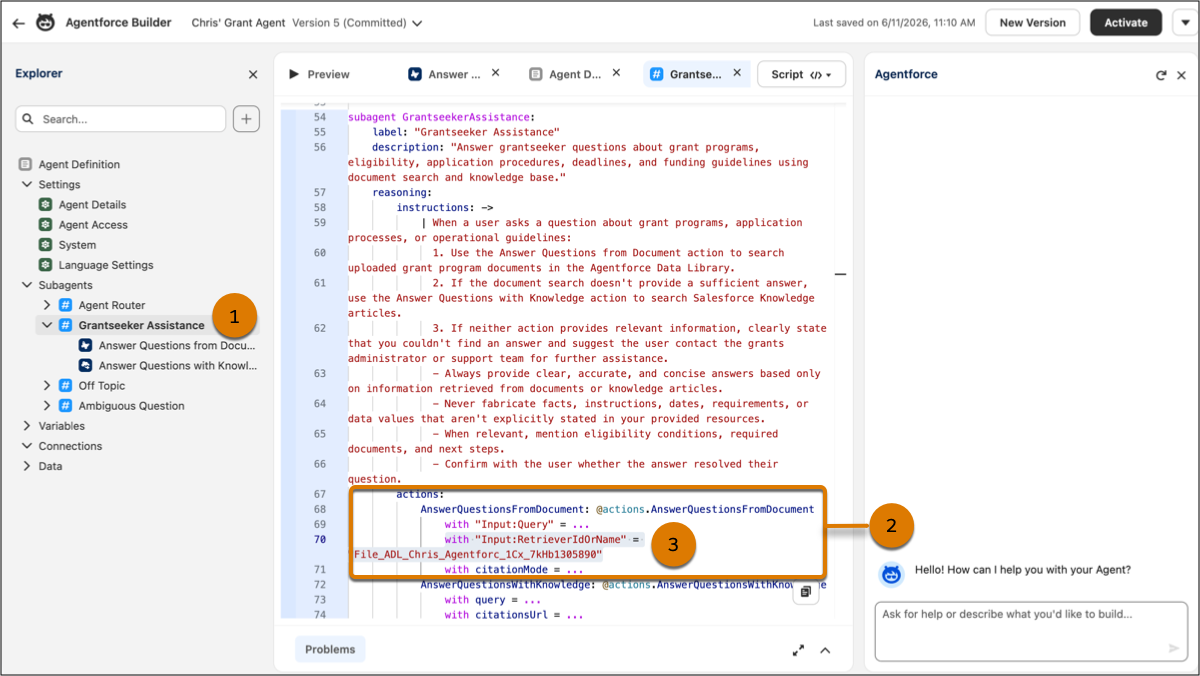
- [保存(Save)] をクリックし、スクリプトビューからキャンバスビューに切り替えます。
- [エクスプローラー] ペインの [データ] で、[データライブラリ] を選択します。
- データライブラリを検索して選択します。
- [保存] をクリックし、[バージョンをコミット] をクリックします。
-
ドキュメントライブラリをテストします。
- Agent Builder で、[プレビュー] をクリックします。
- アップロードしたドキュメントから回答できる質問をし、エージェントが関連する回答を返すことを確認します。

組織で複数の助成金プログラムをサポートしている場合、スクリプトビューで Grantseeker Assistance サブエージェントの指示を更新し、ユーザーの質問に基づいてエージェントを適切な取得者に移動します。次の例は、2 つの助成金プログラムに設定された命令を示しています。取得者 ID と付与名を独自のものに置き換えます。
subagent GrantseekerAssistance:
    label: "Grantseeker Assistance"
    description: "Answer grantseeker questions about grant programs, eligibility, application procedures, deadlines, and funding guidelines using document search and knowledge base."
    reasoning:
        instructions: ->
            | Your organization supports TWO grant programs. Use only the retriever for the grant the user is asking about:
              - Digital Equity Competitive Grant: File_Digital_Equity_Competitive_Grant_1Cx_ZZ3deff5335
              - Public Wireless Supply Chain Innovation Fund Grant: File_Public_Wireless_Supply_Chain_Innova_1Cx_ZZ393667fb8

              1. Identify which grant the user is asking about before taking any action.
                 - If the grant was named earlier in the conversation, continue using it for follow-up questions unless the user clearly switches.
                 - If the grant hasn't been identified, ask the user which grant their question is about. Do not call any action until a grant is identified.
                 - Recognize common shorthand (for example, "digital equity" for the Digital Equity Competitive Grant; "public wireless," "supply chain," or "wireless innovation" for the Public Wireless Supply Chain Innovation Fund Grant). When in doubt, ask.
                 - If the user names an unsupported grant, do not search. Tell them the two supported programs and direct them to the grants administrator for any other program.
                 - If the user asks a question that compares or spans both grants, decline politely and direct them to the grants administrator.
              2. Use the Answer Questions from Document action to search the identified grant's document retriever. Do not include the grant name in the search query — the retriever is already scoped to that grant.
              3. If the document search doesn't provide a sufficient answer, use the Answer Questions with Knowledge action to search Salesforce Knowledge articles.
              4. If neither action provides relevant information, clearly state that you couldn't find an answer and direct the user to contact the grants administrator or support team for further assistance.
              - Always provide clear, accurate, and concise answers based only on information retrieved from documents or knowledge articles.
              - Never fabricate facts, instructions, dates, requirements, or data values that aren't explicitly stated in your provided resources.
              - Never use content from one grant's retriever in an answer about the other grant.
              - When relevant, mention eligibility conditions, required documents, and next steps.
              - Confirm with the user whether the answer resolved their question.
エージェントにドキュメントに加えてナレッジ記事へのアクセス権を付与するには、「申請者および助成金受領者サポート エージェントのナレッジ記事ライブラリの作成」を参照してください。それ以外の場合は、「Activate the Grantseeker Agent」に進みます。
