
You are here:
Call a Decision Matrix from an Omniscript
To call a decision matrix that has at least one active version from an Omniscript, and to return the specified matrix’s results to the Omniscript, use the Decision Matrix Action.
Required Editions
| Available in: Lightning Experience |
| Available in: Enterprise, Unlimited, and Developer Editions for clouds that have Business Rules Engine enabled |
| User Permissions Needed | |
|---|---|
| To access Omnistudio to create and modify an Omniscript: | Omnistudio Admin |
| To access Business Rules Engine to create and activate a decision matrix: | Rules Engine Designer |
| To call a decision matrix from an Omniscript: | Omnistudio Admin |
-
From the App Launcher (
 ), find and select Omnistudio.
- From the app navigation menu, select Omniscripts.
- Select the Omniscript and the version from which you want to call the decision matrix.
- Expand the step from which you want to call the decision matrix.
-
From the Build section, under Inputs, drag the input fields that are relevant to the inputs
that your decision matrix uses.
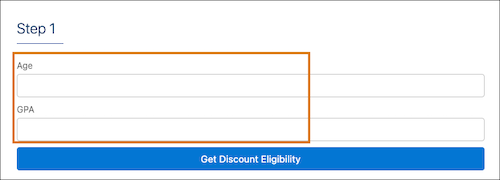
For example, if the decision matrix uses values from the input variables Age and GPA to determine a student’s eligibility for a discount on annual fees, add these input fields:
Input Field Type FIELD Name Number Age Number GPA  Note Ensure that the input field name matches the name of the input variable that’s used in the decision matrix. You can specify field labels of your choice.
 - From the Build section, under Actions, drag Decision Matrix Action and place it below the input fields.
-
Select the action, and then under the Properties section:
- Enter a name, and if necessary, a label for the action.
- Under Matrix Input Parameters, enter the input variables to pass to the decision matrix.
For example:
Data Source Filter Value Age Age GPA GPA - Expand Remote Properties.
- For Matrix Name, select the decision matrix that you want to call.
- Expand Send/Response Transformations.
- For Response JSON Path, enter a name for the response node in which you want to capture
the results of the matrix.
For example, matrixResult.
- For Response JSON node, enter the name of the Omniscript step to which you added the input fields for the matrix and the decision matrix action.
- To test whether the Omniscript calls the decision matrix successfully, click Preview.
-
Enter values for the input fields in the relevant Omniscript step, and then run the
Omniscript.
-
To view the results of the decision matrix action, expand the step that contains the input
fields and the decision matrix action, and then under Action Debugger, expand
Response.
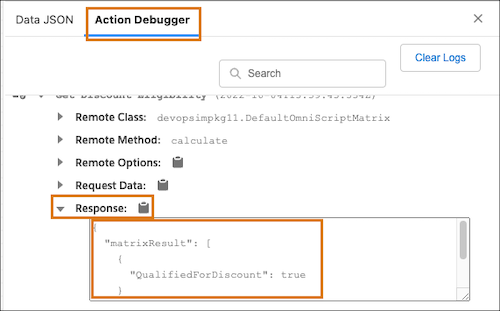
Here, matrixResult represents the Response JSON path that you specified. Based on the input values passed to the decision matrix, the result returned is that the student is qualified for a discount (
"QualifiedForDiscount": true).
¿Resolvió este artículo su problema?
¡Háganos saber cómo podemos mejorar!
