You are here:
Download Advertising Sales Management Static Resource Files for Summer '26
Download and reorganize the static resource files into folders before you use IDX Workbench to deploy the Advertising Sales Management components to your target org.
Advertising Sales Management components are built using the capabilities of either Omnistudio for Managed Packages or Omnistudio. Depending on whether you use Omnistudio for Managed Packages or Omnistudio, you must download either of the relevant static resource files:
| Omnistudio Type | Resource Type | Static Resource File |
|---|---|---|
| Omnistudio for Managed Packages | Flexcards | Media_ASM_Cards |
| Data mappers | Media_ASM_DataRaptors | |
| Data packs |
|
|
| Omnistudio | Flexcards | Media_ASM_OS_Core_RT_Cards |
| Data mappers | Media_ASM_OS_Core_RT_DataRaptors | |
| Data packs |
|
To learn about the differences between Omnistudio and Omnistudio for Managed Packages, see Differences Between Omnistudio and Omnistudio for Managed Packages.
- From Setup, in the Quick Find box, enter Static Resources and select it.
- Click either Media_ASM_Cards or Media_ASM_OS_Core_RT_Cards static resource file and click View File to download the file.
- Similarly, download the other files that you require based on whether you use Omnistudio or Omnistudio for Managed Packages.
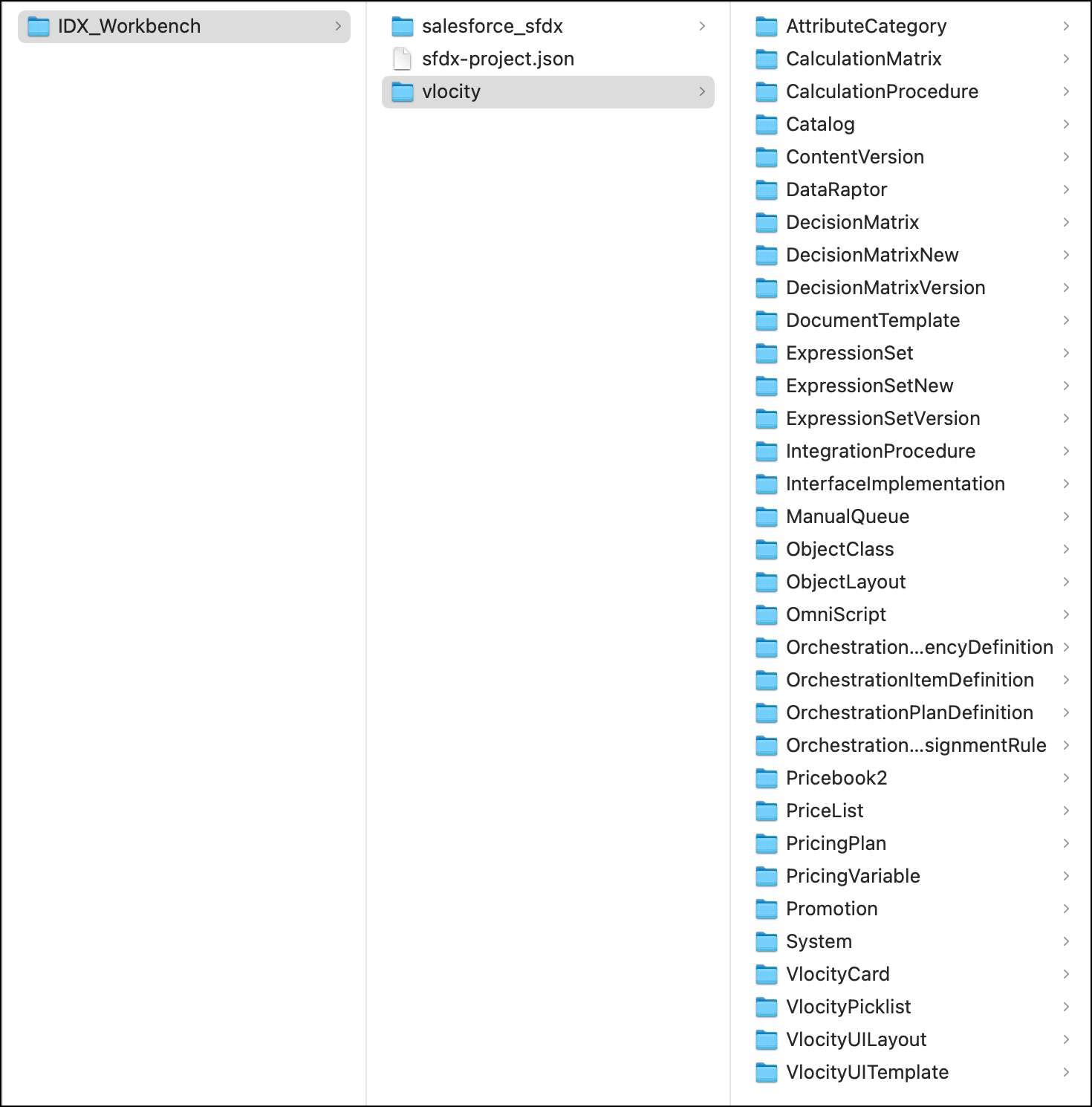
- In your local system, create a folder named IDx Workbench, and create a child folder named vlocity.
- Extract the contents of the ZIP files that you've downloaded to the vlocity folder under IDX_Workbench.
-
In the IDX_Workbench folder, create a file named
sfdx-project.json, and copy this code in the file.
{

    "packageDirectories": [
        {
            "path": "salesforce_sfdx",
            "default": true
        }
    ],
    "namespace": "",
    "sfdcLoginUrl": "https://login.salesforce.com",
    "sourceApiVersion": "65.0"
}
The folder structure in your local system should look like this.
Did this article solve your issue?
Let us know so we can improve!
