You are here:
Upgrade Advertising Sales Management From Summer '24 to Winter '25
If you're already running Advertising Sales Management Summer '24 and want to upgrade to Advertising Sales Management Winter '25, complete the steps outlined here.
 This is an Advertising Sales Management on Managed Package feature. For Advertising Sales
Management on Salesforce Platform, see Advertising
Sales Management on Salesforce Platform.

Upgrade Summary
Upgrading Advertising Sales Management from one version to another requires careful planning. Team members who are assigned to perform the upgrade must have a deep understanding of version control, IDX Workbench, Git, and software development practices.
The Advertising Sales Management upgrade process requires that you extract and compare the new upgrade components with your existing, customized components. Git is a great tool for this process. You can utilize the branching and pull request features of Git to directly compare feature changes with your existing customizations. Then, use IDX Workbench to deploy only the changes that you want to deploy to production without overwriting the things that you want to keep.
Upgrade Steps
To upgrade Advertising Sales Management to Winter '25, follow these instructions.
- Prepare for the Advertising Sales Management Upgrade
Before you upgrade Advertising Sales Management components, prepare your Salesforce org. - Download Advertising Sales Management Static Resource Files for Winter '25
Download and reorganize the static resource files into folders before you use IDX Workbench to deploy the Advertising Sales Management components to your target org. - Deploy New and Changed Components in Winter '25
Compare changes between your target org and the Winter '25 components, then deploy the changes by using IDX Workbench. - Major Changes in Advertising Sales Management Winter '25
Here are the major changes made to core components in Advertising Sales Management in Winter '25. - Components of the Winter '25 Upgrade YAML
The YAML file for an upgrade contains the list of all changed core components in Advertising Sales Management for that particular release. A YAML file lists component types, as well as individual components within each type.
Prepare for the Advertising Sales Management Upgrade
Before you upgrade Advertising Sales Management components, prepare your Salesforce org.
This is an Advertising Sales Management on Managed Package feature. For Advertising Sales
Management on Salesforce Platform, see Advertising
Sales Management on Salesforce Platform.
Familiarize yourself with the Advertising Sales Management known issues regarding the use of an older version of Advertising Sales Management on the latest version of the Communications, Media, and Energy managed package.
-
Install the Alpha version of IDX Workbench, and familiarize yourself with the process to configure IDX Workbench for deployment between orgs.
If you're migrating from an org that was set up by using static resources, follow this documentation. However, if you're upgrading by using static resource files, then set the local repository that you extracted the static resource files into as the source in IDX Workbench.
 Note Salesforce recommends that you use macOS with the Alpha version of IDX Workbench.
-
Download the Advertising Sales Management Summer '24 to Winter '25 Upgrade YAML file that contains the list of all Advertising Sales Management core components for this release.
The YAML file lists the Advertising Sales Management core components that are either new or were changed in this release.
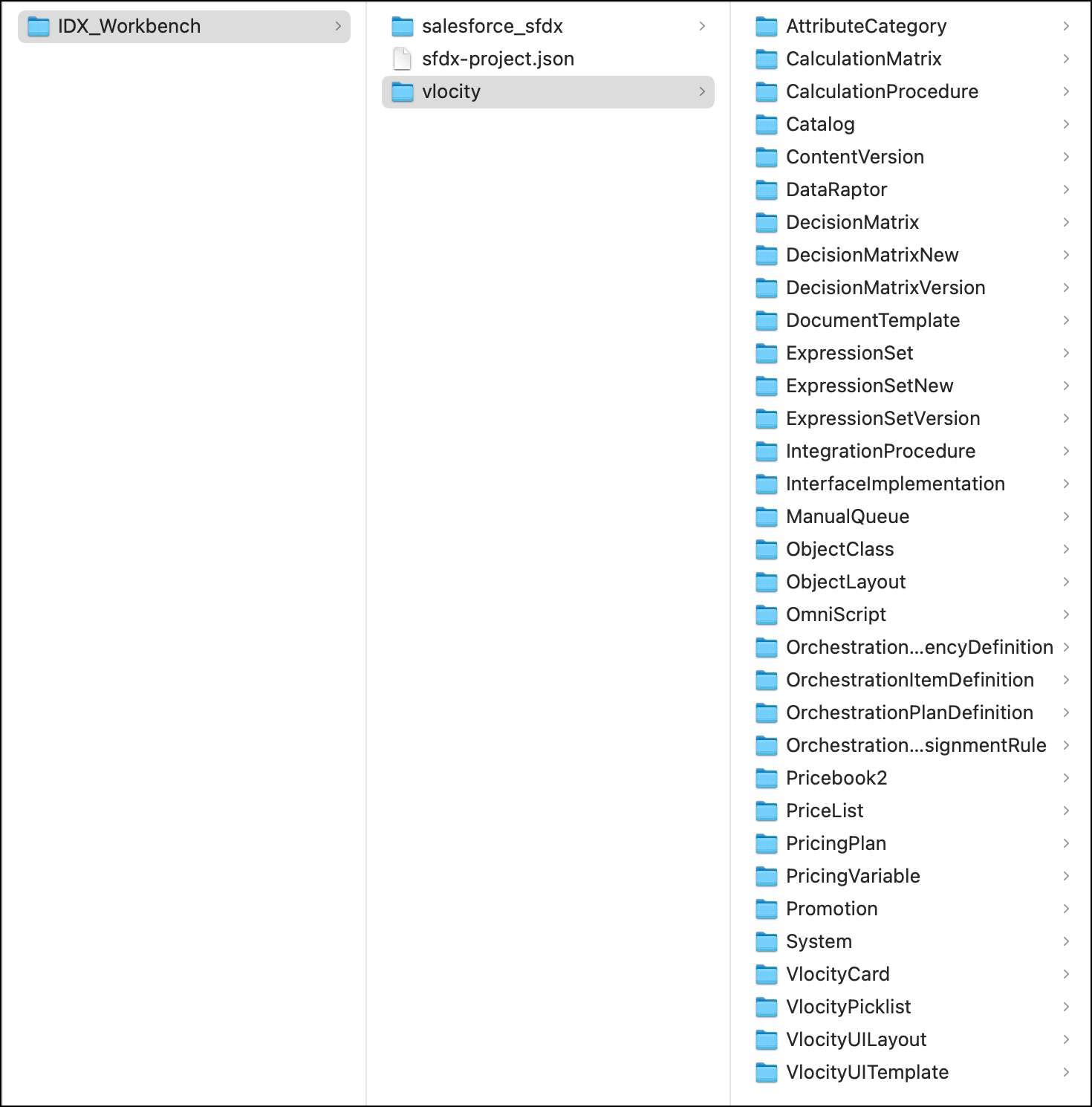
Download Advertising Sales Management Static Resource Files for Winter '25
Download and reorganize the static resource files into folders before you use IDX Workbench to deploy the Advertising Sales Management components to your target org.
Deploy New and Changed Components in Winter '25
Compare changes between your target org and the Winter '25 components, then deploy the changes by using IDX Workbench.
This is an Advertising Sales Management on Managed Package feature. For Advertising Sales
Management on Salesforce Platform, see Advertising
Sales Management on Salesforce Platform.
Before you begin, thoroughly compare the new and changed components for Winter '25 with the existing customizations in your production org. Salesforce recommends that you use the branching and pull request features of Git to perform the comparison. Take note of the changes that you want to deploy before opening IDX Workbench.
To avoid losing important customizations that you made in Advertising Sales Management, identify and select only your intended changes.
- Launch the IDX Workbench application, and add the IDX_Workbench folder from you local system as a new repository.
-
Select the new repository as the source.
If you’re using an org that's set up with static resources, then you can set that org as the source, and migrate components from the source org to your target org.
- Set up the org that you want to upgrade to the latest version as the target org.
- After you select the repository in IDX Workbench, go to the repository path.
- To show hidden files, on your Mac, press Command + Shift + ..
- Move the YAML file that you downloaded earlier to the hidden .vlocity folder in the repository.
- Go back to IDX Workbench, and click Cancel.
- Click Edit and in Configure Workspace, select the repository.
- In Project, select the YAML file that shows up in the list, and save your changes.
-
In the left pane of IDX Workbench, from the filter, select Hide Dependencies, and then from Actions, click Migrate.
Note If the migration of any component fails, move only the failed components to Selected datapacks and migrate again.
Migrate the components in this order.
- Integration Procedures and Data Mappers
-
Vlocity Cards
Note Verify whether all the Flexcards with the prefix
vplAdsorsfiare active. If any of the Flexcards with these prefixes aren't active, then activate only those cards. If there's an error in activating the Flexcard, or if the error message indicates that there are missing dependent Flexcards, first activate the dependent Flexcard, and then activate the current one. - Custom Labels
- Static Resources
- Deploy expression sets and decision matrices.
- To ensure that the parameters are in the correct sequence, edit Flexcard parameters.
-
If necessary, enable the optimized Fetch Products feature.
Note If you've enabled the optimized Fetch Products feature in Summer '24, migrating the Flexcards disables it. Enable the feature again to continue using it.
-
For optimized performance, enable explicit pricing.
Skip this step if you've enabled explicit pricing in an earlier release.
-
Verify the mapping between the order and quote fields.
When a quote is converted to an order, the data from the quote, quote line item, and ad quote line item must be copied to the order, order line item, and ad order line item, respectively.
- If necessary, set up associated media bundles.
- Set Apex class access from Profiles for the Apex classes introduced in this release.
Major Changes in Advertising Sales Management Winter '25
Here are the major changes made to core components in Advertising Sales Management in Winter '25.
This is an Advertising Sales Management on Managed Package feature. For Advertising Sales
Management on Salesforce Platform, see Advertising
Sales Management on Salesforce Platform.
Flexcards and Lightning Web Components
-
The asmColumns attribute is added to the sfiAdsDataGrid, sfiAdsPrintGrid, sfiAdsRadioGrid, and sfiAdsTvGrid Lightning Web Components. This attribute functions the same as the columns attribute, and is always visible on the Flexcard. Edit the attribute in hosted Flexcards to add custom column configurations to the media planning grid.
-
New attributes are added to the sfiAdsDataGrid, sfiAdsPrintGrid, sfiAdsRadioGrid, and sfiAdsTvGrid Lightning Web Components to support the OneTimeCost and OneTimeCostTotal columns on the media plan configuration grid.
Integration Procedures
-
The sfiAds_AddPlacement, sfiAds_AddLinearToCart, sfiAds_PrintAddtoCart, and sfiAds_RadioAddPlacement integration procedures add digital placements to the media planning grid for different media types. In Winter ‘25, these steps are added to the sfiAds_AddPlacement integration procedure to support adding associated media products to the media plan configuration grid.
-
Product: This step determines if an auto-add rule is triggered. If products are automatically added to the media plan configuration grid, the flag hasAutoAddRules is set to true.
-
MultimediaService: This step extracts, updates, and inserts the ad quote line items for the associated media products.
-
PriceMultimediaLineItems: This step runs pricing for the associated media products bundle.
-
MultimediaServiceResponse: This step returns the paginated response of the associated media bundle.
-
-
The sfiAds_FetchMediaPlanGridConfiguration integration procedure is updated to include Product Code and Package Code for Business Rules Engine (BRE) grid actions. You need the Product Code and Package Code for adding associated media products to the media planning grid.
-
The sfiAds_GetMediaPlanPlacements integration procedure is updated to include an additional input for isConfigure. This update is required for adding associated media placements to the media plan configuration grid. Here's the updated input field.
"isConfigure": "==IF(%isConfigure%,\"true\",\"false\")", -
The vplAds_UpdateConfigurePlacements integration procedure now includes these steps to support the addition of associated media products to the media plan configuration grid.
-
CalculateAdRequestedQuantity: This step calculates the AdRequestedQuantity based on the DateRangeBasedRateType (for example, CPD and CPW).
-
SetAqlForDateRangeBasedRateType: This step sets variables for the next steps in the integration procedure, according to the DateRangeBasedRateType.
-
SetAql: This step conditionally populates the values for the ad quote line item.
-
-
The vplAds_UpdateLineItems integration procedure now includes the CalculateQuantityForDateRangeBasedRateType step to support the addition of associated media products to the media plan configuration grid. This step calculates the AdRequestedQuantity according to the DateRangeBasedRateType.
Custom Settings
-
The DateRangeBasedRateType custom setting holds all the date range-based rate types, for example, CPD and CPW. Use comma-separated values for the Text Value field.
Decision Matrices
-
The AdSalesMultiMedia decision matrix configures the product and header defaults for auto-add rules created to add associated products to the media planning grid. The configuration
NONE, NONE, <MediaType>represents the header-level defaults that apply to all the products for that media type. -
The MediaPlan_Grid_Configuration_Table_New_Quote decision matrix contains default values for all associated multimedia products. When you add an associated product to the media plan configuration grid, the media planning grid refers to this decision matrix, and the default values are applied to the products.
Expression Sets
-
The AdSalesMultiMedia expression set extracts product and header level default values from the AdSalesMultiMedia decision matrix when you add the associated multimedia products to the media plan configuration grid.
-
The MediaPlan_Grid_Configuration_New_Quote expression set extracts the line item default actions from the MediaPlan_Grid_Configuration_Table_New_Quote decision matrix when you add the associated multimedia products to the media plan configuration grid.
Apex Classes
-
sfiAdsTemplateHandler
-
sfiAdsMultiMediaService
-
sfiAdsTemplateLineItemBatchCloner
Components of the Winter '25 Upgrade YAML
The YAML file for an upgrade contains the list of all changed core components in Advertising Sales Management for that particular release. A YAML file lists component types, as well as individual components within each type.
This is an Advertising Sales Management on Managed Package feature. For Advertising Sales
Management on Salesforce Platform, see Advertising
Sales Management on Salesforce Platform.
The Winter '25 upgrade YAML file has these components.
| Component | New or existing Component | Description |
|---|---|---|
| DataRaptor/sfiAdsFetchMedCampsFromQuote | Existing | Invoke this component from the Media Campaign record page to fetch the media campaign and account details from Media CampaignId. |
| IntegrationProcedure/sfiAds_AddLinearToCart | Existing | This component uses Vlocity APIs to add products to the cart, based on customer inputs. |
| IntegrationProcedure/sfiAds_AddPlacement | Existing | This component uses Media Cloud APIs to insert line items by using PostCartItems and ad quote line items. |
| IntegrationProcedure/sfiAds_CreateMediaPlanTemplate | Existing | This component saves a quote as a template with the Media Plan Placement record type. This component is updated in this release to save targeting data when you save the quote as a template. |
| IntegrationProcedure/sfiAds_DigitalCloneLineitems | Existing | This component clones the ad quote line and programmatic placements. |
| IntegrationProcedure/sfiAds_FetchMediaPlanGridConfiguration | Existing | This component fetches information about the media grid when you create, modify, or revise a quote.. |
| IntegrationProcedure/sfiAds_GetMediaPlanPlacements | Existing | This component fetches the details of all line items when products are added to the media planning grid. |
| IntegrationProcedure/sfiAds_PrintAddToCart | Existing | This component adds print ad placements to the media planning grid. |
| IntegrationProcedure/sfiAds_QLIAddPlacementForTemplate | Existing | This component saves a quote as a template with the Media Plan Placement record type. This component is updated in this release to save targeting data when you save the quote as a template. |
| IntegrationProcedure/sfiAds_RadioAddPlacement | Existing | This component adds radio ad placements to the media planning grid. |
| IntegrationProcedure/sfiAds_UpdateLinearLineitems | Existing | This component creates or updates TV quote line items in the media planning grid. This component is updated in this release to support date-based pricing models (such as CPD and CPW). |
| IntegrationProcedure/sfiAds_UpdatePrintLineitems | Existing | This component updates the ad quote line and related records. This component is updated in this release to support date-based pricing models (such as CPD and CPW). |
| IntegrationProcedure/vlpAds_UpdateConfigurePlacements | Existing | This component updates the ad quote line and related records. This component is updated in this release to support date-based pricing models (such as CPD and CPW). |
| IntegrationProcedure/vplAds_UpdateLineItems | Existing | This component creates or updates quote line items in the media planning grid. This component is updated in this release to support date-based pricing models (such as CPD and CPW). |
| labels/CustomLabels.labels | Existing | This component contains all the custom labels introduced in this release. |
| staticresources/adsOmniCss.resource | Existing | This component contains CSS classes that are introduced in this release. |
| VlocityCard/sfiAdsDigitalGrid | Existing | This component shows the digital ad placements in the media planning grid. This component is updated in this release to support auto-add rules. |
| VlocityCard/sfiAdsPrintGrid | Existing | This component shows the print ad placements in the media planning grid. This component is updated in this release to support auto-add rules. |
| VlocityCard/sfiAdsRadioParentGrid | Existing | This component shows the radio ad placements in the media planning grid. This component is updated in this release to support auto-add rules. |
| VlocityCard/sfiAdsTvGrid | Existing | This component shows the TV ad placements in the media planning grid. This component is updated in this release to support auto-add rules. |
After you download the YAML file, you can use it to identify the components that you must deploy to your target org through IDX Workbench.
