Link Report Content With Source to Create Latest and Auditable Reports
Create accurate and auditable environmental, social, and governance (ESG) reports in Microsoft 365 Word or Google Docs documents. Link data in the report with its source by using snippets and data links.
Required Editions
| Available in: Lightning Experience |
| Available in: Enterprise, Performance, Unlimited, and Developer Editions with the Net Zero Cloud Growth license or the Net Zero Cloud User add-on license and the Agentforce for Net Zero Cloud add-on license. Einstein generative AI is available in Lightning Experience. To edit Word documents, you need a Microsoft 365 license. To edit Google documents, you need a Google account |
| Available with the Salesforce Foundations license. |
| To purchase the Agentforce for Net Zero Cloud add-on, contact your Salesforce account executive |
| User Permissions | |
|---|---|
| To generate disclosure reports with the Salesforce Disclosure and Compliance Hub for Microsoft 365 Word add-in: | Disclosure and Compliance Hub plugin for Microsoft 365 |
| To generate disclosure reports by using the Salesforce Disclosure and Compliance Hub Connector add-on for Google Docs: | Disclosure and Compliance Hub plugin for Google Docs |
| To analyze and improve disclosure accuracy by using generative AI: | Use Einstein to Analyze Disclosure Response |
| To manage prompt templates with Prompt Builder: | Manage Prompt Templates |
| To run prompt templates by using generative AI features: | Execute Prompt Templates |
Confirm that your Salesforce admin set up Einstein generative AI for Net Zero Cloud. See ESG Report Generation by Using Einstein Generative AI.
To make sure that the latest content is available to users, synchronize the content linked in the Word document with Salesforce records. When you create reports, use data links to connect content directly to Salesforce fields, snippets to link document content to the Information Library, and embedded snippets for synchronized updates across documents and Salesforce records.
Insert Reusable Content from Information Library
Search for and insert the content stored in the Information Library into a Microsoft 365 Word document as a snippet link. The Information Library is a single source where you can collect and organize reusable disclosures from multiple reports. The search results show the 25 most recent active clauses based on the relevance.
- From the App Launcher, find and select Disclosure and Compliance Hub.
- From the Disclosures and Compliance Hub menu, select Disclosures and Compliance Hub.
-
In the In Progress section, for a disclosure, click Launch External
Document.
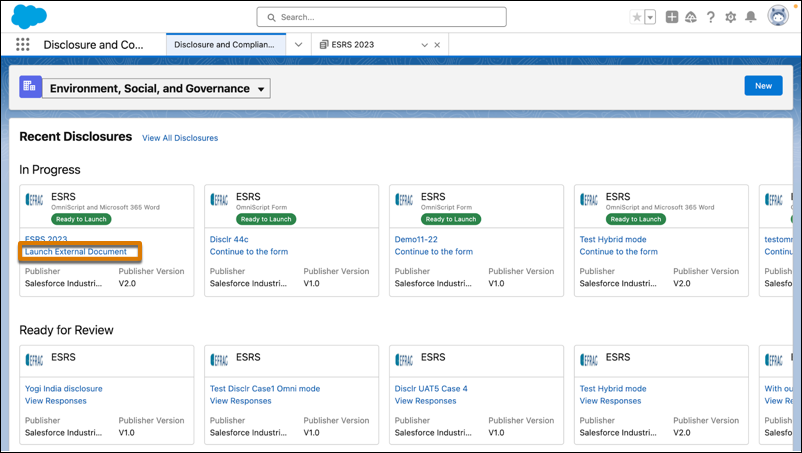
- On the document Home tab, select Salesforce Disclosure and Compliance Hub for Microsoft 365 Word or the Disclosure and Compliance Hub Connector for Google Docs.
- On the Library tab, enter keywords in the search box, and press Enter to initiate the search.
- From the search results, select the snippet, and click Insert as Snippet Link.
Insert Data Links from Salesforce Records
To associate the environmental, social, and governance (ESG) report content with a Salesforce record and fields use data links. You can view any changes in the disclosure document or the Salesforce records associated with the data link and synchronize the data to always report the latest disclosure content.
- From the App Launcher, find and select Disclosure and Compliance Hub.
-
In the In Progress section, for a disclosure, click Launch External
Document.
- On the document Home tab, select Salesforce Disclosure and Compliance Hub for Microsoft 365 Word or the Disclosure and Compliance Hub Connector for Google Docs.
- Go to the section in the document where you want to insert data from Net Zero Cloud, and from the available actions on the Document tab, select Insert Data Links from Salesforce.
- Select a Salesforce object, record, and field, and click Insert.
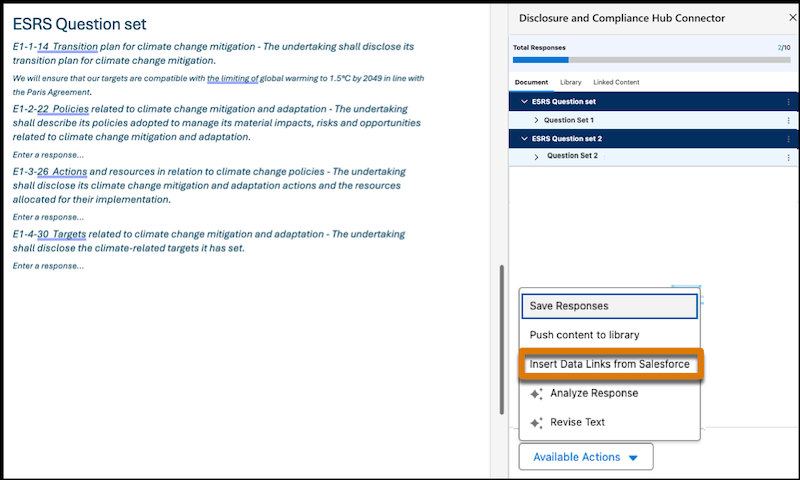
The data link content from the Salesforce record is inserted into the document.
Save Snippets to Information Library
To collect and organize information into a single source and use the information across multiple reports and disclosures use snippets from the Information Library. When you author your report, to reuse some of the information in the report across other reports, you can save the information as snippets in the Information Library. You can get approval from stakeholders on your ESG snippets and open a document to collaborate and reuse your snippets across reports.
- From the App Launcher, find and select Disclosure and Compliance Hub.
-
In the In Progress section, for a disclosure, click Launch External
Document.
- On the document Home tab, select Salesforce Disclosure and Compliance Hub for Microsoft 365 Word or the Disclosure and Compliance Hub Connector for Google Docs.
- Select text in the document, and from the available actions on the Document tab, select Push Content to Library.
- Enter a snippet name.
- Select the language and format.
- Select the information library topic that you want to link the snippet to.
- Select the usage type and category.
-
Save your changes.
 Note If the snippets have data links within them, the values in the data links are stored as plain text in the Information Library.
View and Synchronize Linked Content in Disclosure and Compliance Hub Reports
View the linked content in the disclosure document and synchronize the data to make sure that the report has the latest disclosure content. When you synchronize the linked content, any changes in the disclosure document or the Salesforce records associated with the data links are updated in the Salesforce records and fields so that the information can be reused. To make data links easily identifiable, the linked data content is visible within a visual marker in the disclosure document.
- From the App Launcher, find and select Disclosure and Compliance Hub.
-
In the In Progress section, for a disclosure, click Launch External
Document.
- On the document Home tab, select Salesforce Disclosure and Compliance Hub for Microsoft 365 Word or the Disclosure and Compliance Hub Connector for Google Docs.
- On the Linked Content tab, from the Show Links menu, select All Links.
- To get the latest data for snippets and data links from the source records, click Refresh Contents.
-
To show the linked content within visual markers, turn on Show Data Links.
The linked content shows one of these statuses:
In Sync When the data in the report is the same as the data in Net Zero Cloud Out of Sync When the data in the report doesn’t match the data in Net Zero Cloud Paused When you intentionally pause the synchronization, for example when you round off the decimals in your quantitative data - Select a snippet or a data link.
- In a data link, to synchronize content from a Salesforce record to the document, select From Salesforce record to document.
-
In a snippet link, take one of these actions.
- To synchronize the values from a Salesforce record to the document, from the Sync Content menu, select From Salesforce record to document, and click Sync.
- To synchronize the values from the document to a Salesforce record, from the Sync Content menu, select From document to Salesforce record, and click Sync.
- To stop synchronizing the content, from the snippet or data link actions menu, select Pause Sync.
- To delete the content, from the snippet or data link actions menu, select Delete.
