You are here:
Quantity Amendment Example
Explore a quantity increase (upsell) to see how the updated asset, fulfillment, and billing schedule reflect the change.
Required Editions
| Available in: Lightning Experience |
| Available in: Enterprise, Unlimited, and Developer Editions of Revenue Management (formerly Revenue Cloud) where Transaction Management is enabled |
| User Permissions Needed | |
|---|---|
| To amend assets: | InitiateAmendment API permission set AND Sales Rep persona permissions |
A quantity amendment is a common asset management operation. An account manager increases or decreases the quantity of an existing asset to match a customer's changing needs. This scenario traces the full end-to-end lifecycle of a quantity amendment, from the initial asset state through order creation, decomposition, fulfillment, billing, and the final asset state.
Background
Cloud Kicks has an active Laptop Pro Bundle asset on their account. This asset was created when Cloud Kicks placed an order through their vendor, SmartBytes. The bundle includes both one-time and subscription-based products.
- Product
- Laptop Pro Bundle (LPB001)
- Quantity
- 1
- Bundle components
- Laptop ($1,049.00), Mouse ($7.99), and a printer bundle
- Bundle price
- $1,150.00
- Asset status
- Active, lifecycle-managed
- Cloud Storage Pro
- Recurring subscription asset ($50.00/month)
Business Scenario
Cloud Kicks is scaling their engineering team. They need to add four more laptop bundles for new hires starting next month. The account manager opens the existing Laptop Pro Bundle asset and initiates a quantity amendment directly from the asset record. This is a quantity increase (upsell) scenario. The total asset quantity goes from 1 to 5.
Initiate the Amendment
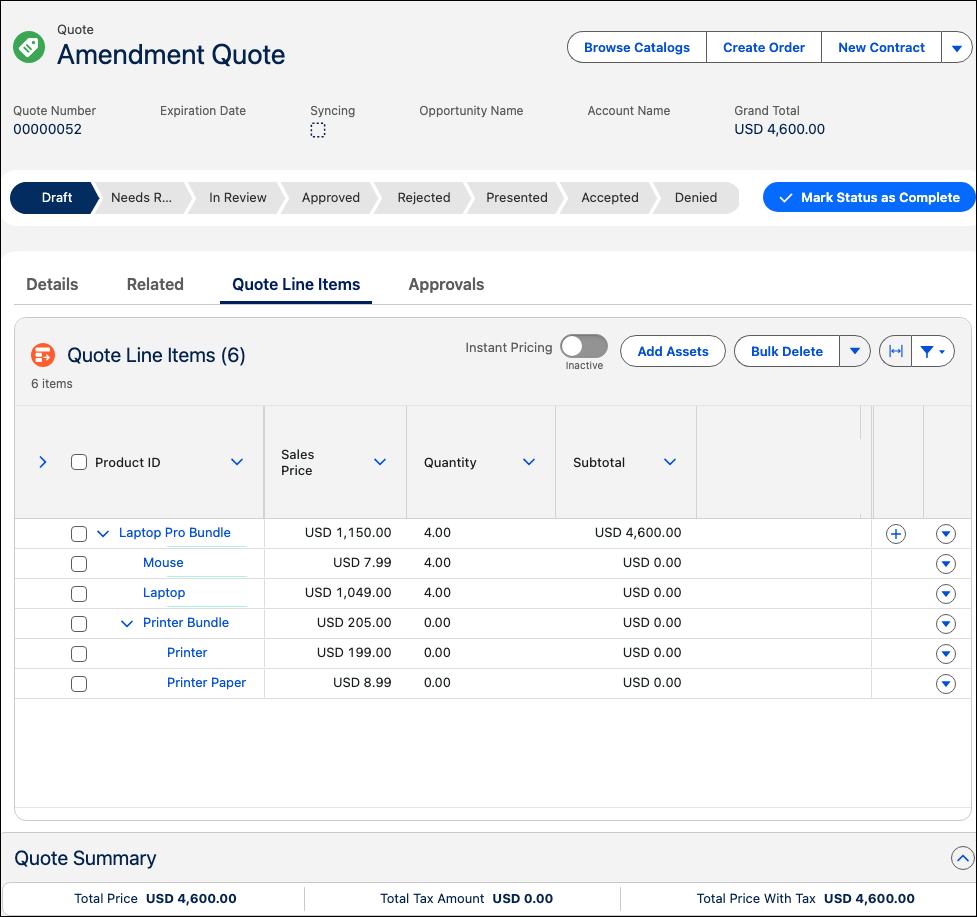
The account manager goes to the Laptop Pro Bundle asset on the Cloud Kicks account. The asset record shows the Amend, Renew, and Cancel action buttons. The manager clicks Amend to open the amendment flow. Salesforce creates a quote that's prepopulated with the current asset configuration. The account manager updates the Laptop Pro Bundle quantity to 4.
The quote line items show the delta (the change), not the full quantity. The quote reflects 4 additional Laptop Pro Bundles, not 5 total. To initiate this change from the asset record, see Amend Assets.
Create the Order
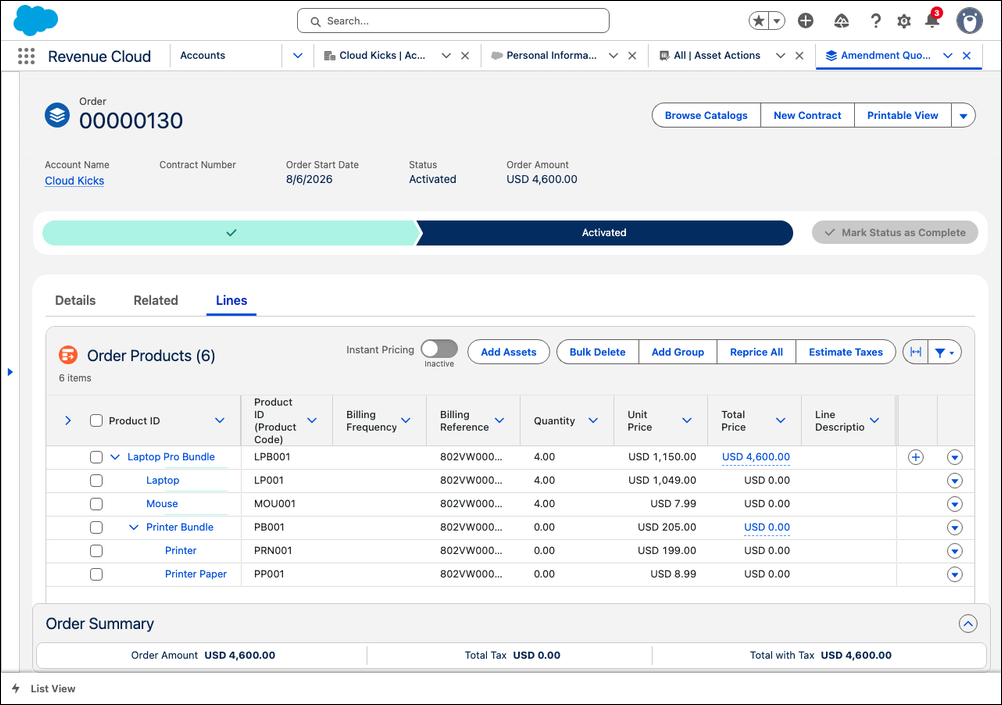
The account manager clicks Create Order from the amendment quote. The system generates an amendment order with these characteristics.
- Order type
- Amendment
- Order status
- Draft
- Line items
- Four Laptop Pro Bundles (the delta). Each bundle line item includes its components (Laptop and Mouse) at the bundle-defined quantities. The printer bundle is a separate bundle, so it's unchanged in this scenario.
- Total amendment price
- $4,600.00 (4 × $1,150.00)
The account manager activates the order. Order fulfillment and billing then take over.
Order Decomposition
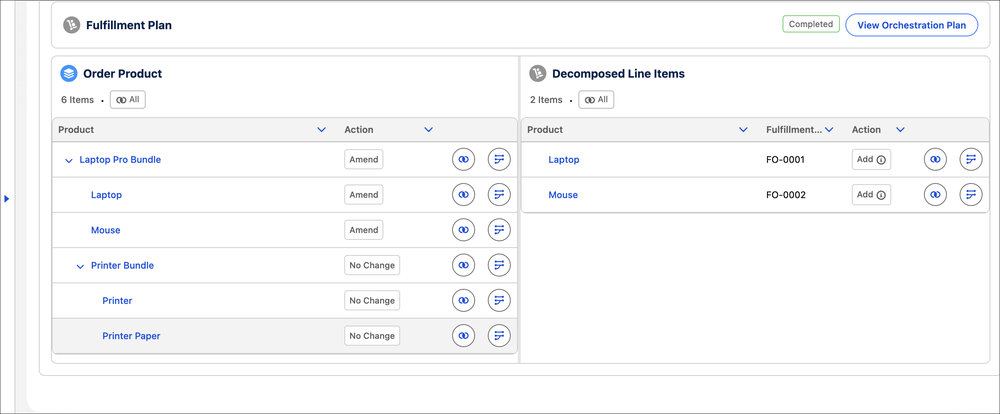
After the order is activated, Dynamic Revenue Orchestrator (DRO) takes over. For an amendment, DRO decomposes only the delta. It doesn't reprocess the original quantity. It creates fulfillment work only for the four new bundles. For a new-sale order, by contrast, DRO decomposes every line item into fulfillment tasks.
The result is a single fulfillment plan for the amendment order. The plan lists each order product with the action that applies to it. The amended components, the Laptop and the Mouse, show an Amend action, and the unaffected printer bundle shows No Change.
Based on the decomposition scope configured on each product, DRO decomposes the amended products into technical fulfillment work. In this example, decomposition generates one fulfillment order for the Laptop and one for the Mouse. When those fulfillment orders complete, the plan marks the amendment as fulfilled.

Billing Outcome
After order orchestration completes, billing handles the financial impact of the amendment. For a quantity increase, billing creates charges for the additional units.
Billing creates:
- A billing schedule for the additional units.
- An invoice line item that reflects the prorated amount for the current period.
- Full-period charges for subsequent billing cycles.
The four new Laptop Pro Bundles are prorated from the amendment effective date to the end of the current billing period. If Cloud Kicks is mid-cycle (for example, 15 days into a 30-day period), billing charges for the remaining 15 days at the daily rate, and then the full rate going forward.
For a quantity decrease, billing applies last in, first out (LIFO) pricing logic for negative deltas. The system credits the most recently added units first, and calculates a prorated credit from the effective date to the end of the billing period.
Final Asset State
After DRO completes and billing processes the amendment, the Laptop Pro Bundle asset reflects the new reality. The Asset State Period (ASP) timeline now shows two entries.
- Original state period: Quantity 1, from the original order date to the amendment effective date.
- Current state period: Quantity 5, from the amendment effective date forward.
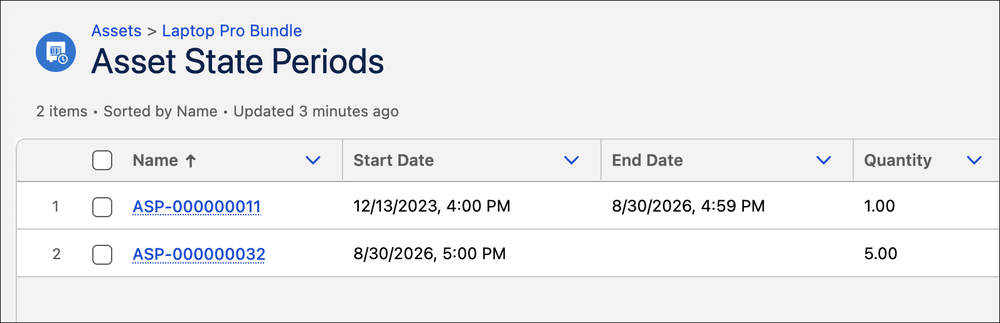
The ASP timeline gives you a complete audit trail. You can see exactly when the quantity changed and what the previous state was.
Troubleshooting
- The amendment order fails to activate
-
- Check that the original asset is in an Active state. You can't initiate amendments against assets in a Draft or Cancelled state.
- Verify that the decomposition configuration covers amendment order types. Some custom plans handle only new-sale orders.
- DRO doesn't process after activation
- Confirm that your orchestration configuration recognizes the order type. Amendment orders require orchestration rules that match on the amendment order record type.
- Billing shows unexpected amounts
-
- Check the amendment effective date. Proration is calculated from this date, not the order activation date.
- For downsells, verify that LIFO is configured. Without it, the system credits at average cost rather than most-recent cost.
