管理销售协议批量更新的错误记录
当销售协议的批量更新处理失败时,包含准确失败详细信息的系统日志将存储在基础批处理框架中。但是,因为对 BatchJobPart 实体上的 RecordFile 字段的直接访问在默认情况下是受限的,所以管理员和用户不能本地查看这些失败详细信息。按照这些方法配置自定义组件和访问路径,以恢复跟踪可见性并帮助用户对失败的记录进行故障排除。
所需的 Edition
| 适用于:Lightning Experience |
| 适用于:Enterprise、Unlimited 和 Developer Edition |
选项 1:通过记录页面直接访问文件数据(推荐)
此方法允许管理员构建 Apex 服务和 Aura 组件,以便业务用户可以直接从 Lightning UI 获取并检查批量更新错误。
-
在开发人员控制台中创建 Apex 服务类。
- 打开 Developer Console。
-
在开发人员控制台中创建以下 Apex 类,以直接获取文件数据。
public class BatchJobService {
    @AuraEnabled(cacheable=false)
    public static String getBatchJobParts(String batchJobPartId) {
        try {
            // Query the targeted BatchJobPart record
            BatchJobPart record = [
                SELECT RecordFileBody, RecordFileName
                FROM BatchJobPart
                WHERE Id = :batchJobPartId
                LIMIT 1
            ];

            // Decode the Blob into a readable UTF-8 String
            Blob decodedBlob = record.RecordFileBody;
            String fileData = decodedBlob != null ? decodedBlob.toString() :
 'No file data found.';

            System.debug(fileData);
            return fileData;
        } catch (Exception e) {
            return 'Error: ' + e.getMessage();
        }
    }
}
-
创建 Aura 组件
-
在开发人员控制台中,创建新的 Aura 组件捆绑包,命名为 FileDataViewer。
<aura:component implements="flexipage:availableForRecordHome,force:hasRecordId"
                controller="BatchJobService"
                access="global">

    <aura:attribute name="recordId" type="Id" />
    <aura:attribute name="result" type="String" />
    <aura:attribute name="error" type="String" />

    <lightning:card title="" class="slds-m-around_medium">
        <div class="slds-m-bottom_medium">
            <lightning:button label="Fetch File Data"
                              onclick="{!c.handleClick}"
                              variant="brand" />
            <lightning:button label="Download as .txt"
                              onclick="{!c.downloadFile}"
                              variant="neutral"
                              class="slds-m-left_small"
                              disabled="{!empty(v.result)}" />
        </div>

        <aura:if isTrue="{!not(empty(v.result))}">
            <div class="slds-box slds-box_xx-small slds-theme_default slds-scrollable_y"
                 style="max-height: 300px;">
                <pre>{!v.result}</pre>
            </div>
        </aura:if>

        <aura:if isTrue="{!v.error}">
            <div class="slds-text-color_error slds-m-top_medium">
                {!v.error}
            </div>
        </aura:if>
    </lightning:card>
</aura:component>
按如下方式创建助手文件。
({
    handleClick: function(component, event, helper) {
        var action = component.get("c.getBatchJobParts");
        action.setParams({ batchJobPartId: component.get("v.recordId") });

        action.setCallback(this, function(response) {
            var state = response.getState();
            if (state === "SUCCESS") {
                component.set("v.result", response.getReturnValue());
                component.set("v.error", null);
            } else {
                var errors = response.getError();
                component.set("v.error", errors && errors[0] ?
errors[0].message : "Unknown error");
            }
        });
        $A.enqueueAction(action);
    },

    downloadFile: function(component, event, helper) {
        var data = component.get("v.result");
        var element = document.createElement('a');
        var file = new Blob([data], { type: 'text/plain' });

        element.href = URL.createObjectURL(file);
        element.download = 'BatchJobPart.txt';
        document.body.appendChild(element);
        element.click();
        document.body.removeChild(element);
    }
})
-
在开发人员控制台中,创建新的 Aura 组件捆绑包,命名为 FileDataViewer。
-
将新组件附加到批处理作业零件的记录页面
- 导航到批处理作业零件详细信息记录页面。
- 单击齿轮图标并选择编辑页面,以打开 Lightning 应用程序生成器。
- 将自定义 FileDataViewer 组件拖到主页画布布局。
- 保存并激活更新的 Lightning 布局页面。
-
查看和提取日志数据
- 导航到目标记录页面。
- 单击获取文件数据以预览文件内容并在屏幕上内联验证错误。
- 单击下载为 .txt,将文本错误日志存储到本地文件系统,以便进行筛选和历史审计。
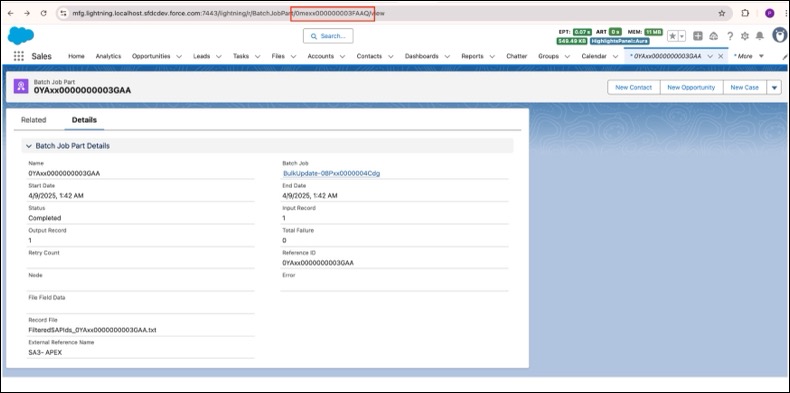

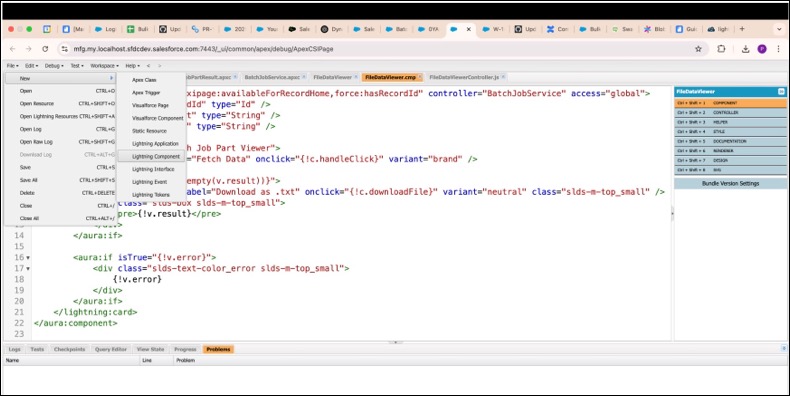
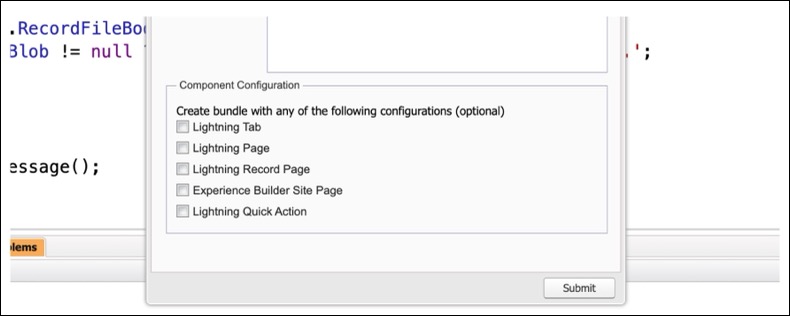
选项 2:通过工作台访问日志数据(仅限管理员)
如果您需要立即验证而不部署自定义组件布局,管理员可以直接通过 Salesforce 工作台临时提取 RecordFile 负载。
- 登录环境的工作台实例。
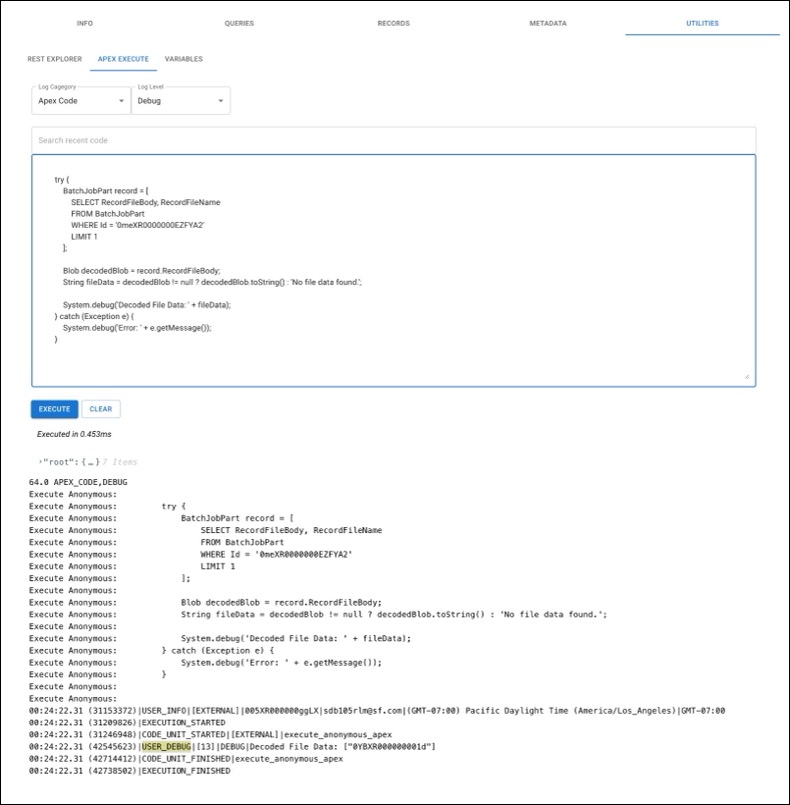
- 导航到实用程序选项卡,并打开 Apex 执行面板。
-
使用下面给出的代码(确保您用实际的批处理作业零件实体 ID 替换 ID):
try { BatchJobPart record = [ SELECT RecordFileBody, RecordFileName FROM BatchJobPart WHERE Id = '0meXR0000000EZFYA2' LIMIT 1 ]; Blob decodedBlob = record.RecordFileBody; String fileData = decodedBlob != null ? decodedBlob.toString() : 'No file data found.'; System.debug('Decoded File Data: ' + fileData); } catch (Exception e) { System.debug('Error: ' + e.getMessage()); } - 单击执行。
- 通过输出中的 USER DEBUG 标记,直接查看已处理的输出文本。
本文章是否解决您的问题?
请与我们共享您的想法,以便我们进行改进!
