管理銷售協議大量更新的錯誤記錄
當銷售協議上的大量更新無法處理時,包含確切失敗詳細資料的系統記錄會儲存在基本「批次管理」架構內。然而,由於依預設會限制對 BatchJobPart 實體上 RecordFile 欄位的直接存取權,因此管理員和使用者無法原生檢視這些失敗詳細資料。遵循這些方法來設定自訂元件和存取路徑,以還原追蹤可視性,並協助使用者疑難排解失敗的記錄。
必要版本
| 提供版本:Lightning Experience |
| 提供版本:Enterprise、Unlimited 及 Developer Edition |
選項 1:透過記錄頁面直接存取檔案資料 (建議)
此方法允許管理員建立 Apex 服務和 Aura 元件,以便業務使用者可以直接從 Lightning UI 提取及檢閱大量更新錯誤。
-
在開發人員主控台中建立 Apex 服務類別。
- 開啟「Developer Console」。
-
在「開發人員主控台」中建立下列 Apex 類別,以直接提取檔案資料。
public class BatchJobService {
    @AuraEnabled(cacheable=false)
    public static String getBatchJobParts(String batchJobPartId) {
        try {
            // Query the targeted BatchJobPart record
            BatchJobPart record = [
                SELECT RecordFileBody, RecordFileName
                FROM BatchJobPart
                WHERE Id = :batchJobPartId
                LIMIT 1
            ];

            // Decode the Blob into a readable UTF-8 String
            Blob decodedBlob = record.RecordFileBody;
            String fileData = decodedBlob != null ? decodedBlob.toString() :
 'No file data found.';

            System.debug(fileData);
            return fileData;
        } catch (Exception e) {
            return 'Error: ' + e.getMessage();
        }
    }
}
-
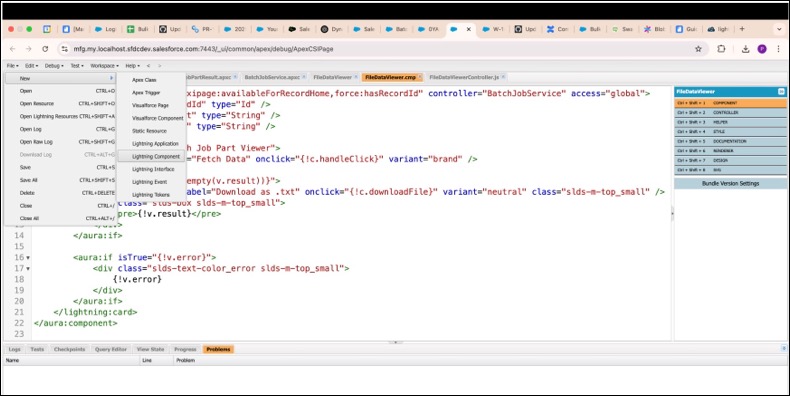
建立 Aura 元件
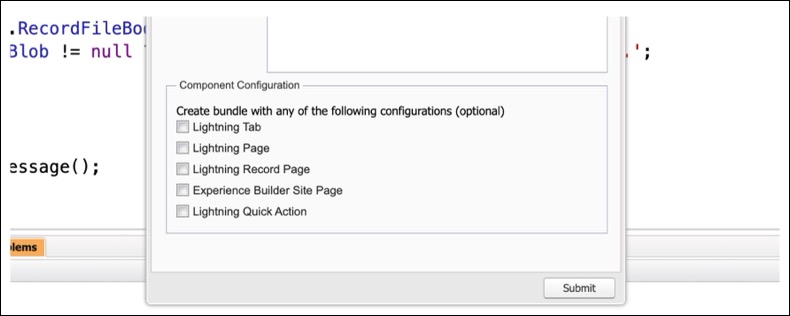
建立新元件 (名稱:FileDataViewer),用於向使用者顯示資料。這會產生在右面板中可見的標準檔案 (藍色)。在元件組態中,將它標記為僅適用於 Lightning 記錄頁面 (如下方螢幕快照所示)。
-
在「開發人員主控台」中,建立名為 FileDataViewer 的新 Aura 元件搭售方案。
<aura:component implements="flexipage:availableForRecordHome,force:hasRecordId"
                controller="BatchJobService"
                access="global">

    <aura:attribute name="recordId" type="Id" />
    <aura:attribute name="result" type="String" />
    <aura:attribute name="error" type="String" />

    <lightning:card title="" class="slds-m-around_medium">
        <div class="slds-m-bottom_medium">
            <lightning:button label="Fetch File Data"
                              onclick="{!c.handleClick}"
                              variant="brand" />
            <lightning:button label="Download as .txt"
                              onclick="{!c.downloadFile}"
                              variant="neutral"
                              class="slds-m-left_small"
                              disabled="{!empty(v.result)}" />
        </div>

        <aura:if isTrue="{!not(empty(v.result))}">
            <div class="slds-box slds-box_xx-small slds-theme_default slds-scrollable_y"
                 style="max-height: 300px;">
                <pre>{!v.result}</pre>
            </div>
        </aura:if>

        <aura:if isTrue="{!v.error}">
            <div class="slds-text-color_error slds-m-top_medium">
                {!v.error}
            </div>
        </aura:if>
    </lightning:card>
</aura:component>
如下建立協助檔案。
({
    handleClick: function(component, event, helper) {
        var action = component.get("c.getBatchJobParts");
        action.setParams({ batchJobPartId: component.get("v.recordId") });

        action.setCallback(this, function(response) {
            var state = response.getState();
            if (state === "SUCCESS") {
                component.set("v.result", response.getReturnValue());
                component.set("v.error", null);
            } else {
                var errors = response.getError();
                component.set("v.error", errors && errors[0] ?
errors[0].message : "Unknown error");
            }
        });
        $A.enqueueAction(action);
    },

    downloadFile: function(component, event, helper) {
        var data = component.get("v.result");
        var element = document.createElement('a');
        var file = new Blob([data], { type: 'text/plain' });

        element.href = URL.createObjectURL(file);
        element.download = 'BatchJobPart.txt';
        document.body.appendChild(element);
        element.click();
        document.body.removeChild(element);
    }
})
-
在「開發人員主控台」中,建立名為 FileDataViewer 的新 Aura 元件搭售方案。
-
將新元件附加至批次工作部分的記錄頁面
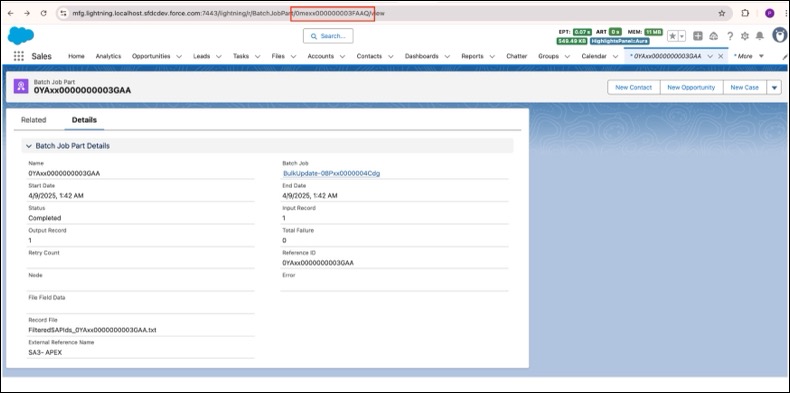
- 瀏覽至「批次工作部分」詳細資料記錄頁面。
- 按一下齒輪圖示,然後選取「編輯頁面」以開啟 Lightning 應用程式產生器。
- 將您的自訂 FileDataViewer 元件拖曳至主要頁面畫布版面配置。
- 儲存並啟用更新的 Lightning 版面配置頁面。
-
檢視和解壓縮記錄資料
- 瀏覽至您的目標記錄頁面。
- 按一下「抓取檔案資料」,在畫面上預覽檔案內容並驗證內嵌錯誤。
- 按一下「下載為 .txt」 將文字錯誤記錄儲存在您的本機檔案系統上,以供篩選和歷程記錄稽核之用。

選項 2:透過工作台存取記錄資料 (僅限管理員)
如果您在不部署自訂元件版面配置的情況下需要立即驗證,則管理員可以直接透過 Salesforce Workbench 臨時地提取 RecordFile 裝載。
- 登入您環境的工作台例項。
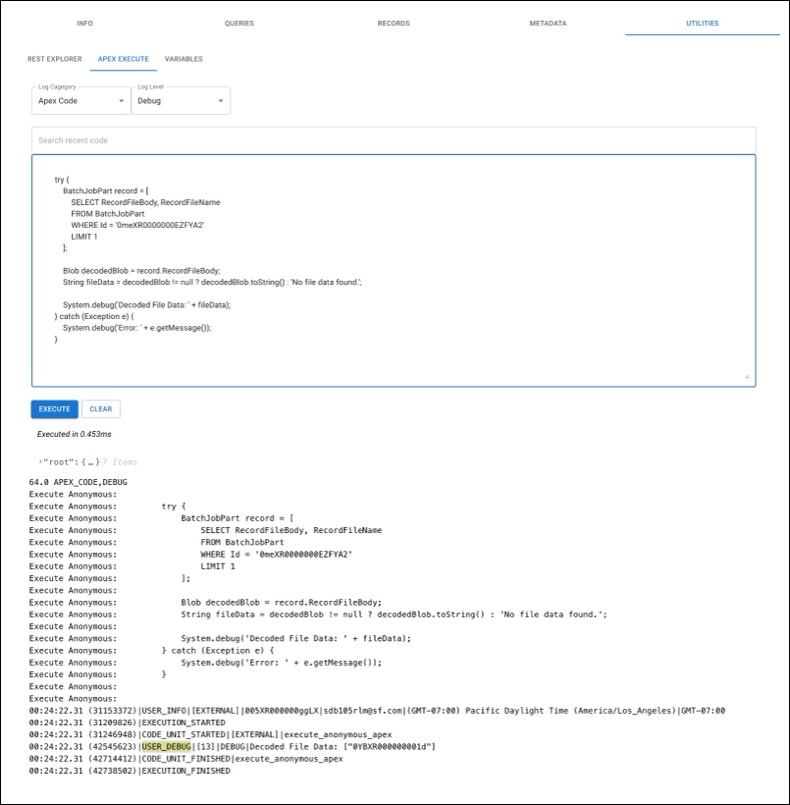
- 瀏覽至「公用程式」索引標籤,然後開啟「Apex 執行」面板。
-
使用以下提供的程式碼 (請確保您以實際的批次工作部分實體識別碼取代識別碼):
try { BatchJobPart record = [ SELECT RecordFileBody, RecordFileName FROM BatchJobPart WHERE Id = '0meXR0000000EZFYA2' LIMIT 1 ]; Blob decodedBlob = record.RecordFileBody; String fileData = decodedBlob != null ? decodedBlob.toString() : 'No file data found.'; System.debug('Decoded File Data: ' + fileData); } catch (Exception e) { System.debug('Error: ' + e.getMessage()); } - 按一下「執行」。
- 直接透過輸出中的 USER DEBUG 標記檢閱您的已處理輸出文字。
此文章是否解決您的問題?
請讓我們知道,以便我們改進!
