Add the Case Details Lightning Component to the Case Record Page
To show your agents all the data attributes associated with a service process request
for a case, add the Case Details Lightning component to the case record page.
Required Editions
Available in: Lightning Experience
Available in:
all
editions with the
Industry Service Excellence licenses
User Permissions Needed
To view, create, and save Lightning pages in the Lightning App Builder:
Customize Application AND View Setup and Configuration
In the Quick Find box, enter Case, and then select
Case.
Click Lightning Record Pages, and then select Case Record
Page.
Click Edit.
In the Components tab, locate the Case
Details component and drag it onto the record page.
Save your changes, and then activate the page, if necessary.
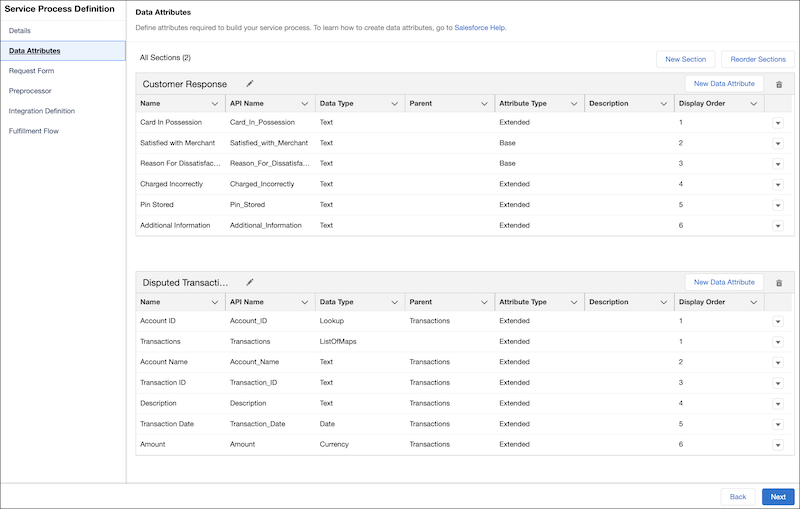
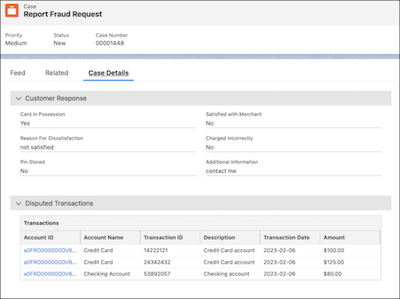
The Case Details component renders data according to the sections and data attributes that
you configured for a service process in Service Process Studio.
Example Consider a service process request for which you configured the sections and data
attributes in Service Process Studio as shown in this example.
When a case is created for the service process request, the Case Details component
renders data as shown in this example.
Hjalp denne artikkelen med å løse problemet ditt?
La oss få vite det slik at vi kan forbedre!
Laster
Salesforce Help | Article
Cookie Consent Manager
General Information
Required Cookies
Functional Cookies
Advertising Cookies
General Information
We use three kinds of cookies on our websites: required, functional, and advertising. You can choose whether functional and advertising cookies apply. Click on the different cookie categories to find out more about each category and to change the default settings.
Privacy Statement
Required Cookies
Always Active
Required cookies are necessary for basic website functionality. Some examples include: session cookies needed to transmit the website, authentication cookies, and security cookies.
Functional Cookies
Functional cookies enhance functions, performance, and services on the website. Some examples include: cookies used to analyze site traffic, cookies used for market research, and cookies used to display advertising that is not directed to a particular individual.
Advertising Cookies
Advertising cookies track activity across websites in order to understand a viewer’s interests, and direct them specific marketing. Some examples include: cookies used for remarketing, or interest-based advertising.