You are here:
Creating a Custom Section for Vlocity Web Templates
Custom sections in Vlocity Web Templates enable you to implement custom logic. If none of the other contract section types meets your business needs, you can define a custom section using an Apex class. You can define the class to do anything you need it to do, but the output must be HTML. The Apex class queries and formats data, and then returns an HTML response that is embedded into the document template.
For example, you can retrieve data from custom objects or from sources outside of Salesforce. You can write logic to parse the data and perform calculations, and then return the data in HTML format. You cannot use the rich text editor; the Apex class must manage the HTML formatting.

ContractCustomDocumentSectionExample.cls
global with sharing class ContractCustomDocumentSectionExample implements vlocity_cmt.VlocityOpenInterface{
   public Boolean invokeMethod(String methodName, Map<String,Object> inputMap, Map<String,Object> outMap, Map<String,Object> options) {
      Boolean success = true;
      if(methodName == 'buildDocumentSectionContent')
      {
         buildDocumentSectionContent(inputMap, outMap, options);
      }
         return success;
   }
   private void buildDocumentSectionContent (Map<String,Object> inputMap, Map<String,Object> outMap, Map<String,Object> options){
      String contextObjName = (String) inputMap.get('contextObjName');
      Id contractId = (Id) inputMap.get('contextObjId');
      List<SObject> lineItems = (List<SObject>) inputMap.get('items');
      String docStyle = (String) inputMap.get('documentFontStyle');
      System.debug(' IN TEST CLASS context object is '+contextObjName);
      System.debug(' IN TEST CLASS context Id is '+contractId);
      System.debug(' IN TEST CLASS lineItems are '+lineItems);
      System.debug(' IN TEST CLASS doc style is  '+docStyle);
      //Prepare header
      Map<String, String> headerMap = new Map<String, String> ();
      headerMap.put('1', 'Product');
      headerMap.put('2', 'Quantity');
      headerMap.put('3', 'One Time Charge');
      String tableStyle = 'border: .5px solid #cccccc;width: 100%;';
      String headerStyle='border-bottom: 1px solid #cccccc;border-right: 1px solid #cccccc;';
      String tableHeaderStyle='font-size:9pt;font-family:Arial,sans-serif;background-color:#66cc00;';
      headerStyle=headerStyle+tableHeaderStyle;
      String content = '<p> <table style=\"'+tableStyle+'\">';
      content +='<thead><tr>';
      for(String key: headerMap.keySet()){
         content +='<th style=\"'+headerStyle+'\">';
         content +='<viawrapper>'+headerMap.get(key)+'</viawrapper></th>';
      }
      content +='</tr></thead>';
      //prepare body
      Map<String, List<Map<String, String>>> dataMap = new Map<String, List<Map<String, String>>>();
      dataMap = prepareData(lineItems);
      String tableCellStyle='font-size:9pt;font-family:Arial,sans-serif;';
      String bodyStyle='<td style=\"'+tableCellStyle;
      content +='<tbody>';
      for(String key : dataMap.keySet()){
         content+='<tr>';
         content+=bodyStyle+'\">';
         content+='<viawrapper>'+key+'</viawrapper></td></tr>';
         List<Map<String, String>> rowData = dataMap.get(key);
         for(Map<String, String> eachRow : rowData){
         content+='<tr>';
         for(String header : headerMap.keySet()){
         content+=bodyStyle+' padding-left: 30px;\">';
         content+='<viawrapper>'+eachRow.get(headerMap.get(header))+'</viawrapper></td>';
         }
      content+='</tr>';
      }
   }
      content +='</tbody></table></p>';
      System.debug(' content is '+content);
      outMap.put('sectionContent', content);
   }
   private Map<String, List<Map<String, String>>> prepareData (List<SObject> items){
      String nameSpaceprefix = 'vlocity_cmt__';
      Map<String, List<Map<String, String>>> statusMap = new Map<String, List<Map<String, String>>> ();
      for(SObject item : items){
         String status = (String) item.get(nameSpaceprefix+'Status__c');
         if(statusMap.get(status) !=null){
         Map<String, String> newdata = new Map<String, String> ();
         newdata.put('Product', (String) item.get('Name'));
         newdata.put('Quantity', String.valueOf(item.get(nameSpaceprefix+'Quantity__c')));
         Decimal numValue = (Decimal) item.get(nameSpaceprefix+'OneTimeTotal__c');
         numValue = Decimal.valueOf(Math.roundToLong(numValue * 100)) / 100;
         String sValue = (numValue.setScale(2) + (numValue >= 0 ? 0.001 : -0.001)).format();
         String cc= '$';
         String chargeStr = cc +''+sValue.substring(0, sValue.length() - 1);
         newdata.put('One Time Charge', chargeStr);
         statusMap.get(status).add(newdata);
         }
      else{
         List<Map<String, String>> itemList = new List<Map<String, String>> ();
         Map<String, String> newdata = new Map<String, String> ();
         newdata.put('Product', (String) item.get('Name'));
         newdata.put('Quantity', String.valueOf(item.get(nameSpaceprefix+'Quantity__c')));
         Decimal numValue = (Decimal) item.get(nameSpaceprefix+'OneTimeTotal__c');
         numValue = Decimal.valueOf(Math.roundToLong(numValue * 100)) / 100;
         String sValue = (numValue.setScale(2) + (numValue >= 0 ? 0.001 : -0.001)).format();
         String cc= '$';
         String chargeStr = cc +''+sValue.substring(0, sValue.length() - 1);
         newdata.put('One Time Charge', chargeStr);
         itemList.add(newdata);
         statusMap.put(status, itemList);
      }
   }
   System.debug('Status Map '+statusMap);
   return statusMap;
    }
}
The variable format is JSON. For example,
({"%CustomerName%":{"Quote":"Opportunity.Account.Name","Order":"Account.Name"}})
To create a custom section:
-
Create a global Apex class that implements the
VlocityOpenInterface.
For more information, see VlocityOpenInterface.
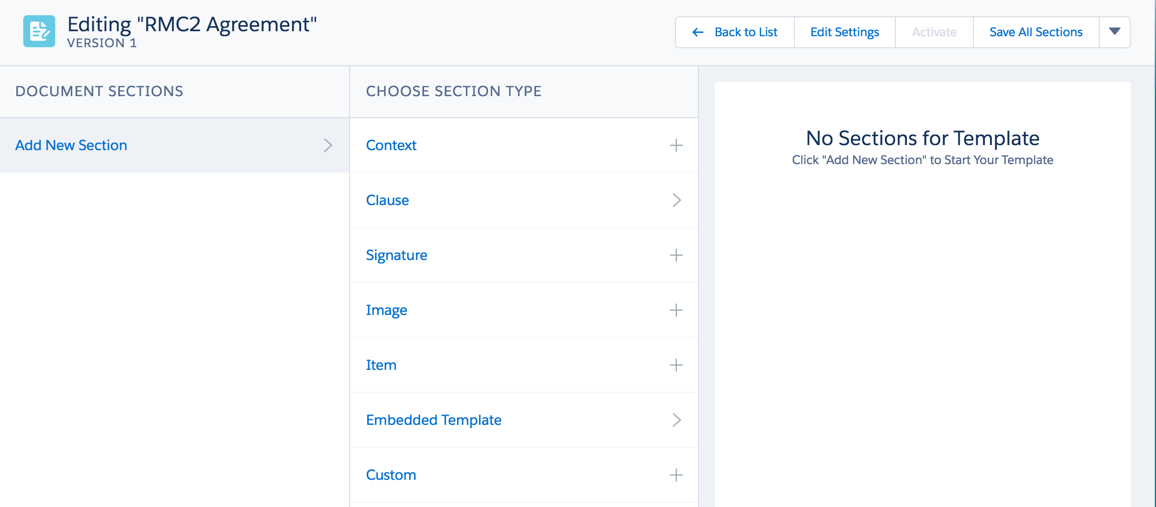
- In the Document Template Designer, in a contract document template, click Add New Section.
- Click Custom.
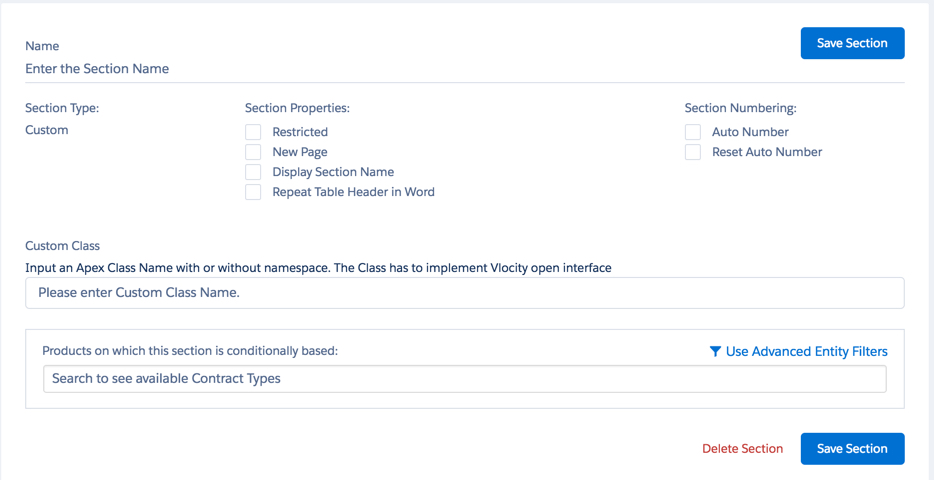
- Enter the section Name.
-
Select one or more of the following Section Properties:
-
To prevent users without the appropriate access from editing the section, select Restricted.
-
To start a new page when this section appears in the contract, select New Page.
-
To include the section name as a heading, select Display Section Name.
-
To repeat any table headers when they span multiple pages, select Repeat Table Header in Word.
-
To generate a contract with more than 200 line items in batch mode, select Generate in Batch.
-
-
Select one or more of the following Section Numbering options:
-
To use numbered headings, select Auto Number.
-
To reset the numbering when this section appears in the contract, select Reset Auto Number.
-
-
Enter the custom Apex class name.
If the class name is invalid or the class does not implement VlocityOpenInterface, you cannot save the section. The custom Apex class is called at run time. The section appears as part of the contract document.
- To include this section only if one or more specific Products are present, see Conditionalizing a Section Using Product Lists.
- To include this section based on more advanced conditions, see Conditionalizing a Section Using Entity Filters.
- Click Save Section.