
Connect to a Data Extension
Connect to a data extension to pull in additional attributes along with your engagement data. You can connect to any data extension that’s in your business unit and is below 50 million rows.
Required Editions
| Available in: Intelligence Reports Advanced |
| User Permissions Needed | |
|---|---|
| To Connect to a Data Extension: | Create & Edit |

Note
- SendLog and synchronized data extensions aren’t supported.
- Make sure your data extension doesn’t contain these columns: date_id, location_id, dat_account_currency, dat_exchange_rate, pacing_period, pacing_end_date, row_count, or brand_id.
- Make sure the data extension doesn’t use the same column name more than once.
- You can connect to up to 30 data extensions.
While connecting, create a join between engagement and data extension data to ensure the data appears correctly. After you connect to a data extension you can then create a query with the data extension’s fields. For more information, see Queries
- From Analytics Builder, select Intelligence [Datorama] Reports.
- Select the Setup tab.
-
Expand Connected Data Extensions, and then click Connect
Data Extension.
All data extensions that exist in your business unit appear in folders, just like they’re set up in Marketing Cloud Engagement.
-
Expand the folders until you reach the data extension you’re connecting to.
Note You can only connect to data extensions that haven’t been connected, if the data extension is already connected you can’t move onto the next step.
- Click Next.
- Ensure that all fields are correct, and then click Next.
-
To create a join between your engagement data and data extension data, select the fields
you want to connect.
Note This step is only necessary if you want to query your data extension data together with your engagement data using the Query Builder. For more information, see Create a Join Between Engagement and Data Extension Data.
-
Select the Join method you require.
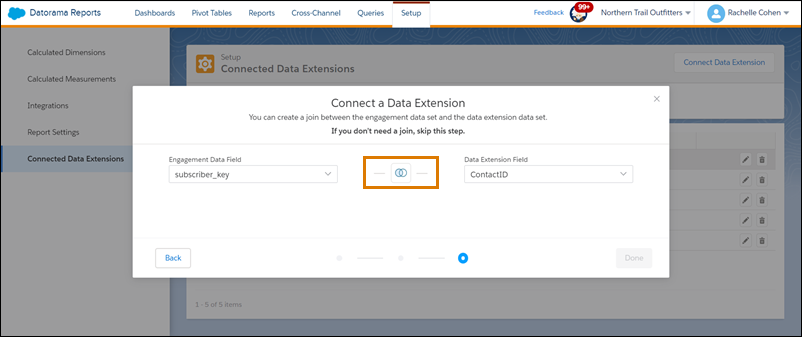 By default, the platform queries data based on the Left Join method. Only matching data from the left table is returned when querying.
 - To return all rows that are found from both tables, even if no match is found, select Full Join.
- Click Done.
- After the data extension is connected, you can create a query with the fields from the data extension.
Løste denne artikel dit problem?
Giv os besked, så vi kan forbedre os!
