You are here:
Route Leads to the Rep Who Has Waited Longest for a Lead Flow Example
Assign each new lead to the rep in the lead's region who has waited longest for a lead. Create the fields that the flow uses, and then build the record-triggered flow.
Required Editions
| View supported editions. |
| User Permissions Needed | |
|---|---|
| To open, edit, create, activate or deactivate a flow using all flow types, elements, and features available in Flow Builder, including Einstein and Agentforce for Flow: | Manage Flow |
| User Permissions Needed | |
|---|---|
| To create and edit custom objects: | Customize Application |

Your new leads sit in a shared queue until a manager hands them out manually. Some reps have more leads than they can handle while others wait for work, and leads go cold before anyone calls them.
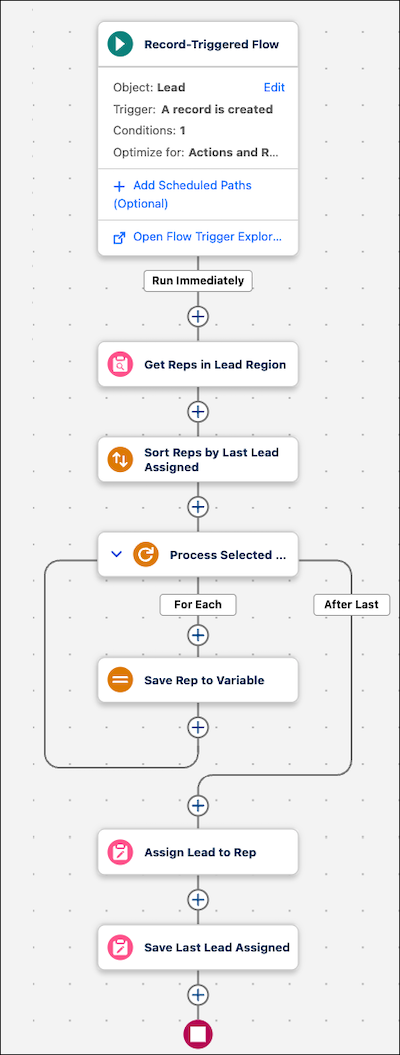
This flow assigns every new lead the moment that the lead is created. It looks at the lead's region and finds the active users in that region. The flow sorts them by when each one last received a lead. The flow assigns the lead to the user who has waited longest, and records the time the lead was assigned. The next lead in that region goes to someone else, so leads rotate evenly through the team.
To build this example, you first add the fields that the flow uses to match leads to reps and to track when each rep last received a lead. Then, you build the flow.
Create the Region and Last Lead Assigned Fields
Add the fields that the flow uses to match leads to reps and to track when each rep last received a lead.
- From Setup, in the Object Manager, click User.
-
If you don't have a Region field on the User object, create one.
- Click Fields & Relationships, and then click New.
- Select Picklist, and then click Next.
- For Field Label, enter Region.
- For Values, select Enter values, with each value separated by a new line.
- Enter these values, one per line: North, South, East, and West.
- Click Next until you reach the last page, and then click Save & New.
-
Create the Last Lead Assigned field.
- Select Date/Time, and then click Next.
- For Field Label, enter Last Lead Assigned.
- Click Next until you reach the last page, and then click Save.
-
If you don't have a Region field on the Lead object, create one.
- From Setup, in the Object Manager, click Lead.
- Click Fields & Relationships, and then click New.
- Select Picklist, and then click Next.
- For Field Label, enter Region.
- For Values, select Enter values, with each value separated by a new line.
- Enter the same values that you used on the User object: North, South, East, and West.
- Click Next until you reach the last page, and then click Save.
Create the Flow
Build the record-triggered flow that finds the rep in the lead's region who has waited longest and assigns the lead.
This flow runs each time someone creates a lead. It finds the active reps in the lead's region, sorts them so the rep who has waited longest comes first, and makes that rep the lead's owner. Then it records the time that the rep received the lead, so the rep moves to the back of the line.
-
Open the Flows list view.
- From the Automation app, select the Flows tab.
- From the Flows tab in any Lightning app, click the actions menu and select Open Flow.
- From Setup, in the Quick Find box, enter Flows, and then select Flows.
Note that the Automation app and Flows tab options don't require Setup access. -
Create a record-triggered flow.
- From the Automation app, click New | Triggered Automations | Record-Triggered Flow.
- From Setup, click New Flow | Triggered Automations | Record-Triggered Flow
The new record-triggered flow opens in Flow Builder. -
Configure the Start element so the flow runs when someone creates a lead.
The Start element sets the object and the conditions that trigger the flow. The flow runs only for new leads that have a region.
- For Object, select Lead.
- For Trigger the Flow When, select A record is created.
- In the Set Entry Conditions section, for Condition Requirements, select All Conditions Are Met (AND).
-
For Field, select Region. For Operator, select Is
Null, and for Value, select False.
This condition skips leads that don't have a region, because the flow can't match them to a rep.
- For Optimize the Flow for, select Actions and Related Records.
-
Add a Get Records element that finds the reps in the lead's region.
This step builds a collection of every active user whose region matches the new lead's region.
-
Click
 , and then select Get Records.
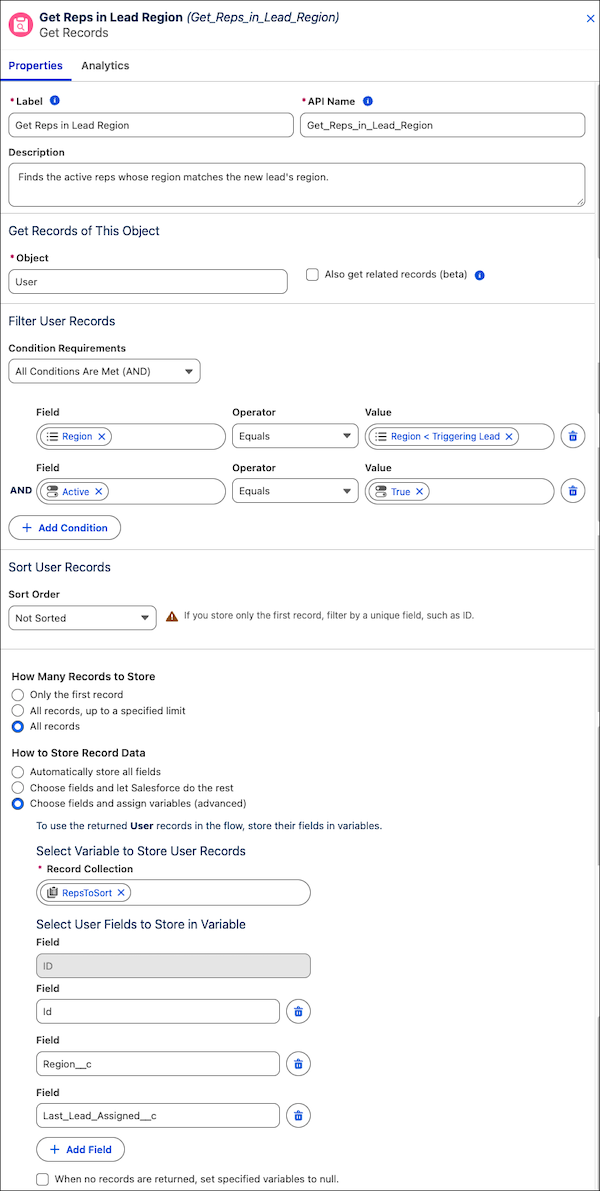
- For Label, enter Get Reps in Lead Region and let the API name autofill.
- For Description, enter Finds the active reps whose region matches the new lead's region.
- For Object, select User.
- In the Filter User Records section, for Condition Requirements, select All Conditions Are Met (AND).
- For Field, select Region. For Operator, select Equals, and for Value, select Triggering Lead > Region.
-
Add a second condition by clicking + Add Condition. For
Field, select Active. For Operator, select
Equals, and for Value, select
True.
This condition excludes inactive users.
- For How Many Records to Store, select All records.
-
For How to Store Record Data, select Choose fields and assign
variables (advanced).
Select this option because the element that sorts the records requires a manually created record collection variable instead of the Get Records automatic record collection variable.
- In the Select Variable to Store User Records, in the Record Collection text box, click Search record collections...".
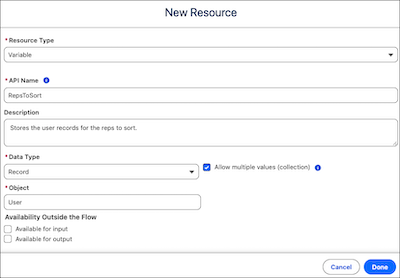
- Click + New Resource.
- For Resource Type, select Variable.
- For API Name, enter RepsToSort.
- For Description, enter Stores the user records for the reps to sort.
- For Data Type, select Record.
- Select Allow multiple values (collection).
- For Object, select User.
-
Click Done.
In the Select User Fields to Store in Variable section, the ID is automatically added and read-only. The flow needs the rep's ID to assign the lead and to update the rep's user record.- After the field set to ID, in the next Field, find and select Region__c.
-
In the next Field, find and select
Last_Lead_Assigned__c.
The Collection Sort element sorts the reps by this field. If you don't store it, the sort has no values to use.
-
Click
-
Add a Collection Sort element that puts the rep who has waited longest first.
This step reorders the collection of reps by the time each one last received a lead, and keeps only the first rep.
-
Click , and then select Collection Sort.
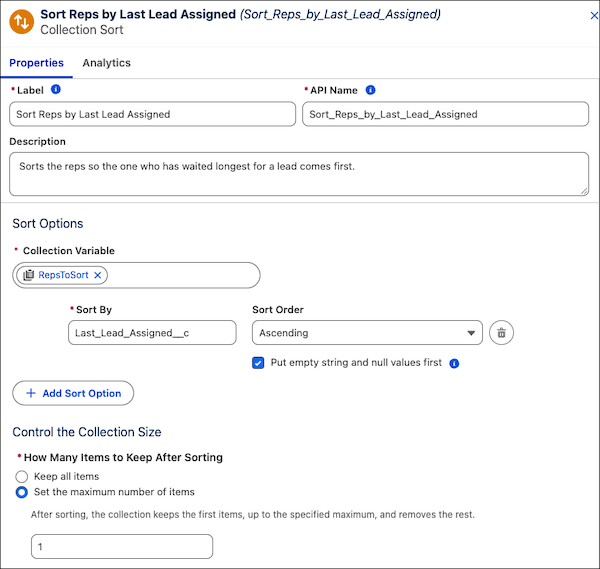
- For Label, enter Sort Reps by Last Lead Assigned and let the API name autofill.
- For Description, enter Sorts the reps so the one who has waited longest for a lead comes first.
- For Collection Variable, select RepsToSort.
- In the Sort Options section, for Sort By, select Last Lead Assigned. For Sort Order, select Ascending.
-
Select Put empty string and null values first.
Reps who haven't received a lead yet have a blank Last Lead Assigned value. This option puts them ahead of reps with a date.
-
For How Many Items to Keep After Sorting, select Set the maximum number of
items, and then enter 1.
The collection now holds only the rep who has waited longest.
-
Click
-
Add a Loop element that goes through the sorted reps.
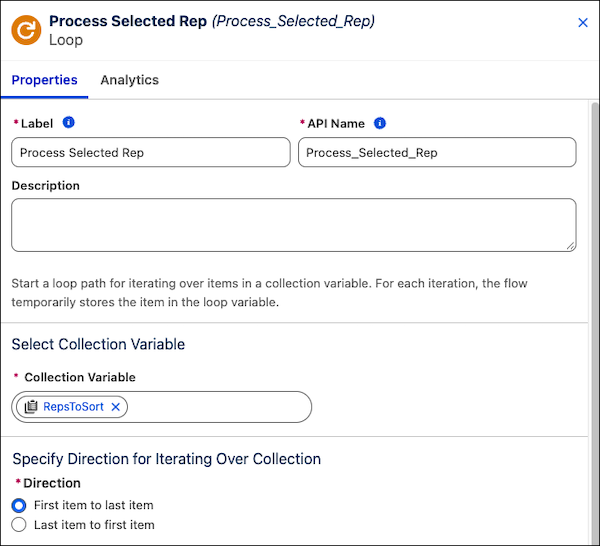
The Update Records elements can't use a record collection to set a single value. The loop gets the one rep who remains in the collection and puts that rep in a Current Item from Loop variable. The loop runs one time, because the collection holds only one rep.
-
Click , and then select Loop.
- For Label, enter Process Selected Rep and let the API name autofill.
- For Description, enter Gets the one rep who has waited longest so the flow can use that rep's values.
- For Collection Variable, select RepsToSort.
- For Direction, select First item to last item.
-
Click
-
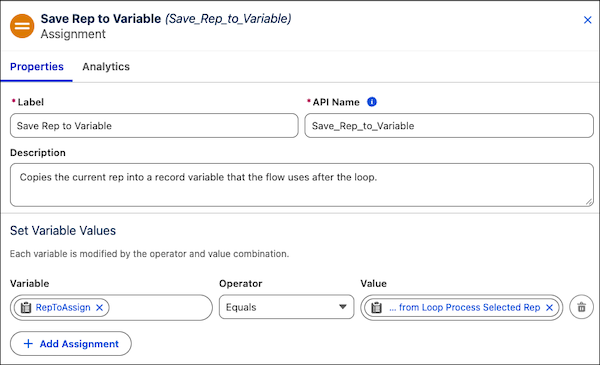
Add an Assignment element on the loop's For Each path that saves the rep in a record
variable.
This step copies the rep from Current Item from Loop into a single User record variable. The elements after the loop use that variable to get the rep's values.
-
On the For Each path of the loop, click , and then select Assignment.
- For Label, enter Save Rep to Variable and let the API name autofill.
- For Description, enter Copies the current rep into a record variable that the flow uses after the loop.
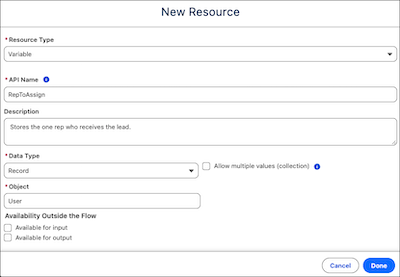
- For Variable, click + New Resource.
- For Resource Type, select Variable.
- For API Name, enter RepToAssign.
- For Description, enter Stores the one rep who receives the lead.
- For Data Type, select Record. Don't select Allow multiple values (collection).
- For Object, select User.
-
Click Done.
-
For Operator, select Equals, and for Value, select
Current Item from Loop > Entire Resource.
-
On the For Each path of the loop, click
-
Add an Update Records element that makes that rep the lead's owner.
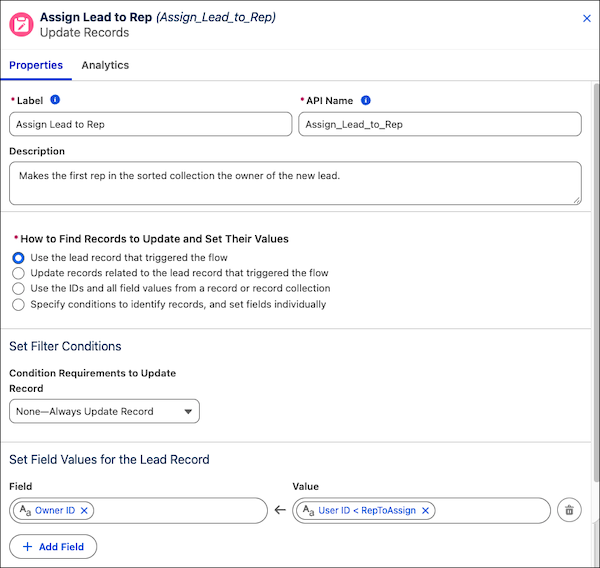
This step changes the Owner ID on the new lead to the rep in the RepToAssign variable. Connect it to the After Last Item path of the loop.
-
Click , and then select Update Records.
- For Label, enter Assign Lead to Rep and let the API name autofill.
- For Description, enter Makes the first rep in the sorted collection the owner of the new lead.
- For How to Find Records to Update and Set Their Values, select Use the lead record that triggered the flow.
- In the Set Field Values for the Lead Record section, for Field, select Owner ID.
- For Value, select RepToAssign > User ID.
-
Click
-
Add an Update Records element that records when the rep received the lead.
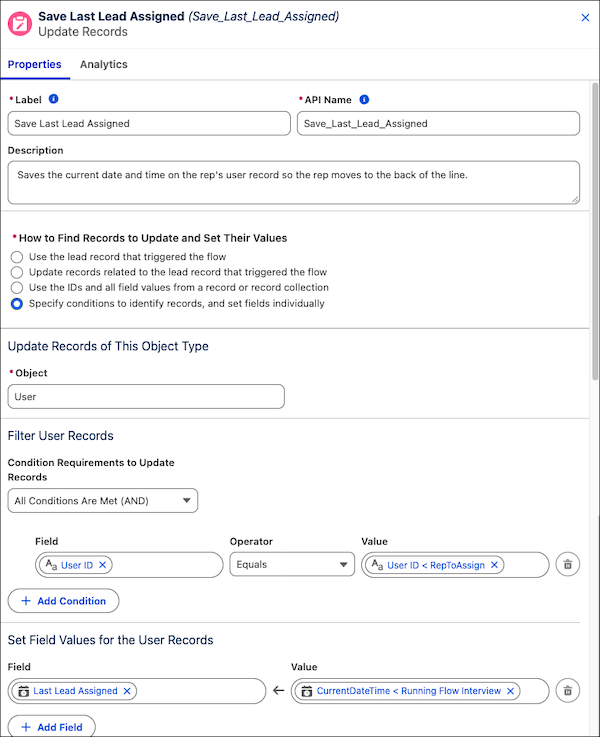
This step moves the rep to the back of the line for the next lead.
-
Click , and then select Update Records.
- For Label, enter Save Last Lead Assigned and let the API name autofill.
- For Description, enter Saves the current date and time on the rep's user record so the rep moves to the back of the line.
- For How to Find Records to Update and Set Their Values, select Specify conditions to identify records, and set fields individually.
- For Object, select User.
- In the Filter User Records section, for Field, select User ID. For Operator, select Equals, and for Value, select RepToAssign > User ID.
- In the Set Field Values for the User Records section, for Field, select Last Lead Assigned. For Value, select Running Flow Interview > CurrentDateTime.
-
Click
-
Save the flow and give it a descriptive name, such as Route New Leads to the
Rep Who Waited Longest.
- For Description, enter Assigns each new lead to the rep in the lead's region who has waited longest for a lead.
- Test the flow to make sure that it works as expected. For example, create two leads with a region that matches at least two reps. Confirm that each lead goes to a different rep.
- Click Activate.
When you're ready, update the user records for the reps who receive leads. Set the Region field on each user record. Leave the Last Lead Assigned field blank for every rep. The flow treats a blank value as "hasn't received a lead yet" and sends leads to those reps first.
