
You are here:
Use Lookup Fields in the Quote Line Editor
Add a lookup field to your quote lines and use it in the quote line editor to associate your quote line with another record. You can also customize the fields that appear in the lookup field’s record search box. (Salesforce CPQ Managed Package)
Required Editions
| Available in: All Salesforce CPQ Editions |
As of Salesforce CPQ Summer ’18, all lookup fields used in CPQ Visualforce pages require a Lookup fieldset on the object they target. This fieldset contains the fields that appear in the lookup field’s search results window.
-
Add your lookup field to your quote line.
- From the quote line’s management page, go to Custom Fields & Relationships and click New.
- On the New Custom Field page, click Lookup Relationship and then click Next.
- Choose the object that your quote line lookup field relates to.
- Give your lookup field a name, then add a description and help text if needed.
- Choose your field-level security.
- Make sure Add Field is selected for the quote line layout.
- Add custom related lists if needed, then click Save.
-
Add the lookup field to your quote line’s Line Editor field set.
- From the Quote Line management page, go the Field Sets related list, then find the Line Editor field set and click Edit.
- Add your lookup to the field set.
-
Add your lookup fieldset to your lookup target object.
- From your target object’s management page, go to the Field Sets related list and click New.
-
Give your fieldset a label name of CPQ_Lookup.
 Important You can change the field set name , but the label must always be CPQ_Lookup.
 - Go to your object’s Field Sets related list, then find CPQ_Lookup and click Edit.
- Add the fields that you want to appear in the lookup field’s search results window. By default, the window always shows the master record ID and Owner ID.
-
Use your lookup field in the quote line editor.
-
In the quote line editor, find your lookup field on any of your quote lines and click the
Pencil icon.
Salesforce CPQ shows the lookup search box.
-
Enter your search term, then hit Enter. To search for all available records, leave the
search box blank and hit Enter.
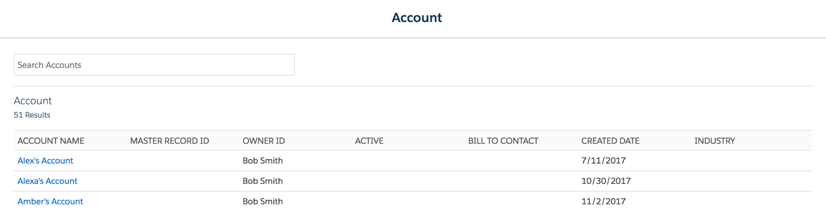
Salesforce CPQ shows the lookup search results box. The box contains a list of records that match your search input. Each result also shows values for the fields you added to the Lookup fieldset in Step 3.
Here’s an example of a lookup result page for an Account lookup field. The account’s Lookup fieldset contains the Account Name, Active, Bill To Contact, Created Date, and Industry fields.
-
In the quote line editor, find your lookup field on any of your quote lines and click the
Pencil icon.
Løste denne artikel dit problem?
Giv os besked, så vi kan forbedre os!
