You are here:
Authentication and Data Flow for Momentum
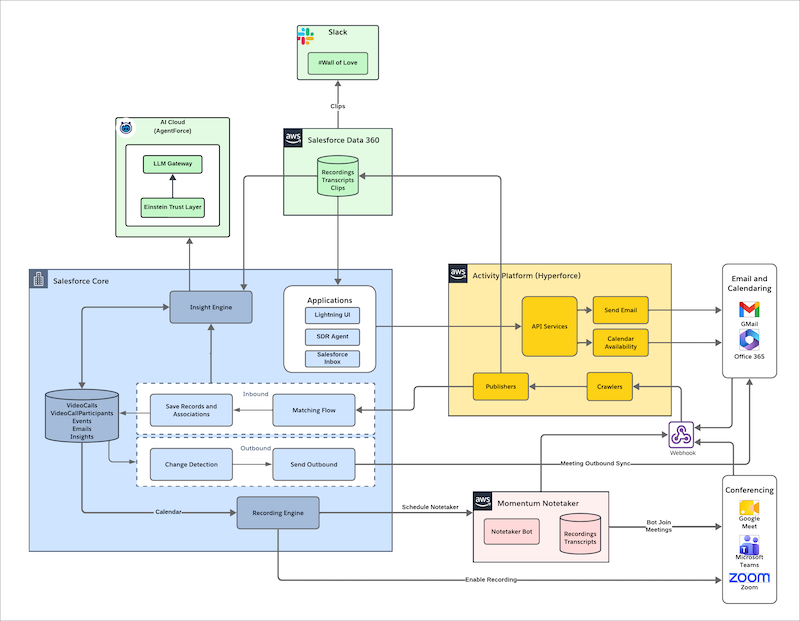
When you turn on Momentum, Salesforce creates a corresponding Momentum service on the Activity Platform Hyperforce infrastructure. Review how Momentum authenticates to connect to each data provider to understand the flow of data between connected systems.
Authentication
For internal server authentication, encrypted private keys authenticate the integration between Salesforce first-party servers, where primary Salesforce data is stored, and Activity Platform Hyperforce infrastructure servers, where some Momentum data is stored. These keys are required when Momentum makes API calls to the infrastructure.
For external account authentication, Momentum uses secure OAuth 2.0 flows to connect. All connections use token-based authentication with the activity data provider.
This authentication method requires each user to connect to their own Google Workspace™ account after the Salesforce admin completes the required Momentum setup and configuration. Users manage their own account connections to Google.
Microsoft
This authentication method requires each user to connect to their own Microsoft 365™ account after the Salesforce admin completes the required Momentum setup and configuration. Users manage their own account connections to Microsoft.
Momentum uses Client Credential Authentication flow as part of Microsoft Graph API authentication. Salesforce stores the certificate securely in a Salesforce managed vault and rotates it periodically.
We recommend that an Azure admin use the Admin Consent flow to automate scope authorization. Granting app permissions in advance can help prevent confusion by removing the need for additional authentication.
| Authentication Level | Consent URL with App ID |
|---|---|
| User-Level | https://login.microsoftonline.com/common/adminconsent?client_id=94253d21-07ad-4f9e-bfea-0e3586186a3a |
Delegated scopes are used by the logged-in user who connected their account. Application scopes are used on behalf of the application.
| Scope | Permission Type | Description |
|---|---|---|
| Calendars.Read | Delegated | Read user calendars |
| Calendars.ReadWrite | Delegated | Full access to user calendars |
| CallRecords.Read.All | Application | Read all call records |
| Files.Read | Delegated | Read user files |
| Mail.Read | Delegated | Read user mail |
| Mail.Send | Delegated | Send mail as a user |
| OnlineMeetingArtifact.Read.All | Delegated | Read user’s online meeting artifacts |
| OnlineMeetingArtifact.Read.All | Application | Read online meeting artifacts |
| OnlineMeetingRecording.Read.All | Delegated | Read all recordings of online meetings |
| OnlineMeetingRecording.Read.All | Application | Read all recordings of online meetings |
| OnlineMeetings.Read | Delegated | Read user’s online meetings |
| OnlineMeetings.ReadWrite | Delegated | Read and create user’s online meetings |
| OnlineMeetingTranscript.Read.All | Delegated | Read all transcripts of online meetings |
| OnlineMeetingTranscript.Read.All | Application | Read all transcripts of online meetings |
| User.Read | Delegated | Sign in and read user profile |
Zoom
Zoom requires that each user to connect to their own account user after the Salesforce admin completes the required Momentum setup and configuration. Users manage their own account connections to Zoom.
Zoom allows meetings to match to calendar events, automatically enable recording, download recordings, and match users with calendar events.
| Category | description | Scope |
|---|---|---|
| Meetings | Automatically enable recording | meeting:update:meeting |
| Meetings | Match meetings to calendar events, decide which meetings to record | meeting:read:meeting meeting:read:past_meeting meeting:read:list_past_participants |
| Recording | Download recordings from Zoom | cloud_recording:read:list_user_recordings cloud_recording:read:list_recording_files cloud_recording:read:recording |
| User | Confirm Zoom is configured correctly for recording meetings | user:update:settings user:read:user user:read:settings |
Data Flow
After the activity provider is connected, Momentum subscribes to the provider's calendar events. For Microsoft, Momentum uses the Microsoft Graph API to detect when new emails or events arrive in a user’s account. These notifications trigger Momentum to retrieve the new item’s details. For Google, Momentum uses Gmail push notifications or periodic polling to detect new emails and the Google Calendar API for events.
If your company restricts outbound connections, make sure that the Momentum webhook endpoints are a part of the allowlist. Momentum uses specific endpoints to receive change notifications from Google. For a list of endpoint URLs, see Network Connections.
Network Connections
Whether you use Google Workspace or Microsoft 365, make sure these Salesforce inbound and outbound connections to Salesforce are allowed from your firewall. Adding these IP addresses to your allowlists ensures the successful and uninterrupted access to Momentum services and data.
Inbound Connections
Depending on how you set up Salesforce, it might be necessary to add other Salesforce IP addresses to your allowlist. See Salesforce IP Addresses and Domains to Allow.
| If Your Salesforce Instance Is Outside of Europe or ANZ | If Your Salesforce Instance Is in Europe, the Middle East, and Africa (EMEA) | If Your Salesforce Instance Is in Australia and New Zealand (ANZ) |
|---|---|---|
|
|
|
Outbound Connections
If your company restricts outbound connections, allow access to these domains. To ensure uninterrupted service, add both sets of webhook endpoints to your allowlist.
| If Your Salesforce Instance Is Outside of Europe | If Your Salesforce Instance Is in Europe, the Middle East, and Africa (EMEA) | If Your Salesforce Instance Is in Australia and New Zealand (ANZ) |
|---|---|---|
| apiq-ms-gph-webhook-c01.apiq.sfdc-lywfpd.svc.sfdcfc.net | apiq-ms-gph-webhook-c01.apiq.sfdc-yzvdd4.svc.sfdcfc.net | apiq-ms-gph-webhook-c01.apiq.sfdc-vwfla6.svc.sfdcfc.net |
| apiq-ms-gph-webhook-c02.apiq.sfdc-lywfpd.svc.sfdcfc.net |
Revocation
Admins can disconnect a user’s Momentum connection by removing the user from the Momentum configuration. Users can delete their accounts connected to Salesforce. Disconnecting an account revokes the token and stops data capture.
If you suspect any compromise, such as a token leak, you can revoke the OAuth token from the activity data provider. Learn how to delete your settings and turn off Momentum. For setups that have user level authorization, every user manages their own account connection. Users can disconnect their accounts in their personal settings.
