When you choose your brand color, Trailmaker adjusts the color as necessary for
accessibility and legibility. The page header text is white and gray. We recommend not using
white, yellow, or another pale hue for your brand color. Select a darker color for text to make it
more readable.
Required Editions
Available in: Enterprise, Performance, and
Unlimited Editions
User Roles and
Permissions
Enablement Site User Roles
This topic supports these enablement site roles:
Salesforce Admins
Required System Permissions
To customize the branding on your enablement site:
Manage Site Settings
In Trailmaker Settings, select Branding.
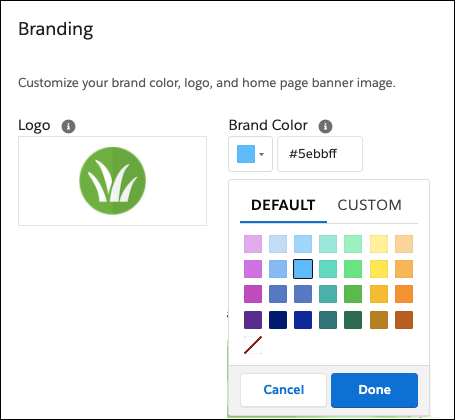
Under Brand Color, click the color menu.
To use a default color, click the color on the palette.
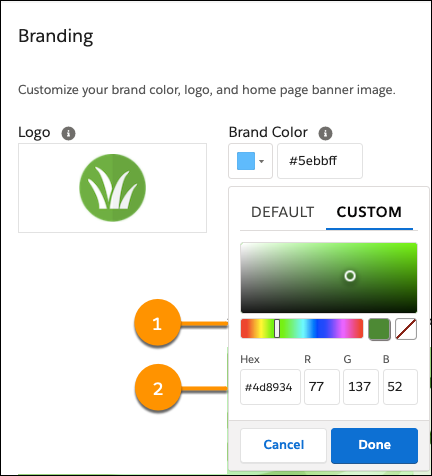
To use a custom color, click Custom. To view the range of color
that you want, move the slider that’s below the color field (1). To select the specific hue,
click in the color field. Or, enter the hex value or the RGB values (2).
Click Done.
Click Publish.
Click Publish again to confirm the changes.
After you publish the changes, they’re visible on your enablement site.
Konnten Sie Ihr Problem mithilfe dieses Artikels lösen?
Geben Sie uns Feedback, damit wir uns verbessern können.
Laden
Salesforce Help | Article
Cookie Consent Manager
Cookie Consent Manager
General Information
Required Cookies
Functional Cookies
Advertising Cookies
General Information
We use three kinds of cookies on our websites: required, functional, and advertising. You can choose whether functional and advertising cookies apply. Click on the different cookie categories to find out more about each category and to change the default settings.
Privacy Statement
Required Cookies
Always Active
Required cookies are necessary for basic website functionality. Some examples include: session cookies needed to transmit the website, authentication cookies, and security cookies.
Functional Cookies
Functional cookies enhance functions, performance, and services on the website. Some examples include: cookies used to analyze site traffic, cookies used for market research, and cookies used to display advertising that is not directed to a particular individual.
Advertising Cookies
Advertising cookies track activity across websites in order to understand a viewer’s interests, and direct them specific marketing. Some examples include: cookies used for remarketing, or interest-based advertising.